Remove Tags
Use the Parameter page to specify the file tags the action removes.
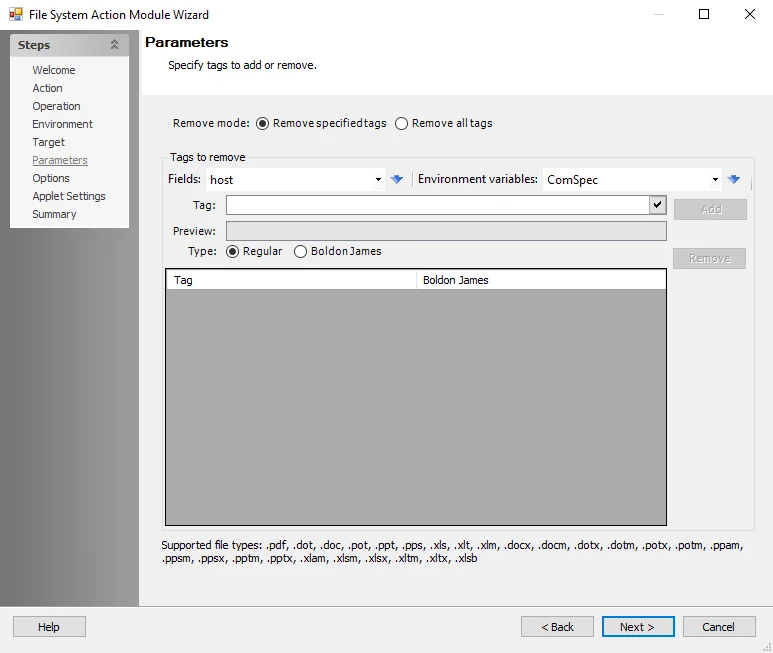
Use the fields provided to select tags from the drop-down lists and populate the Tag field, or edit the field manually. The Preview field updates based on the contents of the Tag field.
-
Remove Mode:
- Remove specified tags - Remove specified tags from the existing list of tags
- Remove all tags - Remove all existing tags
If choosing the option to overwrite tags, the action module will clear out both normal tags and Boldon James tags and then proceed to apply the tags configured for overwrite. If choosing the option to remove all tags, the action module will clear out both normal tags and Boldon James tags.
- Fields – Use the drop-down list to select a field (column) from the source table, then click the blue arrow to insert the item into the Tag field
- Environment Variables – Select an item from the drop-down list, then click the blue arrow to insert the item into the Tag field
- Preview – Shows what the compound path specified will be resolved in to
- Click Add to add the tag field to the list for removal
- Click Remove to remove the tag field from the list for removal
-
Type - Select which type of tag to remove. The two types of tags that can be removed are:
-
Regular - Specify a regular tag for removal
-
Boldon James - Specify a Boldon James tag for removal
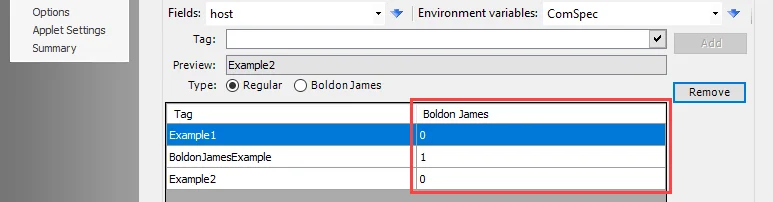
noteThe Boldon James column indicates whether a file tag is a regular tag or a Boldon James tag. Regular tags will be identified with 0. Boldon James tags will be identified with 1.
-
A list of supported file types appears at the bottom of the page.