Survey: Questions
Use this page to specify the questions on the survey. Configure the following for each question:
-
The text of the question
- Example:
Are you the owner of the following stale AD objects?
- Example:
-
The subject of the question – The subject is the object to which the question is directed, such as a user who has access to AD objects. Specify the subject via a dynamic field.
- Example: UserName
- The data table must contain a column with the subject of each question on the survey
-
A name for the answer column in the result table. This column stores the answers to the survey question.
-
The question type (Yes/No, Text, or Multiple Choice)
-
Any additional descriptive text to include for the question
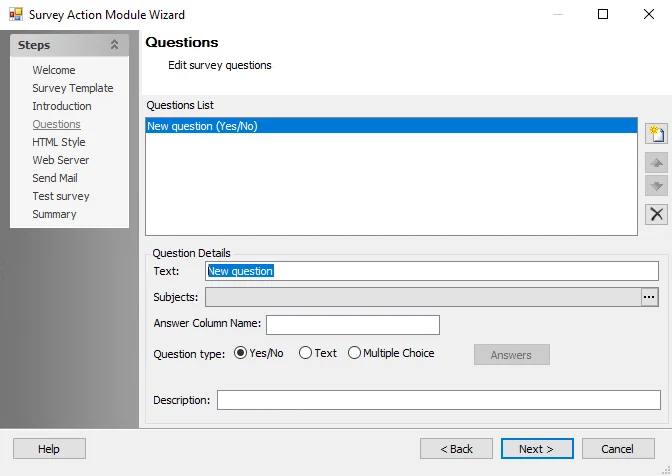
The configurable options are:
-
Questions List – Any existing questions appear in the Question List box. The following buttons are available:
- Add new question – Adds a new question to the Questions list. Use the Question Details section to customize the question.
- Remove question – Remove selected question from the Questions list
- Up and Down arrows – Re-order questions
-
Question Details – Use this section to define your survey questions. The following options are available:
-
Text – Specify the survey question
-
Subjects – Click the ellipses (…) to open the Select subjects window. Specify the object to which a question is directed. The selected subjects show in the Subjects field. See the Select Subjects Window topic for additional information.
-
Answer Column Name – The Survey action module inserts the results of the survey directly into the SQL table on which a survey is based, creating an answer column for each question in the survey. Give each column a unique name that corresponds to the associated survey question.
-
Question type – Specify a question type. The options are:
- Yes/No
- Text
- Multiple Choice – If you select this option, the Answers button activates. Click this button to open the Answers window and specify the response options to the multiple choice question via the Add button.
-
Answers – This button activates if you select Multiple Choice in the Question Type field. Click to access the Answers window.
-
Description – Specify any additional explanation of the survey question. The text appears on the survey below the associated question.
-
Select Subjects Window
Select which subjects to use for the Survey question using the Select subjects window.
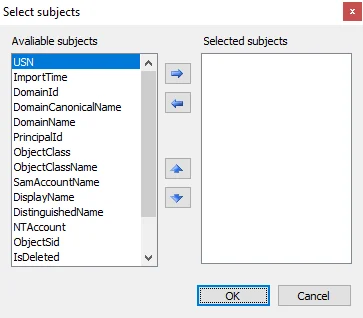
Select a subject from the Available subjects list, then click the Right Arrow to move it into the Selected Subjects list. Remove a subject from the Selected Subjects list by selecting a subject and clicking the Left Arrow. Change the priority of the subjects in the Selected Subjects list by using the Up and Down Arrows.