EWSPublicFolder: Filter
The Filter settings page provides options to filter folders and attachments. It is a wizard page for the categories of:
- Public Folder contents
- Public Folder permissions
- Sensitive Data
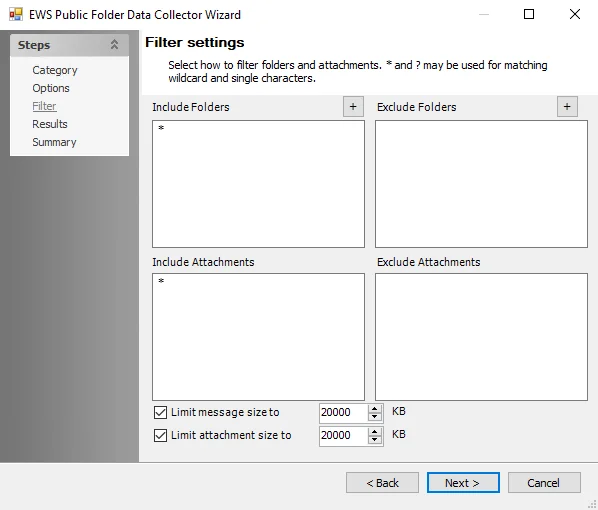
The scan includes all folders and attachments by default. Scope the scan for specific folders and attachments:
- Include Folders – Enter the folder paths to filter the scan to specific mailbox folders
- Include Attachments – Enter the attachment file names to filter to specific attachments
- Exclude Folders – Enter the folder paths to exclude mailbox folders from the scan
- Exclude Attachments – Enter the file names for the attachments to exclude attachments from the scan
Use * and ? for matching wildcard and single characters.
- Limit message size to [numerical value] – Select to limit message size and define the threshold for maximum size of a message. The default value is 20000 KB.
- Limit attachments size to [numerical value] – Select to limit attachment size and define a threshold for maximum size of an attachment returned in the scan. The default value is 20000 KB.
You can also include or exclude public folders from the scan by retrieving a list of public folders and selecting the folders you want.
To filter the scan by selecting public folders from a list:
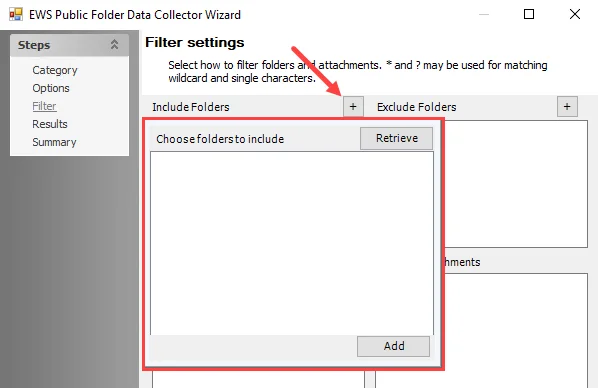
Step 1 – Click the + button to the right of the Include Folders or Exclude Folders box to open the Choose folders to include or Choose folders to exclude window.
Step 2 – Click Retrieve to load the list of public folders that can be selected.
Step 3 – Select the public folders you want and click Add to add the folders to the Include Folders or Exclude Folders list.
After you save the configuration changes, the data collector filters scans by the selected public folders.