Configuring Custom SPN Mapping for Applet Hosts
When to use SPN mapping
Netwrix Access Analyzer authenticates to each applet host using Kerberos with an automatically generated Service Principal Name (SPN). In environments where the applet host sits behind a proxy — or where applet services run under accounts whose SPNs don't match the default pattern — this automatic SPN won't exist in Active Directory and certificate exchange with the applet will fail.
Use custom SPN mapping to specify which SPN Access Analyzer should present when it connects to each applet host.

Before you begin
-
Identify the correct SPN for each applet host that needs an override. Verify the SPN is registered in Active Directory and that the scan account can authenticate against it:
setspn -Q <spn>If the SPN is registered, the command lists the account it's bound to. The message
No such SPN foundmeans the SPN isn't yet registered in Active Directory. -
Create a table the scan's SQL connection can read, containing at minimum the applet host name and its SPN. The table must reside in a database reachable by the scan job's SQL connection profile, and the account in that profile needs at least
SELECTpermission on the table. Example:CREATE TABLE dbo.FSAAAppletSPN (Host NVARCHAR(255) NOT NULL PRIMARY KEY,SPN NVARCHAR(512) NOT NULL);INSERT INTO dbo.FSAAAppletSPN (Host, SPN) VALUES('fileserver01.contoso.com', 'HOST/proxy01.contoso.local'),('fileserver02.contoso.com', 'HOST/proxy02.contoso.local');
Query requirements
- The query must return columns named
HostandSPN(you can use aliases, e.g.SELECT ServerName AS Host, …). - The
@hostparameter - supplied automatically by Access Analyzer as the proxy server - is available if you want to filter by applet host, but it's optional — if your query doesn't reference it, Access Analyzer will use every row returned. - Host matching is case-insensitive.
- Host name format must be consistent. The format you use in the table (FQDN, short name, or IP address) must exactly match the format you use for the applet host. For example, if the applet host uses a fully qualified domain name (FQDN), use the FQDN in the table as well. Don't mix formats — for example, don't store a short hostname while the applet host uses an FQDN.
Configure the mapping
-
Open Netwrix Access Analyzer and edit the scan job.
-
In the job wizard, go to the Applet page.
-
Under SPN Mapping, check Enable SPN mapping.
-
Click Configure Query.
-
Enter a SQL query that returns the columns
HostandSPN. You can either filter the results by scan target using the@hostparameter, or omit the parameter and return the full mapping for all applet hosts.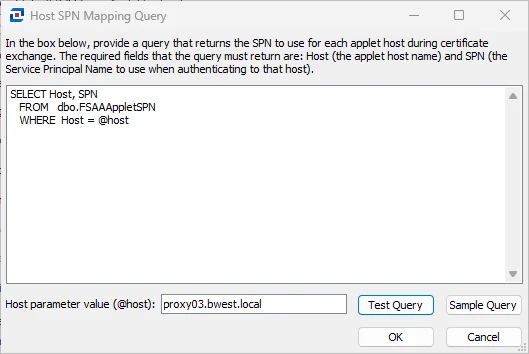
Filter by scan target — useful when the mapping table contains entries for many scan targets and you only want to return the one relevant to the current job:
SELECT Host, SPNFROM dbo.FSAAAppletSPNWHERE Host = @hostReturn all mappings — useful when a single table serves multiple jobs, or when the applet host differs from the scan target (for example, when scanning through a proxy where the
@hostvalue wouldn't appear in the mapping table):SELECT Host, SPNFROM dbo.FSAAAppletSPNThe query results pane shows the host and SPN columns returned by your query:

-
Click OK, then finish the wizard to save the job.
The next time the job runs, Access Analyzer uses the SPN your query returns for each matching applet host. If an applet host has no matching row, Access Analyzer uses the default SPN (the DNS-resolved FQDN).
Troubleshooting
| Problem | What to check |
|---|---|
| Query must contain Host column / SPN column | Ensure your SELECT returns both columns with those names (or with aliases). |
| Error getting mapping query results | Run the query manually using the job's SQL credentials to confirm it's valid and the table is accessible. |
| Certificate exchange still fails after enabling the mapping | Verify the SPN is registered in Active Directory (setspn -Q <spn>) and that the scan account can authenticate as it. |
Disable SPN mapping
To return to the default SPN behavior, clear the Enable SPN mapping checkbox and save the job. Access Analyzer retains your query so you can re-enable the feature later without re-entering it.