NoSQL: Filter
Use the Filter page to scope the query to target specific databases or instances. It is a wizard page for the Sensitive Data Collection category.
Populate the available Mongo databases/instances before scoping the query. See the Manage Connections Window topic for additional information.
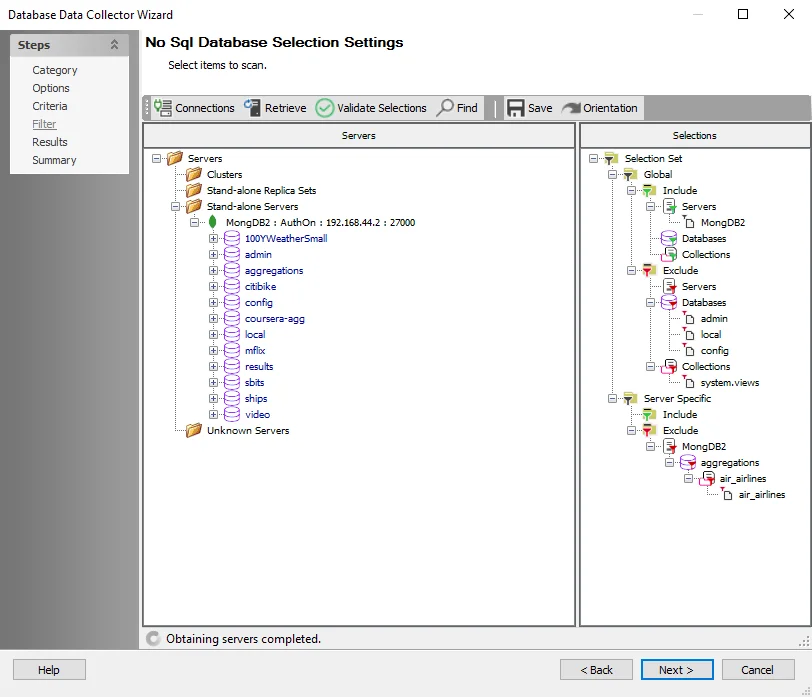
The Filter page has the following buttons:
- Connections — Opens the Manage Connections window to add or modify database instances. See the Manage Connections Window topic for additional information.
- Retrieve — Click to populate the Server pane with the database instances added in the Manage Connections window
- Validate Selections — Validate the include /exclude filters shown in the Selections pane
- Find — Select an item in the Servers list and click find to search for any objects that match the search string
- Save — Click to save the selected filters
- Orientation — Alternate between a vertical and horizontal split
The configurable filter options are:
-
Servers — Displays known databases and instances for query scoping. Click Retrieve to populate. Right click to open context menu:
- Exclude — Excludes selected databases/instances and displays them in red
- Include — Reverts an exclusion. By default, all sub tables are included.
- Build Pattern — Opens the Build Pattern dialogue to build a custom filter to apply to the selected database objects. See the Build or Edit Pattern topic for additional information.
-
Selections — Displays selected database objects the query is scoped to. Right click to open context menu:
-
Remove Pattern — Removes the selected database/instance from the query
-
Edit Pattern — Opens the Edit Pattern dialogue with the following options (See the Build or Edit Pattern topic for additional information):
- Exclude — Excludes selected databases/instances and displays them in red
- Include — Reverts an exclusion. By default, all sub tables are included.
- Pattern — Build a custom filter to apply to the selected database objects
-
Manage Connections Window
Use the Manage Connections window to add MongoDB database instances to search for sensitive data. Click Connections to open the window.
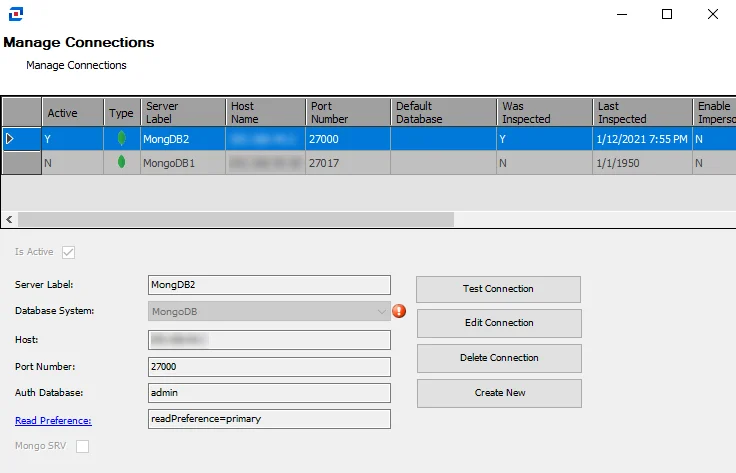
The Manage Connections table lists the previously added database instances and their attributes.
Select a row in the table to edit that instance, or create a new instance to add to the table. For additional information on how to connect to a MongoDB database, see the MongoDB Get Connection String article.
- Is Active — Select the checkbox to include the database on the Servers Pane on the Filter page
- Server Label — The name of the server
- Host — Name or IP address of the host where the database is located
- Port Number — Port number for the database. The default port is 27017. If you use a non-default port, specify it in the Port Number section.
- Auth Database — The database used for authorization. Typically it is the admin database.
- Read Preference — Read preference describes how MongoDB clients route read operations to the members of a replica set by default, an application directs its read operations to the primary member in a replica set (that is, read preference mode primary). Howevert, clients can specify a read preference to send read operations to secondaries. Click the link for additional information.
- Mongo SRV — Specifies that the information entered is for clusters or shards
In the Manage Connections table, the following information is also listed:
- Was Inspected — Indicates whether information for a connection was validated. Y indicates the information has been validated. N indicates the information has not been validated.
- Last Inspected — Indicates the date and time of when the connection information was last inspected. If blank, the connection information has not yet been validated.
- Enable Impersonation – Impersonation doesn't apply to MongoDB and this column will be blank.
The Manage Connections window has the following buttons:
- Test Connection — Click to verify the connection to the database with the connection profile applied to the job group
- Edit Connection — Click to edit information for the selected connection
- Delete Connection — Click to delete the selected connection
- Create New — Click to create a new connection
Build or Edit Pattern
Use the Build / Edit Pattern window to apply a custom scoping filter to the query.
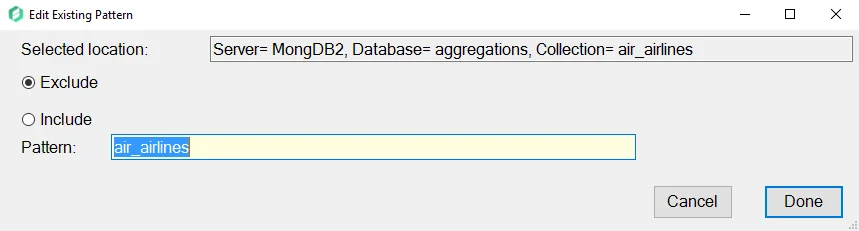
The Build / Edit Pattern window has the following features:
-
Selected Location — The location within the database / collection
-
Exclude — Excludes selected database / instances and displays them in red
-
Include — Reverts an exclusion. By default, all sub tables are included.
-
Pattern — Build a custom filter to be applied to the selected database objects
noteColor-coding indicating Excluded and Included objects doesn't display until after you validate a selection using the Validate Selections button on the Filter page.