2-AAD_Exceptions Job
The 2-AAD_Exceptions Job identifies toxic conditions that exist within Microsoft Entra ID which may leave environments at risk or add unnecessary administrative overhead.
Analysis Tasks for the 2-AAD_Exceptions Job
Navigate to the .Entra ID Inventory > 2-AAD_Exceptions > Configure node and select Analysis. You can modify analysis tasks with configuration parameters that define security concerns.
Most of these analysis tasks are preconfigured. Don't modify or deselect them. A few are deselected by default because they're for troubleshooting.
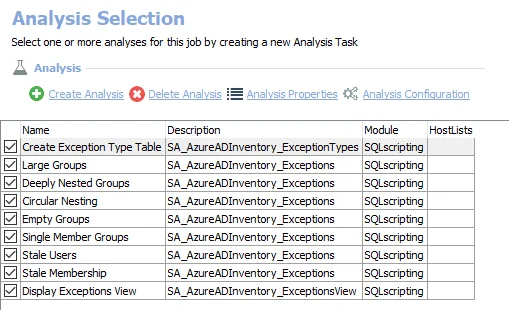
The default analysis tasks are:
- Create Exception Type Table – Creates a processing table in the database for use by downstream analysis and report generation
- Large Groups
- Identifies groups that exceed the defined threshold for effective group membership
- Populates processing tables in the database for use by downstream analysis and report generation
- This analysis task has configurable parameters
- Definition of a larger group can be customized
- Deeply Nested Groups
- Identifies groups that exceed the defined threshold of deep levels of membership nesting
- Populates processing tables in the database for use by downstream analysis and report generation
- This analysis task has configurable parameters
- Definition of a deeply nested group can be customized
- Circular Nesting
- Identifies groups with circular references in their effective membership
- Populates processing tables in the database for use by downstream analysis and report generation
- Empty Groups
- Identifies groups with no membership
- Populates processing tables in the database for use by downstream analysis and report generation
- Single Member Groups
- Identifies groups with a single direct member
- Populates processing tables in the database for use by downstream analysis and report generation
- Stale Users
- Identifies user accounts that are disabled or exceed the defined threshold of inactivity
- Populates processing tables in the database for use by downstream analysis and report generation
- This analysis task has configurable parameters
- Definition of a stale user can be customized
- Stale Membership
- Identifies groups with a high percentage of effective members that are stale users
- Populates processing tables in the database for use by downstream analysis and report generation
- This analysis task has configurable parameters
- Definition of a stale membership can be customized
- Display Exceptions View – Creates the SA_AzureADInventory_ExceptionsView accessible under the job’s Results node
Customize Analysis Parameters for the 2-AAD_Exceptions Job
The default values for parameters that can be customized are:
| Analysis Task | Customizable Parameter Name | Default Value | Value Indicates |
|---|---|---|---|
| Large Groups | @LARGE_THRESHOLD | 1000 | A group object with 1000 members or more |
| Deeply Nested Groups | @NESTING_THRESHOLD | 10 | A group object nested 10 levels or deeper within another group object |
| Stale Users | @STALE_THRESHOLD | 30 | A user object that has been inactive for 30 days or more |
| @INCLUDE_DISABLED | True | A user object that has been disabled | |
| Stale Membership | @STALE_THRESHOLD | 10 | A group where 10% of its effective members are stale users |
See the Configure the Analysis Tasks for the 2-AAD_Exceptions Job section for instructions to modify parameters. See the AzureADInventory Exception Types Translated topic for an explanation of Exception Types.
Configure the Analysis Tasks for the 2-AAD_Exceptions Job
Customizable parameters enable Enterprise Auditor users to set the values used to classify user and group objects during this job’s analysis. You can customize the parameters, which are listed in a section at the bottom of the SQL Script Editor. To customize an analysis task’s parameters:
Modifying these parameters affects solutions with .Entra ID Inventory Job Group dependency.
Step 1 – Navigate to the .Entra ID Inventory > 2-AAD_Exceptions > Configure node and select Analysis.
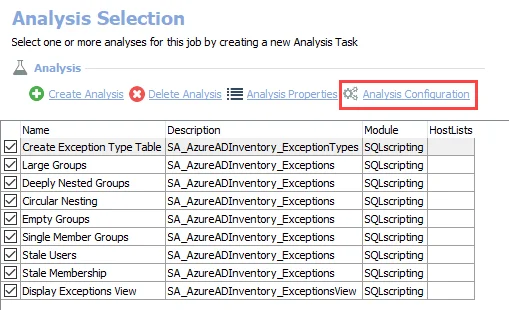
Step 2 – In the Analysis Selection view, select an analysis task and click Analysis Configuration. The SQL Script Editor opens.
Step 3 – Click Parameters to open the Parameters section.
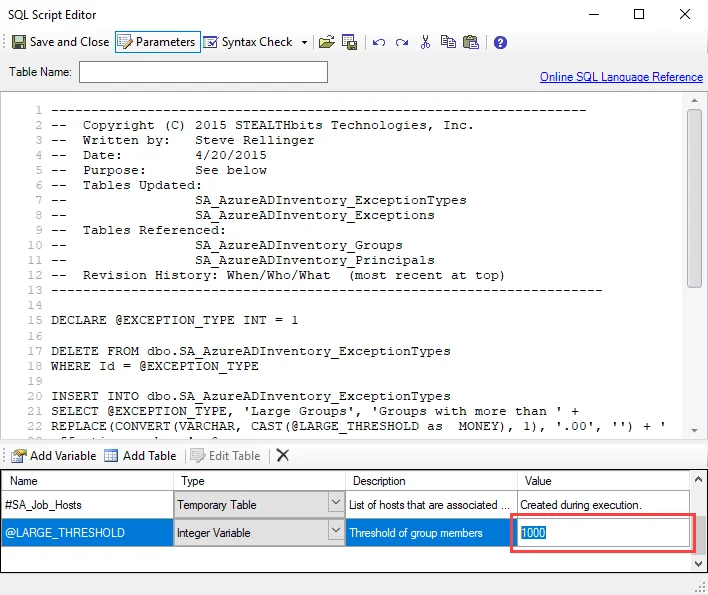
Step 4 – Double-click in a field in the Value column and enter a custom value.
Don't change any parameters where the Value states Created during execution.
Step 5 – Click Save and Close to finalize the customization and close the SQL Script Editor.
Repeat these steps to customize other analysis tasks for this job.