Add Tags
Use the Parameters page to specify the file tags the action adds.
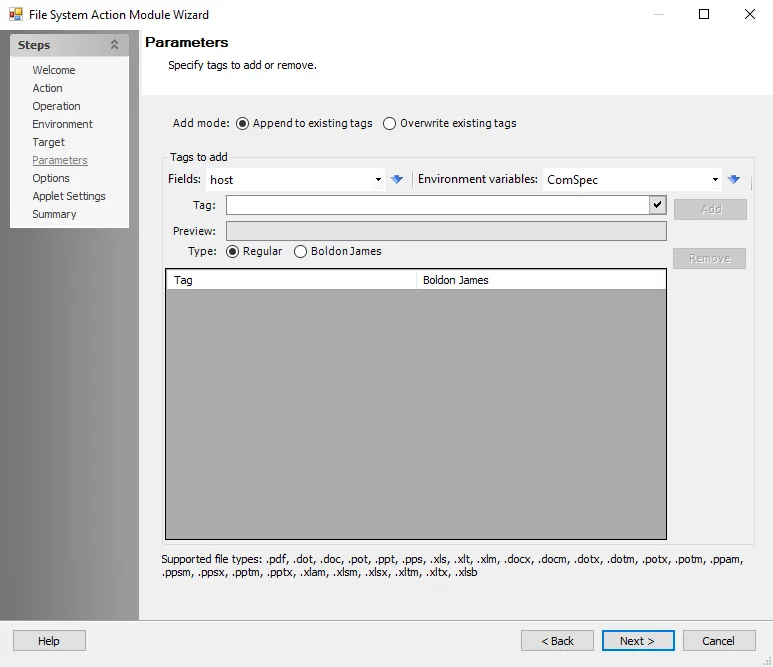
Use the fields provided to select tags from the dropdown lists and populate the Tag field, or edit the field manually. The Preview field updates based on the contents of the Tag field.
-
Add Mode:
- Append to existing tags - Adds new tags to the existing list of tags
- Overwrite existing tags - Removes all existing tags before adding newly configured tags
If you choose the option to overwrite tags, the action module clears out both normal tags and Boldon James tags, then applies the tags configured for overwrite. If you choose the option to remove all tags, the action module clears out both normal tags and Boldon James tags.
- Fields – Use the dropdown list to select a field (column) from the source table, then click the blue arrow to insert the item into the Tag field
- Environment Variables – Select an item from the dropdown list, then click the blue arrow to insert the item into the Tag field
- Preview – Shows what the specified compound path resolves to
- Click Add to add the tag field to the list
- Click Remove to remove the tag field from the list
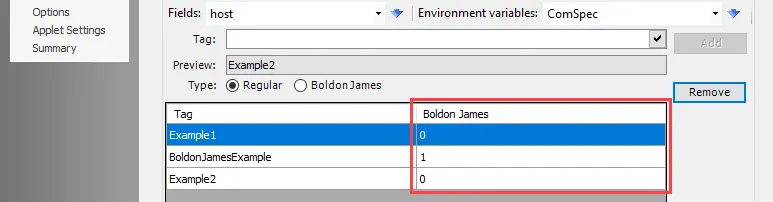
-
Type - Select which type of tag to add. The two types of tags that can be added are:
-
Regular - Configure new tag as a regular tag
-
Boldon James - Configure new tag as a Boldon James tag
noteThe Boldon James column indicates whether a file tag is a regular tag or a Boldon James tag. The system identifies regular tags with 0 and Boldon James tags with 1.
-
A list of supported file types appears at the bottom of the page.