ExchangePS: Filter by Message
Use the Filter by Message page to define the filter conditions of the search. It is a wizard page for the category of:
- Mailbox Search
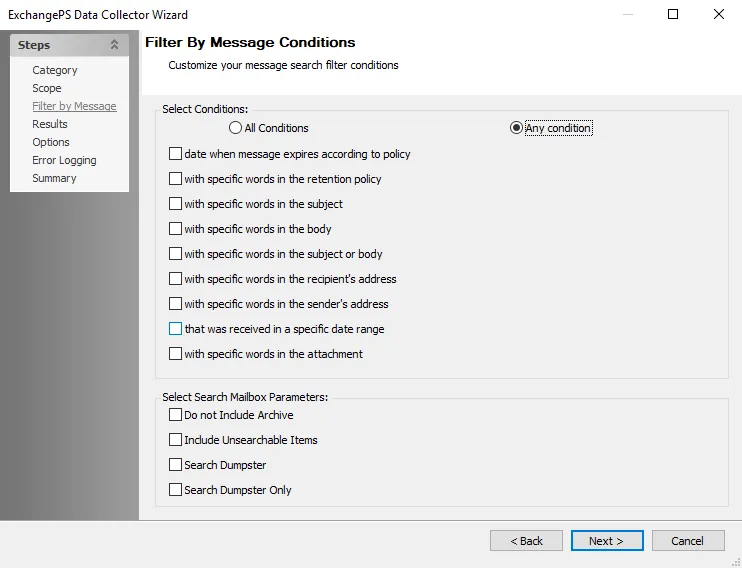
In the Select Conditions section, choose the filter logic:
- All Conditions – All selected conditions must be met
- Any condition – Any of the selected conditions must be met
Available conditions to select from include:
- date when message expires according to policy – If selected, specify date range through the Date Range Selection window
- with specific words in the retention policy – If selected, specify words through the Words window
- with specific words in the subject – If selected, specify words through the Words window
- with specific words in the body – If selected, specify words through the Words window
- with specific words in the subject or body – If selected, specify words through the Words window
- with specific words in the recipient’s address – If selected, specify words through the Words window
- with specific words in the sender’s address – If selected, specify words through the Words window
- that was received in a specific date range – If selected, specify date range through the Date Range Selection window
- with specific words in the attachment – If selected, specify words through the Words window
See the Date Range Selection Window and Words Window topics for additional information.
In the Select Search Mailbox Parameters section, select the filter parameters:
- Don't Include Archive
- Include Unsearchable Items
- Search Dumpster
- Search Dumpster Only
Date Range Selection Window
The Specify Date Range... option opens the Date Range Selection window for a date related filter on the Filter by Message page.

Select the range category on the left and configure the range setting in the enabled fields:
- Over – Select the number and time units. The available time units are: Days, Months, or Years.
- Last – Select the number and time units. The available time units are: Days, Months, or Years.
- Before – dropdown menu opens a calendar selection view, choose the end date
- After – dropdown menu opens a calendar selection view, choose the start date
- Between (Date) – dropdown menus open calendar selection view, choose the start and end dates
- Between – Select the numbers for the lower and upper range boundary, and the time units. The available time units are: Days, Months, or Years.
After you specify the date range, click OK. The selected date range shows as a filter on the Filter by Message page. Click the filter to open the Date Range Selection window to modify the date range.
Words Window
The Specify words... option opens the Words window for a word related filter on the Filter by Message page.

In the Search property section, choose the filter logic:
- All Words – All selected word filters must be met
- Any Words – Any of the selected word filters must be met
Then, configure the required words in the filter list. Enter the word in the textbox and click Add. To delete a word from the filter list, select the word and click Remove.
When the word list is complete, click OK. The specified words show as a filter on the Filter by Message page. Click the filter to open the Words window to modify the list.