Host Inventory
The Host Inventory node is for selecting what information to collect from the target host during the host inventory process, for allocating console resources to the host inventory process, and for setting what out-of-the box host lists are visible in the Host Management node.
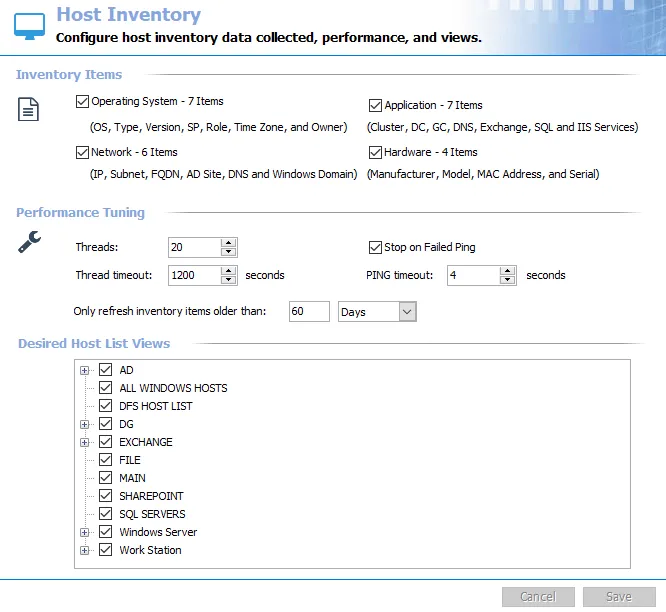
The Inventory Items section contains four program property groups:
- Operating System – Includes 7 Items
- Application – Includes 7 Items
- Network – Includes 6 Items
- Hardware – Includes 4 Items
Each of these groups brings back the properties enumerated in the list below the group title. These collected properties correspond to the columns in the Host Management tables. Deselecting a checkbox prevents Access Analyzer from collecting that information for target hosts. However, some solutions require this information.
Leave the default setting of all the groups selected. Consult with Netwrix Support before turning off any of these property groups.
The Performance Tuning section contains five settings that allocate console resources to the host inventory process:
-
Threads – Indicates the number of job threads Access Analyzer employs during the host inventory process
- The default setting is 20 Threads
- Maximum thread count is 100. Thread count reverts back to 100 if you enter values over 100.
- Restart Access Analyzer if you change thread count for changes to take place
-
Thread timeout [in seconds] – Indicates the time a thread will spend in retrieving information from a host
- Default setting is 1200 seconds
- If thread can't receive an active response from target host, the thread will move on to the next host in the queue
-
Stop on Failed Ping – If the Stop on Failed Ping checkbox is selected, Access Analyzer doesn't query hosts that don't respond to pings. Otherwise, Access Analyzer queries hosts regardless.
-
PING timeout [in seconds] – Indicates the time a thread will spend pinging a host
- Default setting is 4 seconds
- If the thread can't connect with a host, Access Analyzer designates the host as offline and the thread moves on to the next host in the queue
-
Only refresh inventory items older than [time selected] – Indicates the time that needs to pass before Access Analyzer automatically refreshes the host inventory process
-
Default setting is 60 days
-
The number textbox has a five-character limit
-
The dropdown menu includes the time-units of:
- Hours
- Days
- Weeks
- Months
-
This setting affects the Inventory page options on the Host Discovery Wizard. See the Host Discovery Wizard topic for additional information.
-
The Desired Host List Views section at the bottom contains all available host lists, both built-in lists and custom-created lists. Seven Default Host Lists correspond to the solutions that target them. During the host inventory process, Access Analyzer automatically populates hosts which meet the filter criteria for these default lists into that host list. A checkmark in front of the host list indicates that the list is visible in the Host Management > All Hosts node.
The Cancel and Save buttons are in the lower-right corner of the Host Inventory view. These buttons become enabled when you modify the Host Inventory global settings. Whenever you make changes at the global level, click Save and then OK to confirm the changes. Otherwise, click Cancel if you didn't intend to make changes.
Default Host Lists
The seven default lists are auto-populated during the host inventory process based on specific filter criteria. These lists correspond to the pre-configured solution jobs which target them.
AD Host List
You can expand the AD Host List, which contains five sub-groups used by the Active Directory Solution and the Active Directory Inventory Solution:
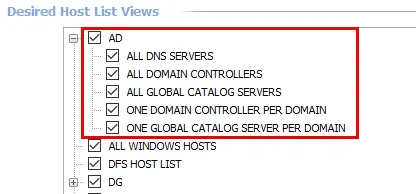
The sub-groups are:
- ALL DNS SERVERS
- ALL DOMAIN CONTROLLERS
- ALL GLOBAL CATALOG SERVERS
- ONE DOMAIN CONTROLLER PER DOMAIN
- ONE GLOBAL CATALOG SERVER PER DOMAIN
ALL WINDOWS HOSTS Host List
The ALL WINDOWS HOSTS Host List is used primarily by the Windows Solution.

There are no sub-groups for ALL WINDOWS HOSTS.
DG Host List
You can expand the DG Host List, which contains three sub-groups used by the Data Access Governance for File System Solution.

The sub-groups are:
- ALL CELERA SERVERS
- ALL INTERNET INFORMATION SERVERS
- ALL NETAPP SERVERS
EXCHANGE Host List
You can expand the EXCHANGE Host List, which contains six sub-groups used by the Exchange Solution. You can also expand four of these sub-groups.
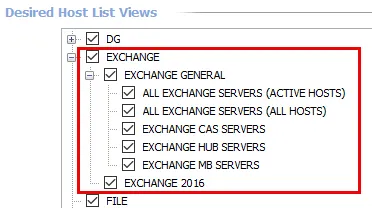
The sub-groups are:
-
EXCHANGE GENERAL
- ALL EXCHANGE SERVERS (ACTIVE HOSTS)
- ALL EXCHANGE SERVERS (ALL HOSTS)
- EXCHANGE CAS SERVERS
- EXCHANGE HUB SERVERS
- EXCHANGE MB SERVERS
-
EXCHANGE 2016
SQL Servers Host List
The SQL SERVERS Host List is used primarily by the SQL Solution.

There are no sub-groups for SQL SERVERS.
Windows Server Host List
You can expand the Windows Server Host List, which contains three sub-groups used by the Windows Solution.
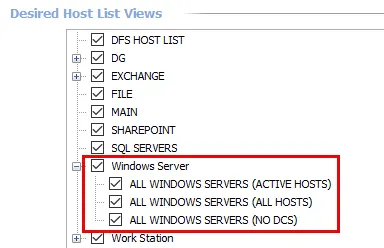
The sub-groups are:
- ALL WINDOWS SERVERS (ACTIVE HOSTS)
- ALL WINDOWS SERVERS (ALL HOSTS)
- ALL WINDOWS SERVERS (NO DCS)
Work Station Host List
You can expand the Work Station Host List, which contains one sub-group used by the Windows Solution.

The single sub-group is:
- ALL WINDOWS WORKSTATIONS
Required Permissions
The host inventory process collects the four property groups (Operating System, Application, Network, and Hardware) using different mechanisms, each with its own permission requirement on the target host:
- Operating System properties (version, service pack, product type, and related items) come from the target's registry. This requires the Remote Registry service to be running on the target, and the account used must have local administrator rights (or explicitly delegated Remote Registry access).
- Application properties (for example, SQL Server, IIS, clustering, and Exchange role/version) come from a mix of registry, WMI, and Active Directory, depending on the specific property. WMI-sourced properties require WMI namespace access on the target (local administrator by default). Exchange role and version come from Active Directory first, and only fall back to WMI if that lookup doesn't return a result.
- Network properties (for example, domain/workgroup name and AD site) come primarily from low-privilege network APIs that don't require administrative rights, with a WMI fallback for some properties if the primary method doesn't return a result.
- Hardware properties (manufacturer, model, serial number) come from WMI and require the same administrative-equivalent access as other WMI-sourced properties.
Because Operating System and Hardware properties depend on Remote Registry and WMI access, provision the account used for host inventory as a local administrator (or with explicitly delegated Remote Registry and WMI namespace permissions) on the inventoried hosts. A standard authenticated domain account without local admin rights is sufficient for Network properties and the Active Directory-based portion of Application properties, but not for the registry- and WMI-based properties.
If the account used lacks the required access on a given host, host inventory should leave the properties normally supplied by that mechanism blank rather than failing the entire host inventory record.