Configuring Login Page Disclaimer
Users can add a disclaimer message to the logon screen by adding a custom Disclaimer.txt file in
the Web folder in the Access Analyzer directory and configuring the WebServer.exe.config file.
Step 1 – Navigate to the Web folder of the installation directory:
…\STEALTHbits\StealthAUDIT\Web.
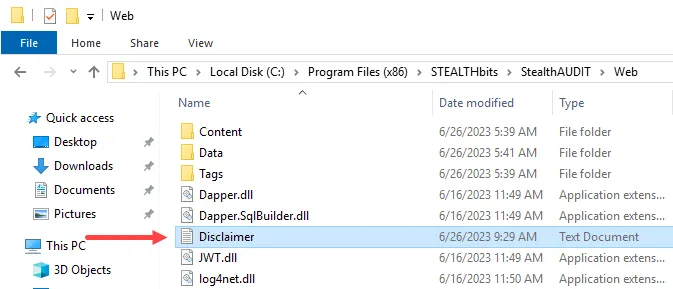
Step 2 – Create a Disclaimer.txt file in the Web folder. Write a custom disclaimer that
displays on the login page for the Web Console.
- You must name the text file
Disclaimer.txt. If you use a text file with a different name, the disclaimer message option won't work correctly.
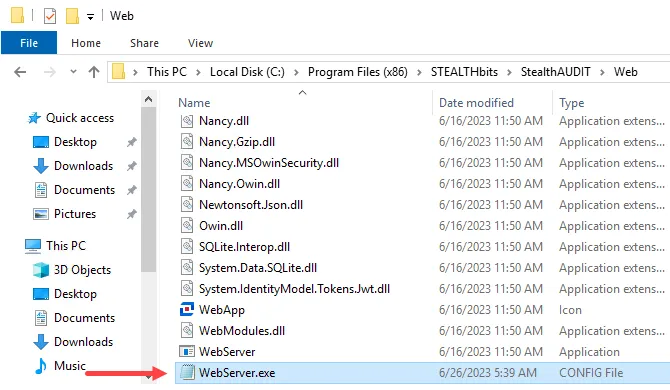
Step 3 – Locate the WebServer.exe.config file and open it.
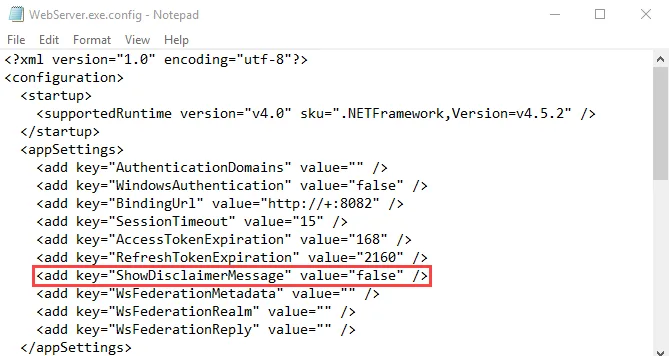
Step 4 – Find the following line in the text:
<add key="ShowDisclaimerMessage" value="false"/>
Step 5 – Replace the value with true so that the line now reads as:
<add key="ShowDisclaimerMessage" value="true"/>
Step 6 – Save the changes to enable the disclaimer message on the Web Console login page.
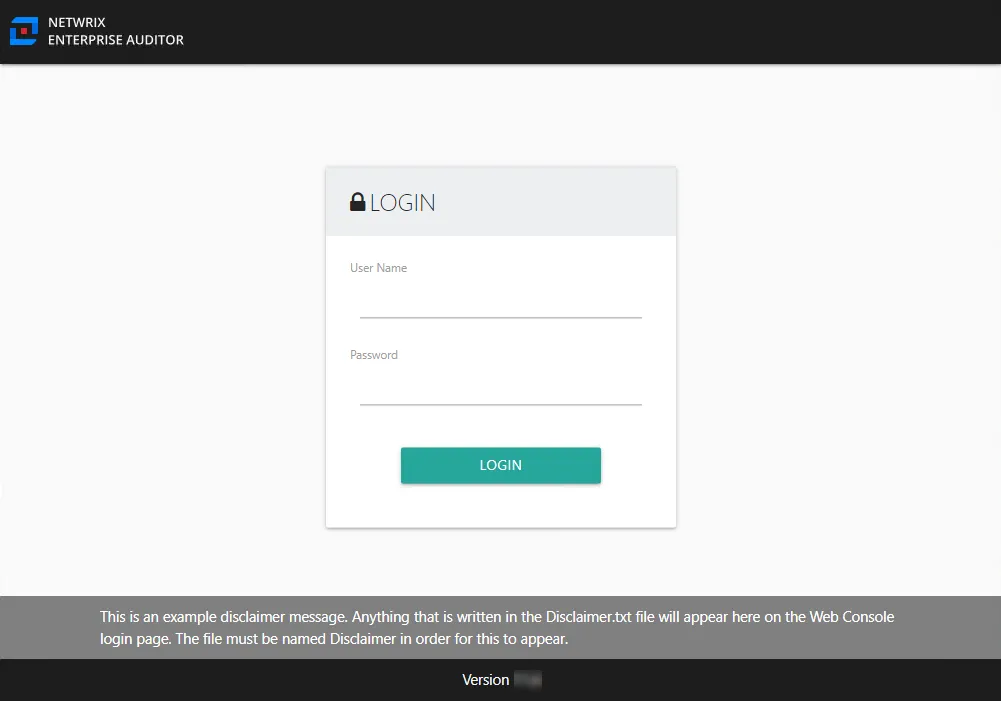
Step 7 – To check whether you configured the disclaimer message correctly, open the Web Console to access the login page.
- If you configured the disclaimer correctly, the custom disclaimer message displays at the bottom of the login page.
The disclaimer message displays on the Web Console login page.