Azure SQL Auditing Configuration
Access Analyzer for Azure SQL relies on the native Azure SQL auditing capabilities to collect and report on user activity, as well as successful or unsuccessful server or database logon activity. Azure SQL Auditing supports three different audit log destinations. At present Access Analyzer only supports storage as the audit log destination. This document describes the permissions required to configure the Access Analyzer Azure SQL Job Group.
With Access Analyzer for Azure SQL, you can create custom roles for differential access to Access Analyzer.
Access Analyzer for Azure SQL creates roles specifically to target Azure SQL Databases:
- Stand-Alone Databases
- Managed Instances
- Elastic Pools
The scope of a particular role largely defines that role. A scope-defined role has access to, or is limited to all resources in a Management Group, Subscription, Resource Group or Resource. For example, if all SQL databases reside within a resource group, you can restrict the scope to that resource group. If databases reside in different resource groups, then the scope for the custom role should be at the subscription level.
This enables Access Analyzer to discover all SQL databases in the subscription.
Create a StealthAUDIT Custom Role
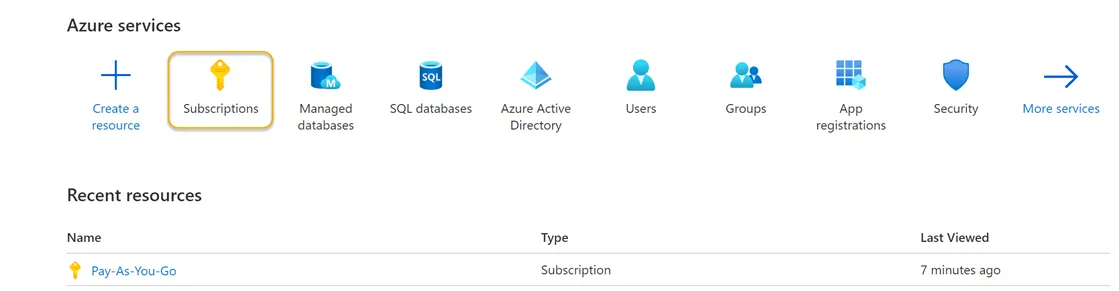
Step 1 – Sign in to Azure. Navigate to the Azure Services section and click Subscriptions. This will navigate you to the Pay-As-You-Go page of the Azure Portal.
Step 2 – Locate and click the Access Control (IAM) view option blade from the available subscriptions in the left-hand menu.
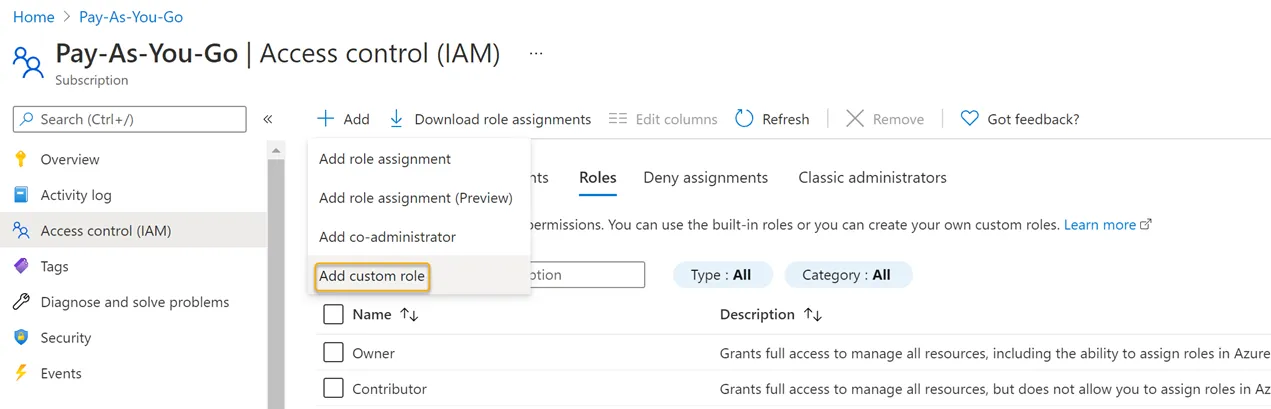
Step 3 – Click Add > Add Custom Role.
Step 4 – Create a JSON file using the subscription ID provided by Microsoft Azure (see the following example) and save it to a local directory.
{
    "properties": {
        "roleName": "StealthAUDIT Azure SQL Role",
        "description": "This is a custom role created for use by StealthAUDIT Azure SQL Job Group for Azure SQL Database discovery and auditing",
        "assignableScopes": ["/subscriptions/<Your Subscription ID goes here>"],
        "permissions": [
            {
                "actions": [
                    "Microsoft.Authorization/*/read",
                    "Microsoft.Network/virtualNetworks/subnets/joinViaServiceEndpoint/action",
                    "Microsoft.Sql/locations/administratorAzureAsyncOperation/read",
                    "Microsoft.Sql/managedInstances/databases/currentSensitivityLabels/*",
                    "Microsoft.Sql/managedInstances/databases/recommendedSensitivityLabels/*",
                    "Microsoft.Sql/managedInstances/databases/schemas/tables/columns/sensitivityLabels/*",
                    "Microsoft.Sql/managedInstances/databases/securityAlertPolicies/*",
                    "Microsoft.Sql/managedInstances/databases/sensitivityLabels/*",
                    "Microsoft.Sql/managedInstances/databases/vulnerabilityAssessments/*",
                    "Microsoft.Sql/managedInstances/securityAlertPolicies/*",
                    "Microsoft.Sql/managedInstances/databases/transparentDataEncryption/*",
                    "Microsoft.Sql/managedInstances/vulnerabilityAssessments/*",
                    "Microsoft.Sql/servers/extendedAuditingSettings/read",
                    "Microsoft.Sql/servers/databases/auditRecords/read",
                    "Microsoft.Sql/servers/databases/currentSensitivityLabels/*",
                    "Microsoft.Sql/servers/databases/dataMaskingPolicies/*",
                    "Microsoft.Sql/servers/databases/extendedAuditingSettings/read",
                    "Microsoft.Sql/servers/databases/read",
                    "Microsoft.Sql/servers/databases/recommendedSensitivityLabels/*",
                    "Microsoft.Sql/servers/databases/schemas/read",
                    "Microsoft.Sql/servers/databases/schemas/tables/columns/read",
                    "Microsoft.Sql/servers/databases/schemas/tables/columns/sensitivityLabels/*",
                    "Microsoft.Sql/servers/databases/schemas/tables/read",
                    "Microsoft.Sql/servers/databases/securityAlertPolicies/*",
                    "Microsoft.Sql/servers/databases/securityMetrics/*",
                    "Microsoft.Sql/servers/databases/sensitivityLabels/*",
                    "Microsoft.Sql/servers/databases/transparentDataEncryption/*",
                    "Microsoft.Sql/servers/databases/vulnerabilityAssessments/*",
                    "Microsoft.Sql/servers/databases/vulnerabilityAssessmentScans/*",
                    "Microsoft.Sql/servers/databases/vulnerabilityAssessmentSettings/*",
                    "Microsoft.Sql/servers/devOpsAuditingSettings/*",
                    "Microsoft.Sql/servers/firewallRules/*",
                    "Microsoft.Sql/servers/read",
                    "Microsoft.Sql/servers/securityAlertPolicies/*",
                    "Microsoft.Sql/servers/vulnerabilityAssessments/*",
                    "Microsoft.Sql/servers/azureADOnlyAuthentications/*",
                    "Microsoft.Sql/managedInstances/read",
                    "Microsoft.Sql/managedInstances/azureADOnlyAuthentications/*",
                    "Microsoft.Security/sqlVulnerabilityAssessments/*",
                    "Microsoft.Sql/managedInstances/administrators/read",
                    "Microsoft.Sql/servers/administrators/read",
                    "Microsoft.Storage/storageAccounts/blobServices/containers/read",
                    "Microsoft.Sql/servers/auditingSettings/read",
                    "Microsoft.Sql/servers/databases/auditingSettings/read"
                ],
                "notActions": [],
                "dataActions": [],
                "notDataActions": []
            }
        ]
    }
}
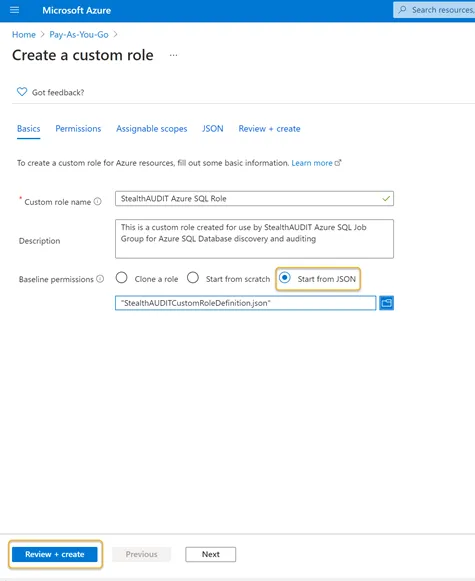
Step 5 – After creating the JSON file, click Start from JSON in the Azure portal and select it. Selecting that file enables the Review + Create button.
Click Review + Create to create the role or click Next to review and edit the permissions. Opening the JSON file automatically populates the Custom Role Name and Description boxes. You can customize the name and description of the custom role in this step.
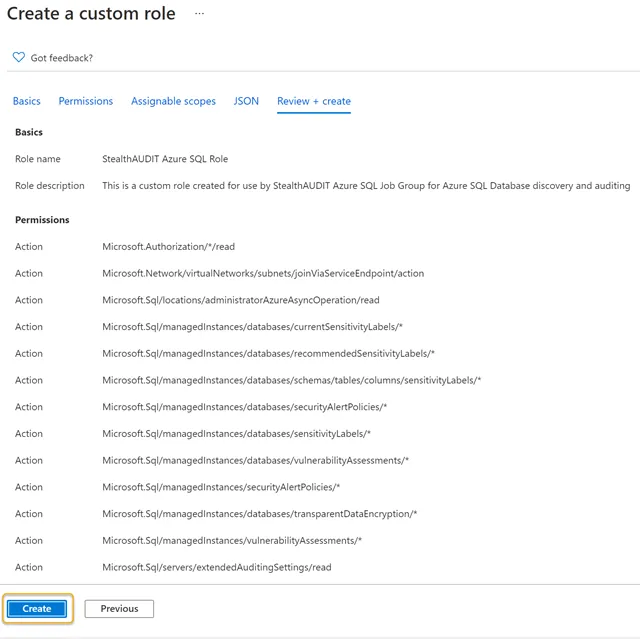
Step 6 – Click Create. This action will save and finalize a custom role entitled Access Analyzer Azure SQL Role.
Step 7 – Click OK on the final screen to complete the custom role creation process. Use the custom role to register the Access Analyzer application in the Azure portal.
Depending on the number of resources in the Azure tenancy, the role might take some time to become available.
Register an Azure SQL Application
Step 1 – In the Azure portal under Azure Services, click the App Registration icon.

Step 2 – Click New Registration in the Register an application blade.
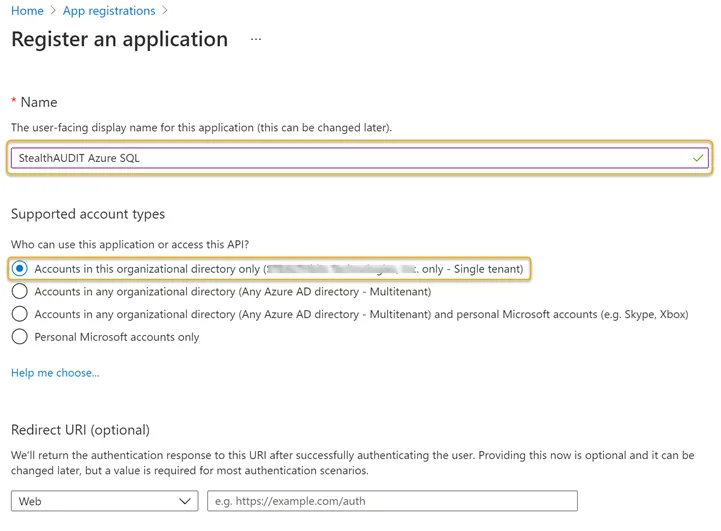
Step 3 – Enter a Name for the application and select an appropriate option from the Supported account types options.
Step 4 – Click Register at the bottom of the page when finished. After you register the application, the App registration overview blade appears. Note the Application (client) ID on this page.
The Application (client) ID is required to create a Connection Profile within the Access Analyzer.
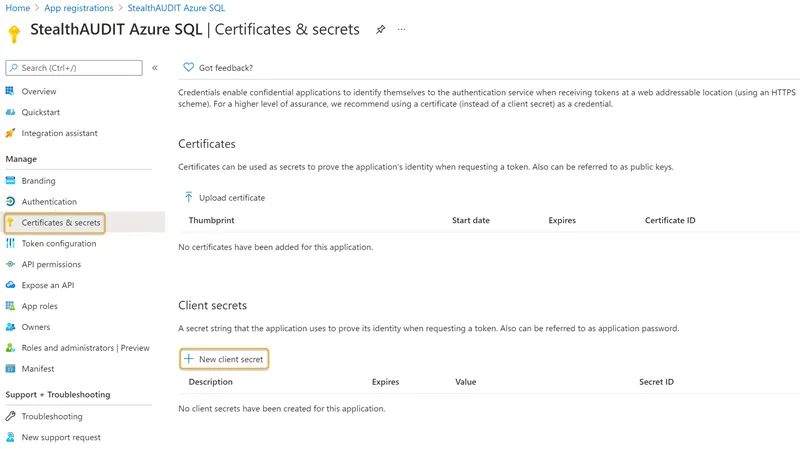
Step 5 – Click the Certificates & secrets blade in the left-hand menu. Click New Client secret.
Step 6 – Enter a unique identifier in the Description field of the Add a client secret window. Select a Expiration time frame from the dropdown. Click Add when finished.
Remember to update the Access Analyzer Connection Profile after the expiration time frame ends (within 24 months, for example).
Step 7 – Make note of the key under the Value column.
Use the Value key on this page to create the Access Analyzer connection profile.
Add a Role Assignment
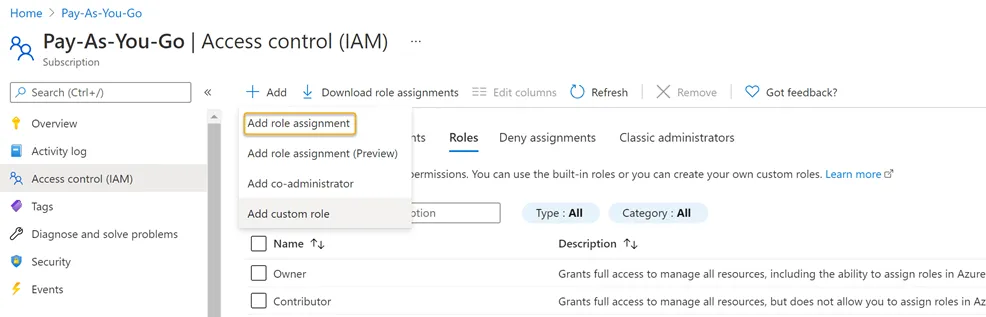
Step 1 – Navigate to the Subscriptions blade and click the Access Control (IAM) option. Click the Add dropdown > Click Add role assignment.
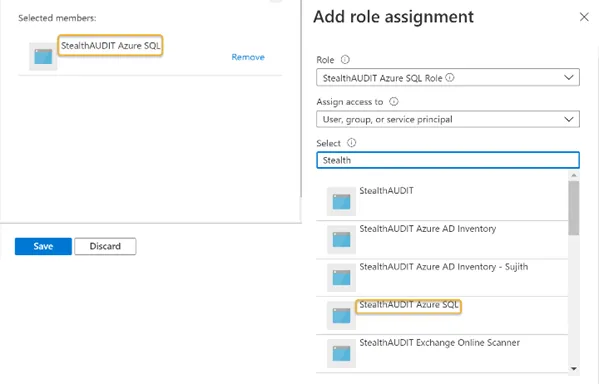
Step 2 – Search for and click the recently created custom role from the Role dropdown. See Create a StealthAUDIT Custom Role for steps required to create a custom role in the Azure portal.
Step 3 – Search for and select the recently registered Azure SQL application from the Select dropdown. See Register an Azure SQL Application for steps required to register an Azure SQL application in the Azure portal. The registered application will be visible in the Selected members window. Click Save when finished.
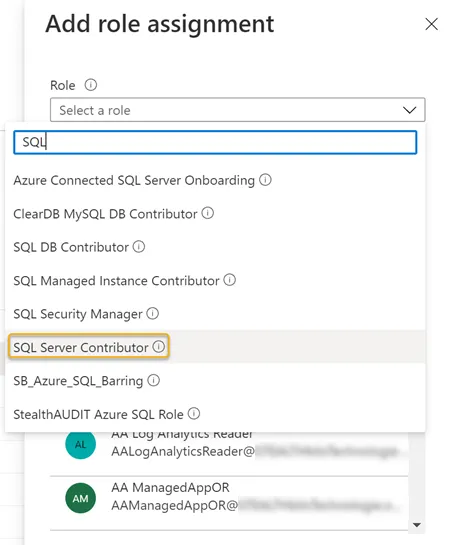
Step 4 – Search for and select the SQL Server Contributor role in the Role dropdown.
Step 5 – Search for and select the recently registered Azure SQL application from the Select dropdown. See Register an Azure SQL Application for steps required to register an Azure SQL application in the Azure portal. The registered application will be visible in the Selected members window. Click Save when finished.
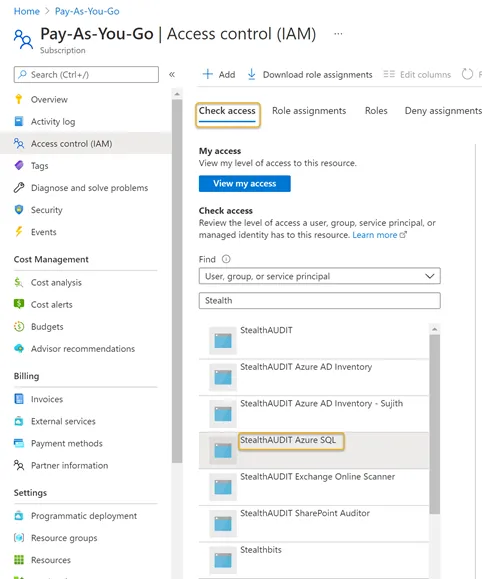
Step 6 – Navigate to the Subscriptions blade. Click Access Control (IAM).
Step 7 – Click the Check access menu tab Search for and select the recently registered Azure SQL application from the dropdown. See Register an Azure SQL Application for steps required to register an Azure SQL application in the Azure portal. A preview window will appear on the right-hand side of the window.