Client ID/Certificate
The Client ID/Certificate credential type authenticates with SharePoint Online using certificate-based authentication. Use this credential type when configuring SharePoint Online source groups.
This requires a registered application in your Entra ID tenant. The certificate itself is generated by the source group wizard — you don't create or upload it here.
Create a Client ID/Certificate service account
-
Navigate to Configuration > Service Accounts.
-
Click Add Service Account.
-
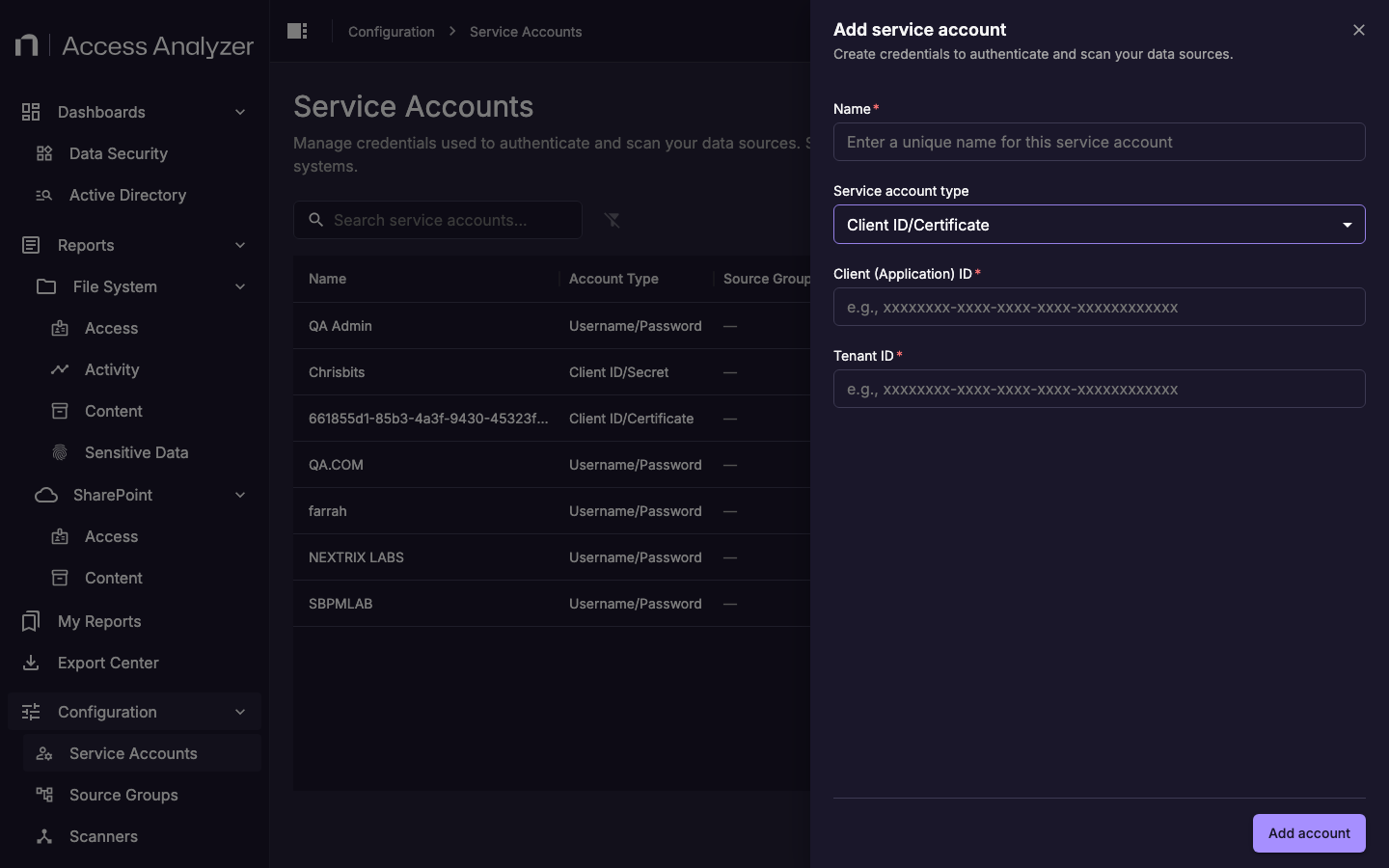
In the Name field, enter a descriptive name for this service account.
-
From the Service account type drop-down, select Client ID/Certificate.
-
In the Client Application ID field, enter the Application (client) ID from your Entra ID app registration.
-
In the Tenant ID field, enter the Directory (tenant) ID of your Entra ID tenant.
-
Click Add account.
Fields
| Field | Description |
|---|---|
| Name | A display name that identifies this service account in Access Analyzer. |
| Client Application ID | The Application (client) ID of your registered Entra ID application. Find this in the Azure portal under Azure Active Directory > App registrations > your app > Overview. |
| Tenant ID | The Directory (tenant) ID of your Entra ID tenant. Find this in the Azure portal under Azure Active Directory > Overview. |
Certificate
The certificate is not entered in the service account form. When you set up a SharePoint Online source group, the wizard includes a Generate and Download Certificate step that creates the certificate and downloads it to your machine. You then upload the certificate to your registered Entra ID application in the Azure portal before testing the connection.
If you update the service account on an existing source group, the new account's certificate must be uploaded to the registered app before saving.
For steps to register the application and upload the certificate, see SharePoint Online Connector Requirements.