Client ID/Secret
The Client ID/Secret credential type authenticates with Microsoft Entra ID via the Microsoft Graph API. Use this credential type when configuring Entra ID source groups.
This requires a registered application in your Entra ID tenant with the appropriate API permissions granted.
Create a Client ID/Secret service account
-
Navigate to Configuration > Service Accounts.
-
Click Add Service Account.
-
In the Name field, enter a descriptive name for this service account.
-
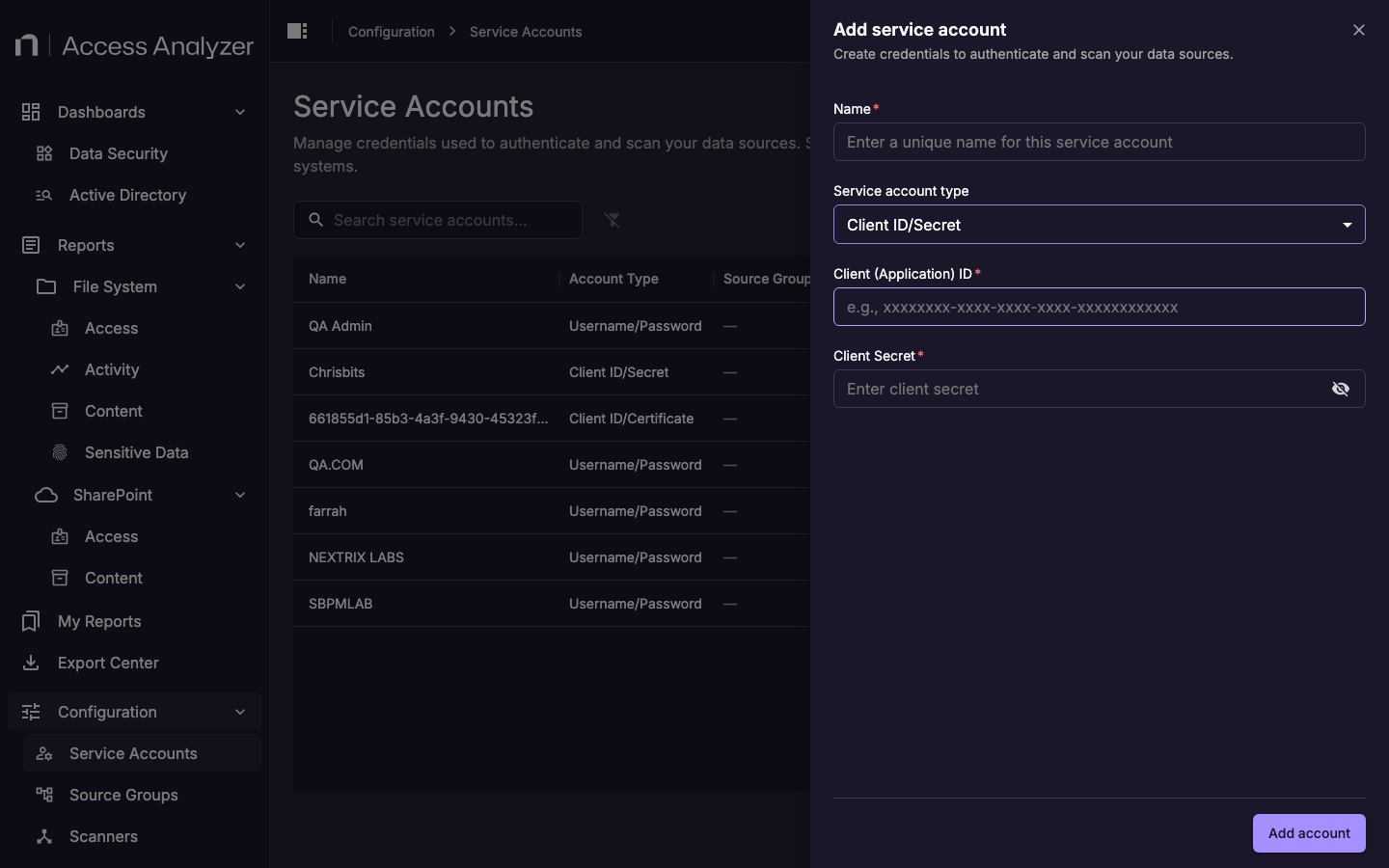
From the Service account type drop-down, select Client ID/Secret.
-
In the Client Application ID field, enter the Application (client) ID from your Entra ID app registration.
-
In the Client Secret field, enter a client secret value generated for the registered application.
-
Click Add account.
Fields
| Field | Description |
|---|---|
| Name | A display name that identifies this service account in Access Analyzer. |
| Client Application ID | The Application (client) ID of your registered Entra ID application. Find this in the Azure portal under Azure Active Directory > App registrations > your app > Overview. |
| Client Secret | A client secret generated for the registered application. Create one in the Azure portal under your app's Certificates & secrets. |
For steps to register the application and grant the required API permissions, see Entra ID Requirements.