Migrating Job Schedules to Scan Schedules
Overview
The legacy product schedules data collection using Windows Task Scheduler triggers. AA26 schedules scans using cron expressions — a standard five-field format. The steps below cover how to export legacy schedule data, translate trigger settings to cron format, and apply the resulting schedules to source groups in AA26.
Concept comparison
| Legacy Concept | AA26 Equivalent |
|---|---|
| Schedule / Trigger on a job or job group | Cron expression on a scan configuration |
| Schedule Service Account (Windows Task Scheduler) | Scanner service account (runs the scan) |
| Multiple jobs with individual schedules | One scan schedule per source group (shared across all sources in the group) |
| Daily / Weekly / Monthly trigger | Equivalent cron expression |
| Run As — specific domain account | Service account assigned to the source group |
In AA26, the scan schedule is set at the source group level and applies to all sources in the group. If you need different schedules for individual sources, override the schedule at the source level after creating the group.
Cron expression reference
AA26 uses standard five-field cron expressions in UTC by default. Each field controls a time component:
┌───────── minute (0–59)
│ ┌─────── hour (0–23, UTC)
│ │ ┌───── day of month (1–31)
│ │ │ ┌─── month (1–12)
│ │ │ │ ┌─ day of week (0=Sunday, 6=Saturday)
│ │ │ │ │
* * * * *
Common schedule translations
| Legacy Trigger | Cron Expression | Description |
|---|---|---|
| Daily at 11:00 PM (local) | 0 23 * * * | Runs at 23:00 UTC daily. Adjust hour for your timezone. |
| Daily at 2:00 AM | 0 2 * * * | Runs at 02:00 UTC daily. |
| Daily at 6:00 AM | 0 6 * * * | Runs at 06:00 UTC daily. |
| Weekly — Sunday at midnight | 0 0 * * 0 | Runs at 00:00 UTC every Sunday. |
| Weekly — Monday at 6:00 AM | 0 6 * * 1 | Runs at 06:00 UTC every Monday. |
| Weekly — Saturday at 11:00 PM | 0 23 * * 6 | Runs at 23:00 UTC every Saturday. |
| Monthly — 1st of month at midnight | 0 0 1 * * | Runs at 00:00 UTC on the 1st. |
| Monthly — 15th of month at 3:00 AM | 0 3 15 * * | Runs at 03:00 UTC on the 15th. |
| Every 6 hours | 0 */6 * * * | Runs at 00:00, 06:00, 12:00, 18:00 UTC. |
| Every 12 hours | 0 */12 * * * | Runs at 00:00 and 12:00 UTC daily. |
AA26 stores cron schedules in UTC. If your legacy jobs used local time triggers, convert them to UTC when creating the cron expression. Set the Time Zone field on the scan configuration if you want to define the schedule in local time.
Before you begin
- Source groups and sources have been created in AA26 (Migrating Target Servers and Host Lists).
- You have a documented list of legacy job schedules (from Step 1 below).
- You have determined which cron expressions to use for each source group.
Step 1 — Inventory legacy job schedules
- In the NAA console, navigate to the Schedule node in the left panel.
- Review each scheduled task listed. For each task, record:
- The job or job group it runs.
- The trigger type (daily, weekly, monthly).
- The start time and recurrence settings.
- Use the cron expression table above to determine the equivalent for each.
Step 2 — Configure scan schedules in Access Analyzer
Scan schedules are configured on source groups. Navigate to Configuration > Source Groups, then edit the group or configure schedules during source group creation.
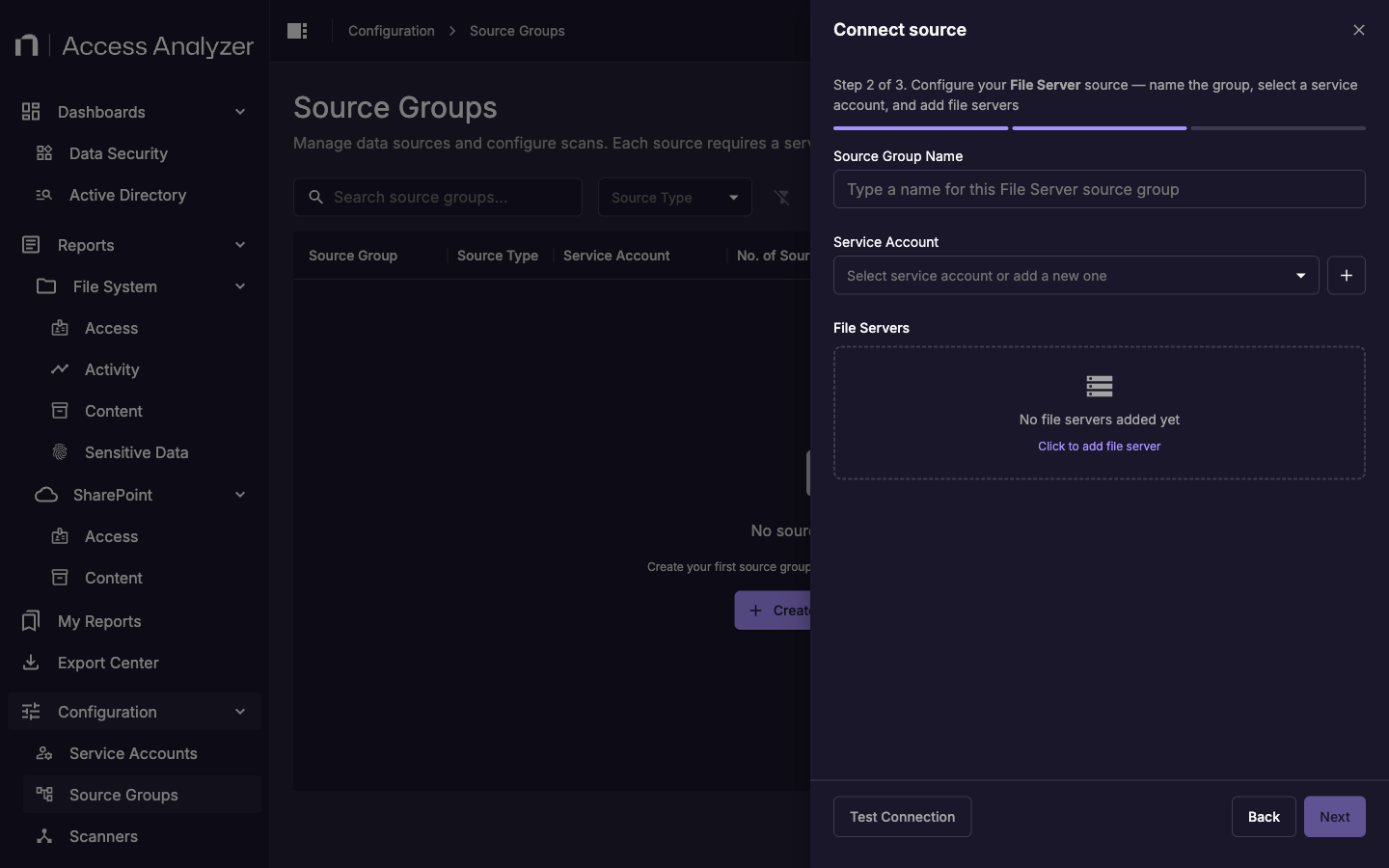
For each source group:
- In the source groups list, click the actions menu for the group and select Edit.
- Navigate to the Scan Configuration section.
- Enter the cron expression for the schedule you determined in Step 1.
- Set the Time Zone if you want to express the schedule in local time rather than UTC.
- Enable the schedule by setting Schedule Enabled to active.
- Click Save.
If different legacy jobs targeting the same set of hosts had different schedules, you might need to split those hosts across separate source groups in AA26 so each group can have its own schedule.
Repeat the steps in Step 2 for each source group until all schedules are configured.