Classifiers
A classifier decides whether a file holds one kind of sensitive data, such as credit card numbers, a national ID, or your own employee badge numbers, and how severe the finding is. When a Classification scan reads a file, it extracts the text and runs every classifier the scan selects against it. Each classifier that fires records a finding on the file with a severity of Critical, High, Medium, or Low.
A classifier is built from smaller parts, all managed on the Classifiers page:
| Part | What it is | Example |
|---|---|---|
| Pattern | A regular expression or a keyword list that finds candidate values in the text. | \bEMP-\d{6}\b finds values shaped like an employee badge number. |
| List | A set of words or phrases that filters and patterns read, such as the labels that tend to appear next to a value. | employee id, badge, and staff number. |
| Checksum | A check-digit rule that a candidate value must pass. | Luhn (payment cards) rejects most digit strings that only look like card numbers. |
| Classifier | Detectors that use patterns, filters that keep only the matches worth reporting, and severity rules that decide how serious the finding is. | Credit Cards reports a card number that passes the Luhn check and sits near a card label. |
Access Analyzer ships built-in classifiers, together with the patterns, lists, and checksums they use. You can publish or unpublish any classifier, change a built-in classifier by copying it, and build new classifiers of your own.
To manage classifiers, go to Classification > Classifiers. The page is available to the Admin role; see Users and roles.
The Classifiers page
The page has four tabs:
- Classifiers lists every classifier. See The Classifiers tab.
- Patterns lists the regular expressions and keyword lists that detectors use. See Patterns.
- Lists holds the word lists that filters and patterns read. See Lists.
- Checksums holds the check-digit rules that filters can require. See Checksums.
The selected tab is part of the page address, so you can bookmark a tab or share a link to it.
The Classifiers tab
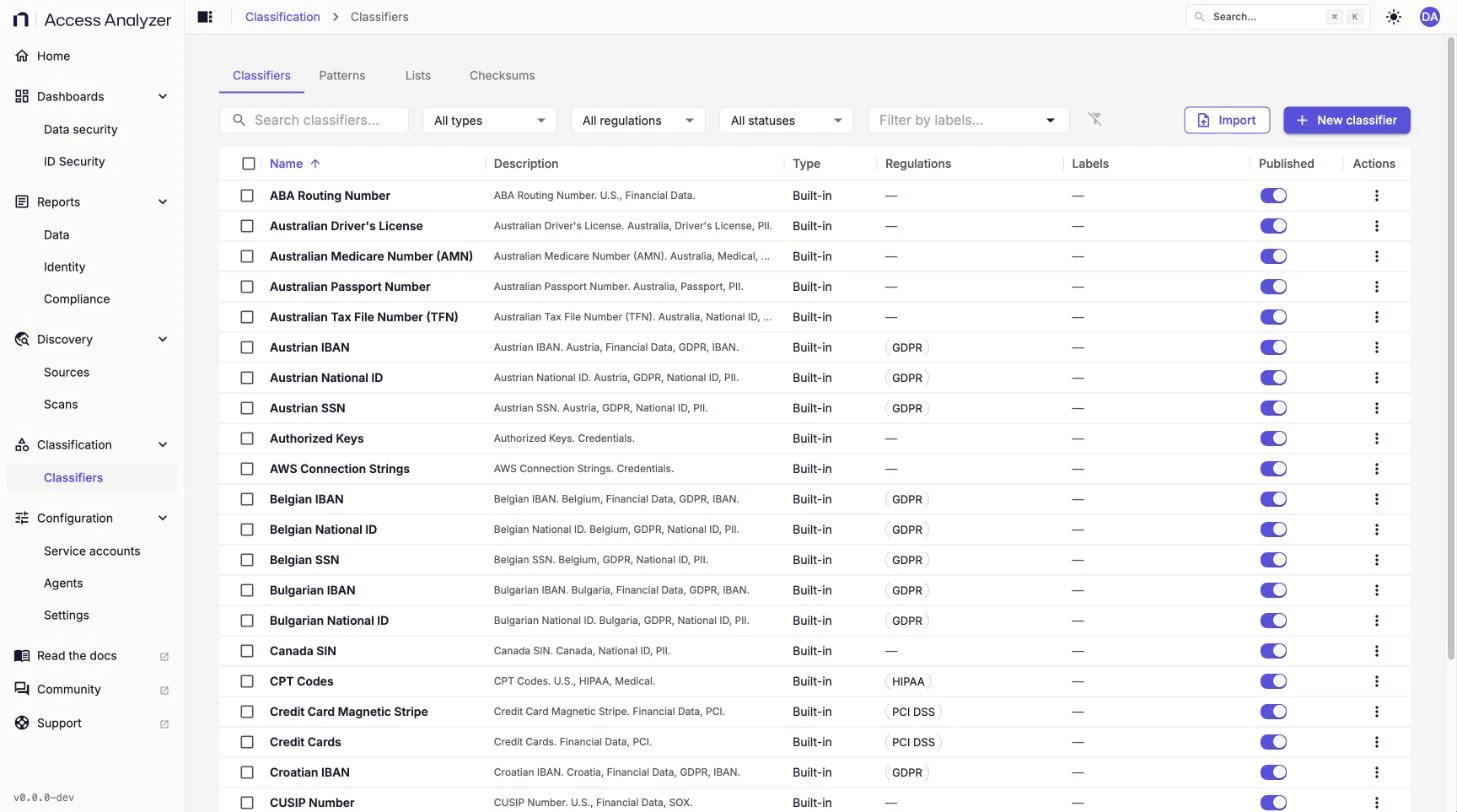
The toolbar has a Search classifiers field and four filters, followed by Import and New classifier:
| Filter | Options |
|---|---|
| Type | All types, Built-in, or Custom. |
| Regulation | All regulations, or a regulation at least one classifier supports, such as GDPR (General Data Protection Regulation), HIPAA (Health Insurance Portability and Accountability Act), or PCI DSS (Payment Card Industry Data Security Standard). |
| Publish status | All statuses, Published, or Unpublished. |
| Filter by labels | Classifiers that carry the labels you pick. |
Search classifiers matches names, descriptions, regulations, labels, and the names of the patterns a classifier uses.
The table has these columns:
| Column | What it shows |
|---|---|
| Name | The classifier name. Click it to open the classifier in the builder. |
| Description | What the classifier finds and the data categories it covers. |
| Type | Built-in for classifiers that ship with the product, Your copy for an edited copy of a built-in, or Custom. |
| Regulations | Up to three regulations the classifier supports, then a +N chip for the rest. |
| Labels | Key and value labels you attached to the classifier. |
| Published | A switch that controls whether scans can run the classifier. |
| Actions | The row menu. See Row actions. |
The per-country IBAN (International Bank Account Number) classifiers share one row, Bank account numbers (IBAN), and its Published switch shows on only when every country's classifier is published.
Select rows to apply Edit labels to several classifiers at once.
Row actions
| Classifier | Actions |
|---|---|
| Built-in | Open shows it read-only in the builder. Edit (makes your copy) creates your copy, or Open your copy opens the copy you already made. Edit labels. |
| Your copy or custom | Edit, Try it, Edit labels, Export, and Delete. Your copy of a built-in also has Restore the built-in. |
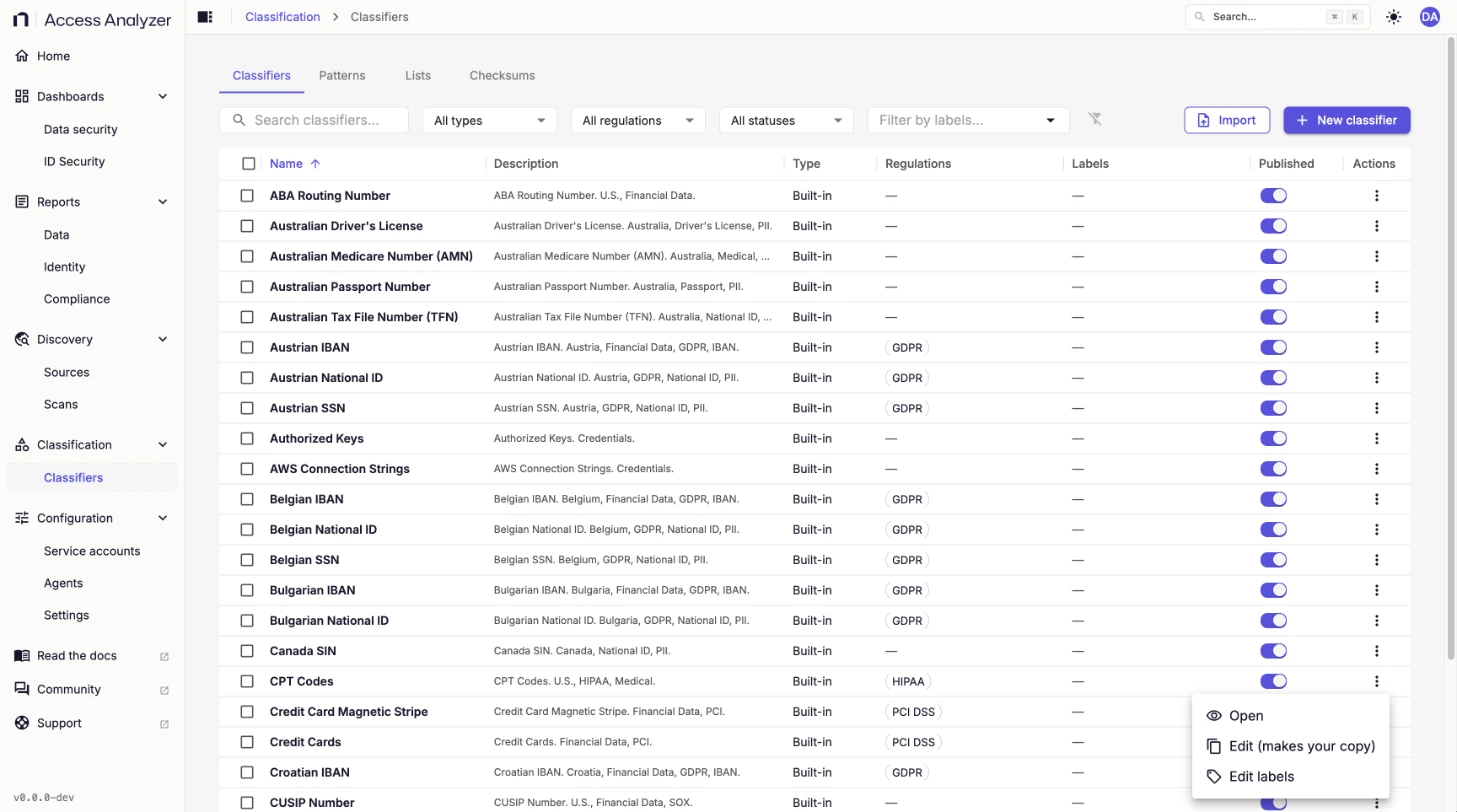
Try it tests a saved classifier on sample text; see Test a classifier. It stays unavailable for about two minutes after a save, until scans can run the new version. Export downloads the classifier as a JSON file that Import on another installation accepts. An import file can be up to 2 MB and hold up to 50 classifiers.
When you delete a classifier, scans stop running it from their next run. Findings it already recorded stay, and a warning lists the scans that used it.
Published and unpublished classifiers
Only published classifiers are offered to scans, and only published classifiers run. A classifier you build is published when you save it, so there's no separate publish step. Turn a classifier's Published switch off to stop scans from running it without deleting it, for example while you rework a custom classifier, or when a built-in classifier finds data your organization doesn't track. The switch saves as soon as you change it, and a message confirms it: <name> is published or <name> is unpublished. When unpublishing affects scans, a warning names the scans that stop running the classifier from their next run.
A scan that selects classifiers by label picks up any classifier you publish later that carries those labels, and drops any classifier you unpublish. A scan that lists specific classifiers runs only the ones in its list. See How a scan picks its classifiers.
Built-in and custom classifiers
Built-in classifiers are read-only. When you open one, a banner reads "This classifier ships with the product and is read-only. Edit makes your own copy, which runs in its place until you delete it."
To change a built-in classifier, open its Actions menu and click Edit (makes your copy), or click Edit (makes your copy) in the builder. Access Analyzer creates a copy with the same rules, marked Your copy, and a message confirms that the copy now runs in place of the built-in classifier. Scans that select the built-in classifier run your copy instead, with no change to the scans. To go back to the shipped version, click Restore the built-in in the copy's Actions menu; this deletes your copy.
Custom classifiers are yours to create, test, edit, and delete. See Build a classifier.
How a scan picks its classifiers
A Classification scan chooses its classifiers on the Classifiers step of the Create scan wizard, under Which classifiers should this scan run?:
- Specific classifiers runs exactly the classifiers you select. The list stays fixed until you edit the scan.
- Classifiers matching labels runs every published classifier that has all of the labels you pick. Access Analyzer evaluates the labels each time the scan runs, so a classifier you label or publish later runs automatically.
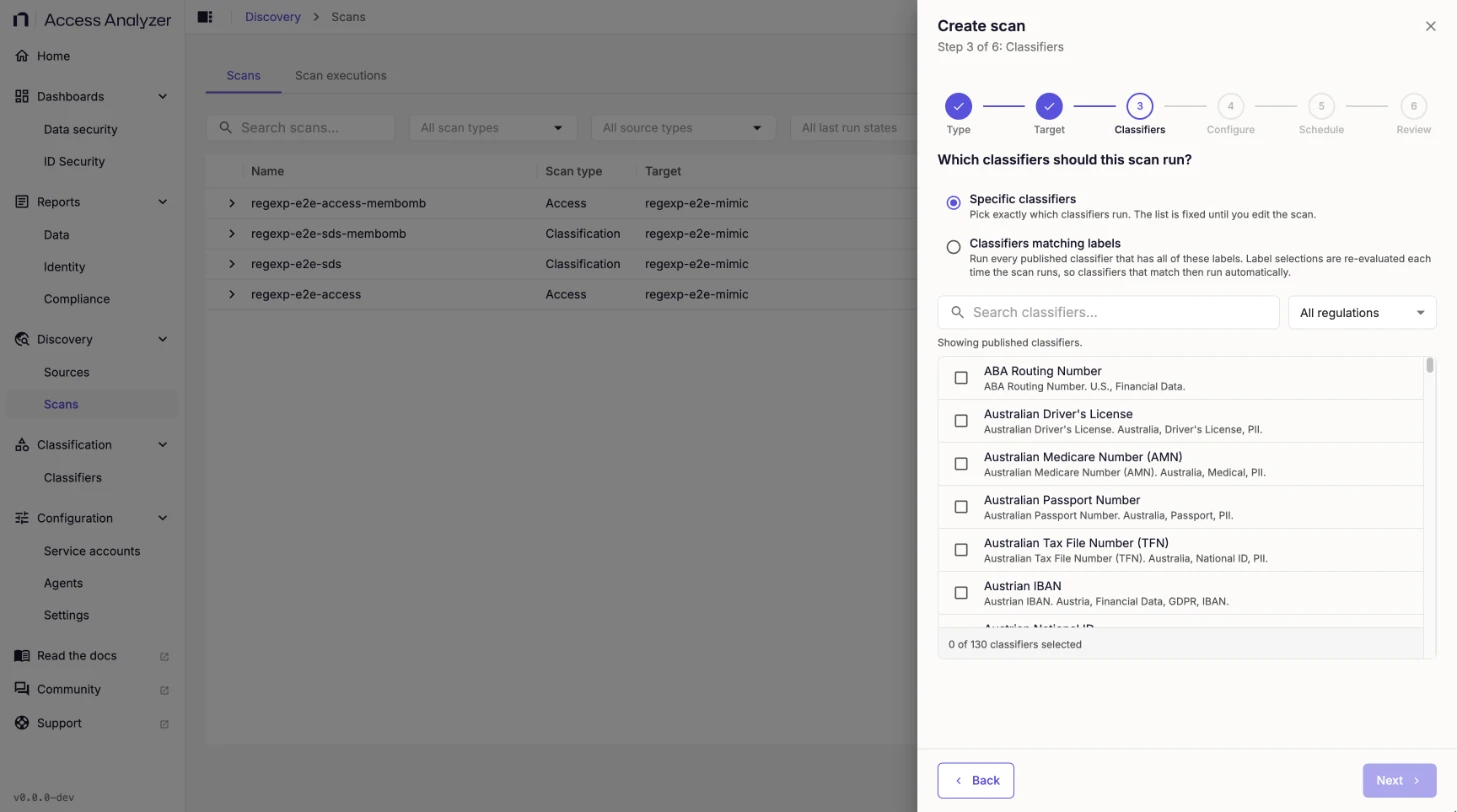
There is no default set: every Classification scan names its classifiers, either directly or by label. The step lists only published classifiers. Use Search classifiers and the regulation filter to narrow the list. With Classifiers matching labels, the step shows how many classifiers match today; you can save a scan whose labels match nothing yet, and it runs whatever published classifiers match when it starts. For the other wizard steps, see Scans.
Access Analyzer converts pattern groups from earlier versions into classifiers automatically. Each group becomes a custom classifier with the group's name, the group's patterns get a group=<name> label, and scans that selected the group run the new classifier.
What a scan classifies
A Classification scan extracts text from Excel workbooks, Word documents, Portable Document Format (PDF) files, plain text files, images, and scanned PDFs. It can't read encrypted Office documents.
The scan skips files above the size limit. The default limit is 10 MB for both File Server and SharePoint Online sources, adjustable between 1 and 100 MB. Each source type also has an include list of file types to classify, used by default, and an exclude list of media, binaries, fonts, and similar files, used when the include list is off or empty. These settings are on the File server scanning and SharePoint scanning cards of Application settings.
Where findings appear
Each execution of a Classification scan lists the files it read on its Files tab, with the outcome, severity, and classifiers for every file with findings. Each finding opens a decision view that explains how the classifier reached its verdict. See Scan executions.
Findings never store the matched values. The decision view shows each match and up to 24 characters around it masked: digits appear as #, letters as x, and punctuation as *, so you can see the shape of the evidence without the data itself. Only the pattern's own fixed text, such as the AKIA prefix of an AWS access key, stays readable.
The Sensitive Data Overview reports and the Data security dashboard summarize findings across your sources. See Dashboards and reports.