Build a classifier
The built-in classifiers cover regulated identifiers, financial data, and secrets, not identifiers that only your organization uses, such as employee numbers, customer account codes, or project codenames. A custom classifier finds one of those and decides how severe each finding is.
You build classifiers in the classifier builder. It opens when you click New classifier on the Classifiers tab, when you open a classifier, and when you copy a built-in classifier with Edit (makes your copy). You need the Admin role.
Parts of a classifier
The builder lays a classifier out from top to bottom in the order the scan evaluates it:
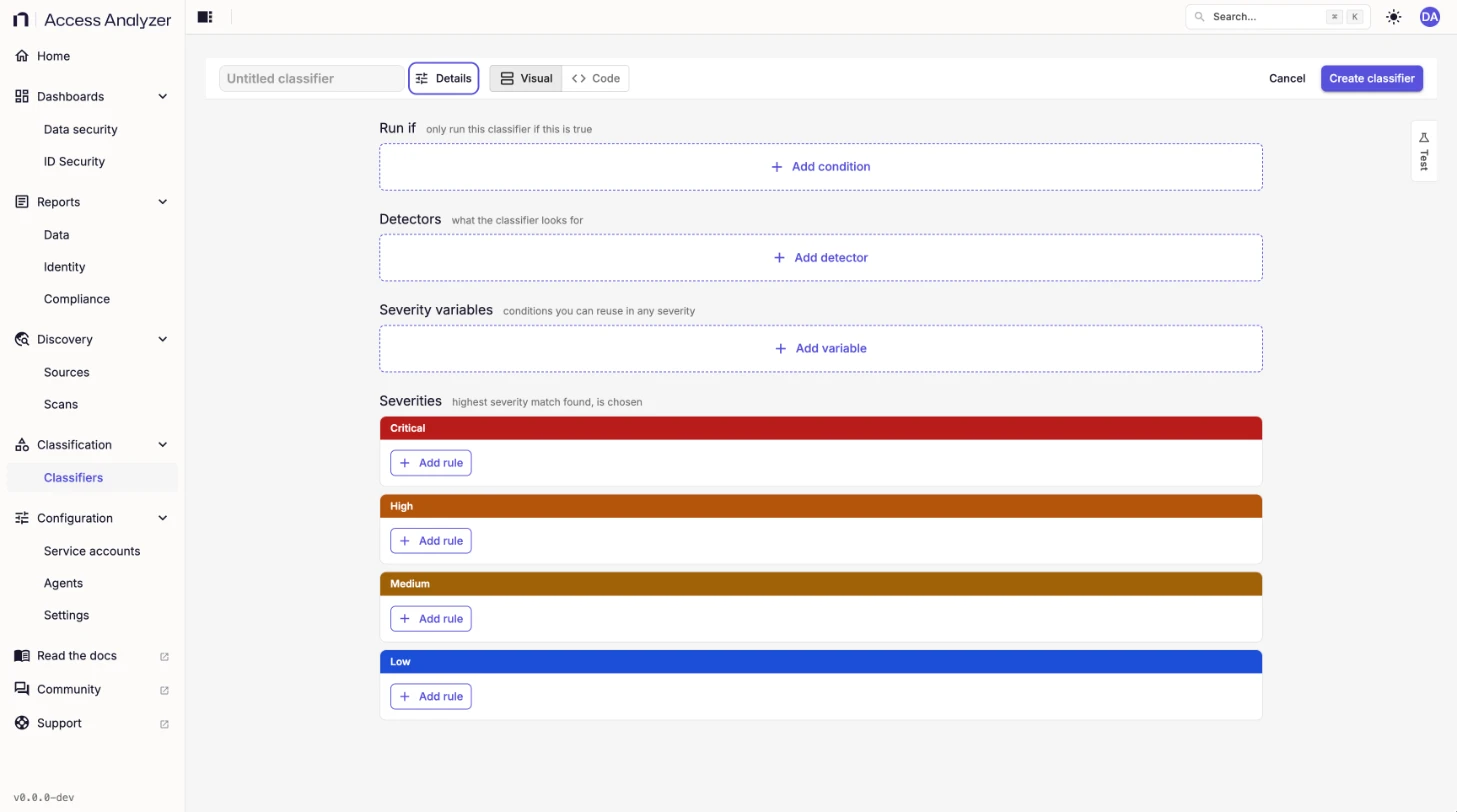
| Section | What it does |
|---|---|
| Run if | Optional conditions about the file, built from File, CEL expression, and Group conditions. When they're false, the classifier doesn't run on the file. |
| Detectors | What the classifier looks for. A detector either finds values that match a pattern, narrowed by filters, or asks System One a question about the file. |
| Severity variables | Optional conditions you name once and reuse in any severity rule. |
| Severities | Rules under Critical, High, Medium, and Low. The scan reports the highest severity whose rule matches; if no rule matches, the classifier reports nothing. |
The builder toolbar
The bar across the top of the builder holds the classifier's name and everything that isn't a rule. Replace Untitled classifier with a name, and click Details to add a Description, Regulations, and Labels. Visual and Code switch between editing the classifier as a form, which this page describes, and as text. Cancel leaves without saving, and Create classifier saves; for an existing classifier, it reads Save changes.
Edits you make in Code don't carry over to Visual. If you switch back to Visual, the builder asks first and then discards them.
Create a classifier
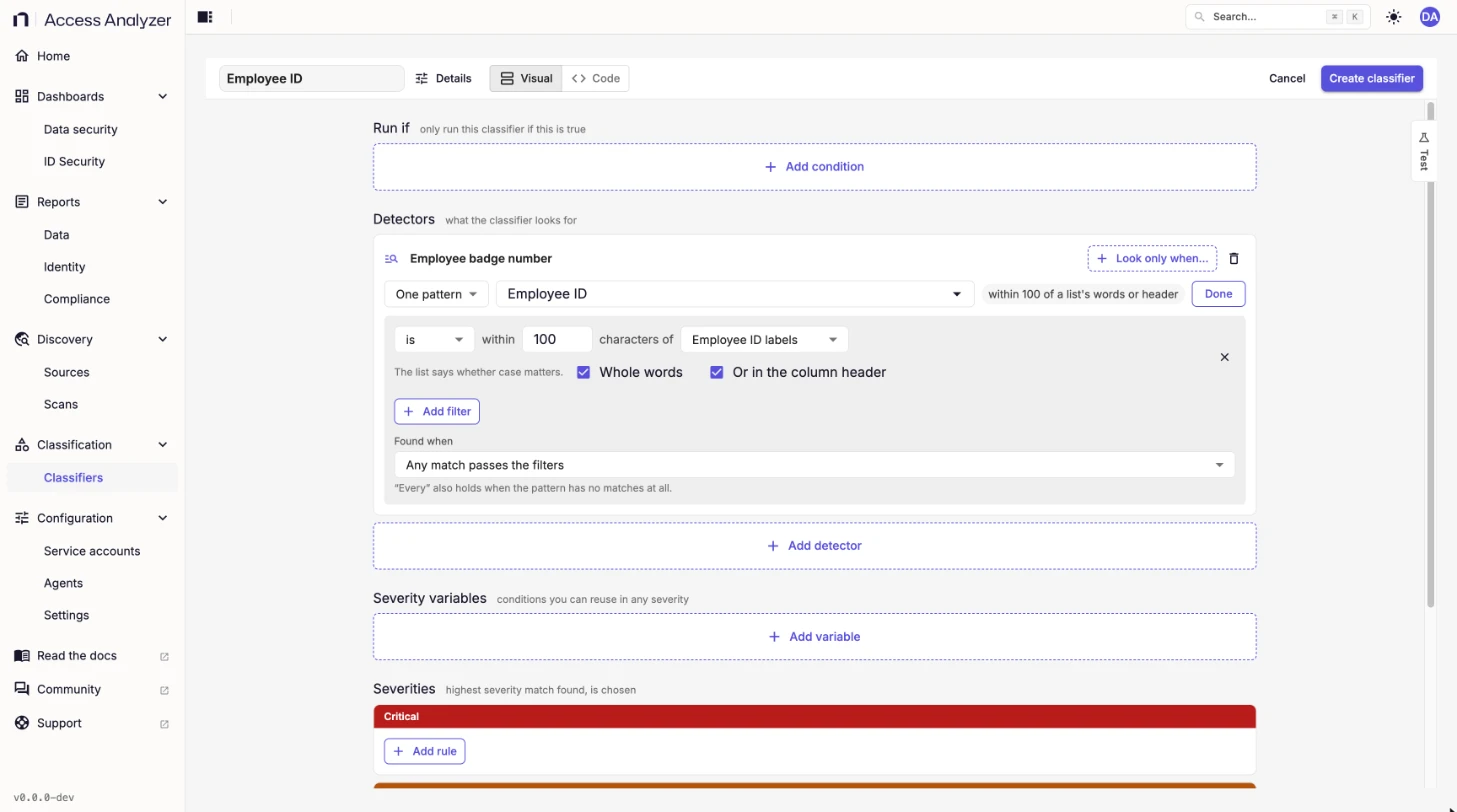
The following steps build an Employee ID classifier that reports EMP- numbers next to a label such as "Employee ID". It uses the Employee ID pattern from Create a pattern and the Employee ID labels list from Create a list. Create those first.
- Go to Classification > Classifiers.
- Click New classifier.
- Replace Untitled classifier with a name, such as
Employee ID. - Click Details and fill in Description, Regulations, and Labels as needed.
- Add a detector:
- Under Detectors, click Add detector, and then click Patterns.
- In Detector name, enter a name, such as
Employee badge number. - Leave One pattern selected, and in Pick a pattern, select Employee ID.
- Click Add filter to open the filters.
- In the filters, click Add filter, and then click is within N characters of text.
- Set the distance to
100, select Employee ID labels in place of the values typed here, and select Or in the column header. - Click Done.
- Add a severity rule:
- Under Medium, click Add rule.
- Click Add condition, and then click Detector test.
- Select Employee badge number and found.
- Test the classifier on sample text.
- Click Create classifier.
A message confirms the save: <name> saved — scans use it within a minute. The classifier appears on the Classifiers tab as a custom classifier. Saving a new classifier turns its Published switch on, so there's no separate publish step; see Published and unpublished classifiers.
If something is missing, the builder highlights it and reports Fix the highlighted problems, then save again, with messages such as Pick a pattern, Add a condition, or Add a rule to at least one severity.
| Field | Required | Details |
|---|---|---|
| Name | Yes | Up to 120 characters. |
| Description | No | Up to 2,000 characters. |
| Regulations | No | The regulations the classifier supports. They drive the Regulation filter on the Classifiers tab and in the scan wizard. |
| Labels | No | Key and value pairs. Scans set to Classifiers matching labels run the classifiers that carry their labels. |
Detectors
A detector is one thing a classifier looks for. Severity rules don't read the file themselves; they test what the detectors found. Click Add detector and choose the kind of detector, which decides how it looks:
| Kind | What it looks for |
|---|---|
| Patterns | Values that match a pattern, or every pattern with a label, narrowed by filters. |
| System One | The answer to a choice question about the whole file, such as "Is this a record about one identifiable person?" |
Every detector has a name, which severity rules use to refer to it. Click Look only when… on a pattern detector, or Ask only when… on a System One detector, to add a condition the detector needs before it runs.
Pattern detectors
A pattern detector finds candidate values. Choose One pattern to use a single pattern, or Patterns by label to use every pattern with a Label key and Label value, and choose whether any of them or all of them must match. After you click Done, the detector shows a summary of its filters, such as within 100 of a list's words or header. Click Edit filters to change them.
Filters narrow the pattern's matches to the ones that count:
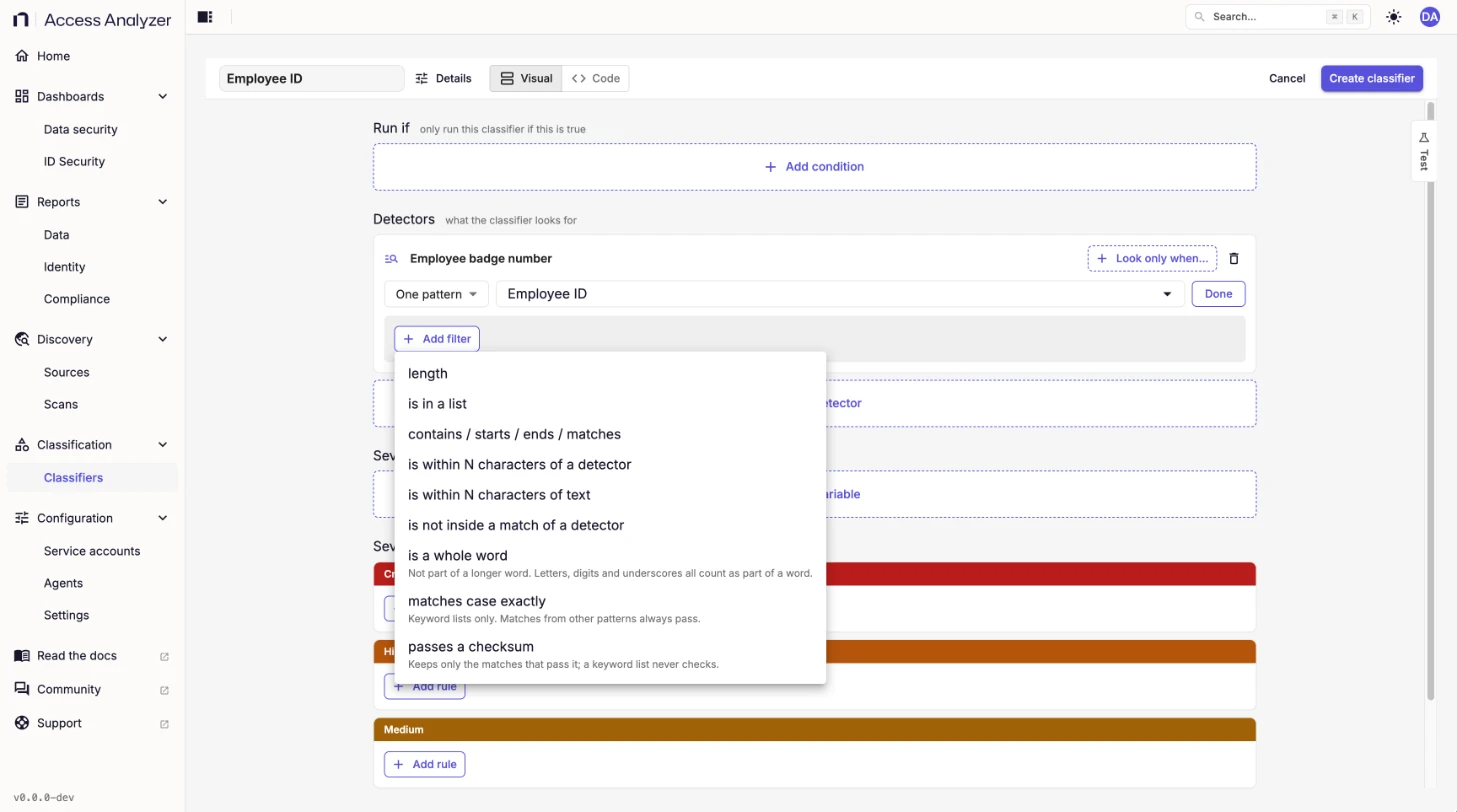
| Filter | Keeps a match when |
|---|---|
| length | The match is within a length range. |
| is in a list | The match is one of the words in a list. |
| contains / starts / ends / matches | The match contains, starts with, ends with, or fully matches the text you give. |
| is within N characters of a detector | Another detector matches within the distance you set. |
| is within N characters of text | A word from a list, or text you type, appears within the distance you set, from 1 to 5,000 characters. Whole words is on by default. Select Or in the column header to also accept the word as the column header above the value in a spreadsheet or table. |
| is not inside a match of a detector | The match isn't part of a longer match from another detector. For example, a card number that is really part of a longer hyphenated digit chain. |
| is a whole word | The match isn't part of a longer word. Letters, digits, and underscores all count as part of a word. |
| matches case exactly | The letter case matches. Keyword lists only; matches from other patterns always pass. |
| passes a checksum | The match passes a check-digit rule from the Checksums tab. A keyword list never checks. A detector can use one checksum. |
Detectors in one classifier that read the same pattern must use the same checksum, and a detector with no checksum counts as different from one with a checksum. The builder refuses to test or save a classifier that breaks this rule, and it reports Reads the same pattern as "<detector name>" with a different checksum, where <detector name> is another detector that reads the pattern.
Or in the column header works only on delimited text, such as a comma-separated values (CSV) file or a sheet in an Excel workbook. Access Analyzer treats text as a table when at least 3 of its first 20 non-empty lines, including the first, split into the same number of cells on one delimiter: tab, comma, semicolon, or pipe. The first non-empty line is the header.
Found when decides when the detector counts as found: Any match passes the filters, Every match passes the filters, or Exactly one match passes the filters. "Every" also holds when the pattern has no matches at all.
System One detectors
A System One detector asks System One a question about the file and records which option it chose. Use one when the answer depends on meaning rather than on a shape you can write down, such as whether a document is a record about one identifiable person.
- Under Detectors, click Add detector, and then click System One.
- In Detector name, enter a name.
- In Question, write the question System One answers about the file.
- Review the Options. A new question starts with Yes and No. Click Add option for more, and give each option a clear Option name.
- Optionally, click the arrow beside an option to add its Description, Not for (optional), and Examples (optional, one per line). These tell System One how the option differs from its neighbors.
- Set Confidence, the percent sure System One must be before its answer counts. The default is 60%.
- Optionally, pick a Model. Leave it on its default to use the default model.
A question needs at least two options. By default, a classifier can ask up to 8 System One questions in total, counting detectors and severity reviews together. A question can have up to 16 options and up to 4,096 characters across its text and options. When all the questions are in use, the builder reports All 8 System One questions are in use and turns off the buttons that add more.
To use the answer, add a System One answer condition to a severity rule, and then select the detector and the option that must be the answer. See Severity rules.
Severity rules
Each rule under a severity starts with ALL, ANY, or AT LEAST N of the following, followed by conditions. Click not before a rule or condition to negate it. Click Save as a variable to turn a rule into a severity variable, and Delete to remove it. Groups nest up to three levels deep; past that, save the inner group as a variable.
| Condition | What it tests |
|---|---|
| Detector test | Whether a detector was found, how many matches it has, how many different values, or whether a value is valid. |
| Near | Matches within N characters of another detector. |
| Close together | Matches from several detectors within N characters of each other. |
| Not inside | Matches outside another detector's matches. |
| Patterns across | How many different patterns matched across detectors. |
| Total matches | The total match count across detectors. |
| System One answer | Whether a System One detector answered with a given option. |
| File | The file name, folder path, readable content, length, or file status, such as Access denied, Encrypted or password protected, or Text cut off. |
| Variable | A severity variable. |
| CEL expression | A condition you write by hand in Common Expression Language (CEL). |
| Group | A nested ALL, ANY, or AT LEAST N group of conditions. |
The classifier reports the highest severity with a rule that holds. For example, the built-in Credit Cards classifier reports Medium when any card brand's detector finds a number that passes the Luhn check.
System One review
Under any severity, click Ask System One before <severity> is final to add a review. System One runs it when the severity's rule holds, and the answer decides whether that severity stands. What System One does has two settings:
| Setting | What System One does |
|---|---|
| Confirm the severity | Checks the severity against the Criteria you write. If it agrees, the severity is final. If it picks another severity, that one is final. If it says the file doesn't meet the criteria, the classifier drops the severity and continues with the next one. |
| Ask your own question | Answers a question with options you define. The severity is final when the answer is the option you select under <severity> is final when the answer is. Any other answer drops the severity, and the classifier continues with the next one. |
A review has the same Confidence and Model settings as a System One detector, and it counts toward the same limit on System One questions. Click Remove to delete a review.
Severity variables
A severity variable is a named condition you define once under Severity variables and reuse in any severity rule with the Variable condition. Use one when several severities share a test, such as "a card number near a card label", so a change to the test applies everywhere it's used.
Test a classifier
The Test panel runs the classifier you're editing on sample text with the same engine a scan uses, before you save.
- Click Test at the right edge of the builder.
- Optionally, enter a file path, such as
/HR/onboarding/new-hires.txt. Conditions that read the file name or folder path use it. - Optionally, pick status flags for the sample file.
- Paste up to 64 KB of sample text into the text box.
- Click Run.
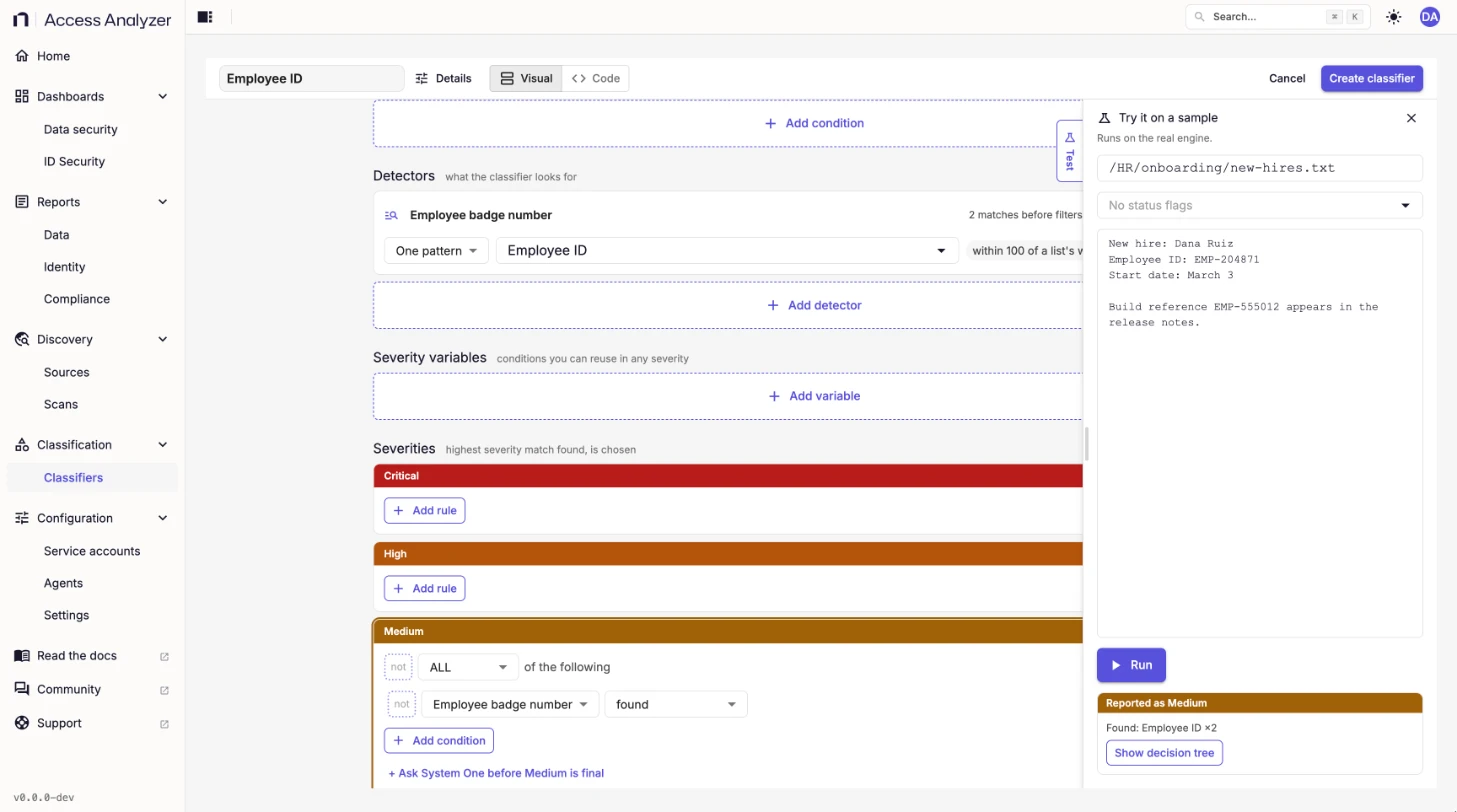
The panel reports Reported as <severity> with the matches found, or Not reported with the reason: Run if didn't hold, nothing matched, every match failed a check, or no level's conditions held. Each pattern detector also shows how many matches its pattern found before filters, and each System One detector shows the option System One chose, or Not asked when it didn't run. Click Show decision tree to see how the classifier reached the result.
To test a saved classifier without opening the builder, click Try it in its Actions menu on the Classifiers tab.
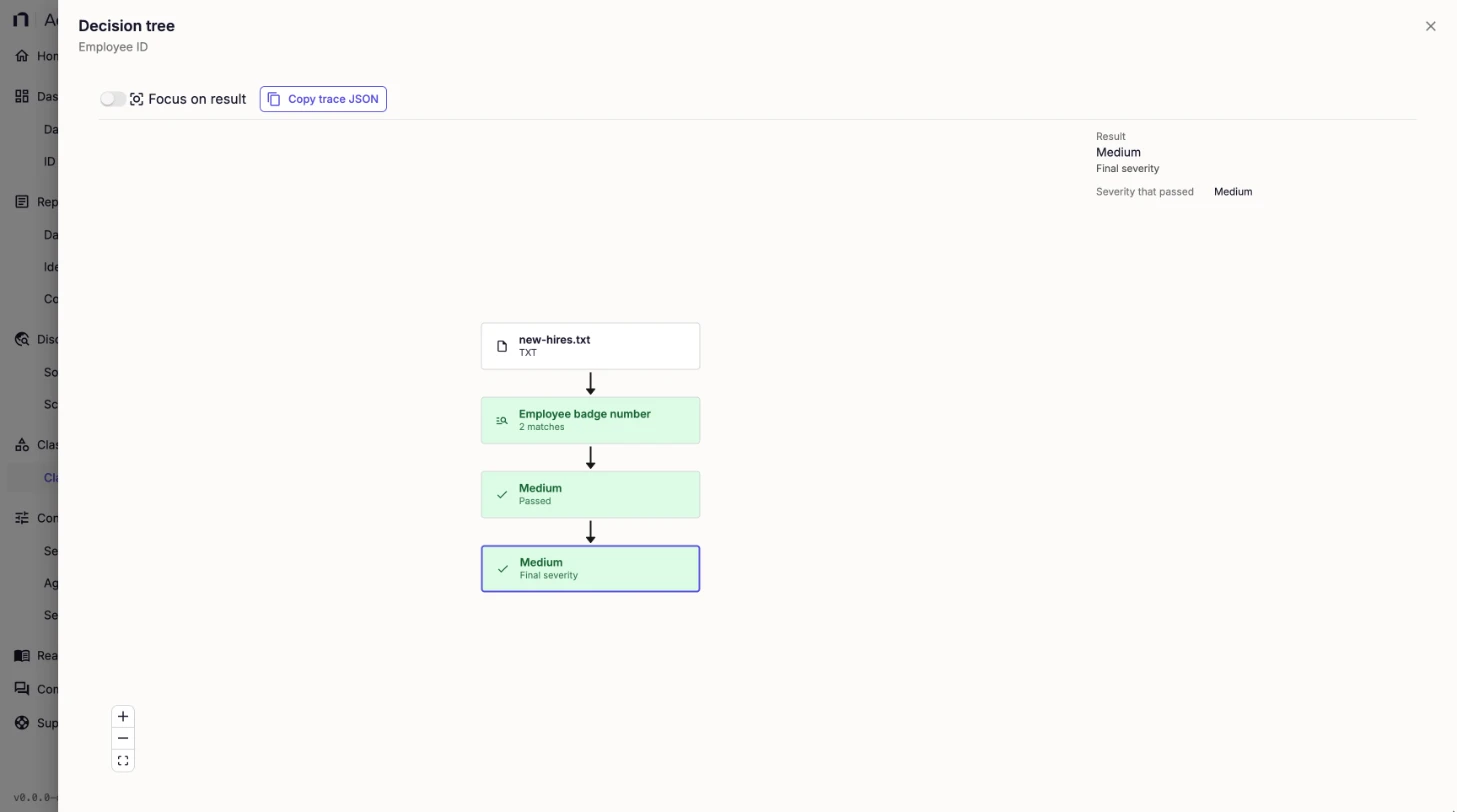
The decision tree draws the file, each detector with its match count, and each severity that passed or failed. Focus on result hides the branches that didn't decide the result, and Copy trace JSON copies the full evaluation for troubleshooting.
Edit a classifier
- On the Classifiers tab, click the classifier name.
- Change the classifier in the builder.
- Test it, and then click Save changes.
To change a built-in classifier, click Edit (makes your copy). See Built-in and custom classifiers.