Lists
A list is a set of words or phrases that classifiers read. Most lists hold the labels or context words that make a value more likely to be real: a nine-digit number next to "routing number" is far more likely to be a bank routing number than the same digits in a table of part numbers. A detector filter such as is within N characters of text or is in a list reads a list by name. See Build a classifier.
Access Analyzer ships the lists its built-in classifiers use, such as ABA routing number labels and Australian Passport Keywords. You can add your own. You need the Admin role to create, edit, or delete lists.
The Lists tab
Go to Classification > Classifiers and select the Lists tab.
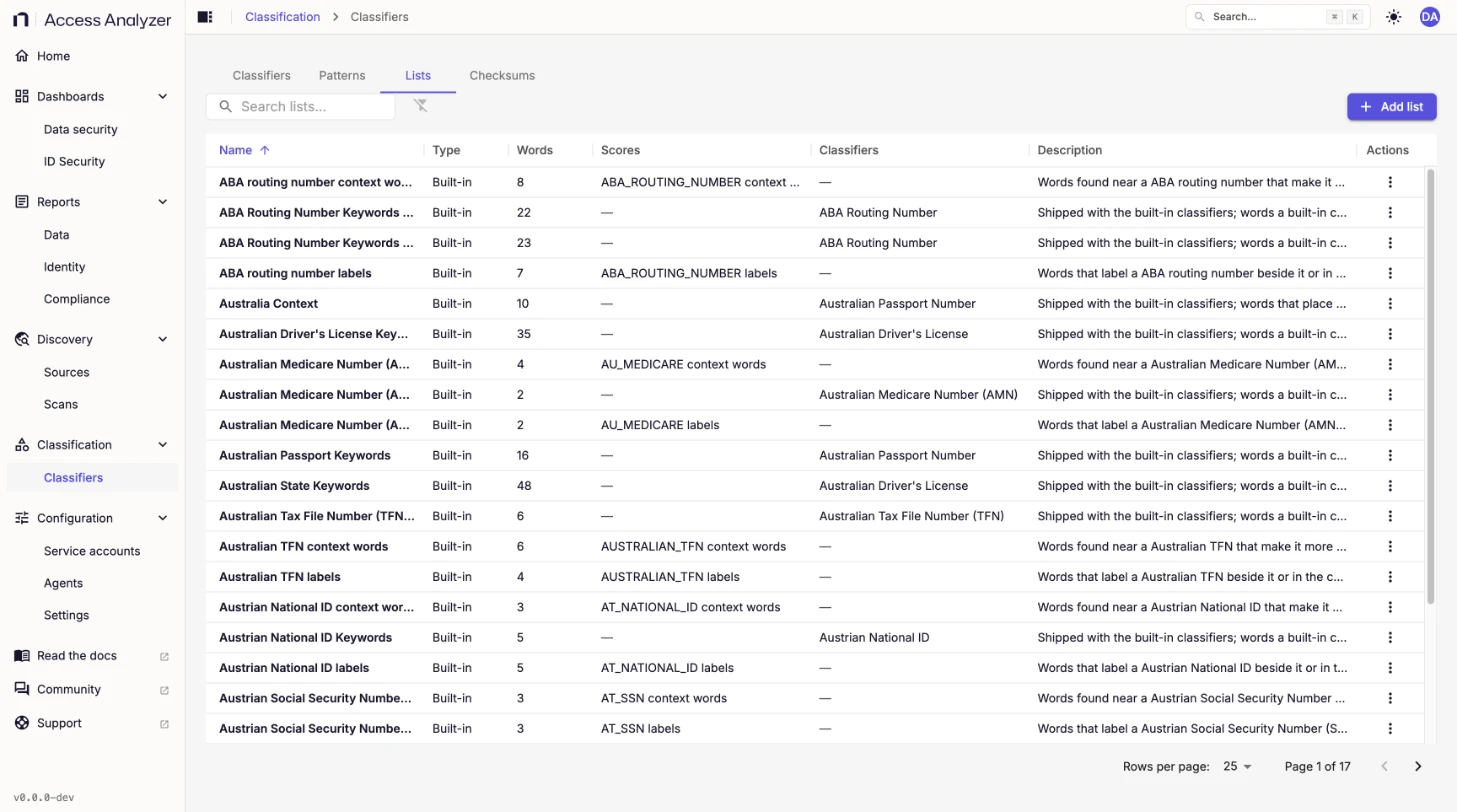
| Column | What it shows |
|---|---|
| Name | The list name. |
| Type | Built-in or Yours. |
| Words | How many words or phrases the list holds. |
| Scores | The patterns whose matches the list labels, if any. See Score a pattern's matches. |
| Classifiers | The classifiers that read the list. |
| Description | What the list is for. |
| Actions | View list for a built-in list; Edit and Delete for yours. |
Create a list
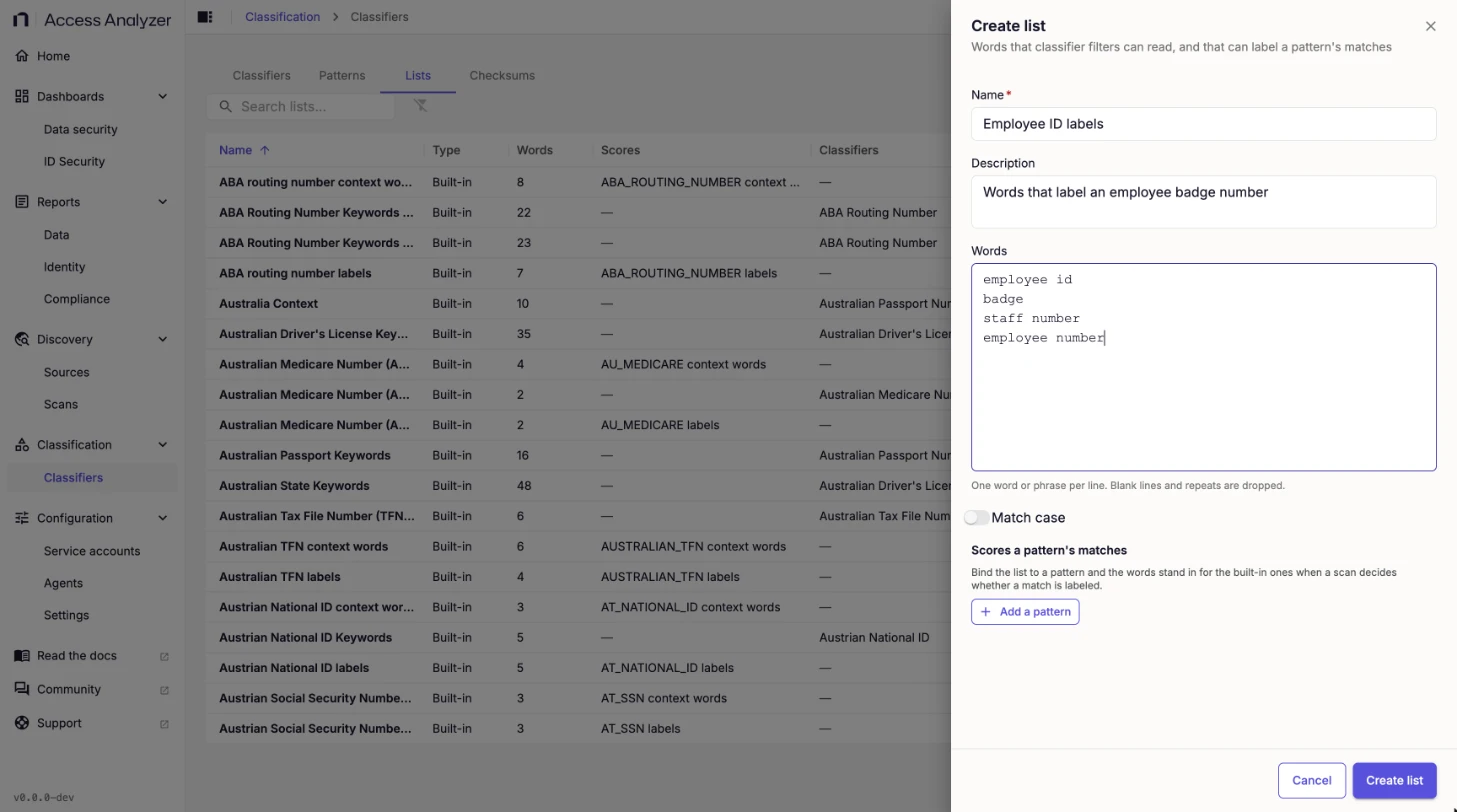
- On the Lists tab, click Add list.
- In Name, enter a name, such as
Employee ID labels. - In Description, describe what the list is for.
- In Words, enter one word or phrase per line.
- Turn on Match case if the letter case of a word matters.
- Click Create list.
| Field | Required | Details |
|---|---|---|
| Name | Yes | Up to 120 characters. |
| Description | No | Up to 2,000 characters. |
| Words | Yes | One word or phrase per line, up to 10,000 words of up to 200 characters each and 256 KB in total. Blank lines and repeats are dropped. |
| Match case | No | Off by default, so Badge and badge both match. Filters that read the list follow this setting. |
Whether a word must stand alone is up to the filter that reads the list: is within N characters of text has a Whole words option, on by default, so id doesn't match inside idle.
Score a pattern's matches
Under Scores a pattern's matches, click Add a pattern to bind the list to a pattern, and choose the role its words play:
| Role | The words count when |
|---|---|
| Labels | They label a value beside it or in its column header. |
| Context words | They appear near a value and make it more likely. |
| Column headers | They're short words that count only in a column header. |
When a scan decides whether a match of that pattern is labeled, it uses the list's words in place of the built-in ones. Use this to teach a built-in classifier the labels your organization writes next to a value, without copying the classifier.
Edit or delete a list
Open the list's Actions menu and click Edit or Delete. A change to a list applies to every classifier that reads it, from the next scan on. You can't delete a list while a classifier reads it; the message names the classifiers to change first.
Built-in lists are read-only and can't be copied. To change what one does, create your own list and bind it to the same pattern under Scores a pattern's matches.