Build a VIN checksum
A vehicle identification number (VIN) has 17 characters, and in North America the ninth is a check digit that the other 16 characters determine. In this tutorial, you build a custom checksum that recomputes that digit, so a classifier can keep only the VINs with a correct check digit. You also learn how to read a check digit from the middle of a value, convert letters to numbers with a table, and write a remainder of 10 as X.
Before you start
Sign in to Access Analyzer with the Admin role. You don't need a source or a scan, because the builder tests the values you enter. For every builder setting, see Checksums.
How the VIN check digit works
The VIN rule computes the check digit in four steps:
- Replace each letter with its value from a fixed table. Digits keep their own value. The letters
I,O, andQnever appear in a VIN, so they have no value. - Multiply each value by the weight for its position.
- Add the products. The ninth position has a weight of 0, so the check digit doesn't count toward its own total.
- Divide the total by 11. The remainder is the check digit. When the remainder is 10, the check digit is
X.
For the made-up VIN 1FAKE00060EXAMPLE, the products add up to 248. Dividing 248 by 11 leaves 6, and the ninth character is 6, so the check digit is correct.
This tutorial covers North American VINs. VINs built for other regions don't always use the ninth character as a check digit, so a valid VIN from another region can fail this checksum.
Open the builder and name the checksum
- Go to Classification > Classifiers and select the Checksums tab.
- Click New checksum.
- In Name, enter
VIN check digit. - Optionally, in Description, enter
Validates the check digit in the ninth character of a North American VIN.
Enter the name exactly as shown. The next tutorial selects this checksum by name, and checksum names must be unique.
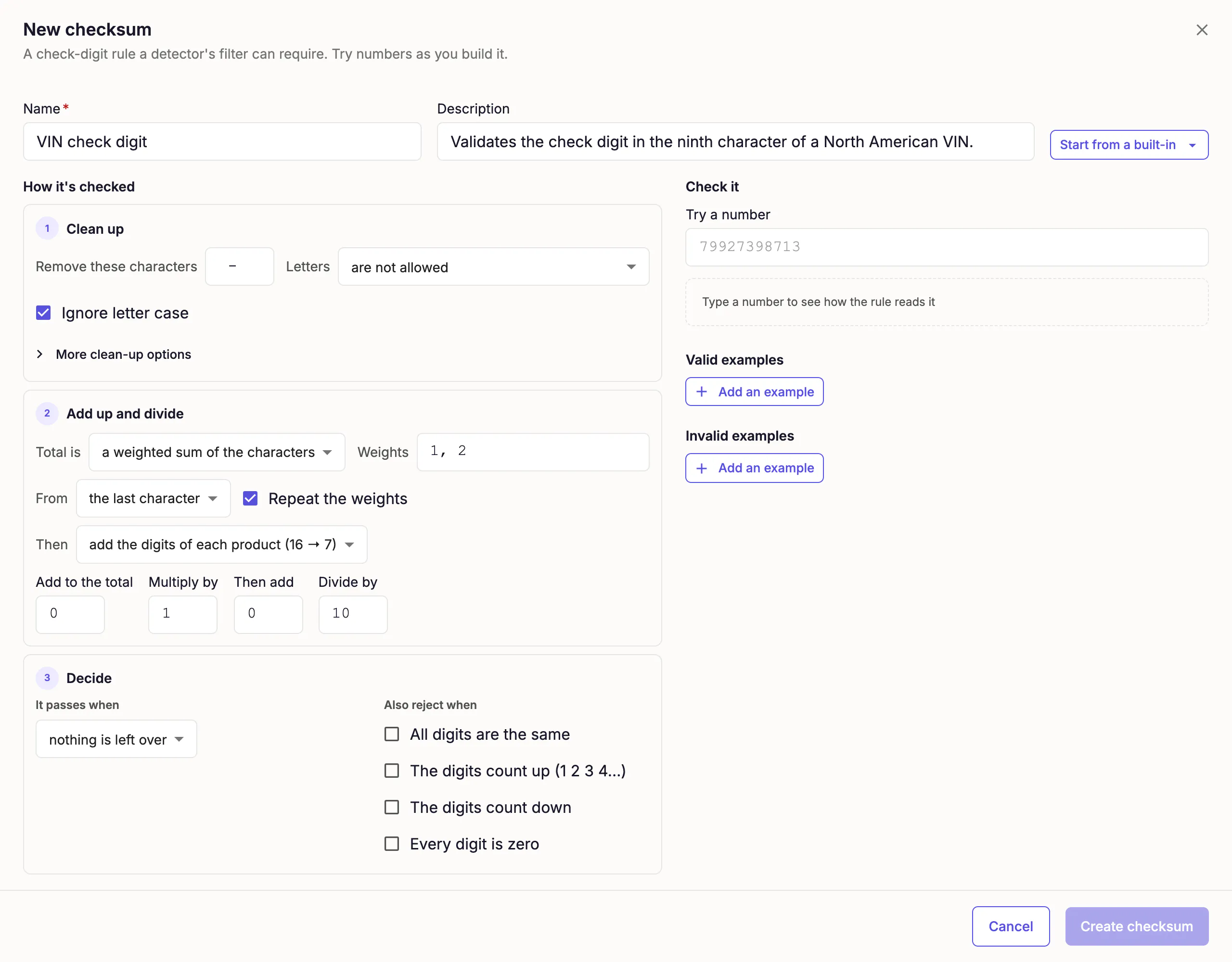
The builder opens with the rule for payment card numbers (Luhn) filled in. The next section changes each setting that doesn't suit a VIN.
Set up the rule
The builder describes a rule in three steps. Clean up converts the characters to values, Add up and divide applies the weights, adds the products, and divides the total, and Decide compares the remainder with the ninth character.
Clean up the value
The Clean up step turns the text into one value for each character.
-
Clear Remove these characters. A VIN has no spaces or hyphens, so a value that contains either one doesn't pass.
-
In Letters, select use this table. The Letter values field appears.
-
In Letter values, enter the value for each letter:
A=1, B=2, C=3, D=4, E=5, F=6, G=7, H=8, J=1, K=2, L=3, M=4, N=5, P=7, R=9, S=2, T=3, U=4, V=5, W=6, X=7, Y=8, Z=9 -
Leave Ignore letter case selected, so a lowercase VIN gets the same result as an uppercase VIN.
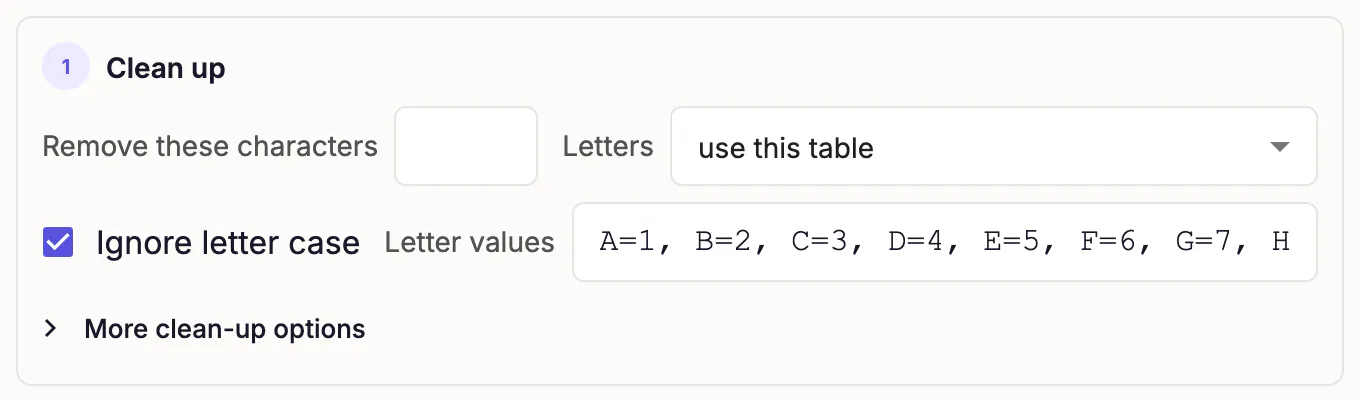
The table leaves out I, O, and Q, so a value that contains one of those letters doesn't pass. Digits keep their own value and need no entries.
Add up and divide
The Add up and divide step multiplies each value by a weight, adds the products, and divides the total.
-
Leave Total is set to a weighted sum of the characters.
-
In Weights, enter one weight for each of the 17 characters:
8, 7, 6, 5, 4, 3, 2, 10, 0, 9, 8, 7, 6, 5, 4, 3, 2 -
In From, select the first character.
-
Clear Repeat the weights.
-
In Then, select keep each product.
-
Leave Add to the total at
0, Multiply by at1, and Then add at0. -
In Divide by, enter
11.
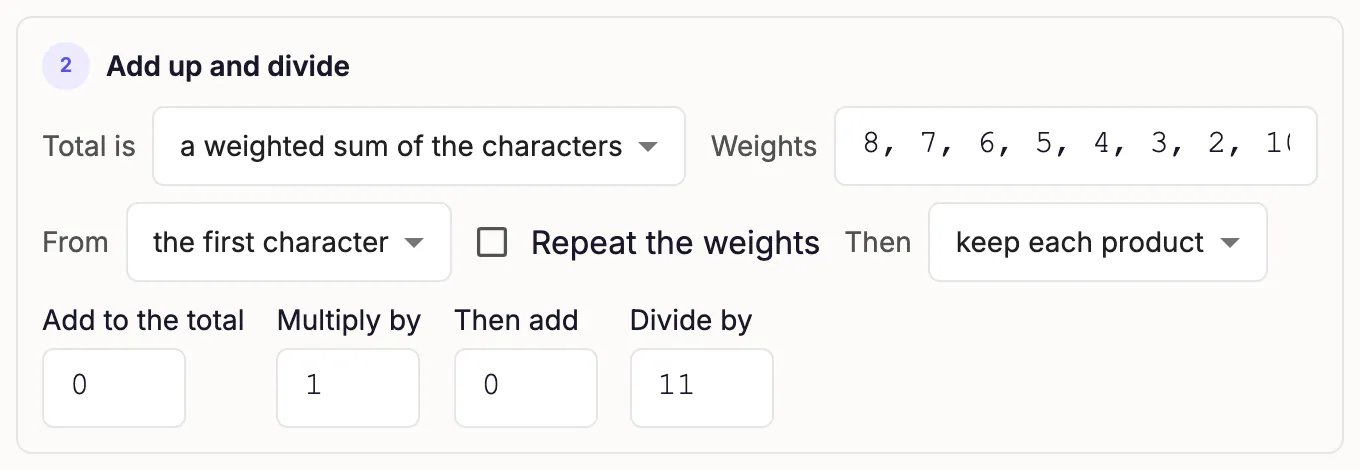
The ninth weight is 0, and the builder skips the check digit when it adds up. It still needs a weight for every character, so the list has 17 entries. Because the weights don't repeat, a value with any other length doesn't pass.
Decide when a value passes
The Decide step compares the remainder with the check digit in the value.
-
In It passes when, select the check digit equals the remainder.
-
In Check digit at, select a position, and enter
8in the box beside it. Positions count from 0, so position 8 is the ninth character. -
In Characters per remainder, enter the check digit for each remainder from 0 to 10:
0, 1, 2, 3, 4, 5, 6, 7, 8, 9, X -
Leave every option under Also reject when cleared.
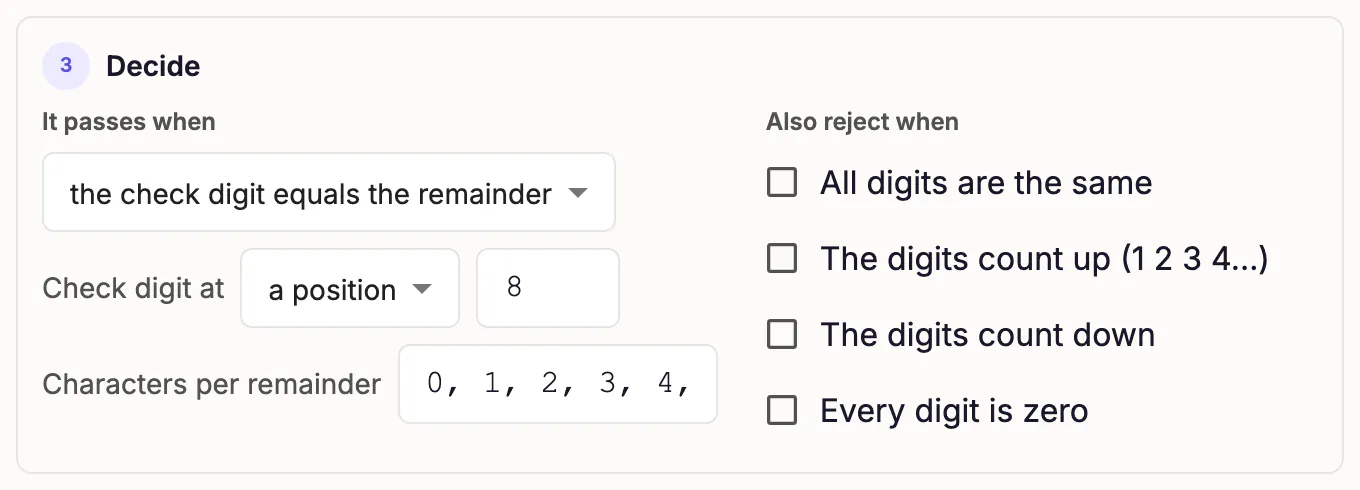
The first entry is the check digit for a remainder of 0, and the last is the check digit for a remainder of 10. Without this list, the builder expects the remainder itself, so it rejects every VIN whose check digit is X.
Test the rule
The Check it panel recomputes the rule each time you change a setting or a value.
Try a VIN
- In Try a number, enter
1FAKE00060EXAMPLE. - Confirm that the panel reports Passes.
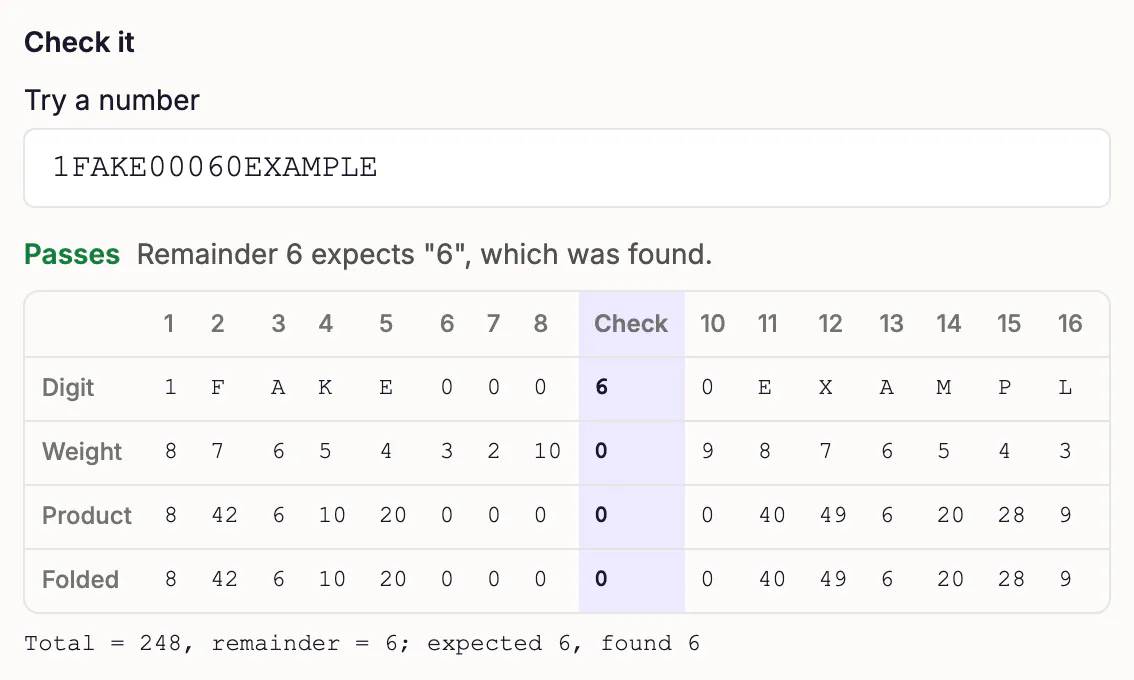
The panel shows a worksheet with one column for each character. Each column lists the character, its weight, and its product. The ninth column is shaded and labeled Check, because the rule compares that character with the remainder instead of adding it. The worksheet scrolls sideways when it's wider than the panel. The line under the worksheet reads "Total = 248, remainder = 6; expected 6, found 6".
Each step also summarizes what it did with the number. Clean up reads "Cleaned: 1FAKE00060EXAMPLE", Add up and divide reads "Total 248; 248 mod 11 = 6", and Decide reads "expected 6, found 6". If your total isn't 248, compare your weights and letter values with the lists in this tutorial.
Add examples
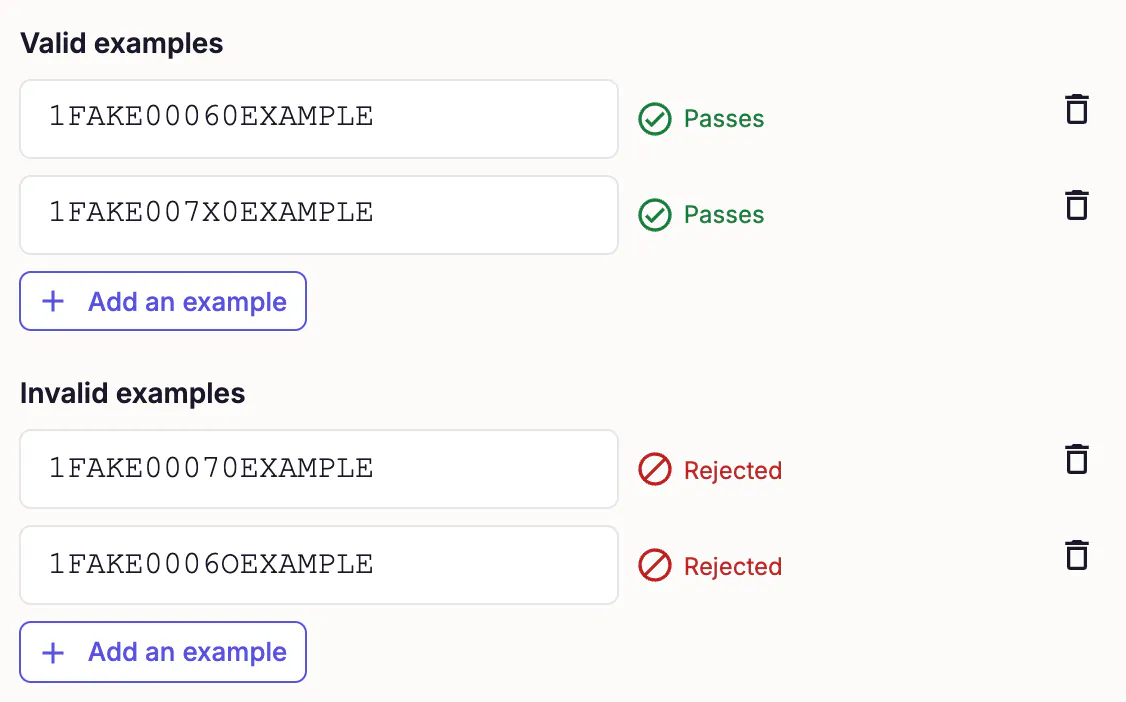
The builder saves a checksum only when it has at least one valid and one invalid example and the rule agrees with every example. Add two VINs that must pass and two that must fail. The valid examples cover both kinds of check digit, a digit and X. The invalid examples cover a wrong check digit and a letter that a VIN never contains. All four VINs are made up.
| Add under | Value | Why |
|---|---|---|
| Valid examples | 1FAKE00060EXAMPLE | The total is 248, the remainder is 6, and the ninth character is 6. |
| Valid examples | 1FAKE007X0EXAMPLE | The total is 318, the remainder is 10, and the ninth character is X. |
| Invalid examples | 1FAKE00070EXAMPLE | The remainder is 6, but the ninth character is 7. |
| Invalid examples | 1FAKE0006OEXAMPLE | The letter O has no value in the table. |
For each row, click Add an example under its heading and enter the value.
Each example shows its verdict as you enter it: Passes for a valid example and Rejected for an invalid one. When all four agree with the rule, the footer reads "The rule agrees with all 4 examples" and Create checksum becomes available.
Save the checksum
Click Create checksum.
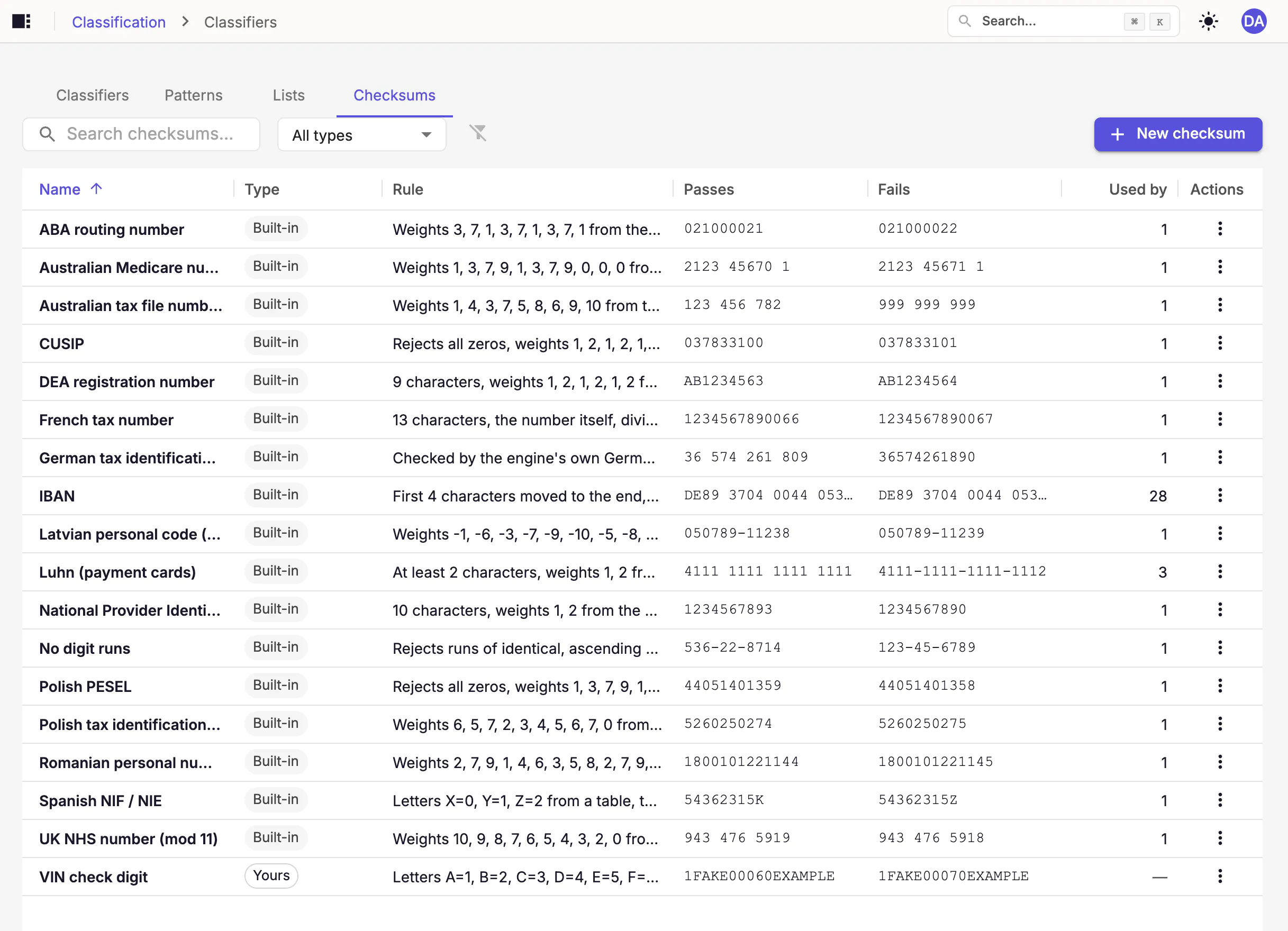
A message confirms the save: Checksum "VIN check digit" created. The checksum appears on the Checksums tab with the type Yours. The Rule column describes the saved rule in words, so you can compare it with your settings. The Passes and Fails columns show your first valid and invalid examples, and Used by shows a dash until a classifier uses the checksum.
Troubleshooting
| What you see | Cause | Fix |
|---|---|---|
Add up and divide shows a total other than 248 for 1FAKE00060EXAMPLE, or the panel reports Does not pass | A Luhn setting is still in place, or a weight or letter value is wrong. | Compare Remove these characters, Letter values, Weights, From, Repeat the weights, Then, and Divide by with the values in this tutorial. |
| "remainder 10 has no check digit" | Characters per remainder is empty or has fewer than 11 entries. | Enter all 11 characters, ending with X. |
| "letter 'O' is not allowed" | The value contains a letter that has no entry in Letter values. For I, O, and Q, this is the correct result. | Add or correct the entry for any other letter in Letter values. |
| Create checksum is unavailable | At least one example disagrees with the rule. The footer reports how many. | Find the example marked "Fails: the rule rejects this valid example" or "Passes: the rule accepts this invalid example", and fix the rule or the example. |
| "is already the name of another checksum" under Name | Another checksum has the same name, and that includes the built-in checksums. Names ignore letter case. | Enter a different name, or edit the other checksum if you created it. |
Next steps
To see how a detector applies a checksum, see Build a classifier.
Next, build a VIN classifier that uses the VIN check digit checksum.