Build a VIN classifier
In this tutorial, you build a classifier that finds North American vehicle identification numbers (VINs). It reports Medium when a file has a VIN and High when a file has five or more different VINs. The detector combines a pattern, a word list, and a checksum. You test the classifier on four samples before you save it.
How the classifier works
A VIN has 17 characters, and many other values have the same shape. The classifier counts a 17-character string as a VIN only when it passes the VIN check digit and sits next to a VIN label or under a VIN column header. It uses four parts:
| Part | Name | What it does |
|---|---|---|
| Pattern | VIN | Finds every string of 17 characters that a VIN can contain. |
| List | VIN labels | Holds the words that label a VIN, such as VIN and Vehicle ID. |
| Checksum | VIN check digit | Keeps a string only when its ninth character is the correct check digit. |
| Classifier | North American VIN | Applies the list and the checksum to the pattern's matches and sets the severity. |
The classifier reports Medium when the detector finds a VIN. It reports High when the detector finds five or more different VINs.
Before you start
- Sign in to Access Analyzer with the Admin role.
- Build the
VIN check digitchecksum in Build a VIN checksum. Confirm that it appears on the Checksums tab.
You don't need a source or a scan, because the Test panel runs the classifier on text you paste. For every setting in the builder, see Build a classifier.
Create the VIN pattern
The pattern finds every string that could be a VIN. It matches 17 digits and capital letters, and it leaves out the letters I, O, and Q, which a VIN never contains.
-
Go to Classification > Classifiers and select the Patterns tab.
-
Click Create pattern.
-
In Name, enter
VIN. -
In Description, enter
A 17-character North American vehicle identification number. -
Leave Regex selected.
-
In Regex pattern, enter the following expression:
\b[A-HJ-NPR-Z0-9]{17}\b -
Click Create pattern.
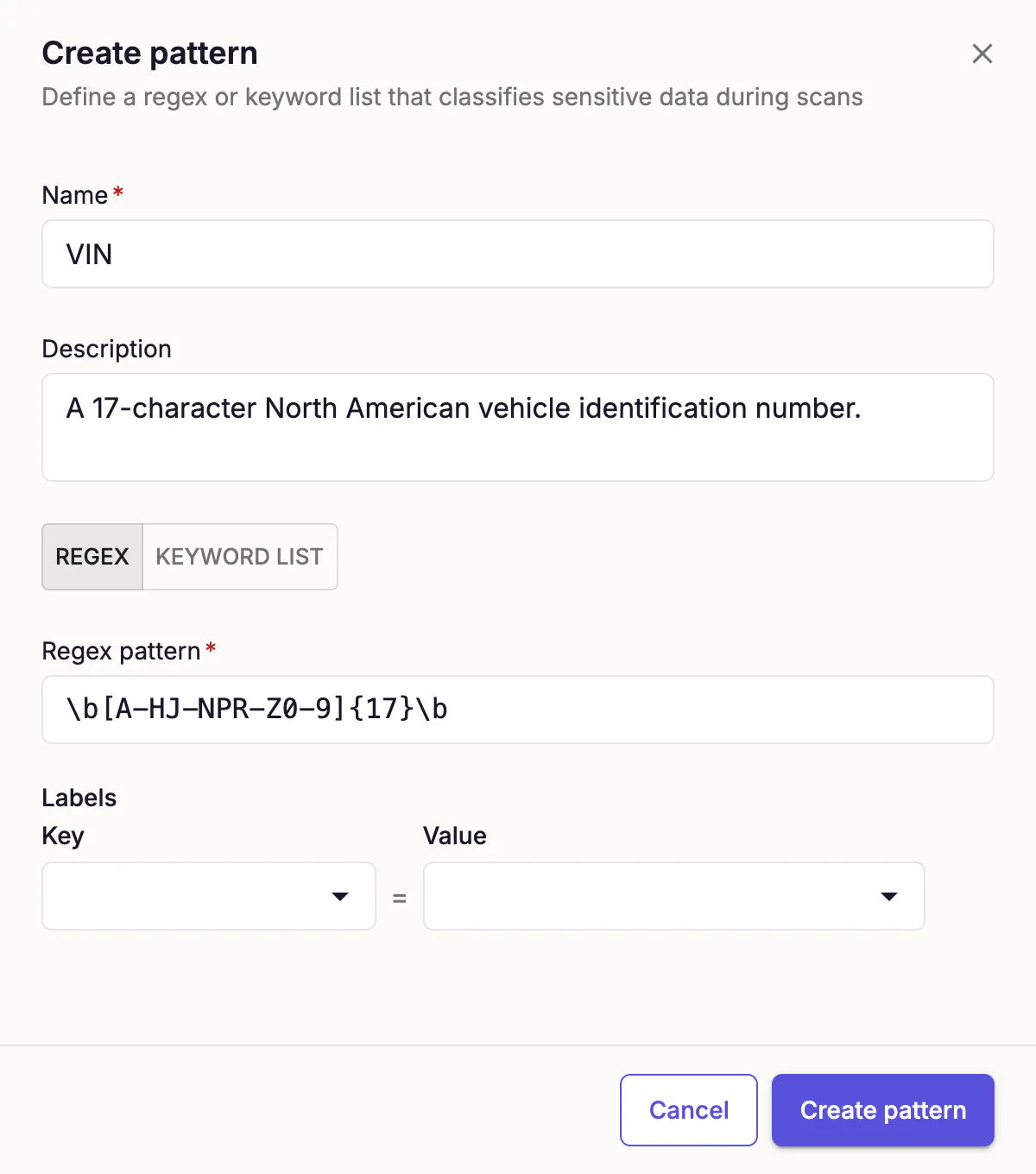
A message confirms the save: Pattern "VIN" created.
The expression has three parts:
| Part | Matches |
|---|---|
\b | A word boundary at the start and at the end, so the pattern doesn't match inside a longer token. |
[A-HJ-NPR-Z0-9] | One digit or capital letter other than I, O, or Q. |
{17} | Exactly 17 of those characters. |
The expression has no capture groups. When a match captures exactly one named group, the checksum checks only that group. Otherwise, it checks the whole match, which here is all 17 characters. For the expressions Access Analyzer accepts, see Regular expression dialect.
The pattern is case-sensitive, so it finds only VINs written in capital letters.
Create the VIN labels list
The list holds the words that label a VIN. The detector reads it to decide whether a match sits next to a label or under a column header.
-
Select the Lists tab.
-
Click Add list.
-
In Name, enter
VIN labels. -
In Description, enter
Words that label a vehicle identification number. -
In Words, enter one word or phrase per line:
VINVehicle identification numberVehicle ID -
Leave Match case off, so
VIN,Vin, andvinall count. -
Click Create list.
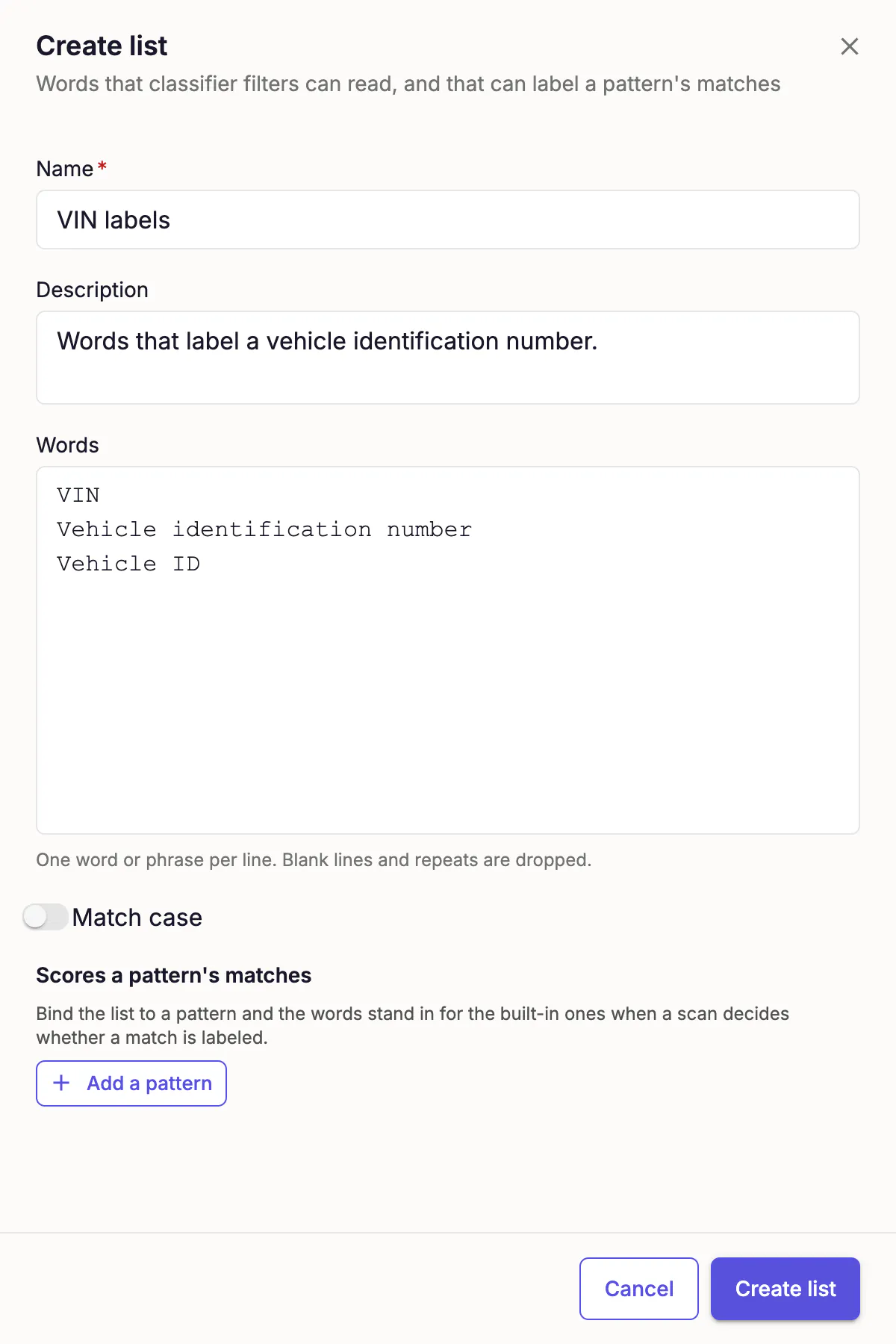
A message confirms the save: List "VIN labels" created.
Create the classifier
The classifier builder lays the classifier out from top to bottom in the order a scan evaluates it. For what each section does, see Parts of a classifier.
Name the classifier
- Select the Classifiers tab and click New classifier.
- In the box that reads Untitled classifier, enter
North American VIN. - Optionally, click Details, and in Description enter
Finds North American vehicle identification numbers.
Add the VIN detector
A detector finds values with a pattern and narrows them with filters.
- Under Detectors, click Add detector, and then click Patterns.
- In Detector name, enter
VIN. - Leave One pattern selected, and in Pick a pattern, select VIN.
Pick the pattern first. The passes a checksum filter appears in the filter menu only after the detector has a pattern.
Require a VIN label near each match
- On the detector, click Add filter to open its filters.
- In the filters, click Add filter, and then click is within N characters of text.
- Change the distance to
100. - Select VIN labels in place of the values typed here.
- Keep Whole words selected, and select Or in the column header.
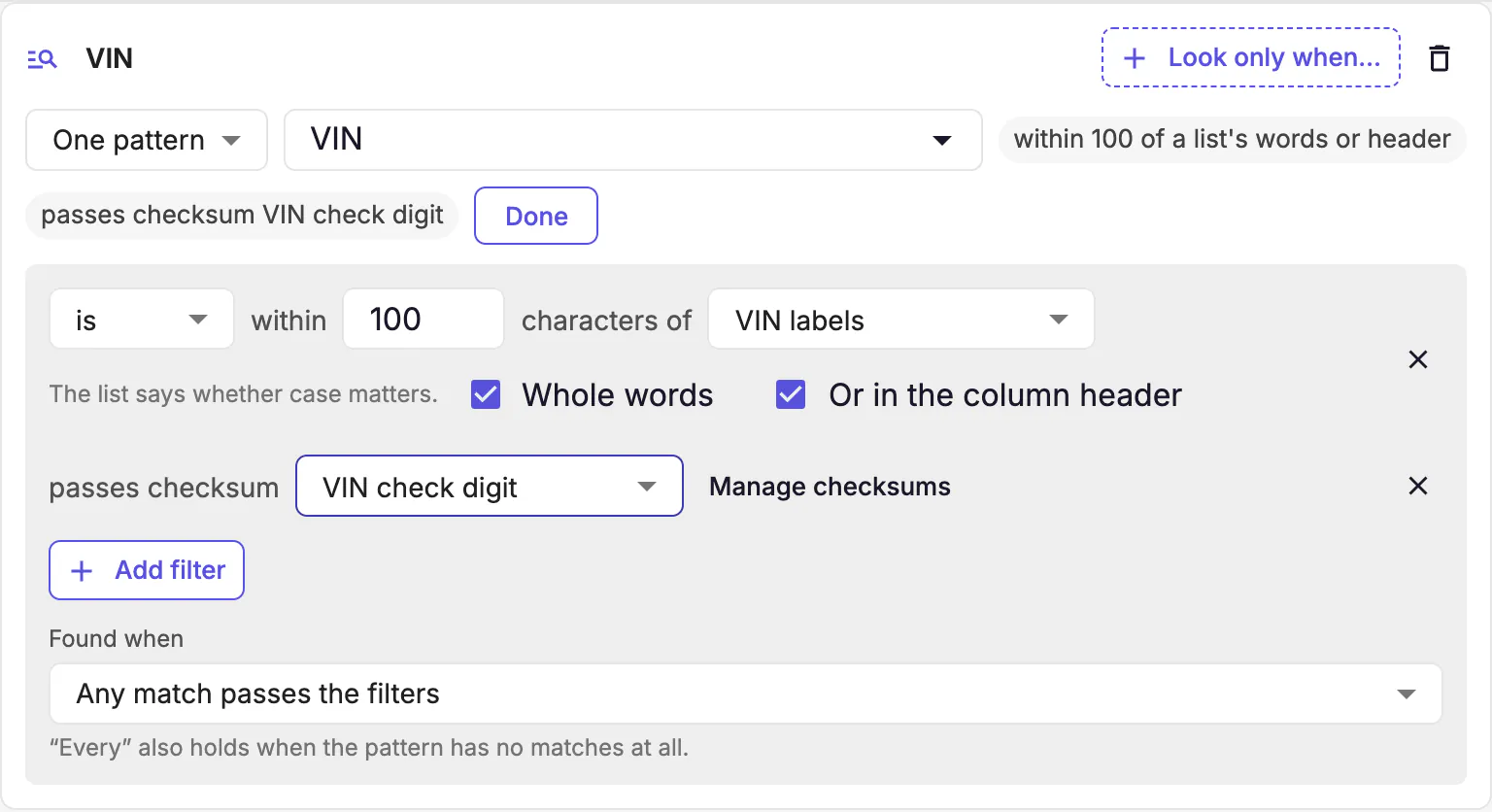
The filter keeps a match when a word from VIN labels appears within 100 characters of it. With Whole words selected, vin inside a word such as moving doesn't count as a label. Or in the column header also keeps a match when the header of its column holds a label word. In a comma-separated values (CSV) file or a spreadsheet, most rows sit far from the header, so the distance alone would drop them.
Or in the column header reads delimited text, such as CSV. The first non-empty line is the header. At least 3 of the first 20 non-empty lines must split into the same number of cells on one delimiter: tab, comma, semicolon, or pipe.
Require a correct check digit
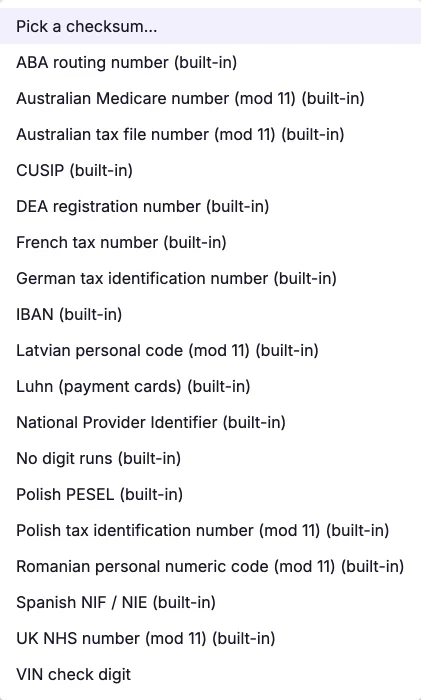
- Click Add filter, and then click passes a checksum.
- In the checksum list, which reads Pick a checksum…, select VIN check digit.
- Leave Found when set to Any match passes the filters.
- Click Done.
The checksum list shows the built-in checksums first, each marked (built-in). Checksums you built follow them, so VIN check digit is near the end.
The detector now summarizes its filters: within 100 of a list's words or header and passes checksum VIN check digit.
Add the severity rules
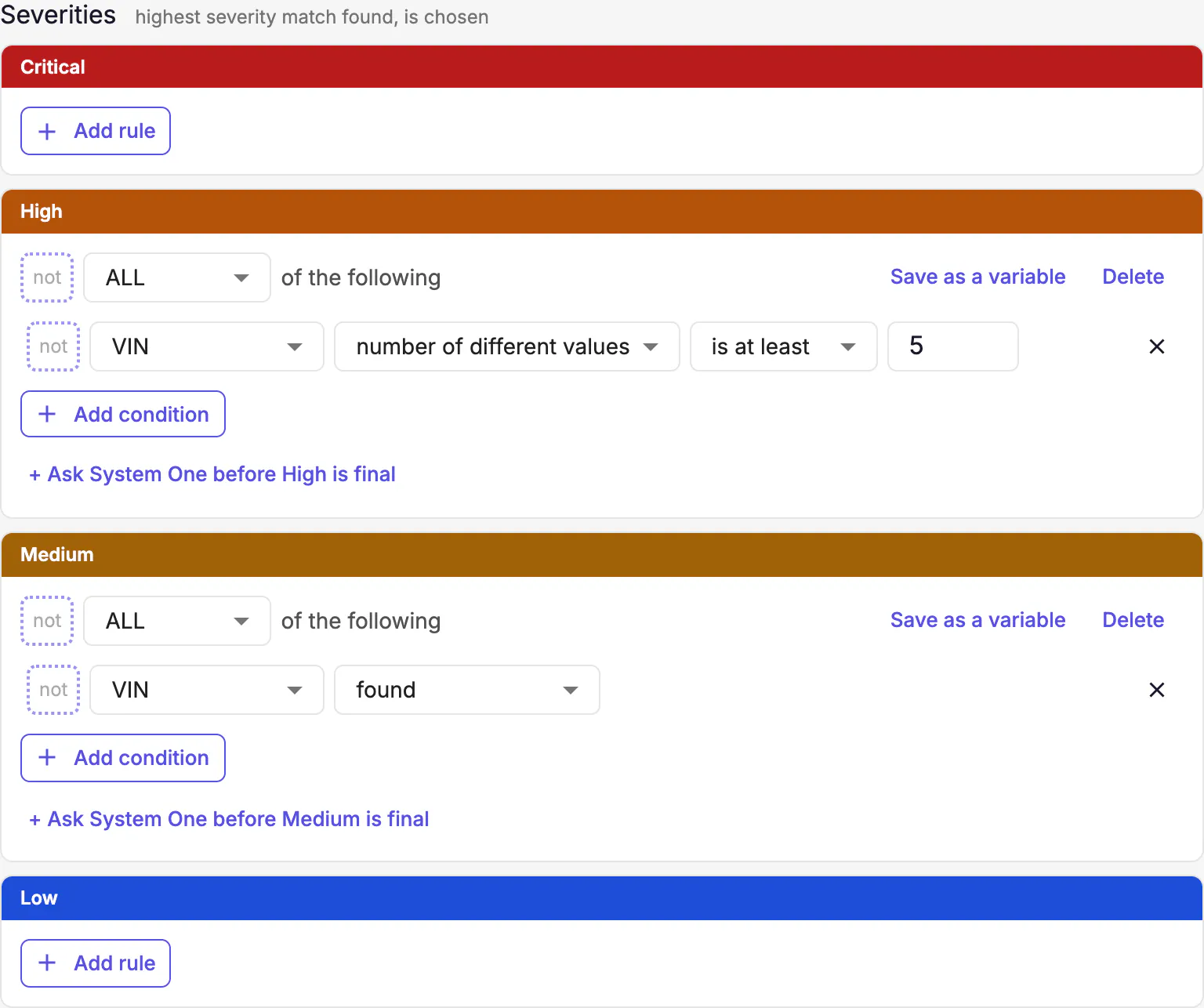
The classifier reports the highest severity whose rule holds. Both rules read the VIN detector.
- Under Medium, click Add rule.
- Click Add condition, and then click Detector test.
- Confirm that the condition reads VIN and found.
- Under High, click Add rule.
- Click Add condition, and then click Detector test.
- Change found to number of different values.
- Leave is at least selected, and change the number to
5.
The High rule counts different values, so repeats of one VIN count once. A file with the same VIN five times stays at Medium. A file with five different VINs meets both rules, and the classifier reports High.
Every detector in a classifier that reads the VIN pattern must use the same checksum. Access Analyzer refuses to test or save a classifier whose detectors read one pattern with different checksums, or with a checksum on one detector and none on another.
Test the classifier
The Test panel runs the classifier you're editing on sample text with the same engine a scan uses. All the VINs in these samples are made up.
- Click Test at the right edge of the builder. The Try it on a sample panel opens.
- Leave the file path and the status flags empty.
- Run each of the following samples: paste the text into the sample text box, replacing the previous text, and click Run.
Test a VIN next to a label
VIN: 1FAKE00060EXAMPLE
The panel reports Reported as Medium, and its Found line lists one match. The string matches the pattern, its check digit is correct, and the word VIN comes right before it.
Test a file with five VINs
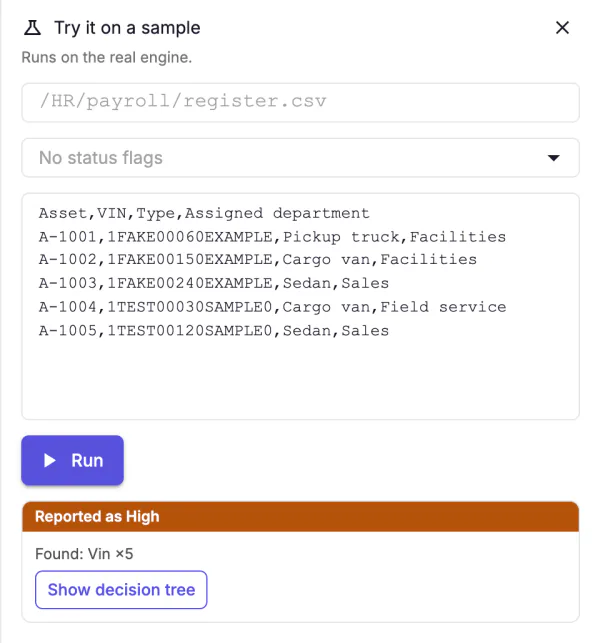
Asset,VIN,Type,Assigned department
A-1001,1FAKE00060EXAMPLE,Pickup truck,Facilities
A-1002,1FAKE00150EXAMPLE,Cargo van,Facilities
A-1003,1FAKE00240EXAMPLE,Sedan,Sales
A-1004,1TEST00030SAMPLE0,Cargo van,Field service
A-1005,1TEST00120SAMPLE0,Sedan,Sales
The panel reports Reported as High, and its Found line lists five matches. The five different VINs meet the High rule, and the Medium rule also holds, so the classifier reports the higher severity.
Only the first two VINs sit within 100 characters of the word VIN in the header. Or in the column header keeps the other three.
Test a VIN with a wrong check digit
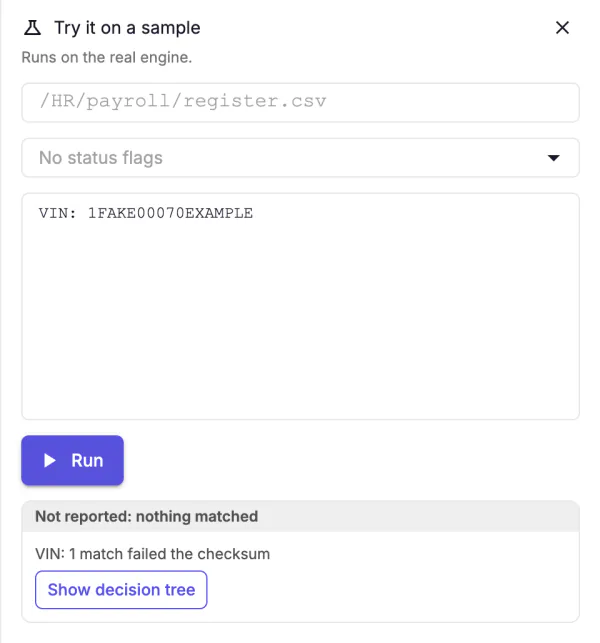
VIN: 1FAKE00070EXAMPLE
The panel reports Not reported: nothing matched, and it lists "VIN: 1 match failed the checksum". The string has a label, but its ninth character is 7, and the rule computes a check digit of 6.
Test a VIN without a label
Ref 1FAKE00060EXAMPLE
The panel reports Not reported: no level's conditions held. The check digit is correct, so the Found line still lists the VIN. No word from VIN labels is near it, so neither severity rule holds. The Found line lists matches before the label filter runs.
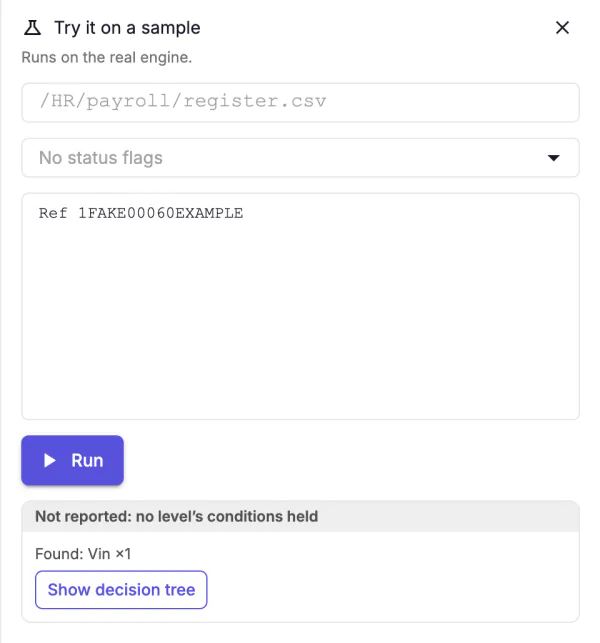
To see which part of the classifier decided each result, click Show decision tree. See Test a classifier.
See what the column header option does
This optional check shows why the five-VIN sample needs Or in the column header. The Test panel covers the buttons on the detector, so you close it before you change a filter.
- Click Test to close the panel.
- On the VIN detector, click Edit filters, and clear Or in the column header.
- Click Test to open the panel, paste the five-VIN sample into the sample text box again, and click Run.
- Confirm that the panel now reports Reported as Medium.
- Click Test to close the panel, select Or in the column header again, and click Done.
Without the option, only the first two VINs sit close enough to the header to count, and the High rule needs five.
Save the classifier
Click Create classifier.
A message confirms the save: North American VIN saved — scans use it within a minute. The classifier appears on the Classifiers tab with the type Custom, and its Published switch is on.
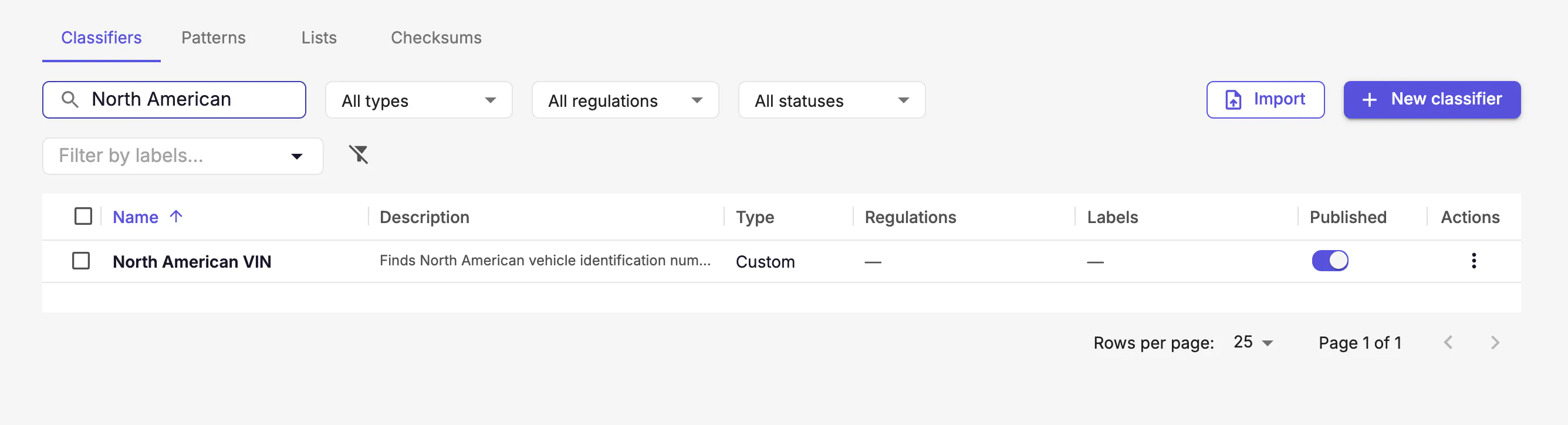
Access Analyzer publishes a new classifier when you save it, so you don't publish it separately. To stop scans from running it later, turn the Published switch off. See Published and unpublished classifiers.
The classifier now uses the VIN check digit checksum. On the Checksums tab, Used by shows 1 for that checksum, and you can't delete the checksum until you take it out of the classifier.
Troubleshooting
| What you see | Cause | Fix |
|---|---|---|
| passes a checksum isn't in the filter menu | The detector has no pattern yet, or it already has a checksum filter. A detector takes one checksum. | Pick the VIN pattern first. To use a different checksum, change the existing checksum filter. |
| VIN check digit isn't in the checksum list | The checksum doesn't exist, or you saved it under another name. | Build it in Build a VIN checksum, or select the name you used. |
| The five-VIN sample reports Medium, not High | Fewer than five VINs count. Or in the column header is cleared, or the sample isn't read as a table. | Select Or in the column header. Check that the first line is the header and that at least 3 of the first 20 non-empty lines split into the same number of cells. |
| The Test panel reports "We couldn't run it" | The classifier is incomplete, such as a detector with no pattern or a rule with no condition. The panel lists each problem. | Fix each listed problem, and click Run again. |
Next steps
- To run the classifier, select it on the Classifiers step of the Create scan wizard. See How a scan picks its classifiers.
- To recognize more labels, add words to the VIN labels list. A change to a list applies from the next scan. See Edit or delete a list.
- To learn what the other detectors, filters, and conditions do, see Build a classifier.