Data Reports
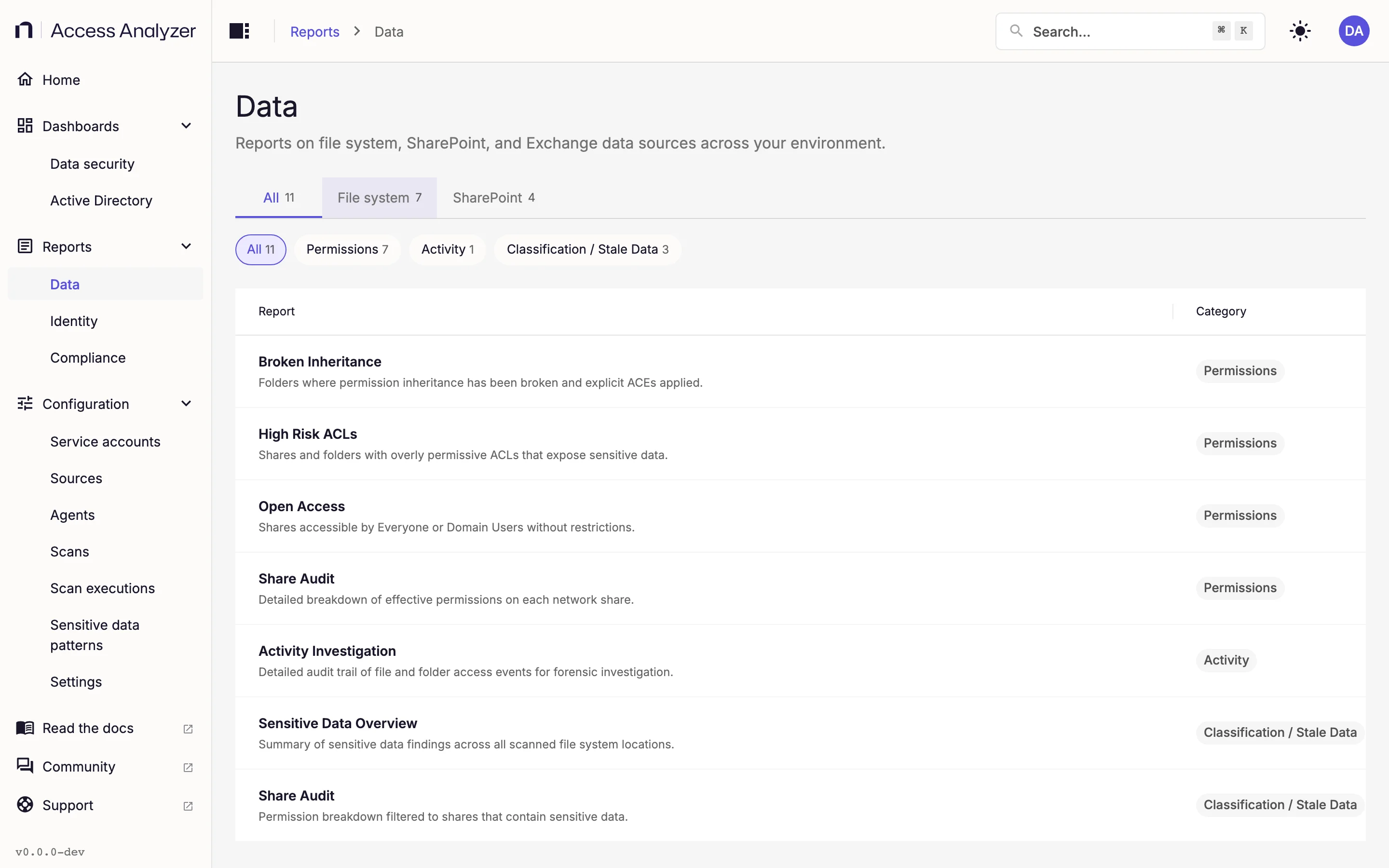
The Data page collects every report about the content of your file servers and SharePoint Online sites: who can reach it, where the sensitive files are, and who has been opening them. Seven reports cover file servers and four cover SharePoint Online. Two of the file server rows, both named Share Audit, open the same report, so the 11 rows lead to 10 distinct reports.
Open the page from Reports > Data. Dashboards and reports covers what's common to every report: the Refresh button, how filters apply, drilling into a chart, and how fresh the data is.
The Data Page
The page is a table with two columns: Report and Category. Each row shows the report name with its description underneath, and a category chip on the right. Click anywhere on a row to open the report.
Above the table, tabs narrow the list by platform and chips narrow it by category. Each tab and chip shows how many reports it contains.
| Tab | Reports | Category chips |
|---|---|---|
| All | 11 | Permissions (7), Activity (1), Classification / Stale Data (3) |
| File system | 7 | Permissions (4), Activity (1), Classification / Stale Data (2) |
| SharePoint | 4 | Permissions (3), Classification / Stale Data (1) |
The first chip in the row, All, repeats the tab's total.
Switching tabs clears the chip you had selected. Clicking a selected chip again clears it. The page has no search box or sort control.
The rows appear in this order:
| Report | Tab | Category |
|---|---|---|
| Broken Inheritance | File system | Permissions |
| High Risk ACLs | File system | Permissions |
| Open Access | File system | Permissions |
| Share Audit | File system | Permissions |
| Activity Investigation | File system | Activity |
| Sensitive Data Overview | File system | Classification / Stale Data |
| Share Audit, second entry | File system | Classification / Stale Data |
| Shared Links | SharePoint | Permissions |
| High-Risk ACLs | SharePoint | Permissions |
| Open Access | SharePoint | Permissions |
| Sensitive Data Overview | SharePoint | Classification / Stale Data |
Two names, Open Access and Sensitive Data Overview, appear on both the file system and SharePoint sides, and High Risk ACLs has a SharePoint twin spelled High-Risk ACLs. The File system and SharePoint tabs keep them apart, and the description under each name tells you which is which.
Inside a Report
Every report opens the same way: breadcrumbs Reports > Data followed by the report name, a Back to Data reports link, the name as the page heading with the description under it, and Refresh at the top right. The report's own filters sit at the top of the content and take effect as soon as you change them. Only Share Audit and Activity Investigation have required filters; everywhere else, an empty filter means no restriction.
Back to Data reports returns you to the list with the tab and chip you had selected.
File System Reports
These seven reports read from your File Server sources. The permission reports need a completed Access scan on the source. The sensitive data reports need a Sensitive data scan. The activity report and the activity cards in Share Audit need events from Netwrix Activity Monitor. Where a report shows account or group names rather than identifiers, or expands group membership, it relies on an Identity sync of the Active Directory domain those accounts belong to. Scan types explains each scan.
Broken Inheritance
"Folders where permission inheritance has been broken and explicit ACEs applied."
An access control entry (ACE) is one line in a folder's permission list. Folders normally inherit their permissions from the folder above; when someone breaks that inheritance and adds explicit entries, the folder becomes an exception that's easy to overlook. This report finds those folders and shows where they cluster. It needs a completed Access scan on the File Server source.
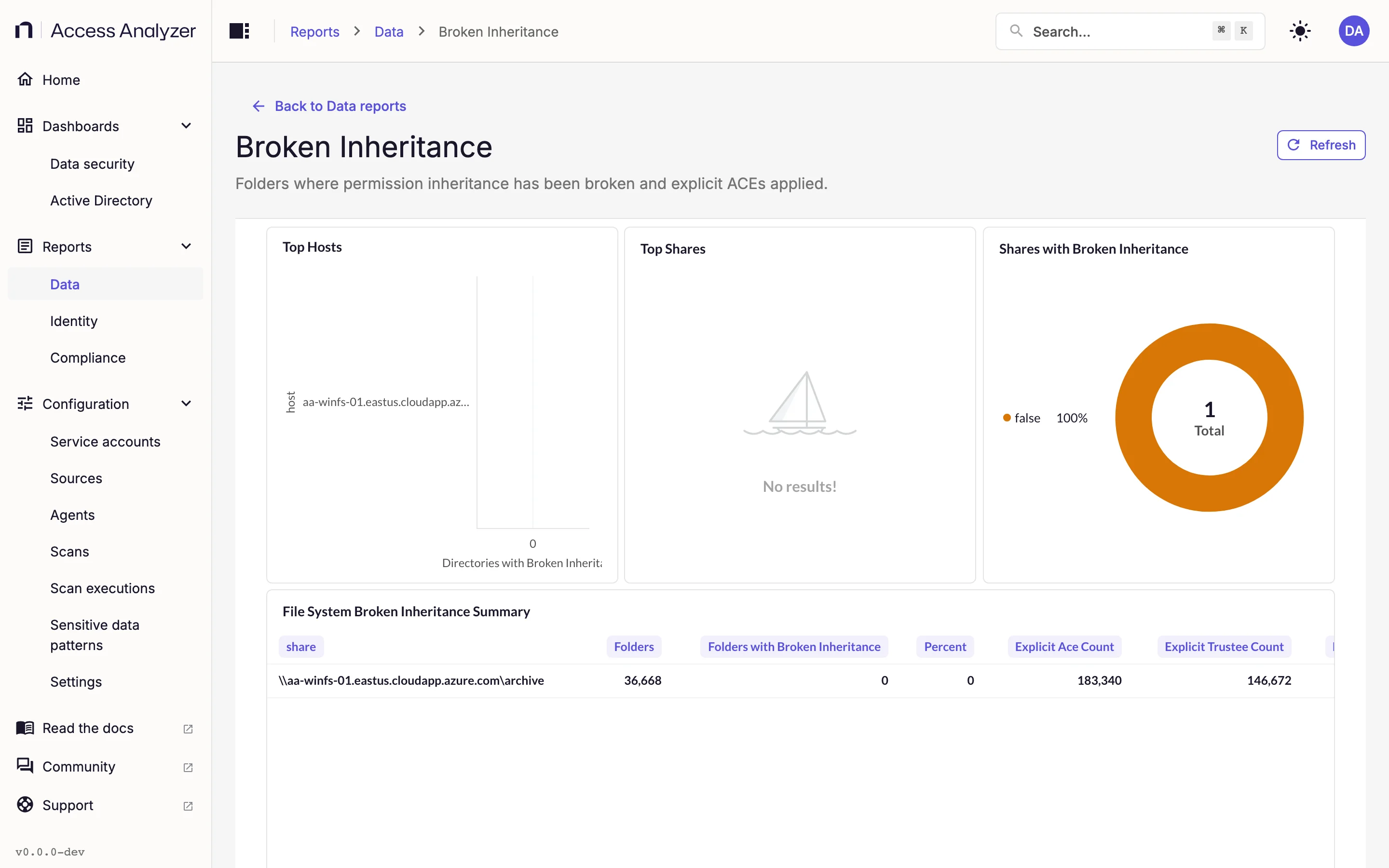
The report shows Host and Share filters above its cards.
| Card | What it shows |
|---|---|
| Top Hosts | Hosts ranked by the number of folders with broken inheritance |
| Top Shares | Shares ranked the same way |
| Shares with Broken Inheritance | A pie chart splitting the folders between shares |
| File System Broken Inheritance Summary | One row per share, with columns Folders, Folders with Broken Inheritance, Percent, Explicit Ace Count, Explicit Trustee Count, and Explicit Deny Count |
Needs an Access scan on the File Server source.
High Risk ACLs
"Shares and folders with overly permissive ACLs that expose sensitive data."
A high-risk entry grants access to an open trustee: a group such as Everyone, Authenticated Users, or Domain Users that effectively means every account in the organization. This report lists the shares and folders where such entries appear.
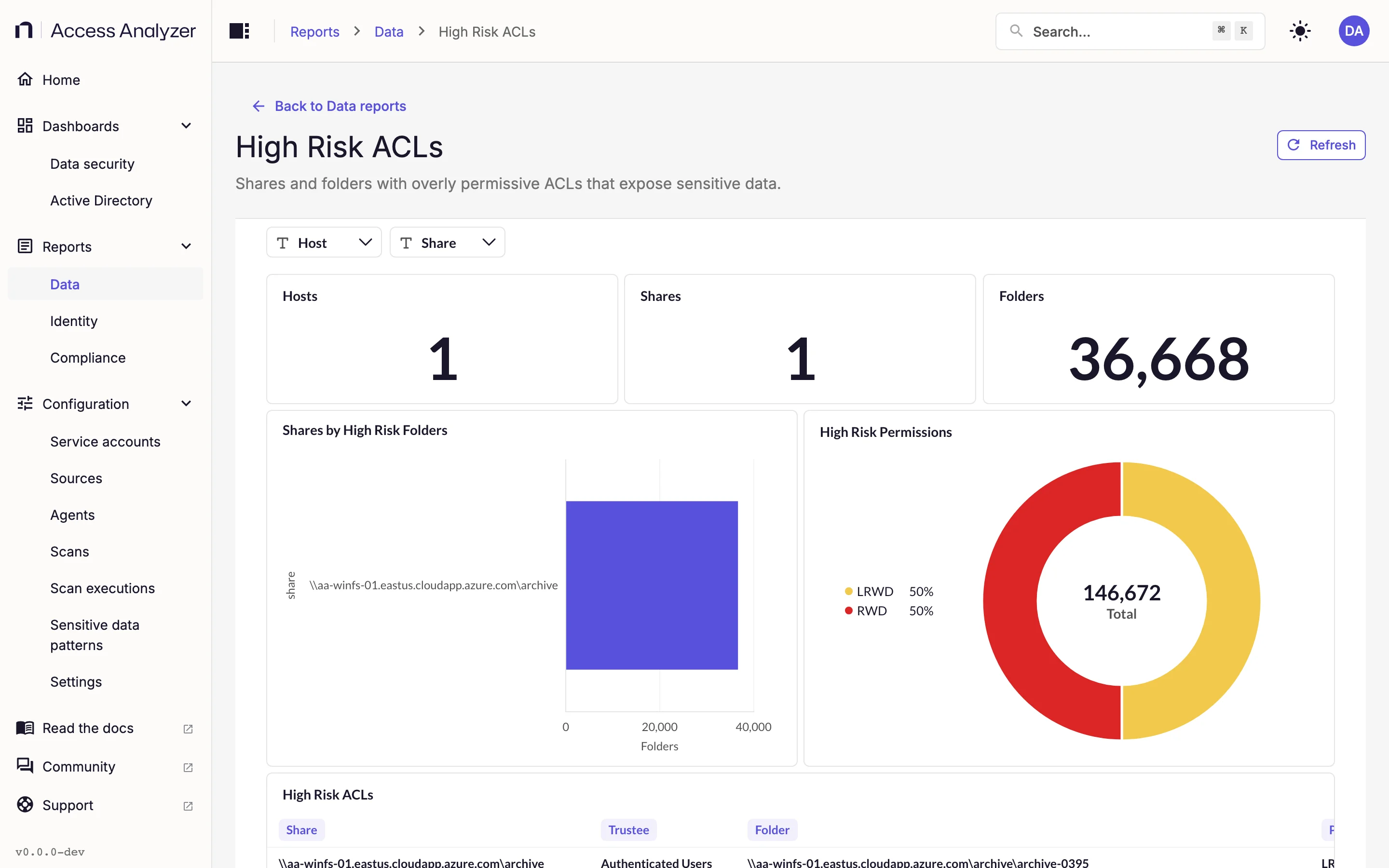
| Filter | What it does |
|---|---|
| Host | Limits the report to the selected hosts |
| Share | Limits the report to the selected shares |
| Card | What it shows |
|---|---|
| Hosts | The number of hosts with at least one high-risk folder |
| Shares | The number of shares with at least one high-risk folder |
| Folders | The number of folders with a high-risk entry |
| Shares by High Risk Folders | Shares ranked by how many high-risk folders they contain |
| High Risk Permissions | A pie chart of the entries by trustee and permission |
| High Risk ACLs | The detail list, one row per high-risk entry |
Needs an Access scan on the File Server source. An Identity sync on the matching Active Directory source lets the report recognize group names.
Open Access
"Shares accessible by Everyone or Domain Users without restrictions."
Where High Risk ACLs looks at individual permission entries, Open Access resolves effective membership: a folder counts as open when Everyone or Domain Users can reach it directly or through a nested group. It also joins in sensitive data findings, so you can see which open folders hold files that matter.
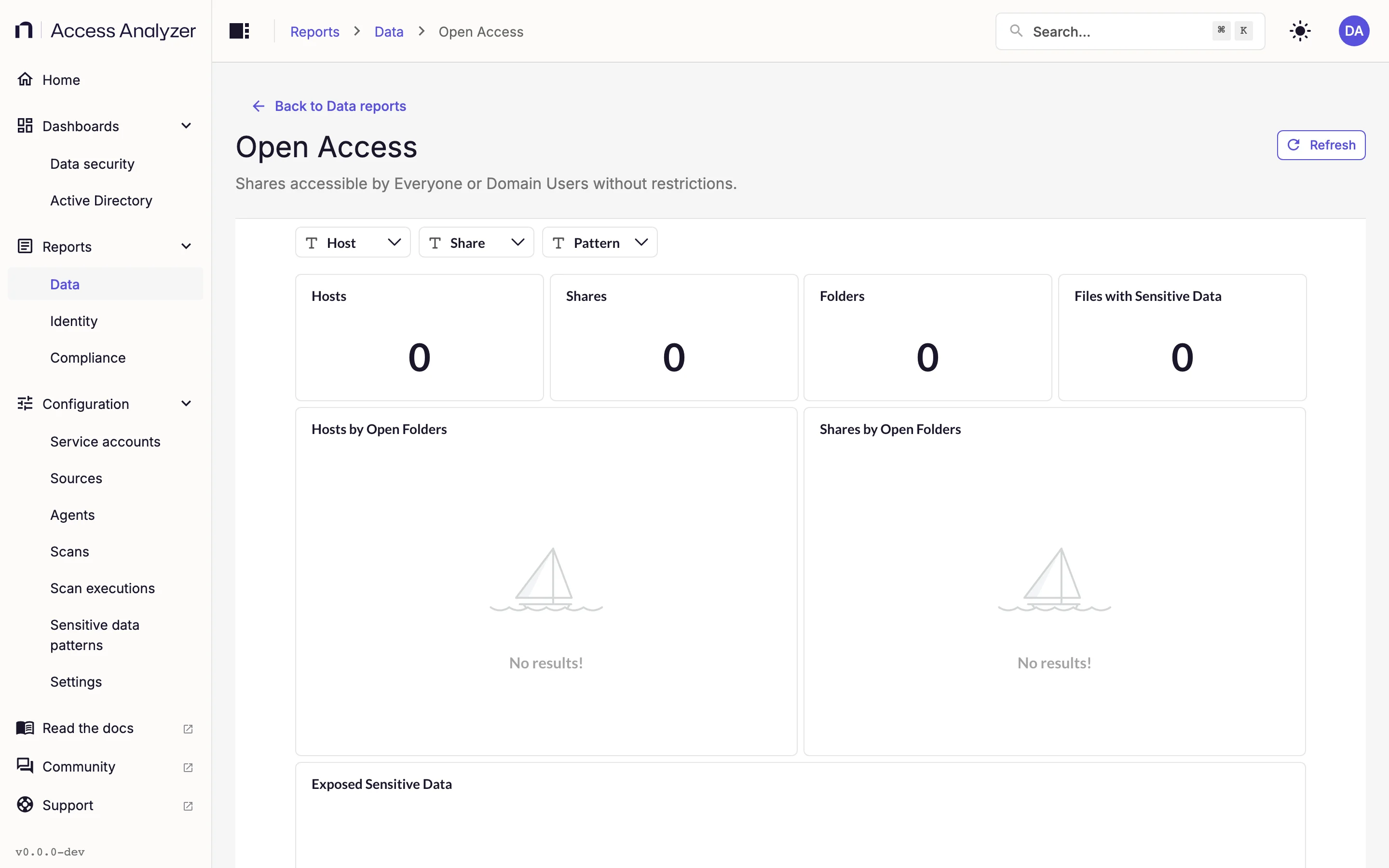
| Filter | What it does |
|---|---|
| Host | Limits the report to the selected hosts |
| Share | Limits the report to the selected shares |
| Pattern | Limits the report to the selected sensitive data patterns |
| Card | What it shows |
|---|---|
| Hosts | The number of hosts with open folders |
| Shares | The number of shares with open folders |
| Folders | The number of open folders |
| Files with Sensitive Data | The number of files in open folders that matched a sensitive data pattern |
| Hosts by Open Folders | A bar chart of open folders per host |
| Shares by Open Folders | Shares ranked by open folder count |
| Exposed Sensitive Data | A pie chart of the patterns matched in open folders |
| Folders with Open Access | The detail list, one row per open folder |
Needs an Access scan on the File Server source, plus a Sensitive data scan for the two sensitive data cards. The effective membership resolution uses the Identity sync of the Active Directory domain the trustees belong to; without it, the report doesn't detect access granted through nested groups.
Share Audit
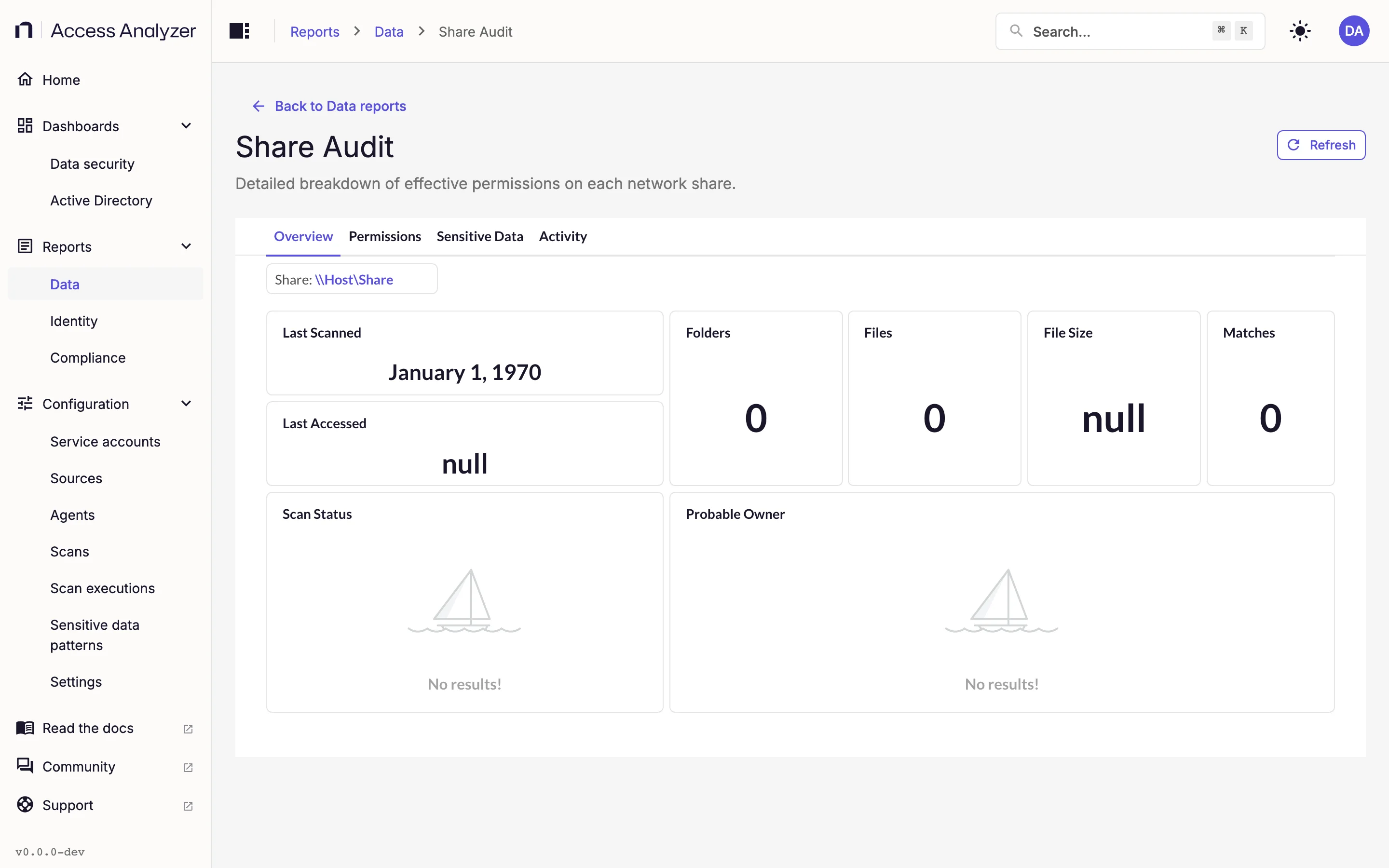
"Detailed breakdown of effective permissions on each network share."
Share Audit is the one report that looks at a single share at a time and covers it from every angle: what's in it, who can reach it, what sensitive data it holds, and who has been using it. The report splits its content across four tabs.
| Filter | What it does |
|---|---|
| Share | Required. Choose the share to audit from the list of scanned shares, shown as \\host\share paths. The filter starts at the placeholder \\Host\Share, and every card is empty until you pick a real share |
| Date | The time range for the Activity tab; defaults to the past seven days |
| Group By | The unit of time for the Event Counts chart on the Activity tab |
Date and Group By apply only to the Activity cards. Share applies to everything.
| Tab | Card | What it shows |
|---|---|---|
| Overview | Last Scanned | When a scan last covered the share |
| Overview | Folders | The number of folders in the share |
| Overview | Files | The number of files in the share |
| Overview | File Size | The total size of those files |
| Overview | Matches | The number of sensitive data matches found within the share |
| Overview | Last Accessed | The most recent last-accessed time of any file in the share |
| Overview | Scan Status | A pie chart of objects by their status from the last scan |
| Overview | Probable Owner | The account whose activity suggests it owns the share; needs Netwrix Activity Monitor events |
| Permissions | Share Permissions | The share-level permission list, with trustees resolved to user and group names |
| Permissions | Expanded Permissions | Effective folder permissions, with group membership expanded |
| Permissions | Broken Inheritance | Folders in this share with broken inheritance |
| Sensitive Data | Files with Sensitive Data | The number of files with at least one match |
| Sensitive Data | Patterns Found | The number of distinct patterns matched |
| Sensitive Data | Pattern Groups Found | The number of distinct pattern groups matched |
| Sensitive Data | Matches by # of Files | A pie chart of patterns by how many files matched each |
| Sensitive Data | Users by Activity on Sensitive Files | A bar chart of users ranked by events on files with sensitive data; needs Netwrix Activity Monitor |
| Sensitive Data | Files with Sensitive Data by Last Accessed | A bar chart bucketing sensitive files by their last-accessed time |
| Sensitive Data | Sensitive Data Files | The detail list of files with matches |
| Activity | Active Users | Users ranked by event count in the selected range |
| Activity | Event Counts | A bar chart of events over time, grouped by the Group By unit |
| Activity | File System Activity | The event-level list for the share |
Needs an Access scan on the File Server source for the Overview and Permissions tabs, a Sensitive data scan for the Sensitive Data tab, and Netwrix Activity Monitor events for the Activity tab and the Probable Owner card. Trustee names on the Permissions tab come from the Identity sync of the matching Active Directory source.
Activity Investigation
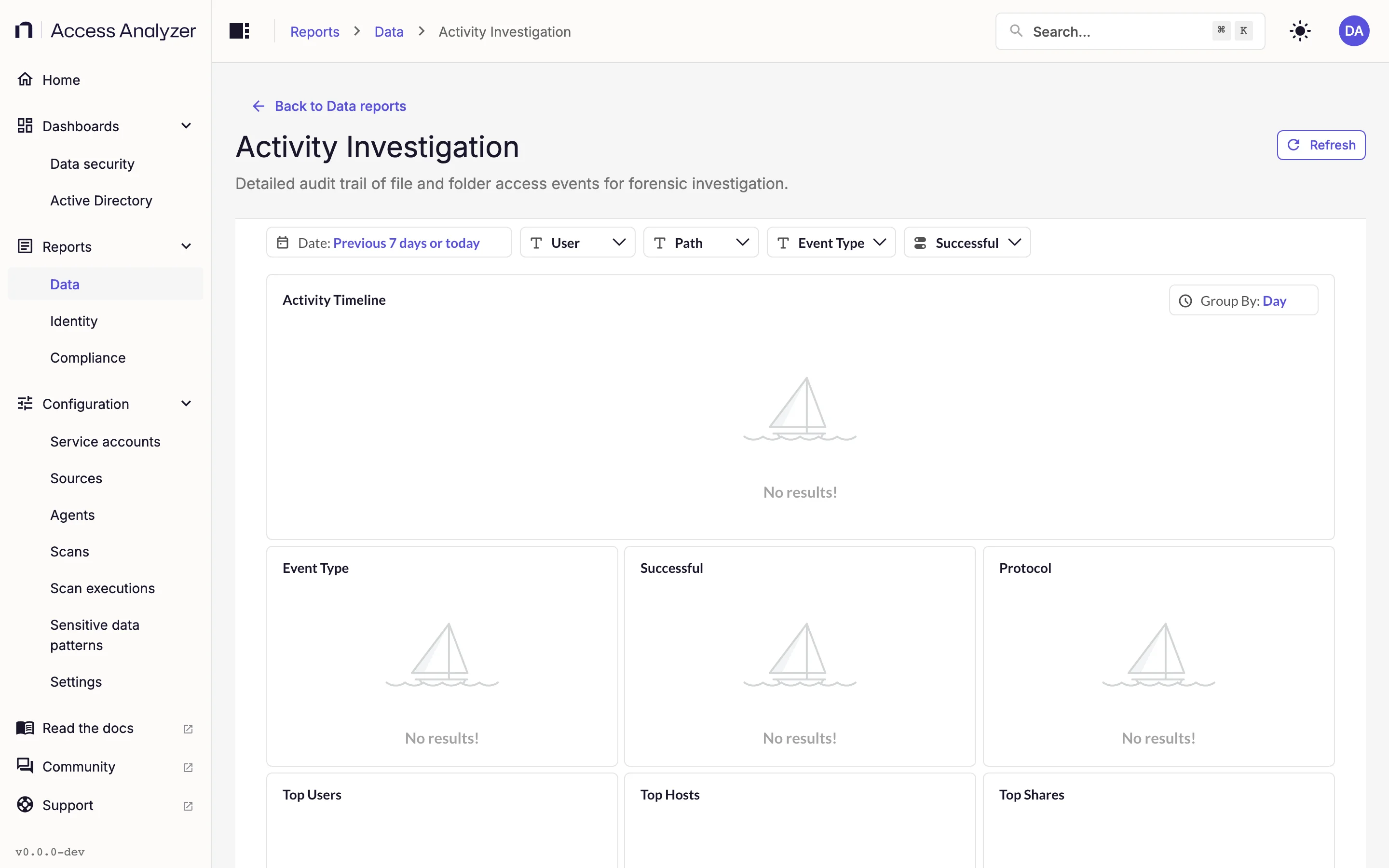
"Detailed audit trail of file and folder access events for forensic investigation."
This is the report to open when you need to know what happened to a particular path, or what a particular account did, over a specific window. It reads the file server events that Netwrix Activity Monitor sends to Access Analyzer; no scan produces this data.
| Filter | What it does |
|---|---|
| Date | Required. The time range to investigate; defaults to the past seven days |
| Group By | Required. The unit of time for the Activity Timeline; defaults to day |
| User | The accounts that performed the events |
| Path | The paths the events touched |
| Event Type | The types of event to include |
| Successful | Whether to show successful events, failed events, or both |
| Card | What it shows |
|---|---|
| Activity Timeline | A line chart of events over the range, at the Group By granularity |
| Event Type | A pie chart of events by type |
| Successful | A pie chart of successful against failed events |
| Protocol | A pie chart of events by the protocol used |
| Top Users | Accounts ranked by event count |
| Top Hosts | Hosts ranked by event count |
| Top Shares | Shares ranked by event count |
| File System Activity | The event-level list, one row per event |
Needs Netwrix Activity Monitor sending file server events to Access Analyzer. Netwrix Activity Monitor explains the connection.
Sensitive Data Overview
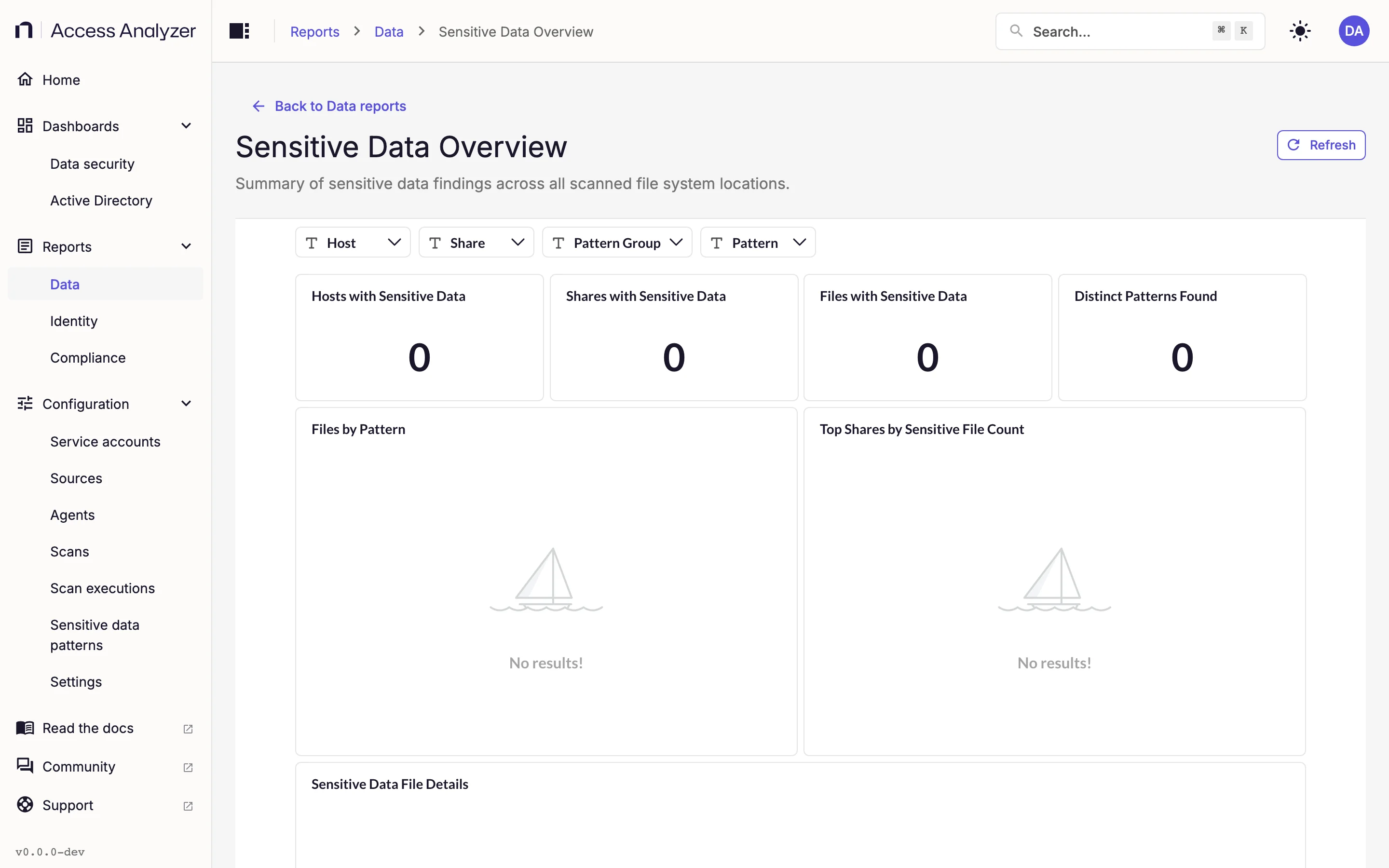
"Summary of sensitive data findings across all scanned file system locations."
The file server counterpart of the sensitive data tiles on the Data security dashboard, with filters that let you narrow the findings to a host, a share, a pattern group, or a single pattern. Sensitive data patterns explains what patterns and pattern groups are.
| Filter | What it does |
|---|---|
| Host | Limits the report to the selected hosts |
| Share | Limits the report to the selected shares |
| Pattern Group | Limits the report to matches from the selected pattern groups |
| Pattern | Limits the report to matches of the selected patterns |
| Card | What it shows |
|---|---|
| Hosts with Sensitive Data | The number of hosts with at least one match |
| Shares with Sensitive Data | The number of shares with at least one match |
| Files with Sensitive Data | The number of files with at least one match |
| Distinct Patterns Found | How many different patterns matched |
| Files by Pattern | A pie chart of files per pattern |
| Top Shares by Sensitive File Count | A bar chart of shares ranked by sensitive file count |
| Sensitive Data File Details | The detail list, one row per file |
Needs a Sensitive data scan on the File Server source.
Share Audit (Sensitive Data Entry)
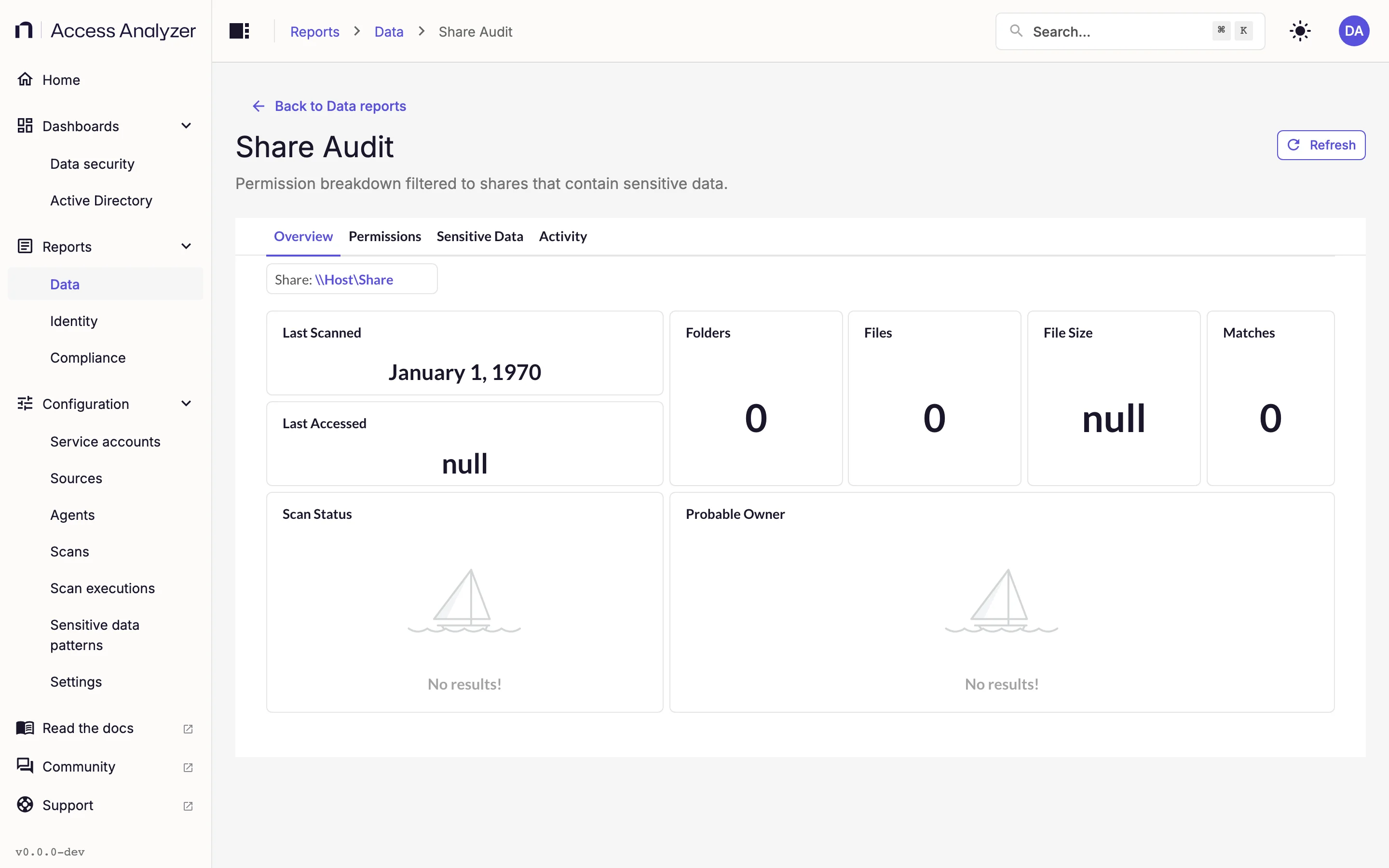
"Permission breakdown filtered to shares that contain sensitive data."
This second Share Audit row sits under the Classification / Stale Data category so that it's findable when you're working through sensitive data rather than permissions. It opens the same report described in Share Audit, with the same filters and tabs; the Share filter lists every scanned share, not only those with sensitive data. Pick the share you're interested in and go to the Sensitive Data tab.
SharePoint Reports
These four reports read from your SharePoint Online sources. Three need an Access scan; the fourth needs a Sensitive data scan. All four share the Site and Site Type filters, which limit a report to the selected sites or to sites of the selected types.
Shared Links
"Anonymous and company-wide sharing links that expose SharePoint content externally."
An anonymous link works for anyone who has it; an organization link works for anyone in your tenant. This report counts both kinds, ranks sites by how many they carry, and flags the links that point at files with sensitive data.
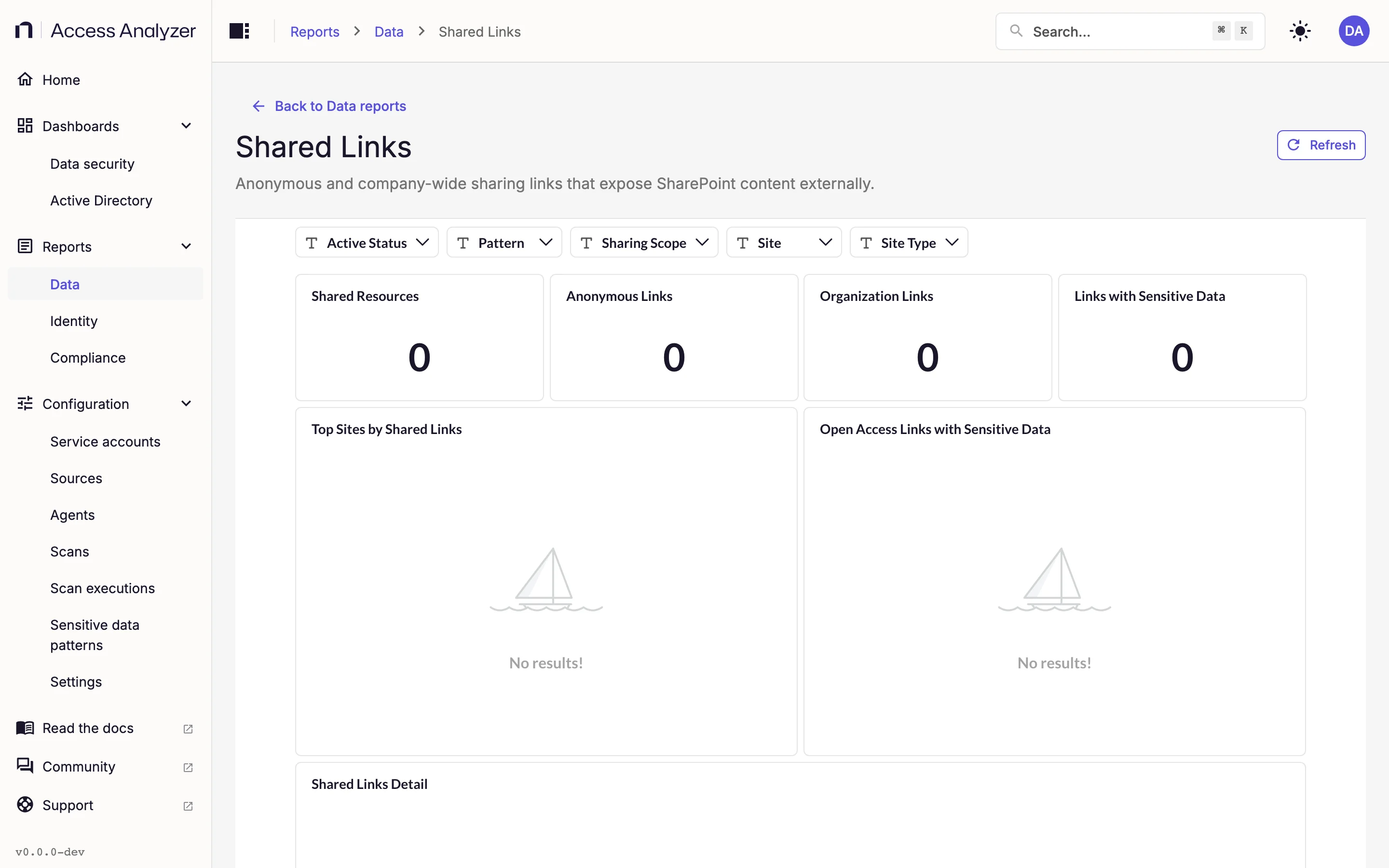
| Filter | What it does |
|---|---|
| Active Status | Limits the report by whether a link is still active |
| Pattern | Limits the report to the selected sensitive data patterns |
| Sharing Scope | Limits the report to anonymous or organization-wide links |
| Site | Limits the report to the selected sites |
| Site Type | Limits the report to sites of the selected types |
| Card | What it shows |
|---|---|
| Shared Resources | The number of resources with at least one sharing link |
| Anonymous Links | The number of links that work for anyone |
| Organization Links | The number of links that work for anyone in the organization |
| Links with Sensitive Data | The number of links pointing at files with a sensitive data match |
| Top Sites by Shared Links | Sites ranked by link count |
| Open Access Links with Sensitive Data | A pie chart of sensitive data in anonymous or organization-scoped links |
| Shared Links Detail | The detail list, one row per link |
Needs an Access scan on the SharePoint Online source; the sensitive data cards also need a Sensitive data scan.
High-Risk ACLs (SharePoint)
"SharePoint sites and libraries with overly permissive access control entries."
The SharePoint equivalent of the file server High Risk ACLs report. It finds sites and libraries where a broad principal holds a permission, and grades each finding by severity. Critical means the principal is anonymous, or an anonymous sharing link, or an Everyone-like principal with write, delete, manage, or admin access. High means an Everyone-like principal with read-only access, Authenticated Users with write or delete access, or organization-wide sharing.
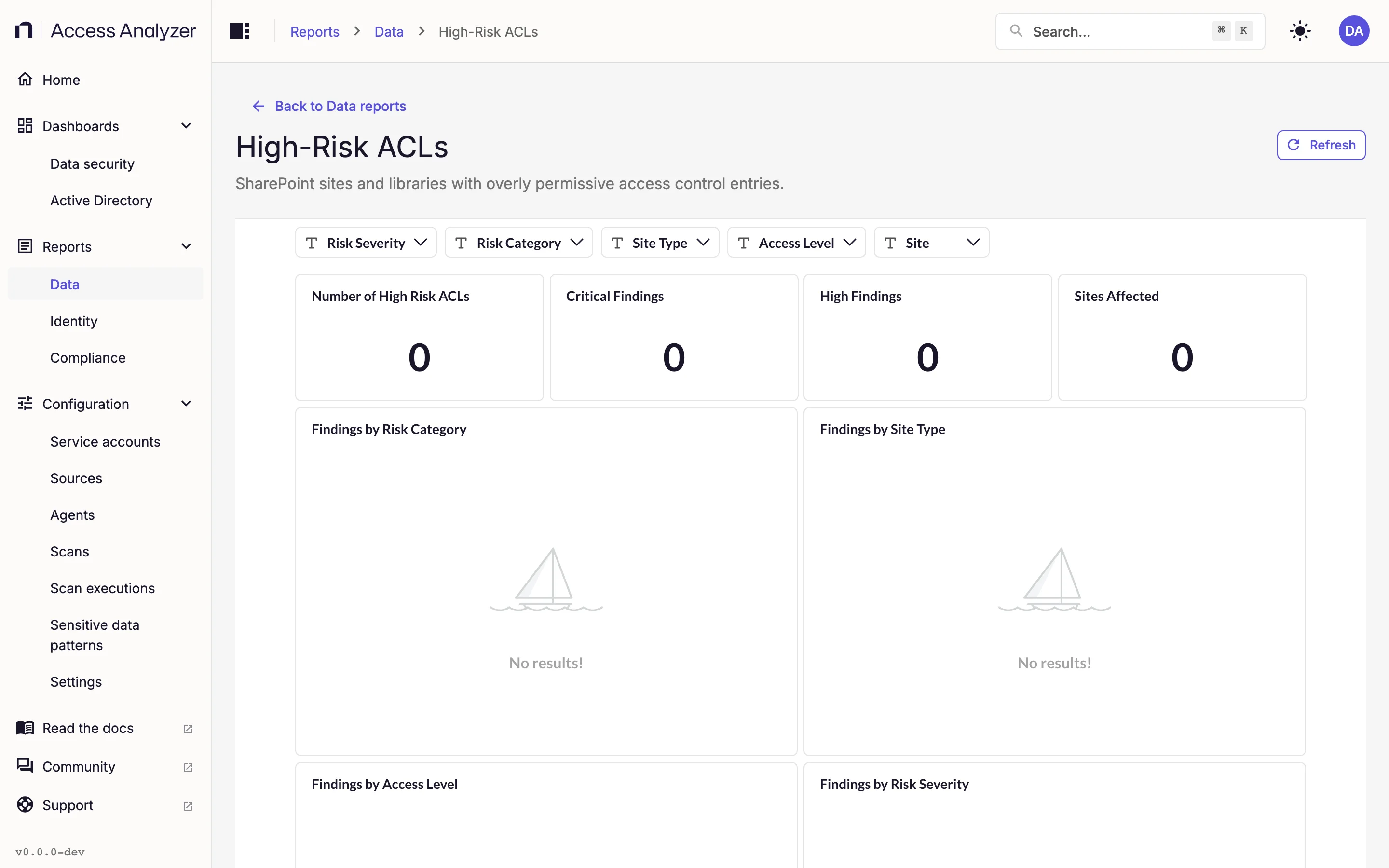
| Filter | What it does |
|---|---|
| Access Level | Limits the report to findings at the selected access levels, such as read or write |
| Risk Category | Limits the report to the selected categories of finding |
| Risk Severity | Critical, High, or both |
| Site | Limits the report to the selected sites |
| Site Type | Limits the report to sites of the selected types |
| Card | What it shows |
|---|---|
| Number of High Risk ACLs | The total number of findings |
| Critical Findings | The number of findings graded Critical |
| High Findings | The number of findings graded High |
| Sites Affected | The number of sites with at least one finding |
| Findings by Risk Category | A bar chart of findings per category |
| Findings by Site Type | A pie chart of findings per site type |
| Findings by Access Level | A bar chart of findings per access level |
| Findings by Risk Severity | A bar chart of Critical against High |
| High-Risk ACL Details | The detail list, one row per finding |
Needs an Access scan on the SharePoint Online source.
Open Access (SharePoint)
"SharePoint content accessible by all authenticated users without restrictions."
Open here means reachable by every signed-in user in the tenant. The report counts the sites and resources in that state and, where a Sensitive data scan has run, the exposed files that contain sensitive data.
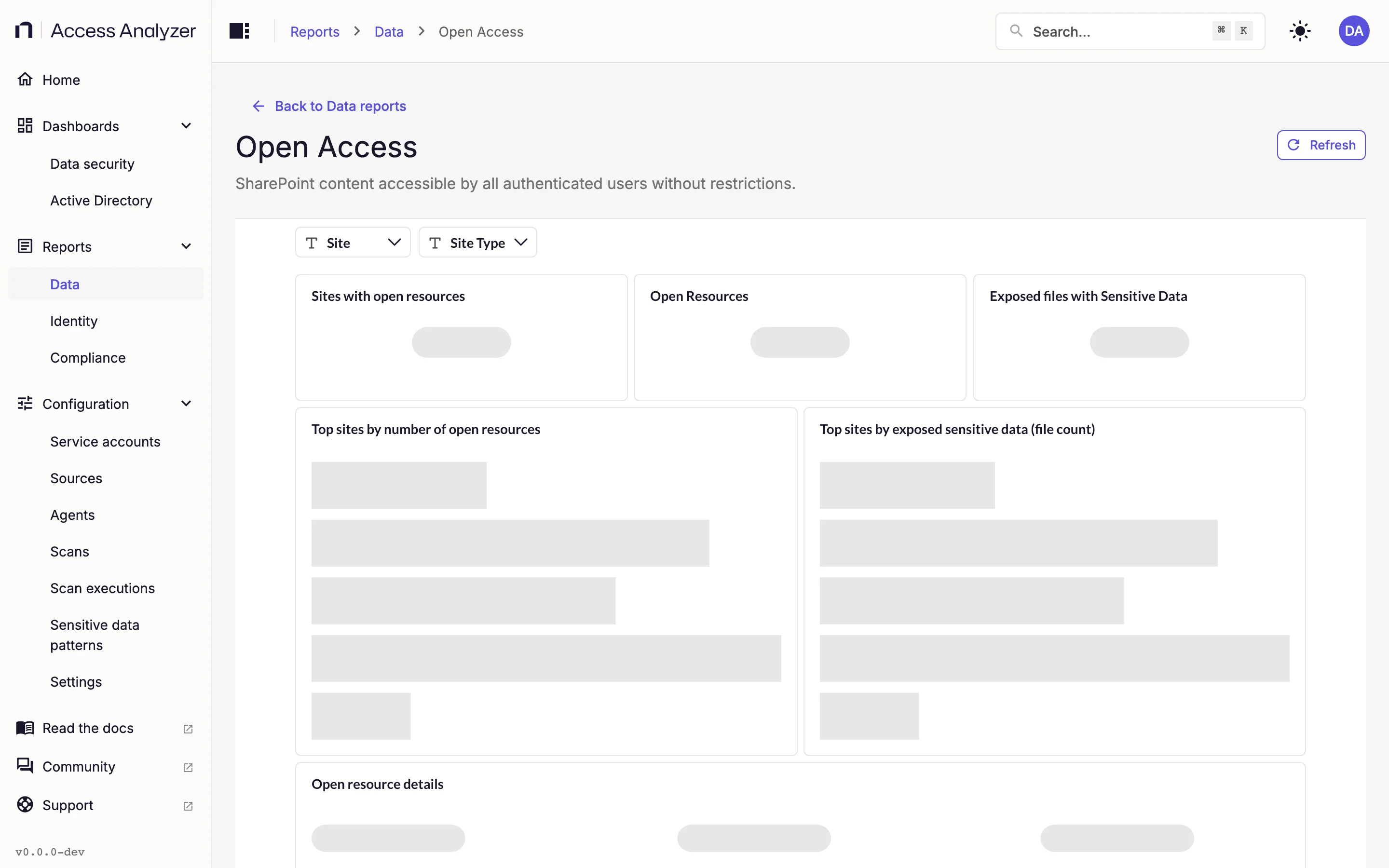
| Filter | What it does |
|---|---|
| Site | Limits the report to the selected sites |
| Site Type | Limits the report to sites of the selected types |
| Card | What it shows |
|---|---|
| Sites with open resources | The number of sites with at least one open resource |
| Open Resources | The number of open resources |
| Exposed files with Sensitive Data | The number of open files with a sensitive data match |
| Top sites by number of open resources | Sites ranked by open resource count |
| Top sites by exposed sensitive data (file count) | Sites ranked by exposed sensitive file count |
| Open resource details | The detail list, one row per open resource |
Needs an Access scan on the SharePoint Online source, plus a Sensitive data scan for the sensitive data cards.
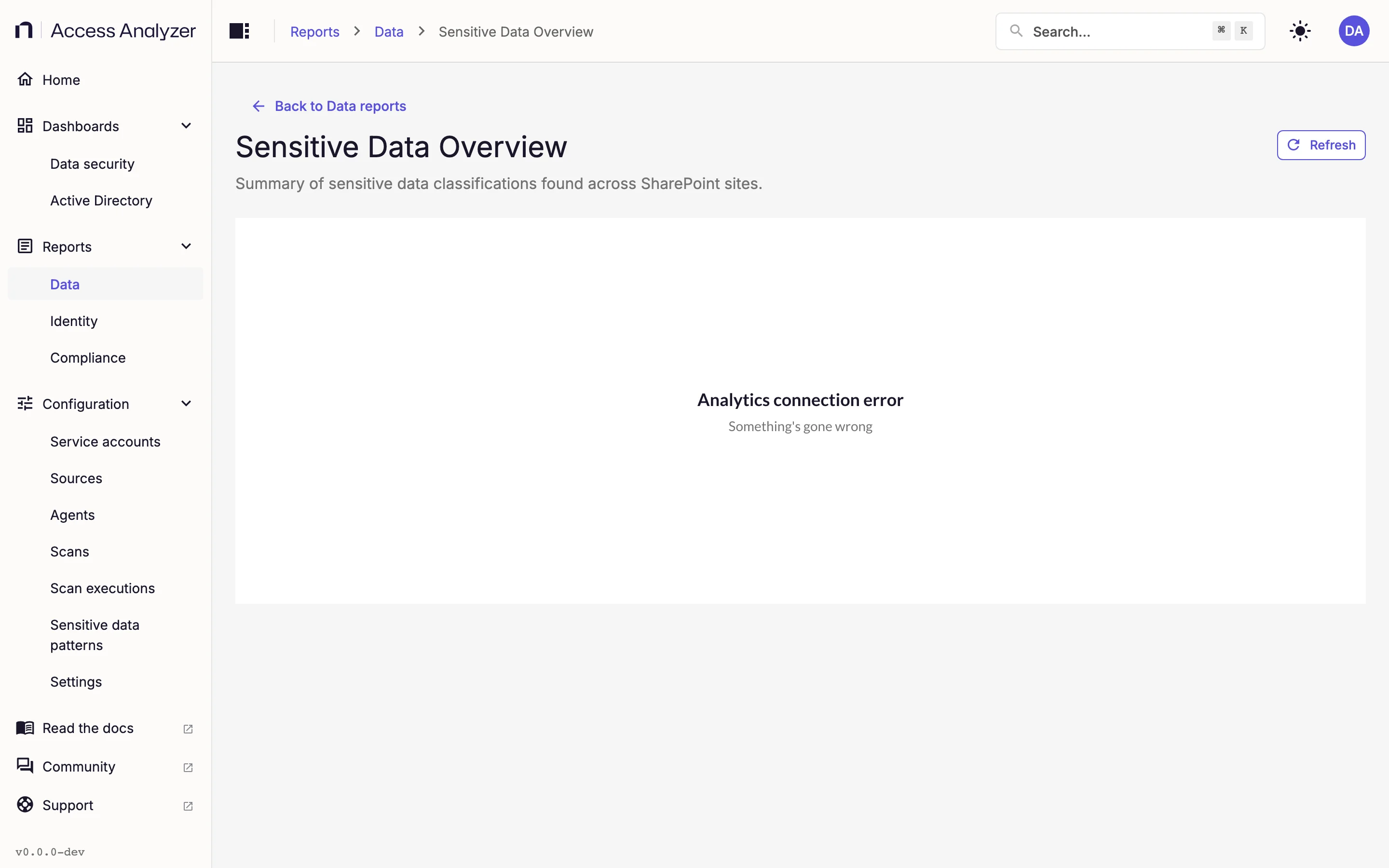
Sensitive Data Overview (SharePoint)
"Summary of sensitive data classifications found across SharePoint sites."
The SharePoint counterpart of the file server Sensitive Data Overview: which sites hold sensitive data, how much, and of what kind.
| Filter | What it does |
|---|---|
| Pattern | Limits the report to matches of the selected sensitive data patterns |
| Site | Limits the report to the selected sites |
| Site Type | Limits the report to sites of the selected types |
| Card | What it shows |
|---|---|
| Sites with Sensitive Data | The number of sites with at least one match |
| Files with Sensitive Data | The number of files with at least one match |
| Types of Sensitive Data | How many different patterns matched |
| Top Sites by Files with Sensitive Data | Sites ranked by sensitive file count |
| Sensitive Data Types by File Count | A pie chart of patterns by how many files matched each |
| Sensitive Data Summary by Site | One row per site with its counts |
Needs a Sensitive data scan on the SharePoint Online source.