Scan Executions
A scan execution is one run of one scan against one source. A scan that targets six sources creates up to six executions each time it runs, and each one has its own status, object count, duration, and logs. The Scan executions page lists them all.
The Scan Executions Page
Go to Configuration > Scan executions. The page refreshes itself every 3 seconds while it's open, so a running execution's status, object count, and duration update without a reload. Clicking Run on the Scans page brings you here with the list already filtered to that scan.
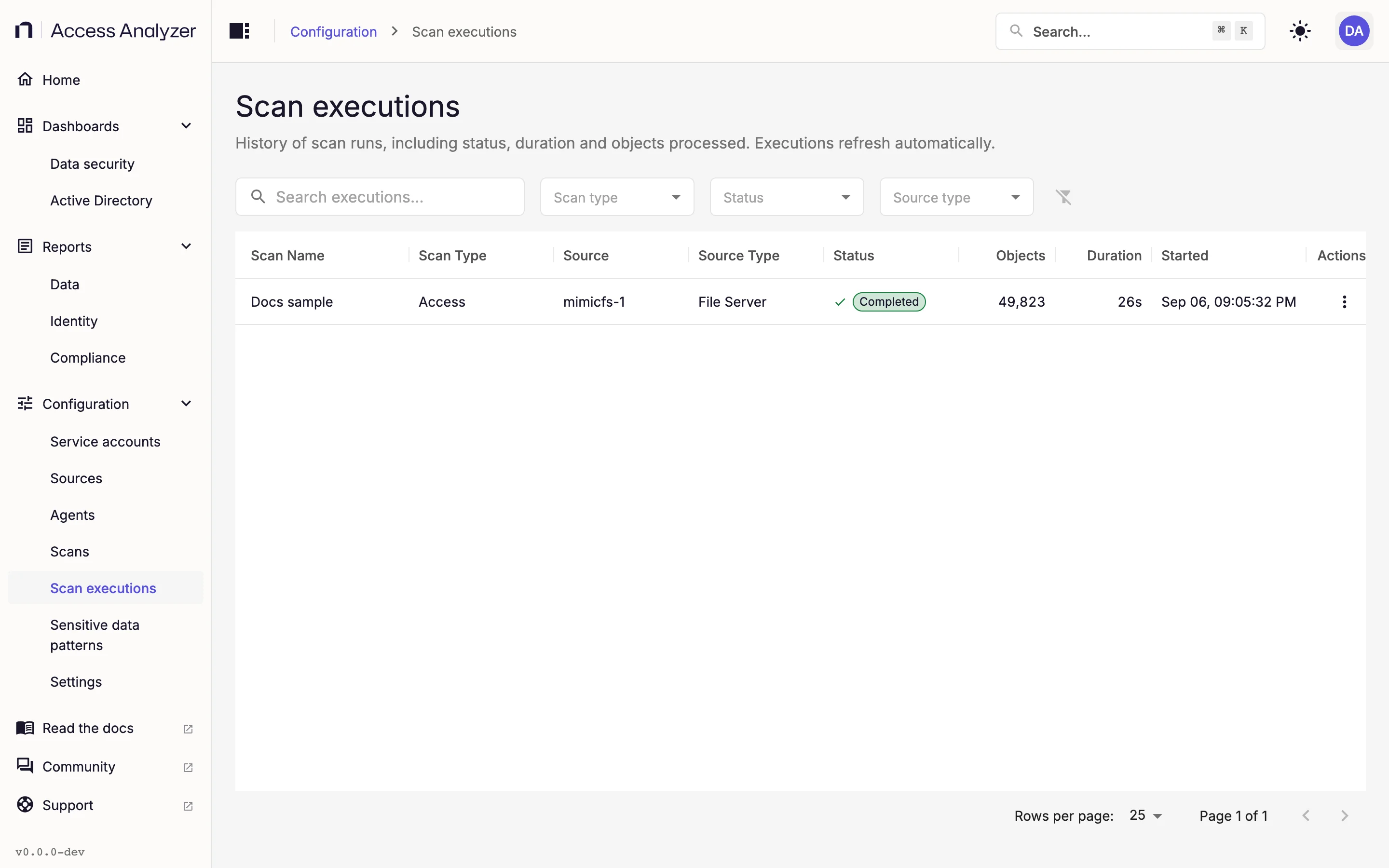
| Column | What it shows |
|---|---|
| Scan Name | The scan that created the execution. |
| Scan Type | Access, Sensitive data, or Identity sync. Child rows show the name of the follow-up step instead. |
| Source | The source this execution ran against. |
| Source Type | The source's type, such as File Server. |
| Status | The execution's status; see Execution statuses. |
| Progress | How many objects the execution has processed so far, or in total after it has finished. A Sensitive data scan shows a bar and a count of files, such as 6 / 7 files (est.), against an estimated total. See What counts as an object. |
| Duration | How long the execution ran, or has been running. |
| Started | When Access Analyzer created the execution. |
| Actions | The row menu with View logs and, while the run is active, Pause, Resume, or Stop. |
Some executions run follow-up steps after the main collection. Those rows have an expand button in the first column; click it to show the child steps, each with its own status, duration, and View logs.
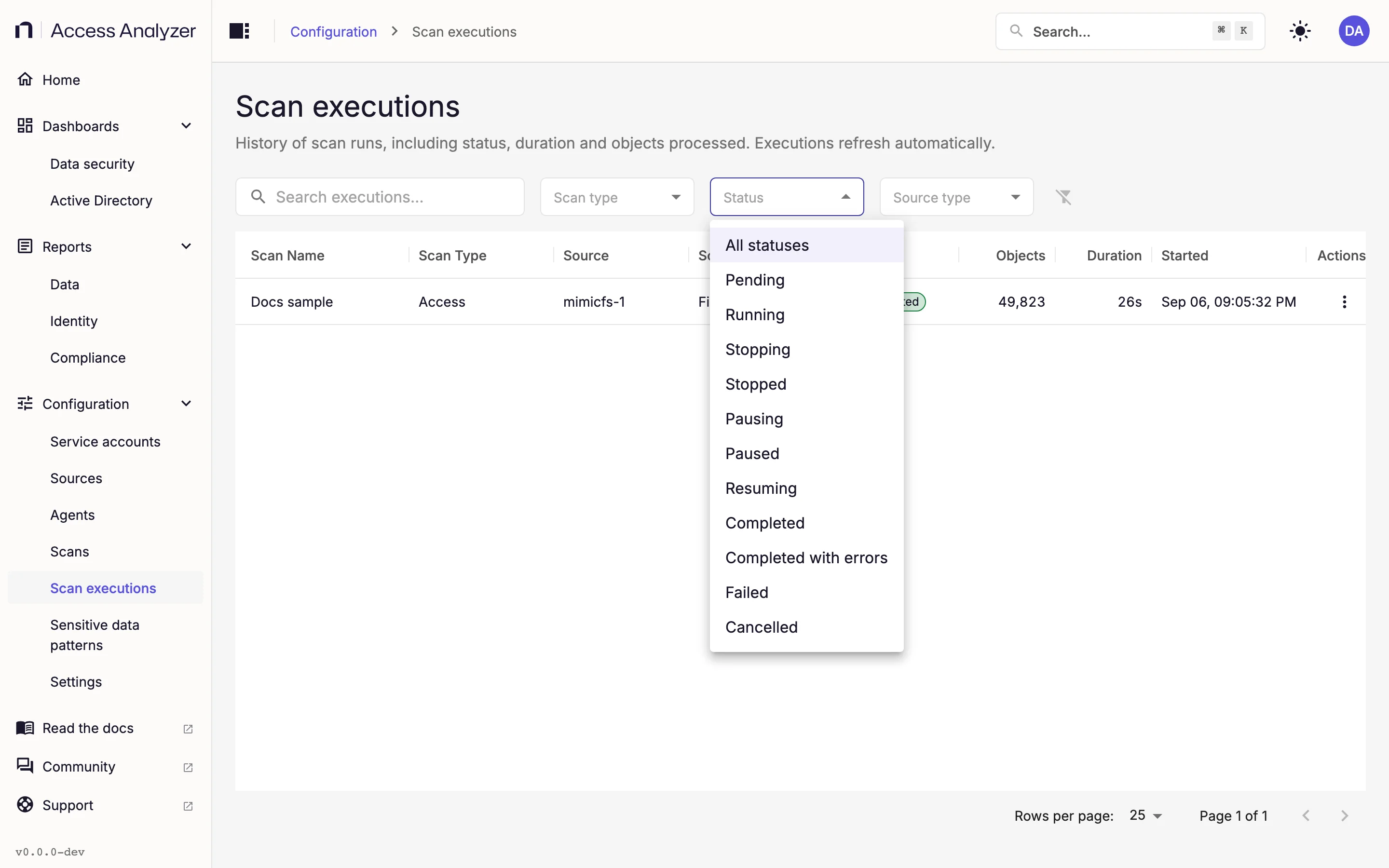
Search executions… matches the scan name and the source name. The Scan type, Status, and Source type dropdowns narrow the list, and Clear filters resets all of them. Sort by Scan Name, Scan Type, Source, Status, or Started; the newest executions come first by default, and the table shows 10, 25, 50, or 100 rows per page.
There is no separate detail page for an execution. Everything beyond the row itself lives in the logs dialog, described in View the logs.
What Counts as an Object
An object is one item the execution counted. What counts depends on the scan type and the source type.
| Scan type | Source type | Each of these counts as one object |
|---|---|---|
| Access | File Server | A share, a folder, or a file. The share also stands for its top-level folder, so that folder doesn't count a second time. |
| Access | SharePoint Online | A site collection, a site, a list or library, a folder, or a file or list item. |
| Sensitive data | File Server | A file the scan processed, whether it was clean, had findings, or couldn't be read. Empty files, and files that the classification settings leave out for size or extension, aren't part of the scan, so they don't count. |
| Sensitive data | SharePoint Online | A document the scan checked. Documents it skips because they're empty, or because the classification settings leave them out for size or extension, still count. |
| Identity sync | Active Directory | A user or a group. Group memberships don't count separately. |
| Identity sync | Entra ID | A user, a group, or another directory object the sync reads. |
Permission entries never count as objects, on any scan type.
The count belongs to one run and starts from zero each time:
- An Access scan reads everything in its scope on every run, so running it again on a share that hasn't changed shows the same number.
- A Sensitive data scan with Differential scan on counts only the files that are new or changed since the last run, so a later run on a quiet File Server source can show a handful of files, or none.
- An Active Directory Identity sync with Enable differential scan on counts only the users and groups that changed since the previous sync, including deleted ones.
For example, a share with 4 folders and 6 text files shows 11 for an Access scan and 6 / 6 files (est.) for a Sensitive data scan. Add an empty file, a .jpg image, and one more text file, and run both scans again: the Access scan shows 14, a full Sensitive data scan shows 7 / 7 files (est.), and a Sensitive data scan with Differential scan on shows 1 / 1 files (est.).
While a run is active, the count rises in steps rather than one object at a time, because Access Analyzer records objects in batches. SharePoint Online Access scans and Entra ID Identity syncs report their progress about every 5 minutes. The final count appears when the run finishes. On a File Server Access scan, a folder the scan can't open still counts as one object, but its contents don't; the run then ends as Completed with errors.
Child rows for follow-up steps don't show a count; the parent row carries it.
The dashboards count differently: Total Objects Scanned on the Data security dashboard counts each object in the latest inventory once, however many runs read it.
Execution Statuses
| Status | Meaning | What you can do |
|---|---|---|
| Pending | Created and waiting for Access Analyzer to pick it up and start it. Also the state right after Resume. | Stop cancels it |
| Running | The agent is collecting data. | Pause, Stop, View logs |
| Pausing | Pause requested; the run is saving its progress. | Wait |
| Paused | The run has saved its progress and is waiting. It stays paused until you resume or stop it, or until the scan runs again. | Resume or Run on the scan; Stop ends it |
| Resuming | Resume requested; the run is continuing from its saved progress. | Wait |
| Stopping | Stop requested; the run is shutting down. | Wait |
| Post processing | Collection is done and a follow-up step is running. | View logs |
| Completed | Finished, and the run wrote all its data. | View logs |
| Completed with errors | Finished, but the run couldn't write some of its data. The data is partial and the next run of the scan uploads it again. | View logs to see the errors |
| Failed | The run ended without finishing. | View logs, then fix the cause and Run the scan again |
| Stopped | Stop ended it, including a stalled run that Access Analyzer ended after you requested a stop. | View logs; Run the scan again |
| Cancelled | Stopped while still Pending, either by Stop or because someone deleted the scan. | Nothing further |
Completed, Completed with errors, Failed, Stopped, and Cancelled are final; an execution in one of those states never changes again. Paused isn't final, so a forgotten paused execution sits in the list until something resumes or stops it.
Access Analyzer ends a run that has been stuck in Pending or Running for more than 2 hours: as Stopped when you requested a stop, and as Failed otherwise.
Pause, Resume, or Stop an Execution
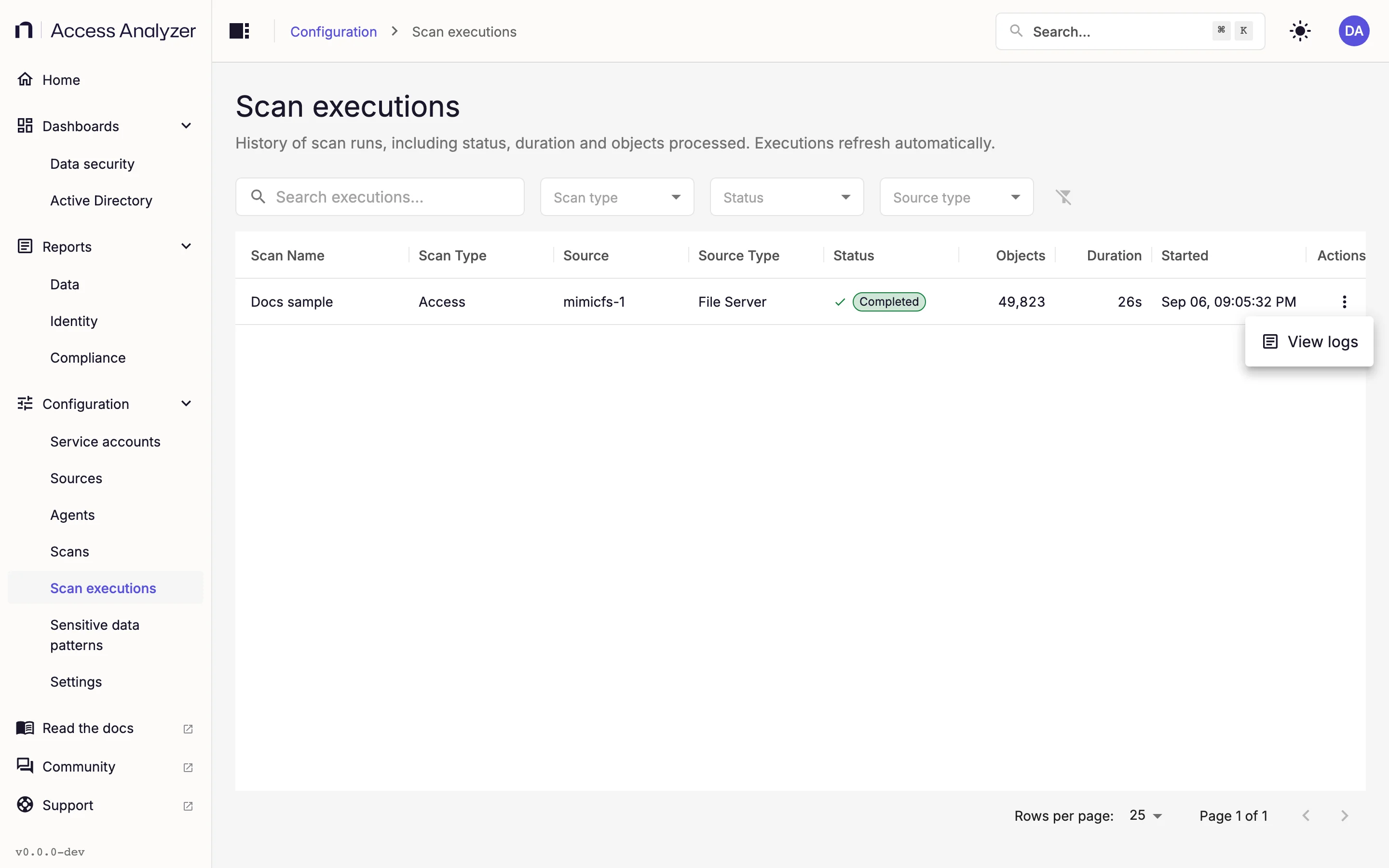
The Actions menu on each row offers whichever of Pause, Resume, and Stop apply to its status. A confirmation message appears for each request: Pausing execution, Resuming execution, or Stopping execution. To act on every execution of a scan at once, use Pause or Stop on the scan's row on the Scans page instead.
Pause an Execution
- Open the Actions menu of a Running execution.
- Click Pause.
- In Pause execution, click Pause execution to confirm.
The status moves to Pausing, then to Paused when the run has saved its progress.
Resume an Execution
- Open the Actions menu of a Paused execution.
- Click Resume.
The status passes through Pending or Resuming and returns to Running when the agent picks the work back up. Clicking Run on the scan resumes its paused executions too.
Stop an Execution
- Open the Actions menu of a Running, Pending, or Paused execution.
- Click Stop.
- In Stop execution, click Stop execution to confirm.
A Running execution moves to Stopping and then Stopped. A Paused execution becomes Stopped immediately, and a Pending one becomes Cancelled. All three are final; the next Run of the scan creates a new execution.
View the Logs
View logs is available on every execution, whatever its status. Use it to see what a run did and why it ended.
- Open the execution's Actions menu.
- Click View logs.
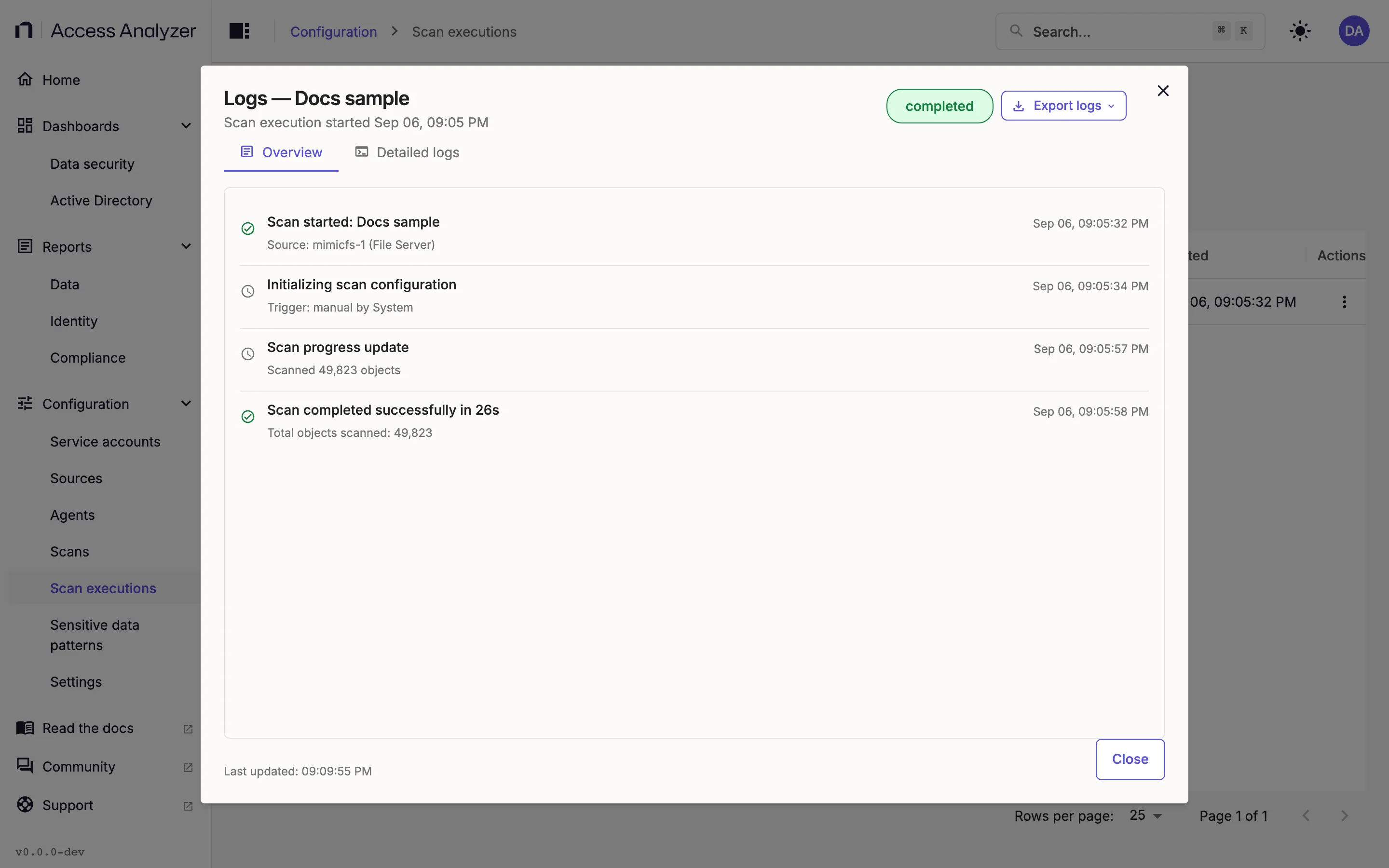
- Read the Overview tab for the run's milestones.
- Click Detailed logs for the full record.
- Click Close.
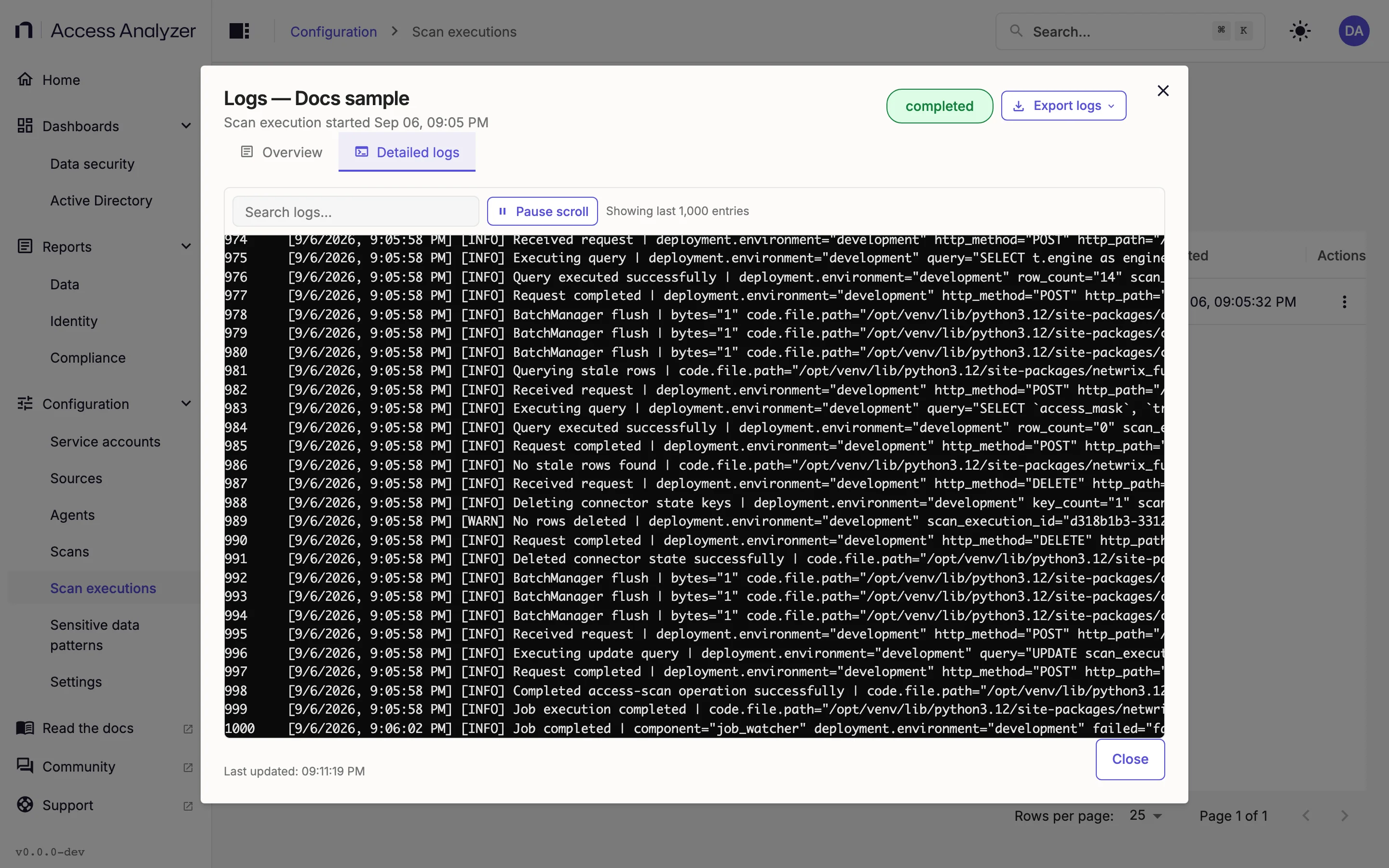
The dialog's title is Logs — <scan name>. Its header shows when the execution started and its status, and offers Pause scan, Resume scan, or Stop scan for an active run, so you can act without closing the dialog. The footer shows Last updated with the time the dialog last refreshed.
Overview
The Overview tab is a short timeline of the run's milestones. It opens with Scan started, which names the source and its type, and Initializing scan configuration, which names what triggered the run. Progress updates follow with the number of objects scanned and counts of warnings and errors. A successful run ends with Scan completed successfully in followed by the duration, and Total objects scanned; a run with problems ends with Scan completed with errors, Scan failed, or Scan cancelled.
Detailed Logs
The Detailed logs tab shows the log lines the agent wrote during the run. It holds the last 1,000 entries, as the Showing last 1,000 entries footer says, and refreshes every 3 seconds while the execution is running. Type in Search logs… to filter the lines. Auto-scroll keeps the newest line in view on a live run; click Pause scroll to stop the view from moving while you read.
An execution that has just started shows No logs available yet until the agent's first lines arrive.
Run a Scan Again
You can't retry an execution on its own. To collect again, run the scan:
- Go to Configuration > Scans.
- Open the scan's Actions menu and click Run (see Row actions).
For each target source, Access Analyzer starts a fresh execution, resumes a paused one, or skips the source if an execution is still in progress. A Sensitive data scan or an Active Directory Identity sync with its differential setting turned on collects only what changed since the last run; see Scan types.
Retention
Access Analyzer deletes executions that ended as Completed, Failed, or Cancelled once they are 90 days old. This period is fixed. Access Analyzer never deletes Completed with errors or Stopped executions by age, so a partial or interrupted run stays visible for as long as you need it. Deleting a scan removes all of its executions at once, and removing a source from a scan's target removes that source's executions.