Sensitive Data Patterns
A sensitive data pattern is a regular expression with a name, a description, and a confidence level. When a Sensitive data scan reads a file, it extracts the text and runs the patterns against it. The scan records each hit against the file, noting the pattern that matched and the group it belongs to.
A pattern group collects related patterns under a name you'd recognize from a compliance program or a data category, such as PCI DSS (Payment Card Industry Data Security Standard), GDPR (General Data Protection Regulation), or Credentials. Scans work at the group level: you choose which groups a scan classifies, and every pattern in those groups runs.
Access Analyzer ships 139 built-in patterns in 11 built-in groups. You can add your own patterns and groups alongside them, and put custom patterns into built-in groups.
To manage patterns and groups, go to Configuration > Sensitive data patterns. The page is available to the Admin role; see Users and roles.
The Sensitive Data Patterns Page
The page has two parts: the Pattern Groups panel on the left and the patterns table on the right.
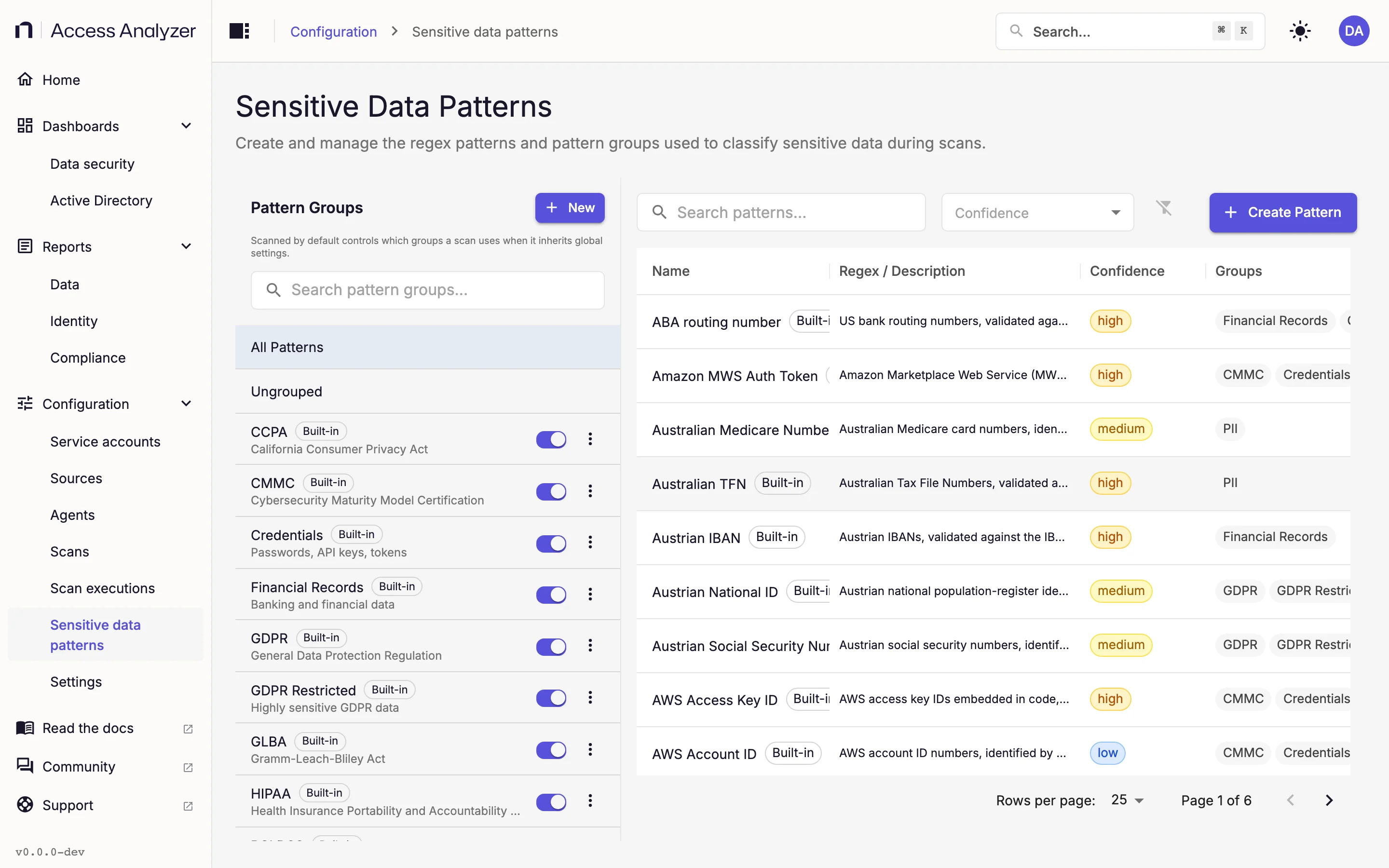
Pattern Groups Panel
The panel starts with two fixed rows, All Patterns and Ungrouped, followed by one row per group. Ungrouped shows patterns that belong to no group. Selecting a group filters the table to that group's patterns and shows Showing patterns in group with the group name; click Show all patterns to clear the selection.
Each group row shows the group's name and description, a Built-in badge for the groups that ship with the product, a Scanned by default switch, and an actions menu with Test patterns, Manage patterns, Edit, and Delete. The Scanned by default switch controls which groups a scan uses when it inherits the global configuration.
Use the Search pattern groups field to filter groups by name and New to create a group. See Pattern groups.
Patterns Table
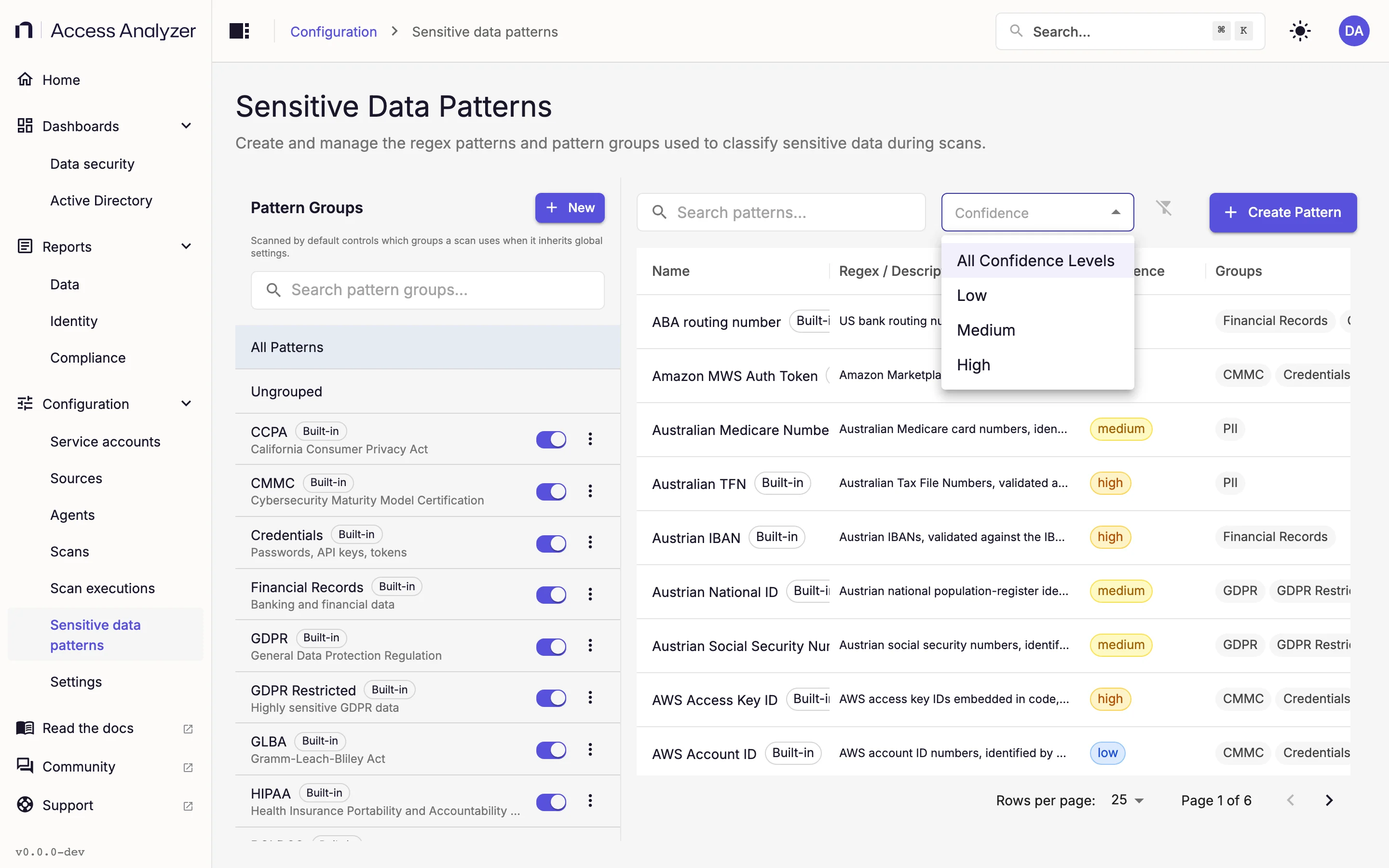
The toolbar has a Search patterns field, a Confidence filter, Clear filters, and Create Pattern. The table shows 25 patterns per page; you can switch to 10 or 50.
| Column | What it shows |
|---|---|
| Name | The pattern name. |
| Regex / Description | For built-in patterns, the description of what the pattern detects. For custom patterns, the regular expression, with a Copy regex button. |
| Confidence | A badge with the pattern's confidence level: Low, Medium, or High. |
| Groups | The pattern groups the pattern belongs to. |
| Actions | Test pattern, Edit pattern, and Delete pattern. You can't edit or delete built-in patterns. |
Confidence Levels
Confidence describes how much you should trust a match. It's a label on the pattern; the Confidence column shows it and the Confidence filter uses it.
The built-in patterns show what each level means:
| Level | Use it for | Built-in examples |
|---|---|---|
| High | Formats with a checksum, a fixed prefix, or another strong structural signal, so a match is rarely accidental. | Credit Card Number (Luhn checksum), US SSN (Social Security number allocation rules), AWS Access Key ID (fixed Amazon Web Services prefix) |
| Medium | Distinctive formats without a checksum, often matching only when a label such as "DOB" or "password" appears nearby. | Email address, Password, Date of birth |
| Low | Generic shapes that legitimately occur in non-sensitive text. | Phone number, IPv4 Address, US bank account number (a 7- to 14-digit sequence with no validation) |
Use the same reasoning when you set the confidence of a custom pattern.
Built-in and Custom Patterns
Built-in patterns and groups carry a Built-in badge. You can't edit or delete them, and you can't add a built-in pattern to a group or remove it from one. There is no switch to turn off an individual built-in pattern; to narrow a scan, choose which groups it classifies. The full list is in Built-in patterns.
Custom patterns are yours to create, test, edit, and delete. A custom pattern can belong to any number of groups, including built-in ones. For example, an internal employee ID pattern can sit in the built-in PII (personally identifiable information) group so that any scan that classifies PII also runs it. Changes to custom patterns and their group memberships reach scans within about a minute. See Custom patterns.
How Groups Feed Sensitive Data Scans
Two settings decide which groups a Sensitive data scan classifies:
- Scanned by default, set per group on this page, defines the global default set.
- Inherit from global configuration, on the scan's Configure step under Sensitive data classification, is on for new scans and uses the default set. Turn it off to pick groups in Sensitive Data Pattern Groups to Classify.
An empty set doesn't turn classification off. If no group is scanned by default and the scan inherits, or if the scan overrides without selecting any group, the scan classifies against all groups, built-in and custom. When the set contains at least one group, the scan records only findings from those groups.
Pattern groups has the details and a diagram of how a scan picks its groups. For the scan side, see Scan types.
Test Patterns
You can run a pattern against sample text in three places: in the Test before saving section of the Create Pattern and Edit Pattern dialogs, from Test pattern in a pattern's Actions, and from Test patterns in a group's actions menu.
The tester opens with a short prefilled sample containing an SSN, a card number, an email address, a phone number, and two sentences of plain prose.
- In Sample text, replace the sample with your own text.
- Select Line by line or Multiline.
- Click Test.
| Mode | How the tester treats the text | Result |
|---|---|---|
| Line by line (default) | The tester checks each line separately, tinting matching lines green and non-matching lines red. | X of Y lines matched |
| Multiline | The tester checks the whole text as one document and highlights every match in place. | N matches, or No matches. Above 100 matches, it highlights only the first 100 and the status adds (first 100 shown). |
If you change the pattern or the text after a run, the highlights dim and the status reads Results outdated — run Test again.
A test accepts up to 64 KB of sample text and up to 200 lines in Line by line mode. Each test has 2 seconds to complete; a group test shares those 2 seconds across every pattern in the group.
What a Scan Classifies
A Sensitive data scan extracts text from Excel workbooks, Word documents, Portable Document Format (PDF) files, and plain text files. It doesn't extract text from images, and it can't read encrypted Office documents.
The scan skips files above the size limit. The default limit is 10 MB for both File Server and SharePoint Online sources, adjustable between 1 and 100 MB. Each source type also has an include list of file types to classify, used by default, and an exclude list of media, binaries, fonts, and similar files, used when the include list is off or empty. These settings are on the File server scanning and SharePoint scanning cards of Application settings.
At scan time, a custom pattern records at most 10 matches per file. Built-in patterns run under a per-pattern time budget of 250 ms per file, controlled by the enable_pattern_execution_budget flag in Feature flags. The flag is on by default. When a pattern overruns its budget, the scan logs the overrun and keeps the matches the pattern found.
Where Matches Appear
For each file, a scan stores the group name, the pattern name, and the number of matches. It never stores the matched text itself, so reports show which files contain which kinds of sensitive data, not the values.
The Sensitive Data Overview report under File system lists shares, hosts, and files with sensitive data and lets you filter by Pattern Group and Pattern. The SharePoint report of the same name summarizes sensitive data found across SharePoint sites: files with sensitive data, the types of sensitive data found, and links with sensitive data. See Dashboards and reports.