Client ID and Secret
A Client ID/secret account holds the application (client) ID and a client secret of an app registration in Microsoft Entra ID. Entra ID sources use it to sign in as the application and read the directory. No user signs in, and the account holds no user password; the application permissions granted to the app registration decide what the account can read. The form labels this type Client ID/secret.
When to Use It
Use a Client ID/secret account for Entra ID sources. It's the only type that works for them; the source form doesn't stop you from picking another type, but a scan that uses one fails when it runs.
SharePoint Online sources don't use this type. They authenticate with a certificate; see Client ID and certificate.
This account is for scanning. Letting your team sign in to Access Analyzer with their Entra ID identities is a separate setup, described in Single sign-on.
What You Need From the App Registration
- Its Application (client) ID, a globally unique identifier (GUID).
- A client secret, created under Certificates & secrets on the app registration. Copy the secret's value.
You don't enter the tenant ID on this account. It belongs to the Entra ID source, together with the Azure cloud setting. For the source settings and the permissions the app registration needs, see Entra ID.
Create a Client ID/Secret Service Account
- Go to Configuration > Service accounts.
- Click Add service account.
- In Name, enter a name, for example
entra-id-scanner. - In Service account type, select Client ID/secret.
- In Client (application) ID, paste the app registration's application ID.
- In Client secret, paste the secret's value.
- Click Add account.
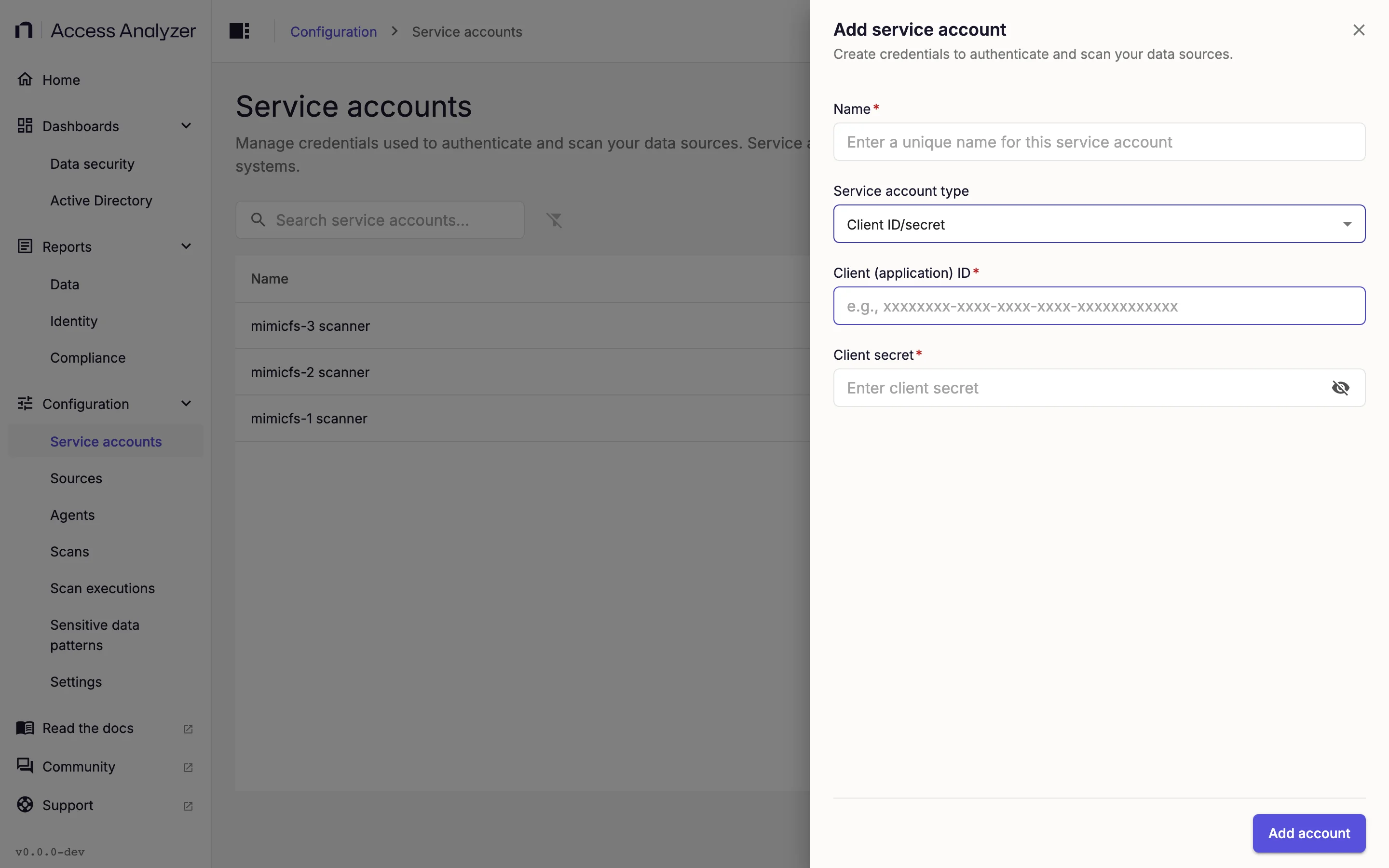
Next, select this account in Service account on the Entra ID source and click Test connection. Scan Entra ID walks through the whole setup, from app registration to first scan.
Rotate the Client Secret
When you create a new secret on the app registration, update the account before the old secret expires.
- On the account's row, click Actions > Edit.
- In Client secret, paste the new value. The field starts empty.
- Click Save changes.
If scans already use this account, the Confirm service account update dialog lists them before the change goes through. When you continue, running executions restart with the new secret. Service accounts explains what the dialog does.
Fields
| Field | Required | Notes |
|---|---|---|
| Name | Yes | The name shown in the list and on sources. |
| Service account type | Yes | Select Client ID/secret. |
| Client (application) ID | Yes | A GUID in the form xxxxxxxx-xxxx-xxxx-xxxx-xxxxxxxxxxxx. |
| Client secret | Yes | The secret's value. Masked as you type. |
Validation runs when you leave a field. An ID that isn't a GUID shows Client (Application) ID must be a valid GUID (e.g. xxxxxxxx-xxxx-xxxx-xxxx-xxxxxxxxxxxx); an empty secret shows Client secret is required.