SSH Username and Key
An SSH username/key account is a Linux username and an SSH private key.
note
Agent deployment doesn't use SSH accounts. You deploy an agent by running a command on the agent host, as Deploy an agent describes. Scans never use SSH accounts either.
Key Formats
The form accepts a PEM-framed private key: the text must start with -----BEGIN and contain an -----END line. If it doesn't, the form shows SSH key must be in PEM or OpenSSH format. Three common formats meet this rule.
| Format | First line |
|---|---|
| OpenSSH | -----BEGIN OPENSSH PRIVATE KEY----- |
| Public-Key Cryptography Standards (PKCS) #1 | -----BEGIN RSA PRIVATE KEY----- |
| PKCS #8 | -----BEGIN PRIVATE KEY----- |
Access Analyzer doesn't support passphrase-protected keys, and the form has no field for a passphrase. Create a key without a passphrase.
Create an SSH Username/Key Service Account
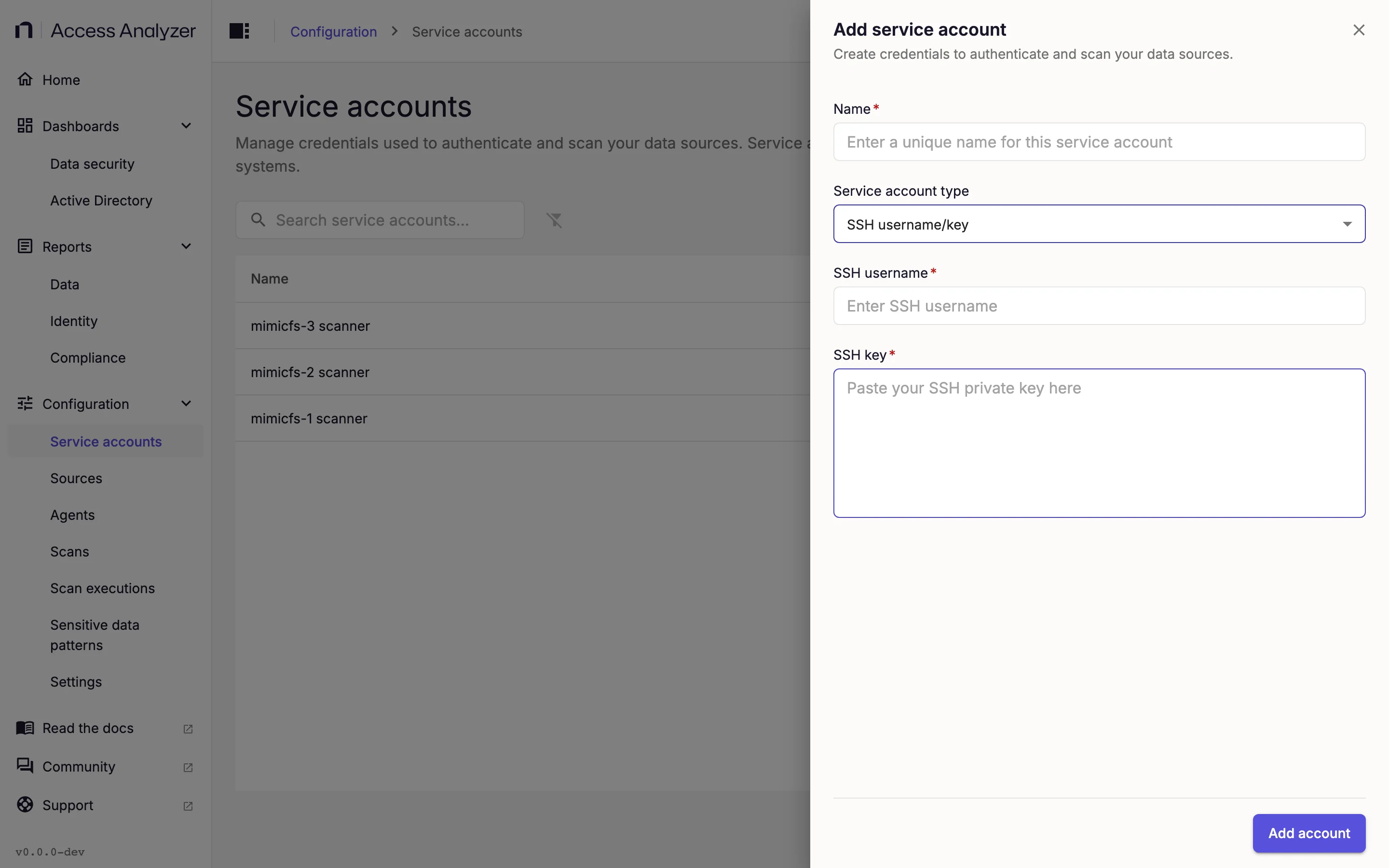
- Go to Configuration > Service accounts.
- Click Add service account.
- In Name, enter a name, for example
agent-deploy. - In Service account type, select SSH username/key.
- In SSH username, enter the Linux username.
- In SSH key, paste the private key.
- Click Add account.
Replace the Key
- In the account's Actions menu, click Edit.
- In SSH key, paste the new private key.
- Click Save changes.
The SSH key field opens empty. To change other fields without replacing the key, leave it empty.
Fields
| Field | Required | Notes |
|---|---|---|
| Name | Yes | The name shown in the list. |
| Service account type | Yes | Select SSH username/key. |
| SSH username | Yes | The Linux username, for example deploy. |
| SSH key | Yes | The private key, pasted in full including its -----BEGIN and -----END lines. The field is a multi-line text box. |