Username and Password
A Username/password account is a domain or local account and its password. It's the type that File Server and Active Directory sources use. The form labels this type Username/password.
When to Use It
Use a Username/password account for:
- File Server sources. Access Analyzer signs in to the SMB server with the username and password, enumerates the shares, walks the folders, and reads their permissions. Sensitive data scans also read file contents.
- Active Directory sources. Access Analyzer binds to a domain controller over the Lightweight Directory Access Protocol (LDAP) and reads users, groups, and organizational units.
One account can serve many sources. Create separate accounts when sources live in different domains, or when you want to rotate their passwords independently.
Required Permissions
Grant the account only the access it needs to read what you want to scan.
On a file server, the account needs Read access to every share and folder you want to scan: List folder / Read data, Read attributes, and Read permissions. The scan records an error for folders the account can't read and moves on. Adding the account to the server's Backup Operators or Administrators group lets it read folders it otherwise couldn't open. For the full list of permissions, see SMB file servers.
In Active Directory, a regular domain user with the default read access to the domain is enough to read users, groups, and organizational units. See Active Directory.
Create a Username/Password Service Account
- Go to Configuration > Service accounts.
- Click Add service account.
- In Name, enter a name, for example
corp-file-servers. - In Service account type, leave Username/password selected.
- In Username, enter the account, for example
CORP\svc-accessanalyzer. See Username format. - In Password, enter the password.
- Click Add account.
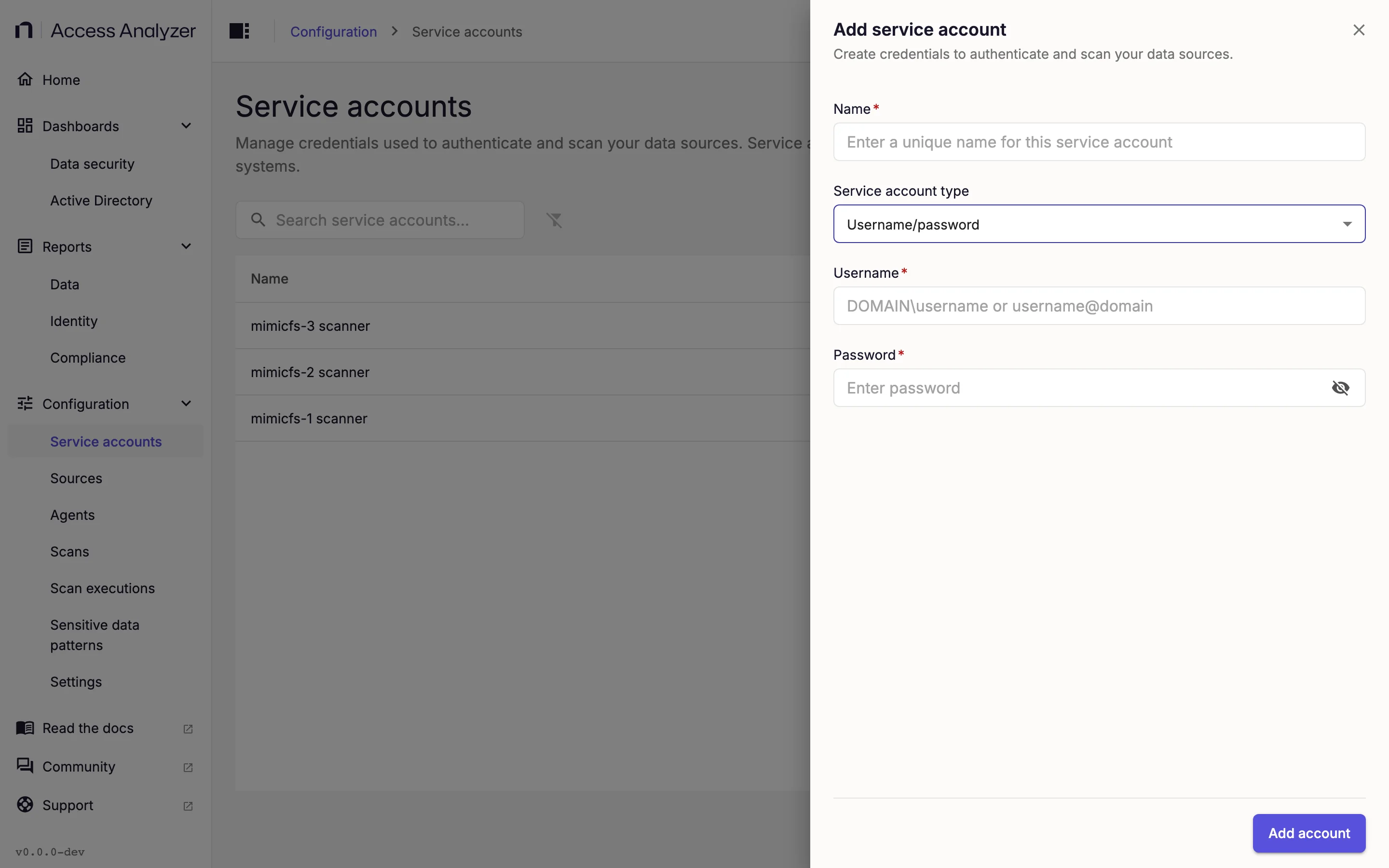
The account appears in the list with Account Type set to Username/password. To use it, select it in the source's Service account field and click Test connection on the source to confirm that the credentials work. SMB file servers and Active Directory cover the source settings. For the whole path from account to first scan, follow Scan SMB file servers or Scan Active Directory.
Change the Password
When you rotate the password in your directory, update it in Access Analyzer:
- On the account's row, click Actions > Edit.
- In Password, enter the new password.
- Click Save changes.
The Password field opens empty because Access Analyzer never shows the stored password. Username keeps its stored value, so change it only if the account itself has changed. To change Name or Username without touching the password, leave Password empty.
If scans already use this account, the Confirm service account update dialog lists them. Confirming restarts any running scan executions with the new password. Service accounts explains what the dialog does.
Fields
| Field | Required | Notes |
|---|---|---|
| Name | Yes | The name shown in the list and on sources. |
| Service account type | Yes | Select Username/password (the default). |
| Username | Yes | DOMAIN\username or username@domain. See Username format. |
| Password | Yes | Masked as you type. Click the eye icon to show it. |
Validation runs when you leave a field. An empty field shows Name is required, Username is required, or Password is required.
Username Format
There's no separate domain field. If you need to specify a domain, put it in the username.
| Form | Example |
|---|---|
| Down-level | CORP\svc-accessanalyzer |
| User principal name | svc-accessanalyzer@corp.example.com |
| Account name only | svc-accessanalyzer |
Which form to use depends on the source type:
- File Server sources: use
DOMAIN\username. Access scans accept all three forms, and a bare name takes its domain from the source's Domain setting. Sensitive data scans recognize the domain only in theDOMAIN\usernameform. - Active Directory sources: enter the account name on its own. The source's Domain setting supplies the domain.