Application Settings
What the Application Tab Holds
Settings > Application holds the deployment-wide defaults. It has five cards: Homepage, File server scanning, SharePoint scanning, Classification, and Audit log. Admins can change everything on the tab. Viewers can open the tab and edit fields, but their saves fail with the message Some settings were not saved.
The Netwrix Activity Monitor settings and the enrollment token are on the Activity Monitor tab instead; see Netwrix Activity Monitor settings. Feature flags have their own tab; see Feature flags.
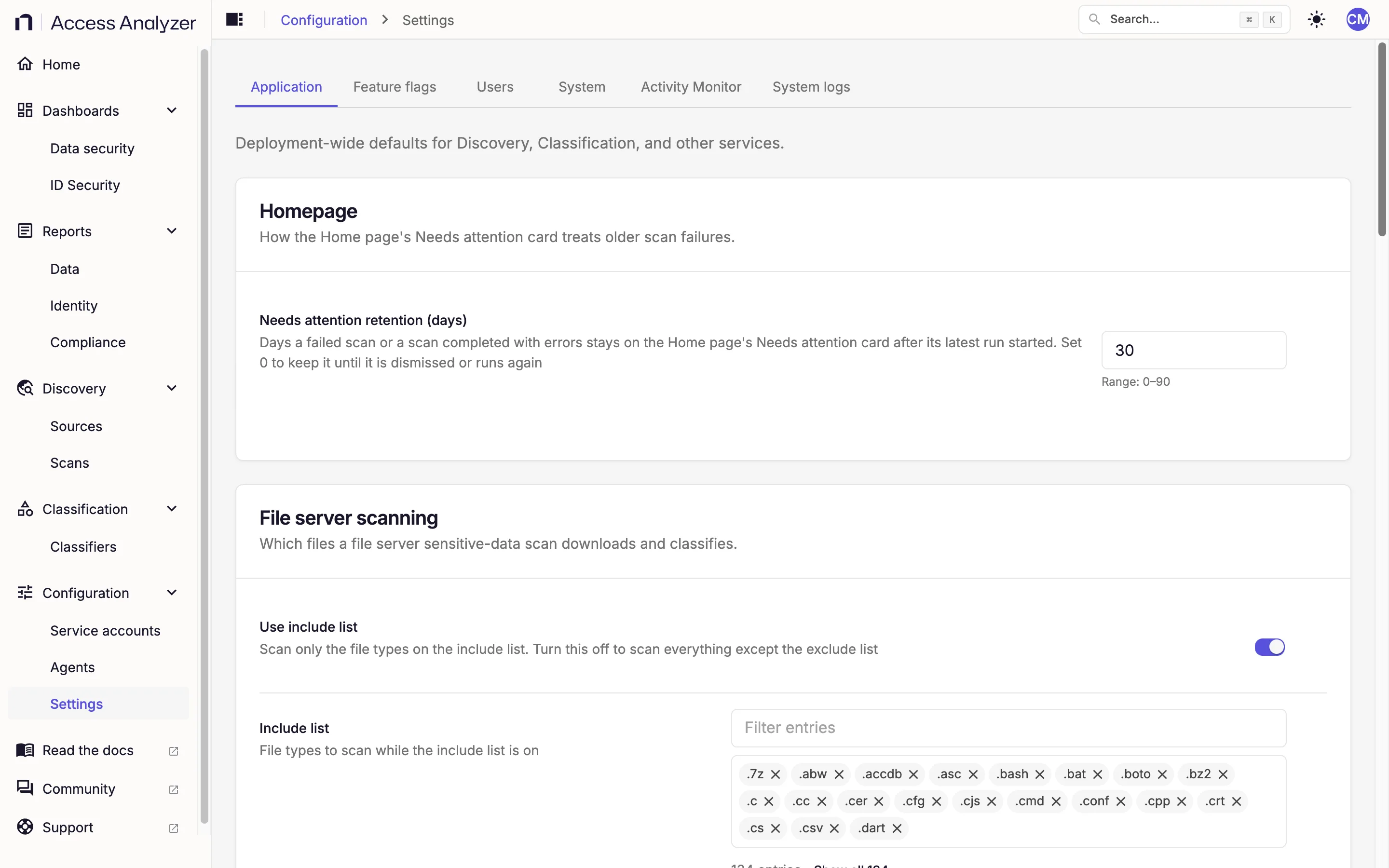
Each row is one setting. The row shows the setting's label, as the following tables give it, with a one-line description underneath. When you point to the row or move focus into it, the setting's key appears below the description in small monospace text, for example file_server_file_size_max_mb. The key is the setting's name in the API and in log messages. Two badges can appear next to the label:
- Overridden means the saved value differs from the shipped default.
- Modified means you've edited the value but haven't saved yet.
On/off settings use a switch. Number fields show their allowed range under the field, for example Range: 1–100. A row that another setting makes irrelevant stays in place, dimmed, with the reason underneath, for example Not used while the include list is on. Any row other than a switch whose value differs from the shipped default also gets a reset icon; see Reset a setting to its default.
As soon as you edit a row, a bar appears at the bottom of the page. It counts your edits (1 unsaved change, 3 unsaved changes) or, if a value is invalid, names the field by its key (1 field has an invalid value: followed by the key). You can't save while a field is invalid.
Change a Setting
- Go to Settings > Application.
- Edit the setting. For an on/off setting, click the switch; for a number, enter the new value; for an extension list, see Edit an extension list.
- Correct any field the bar flags as invalid.
- Click Save changes, or press Ctrl+S (Cmd+S on a Mac).
A message confirms the result: 1 setting saved or 3 settings saved. If any value fails to save, the message reads Some settings were not saved, followed by how many settings saved and which ones failed.
To drop every unsaved edit, click Discard. If you navigate away with unsaved edits, an Unsaved changes dialog asks "You have unsaved changes that will be lost if you leave. Are you sure you want to leave?" Click Stay to keep editing or Leave to drop the edits.
Validation Messages
| Message | Cause |
|---|---|
| Value is required | The field is empty. |
| Must be a whole number | The value has a decimal point or non-numeric characters. |
Must be between {min} and {max} | The value is outside the setting's range. |
Edit an Extension List
The extension lists are chip editors: each extension is a separate chip in the field.
To add an extension:
- Click the field.
- Enter the extension, for example
.bak. - Press Enter.
To remove an extension, click the remove icon on its chip, or press Backspace.
Pasting text separated by spaces, commas, or semicolons adds one chip per extension. The editor drops duplicates, ignoring case, so .PDF and .pdf count as the same entry.
A list with more than 20 entries shows its first 20 chips, the number of entries, and a Show all button that expands it. Type in Filter entries above the list to show only the chips that contain that text.
Reset a Setting to Its Default
When a number or list value differs from the shipped default, a reset icon appears on the row. Its tooltip reads Reset to default, followed by the default value in parentheses for number settings. A switch has no reset icon; to restore its default, set it back to the default that the following tables list.
- Click the reset icon on the row. The default value appears in the field. If the row shows Overridden, it also shows Modified until you save.
- Click Save changes.
Homepage
| Setting | Default | Range | What it affects |
|---|---|---|---|
| Needs attention retention (days) | 30 | 0–90 | Days a failed scan, or a scan that completed with errors, stays on the Home page's Needs attention card after its latest run started. Set 0 to keep it until someone dismisses it or the scan runs again. |
File Server Scanning and SharePoint Scanning
These two cards decide which files a Sensitive data scan downloads and classifies: File server scanning for File Server sources and SharePoint scanning for SharePoint Online sources. Each card holds the same four settings, and each card's settings apply only to its own source type.
| Setting | Default | Range | What it affects |
|---|---|---|---|
| Use include list | On | — | While on, scans classify only the file types on Include list and ignore Exclude list. Turn it off to classify every file type except those on Exclude list. |
| Include list | 134 extensions; see the default list | — | File types to classify while Use include list is on. If you clear the list, scans use Exclude list instead, the same as when the switch is off. |
| Exclude list | 69 extensions on File server scanning, 74 on SharePoint scanning; see the default lists | — | File types to skip while Use include list is off. An empty list excludes nothing. |
| Maximum file size (MB) | 10 | 1–100 | Largest file to classify, in megabytes, where 1 MB is 1,000,000 bytes. Scans skip larger files. They also skip empty files. |
Extension matching ignores case. Because Use include list is on by default, a fresh installation classifies only the file types on the include list, and the exclude lists take effect only after you turn the switch off or clear the include list.
The include list ships with document, spreadsheet, presentation, email, and mailbox formats, plus text, source code, configuration, credential, certificate, key, database, and archive files. Both cards ship with the same include list. The exclude lists ship with media, binaries, fonts, disk images, and similar files that rarely carry text worth classifying. The SharePoint list adds web formats on top of the File Server list.
Default value of Include list
.7z .abw .accdb .asc .bash .bat .boto .bz2 .c .cc .cer .cfg .cjs .cmd .conf
.cpp .crt .cs .csv .dart .doc .dockercfg .docm .docx .dotm .dotx .dwg .eml
.emlx .env .git-credentials .gitconfig .go .groovy .gz .h .hpp .htm .html
.htpasswd .ini .jar .java .js .json .jsx .key .kt .kts .log .lua .markdown
.mbox .md .mdb .mjs .msg .nb .netrc .npmrc .numbers .odm .odp .ods .odt .ost
.oth .otp .ots .ott .p7b .pages .pdf .pem .pgpass .php .pl .pm .potm .potx
.pps .ppsm .ppsx .ppt .pptm .pptx .properties .ps1 .psm1 .pst .pub .py .pypirc
.qpw .r .rar .rb .rs .rst .rtf .s3cfg .scala .sdp .sh .sql .swift .sxi .tar
.tgz .toml .ts .tsv .tsx .txt .uos .vb .vbs .vsd .vsdx .wpd .wpt .xlam .xlr
.xls .xlsb .xlsm .xlsx .xltm .xltx .xml .yaml .yml .zip .zsh
Default value of Exclude list on File server scanning
.aac .aiff .avi .bin .bmp .cab .cdf-ms .com .cpl .cur .dib .dll .dmg .dmp
.drv .eot .exe .flac .flv .gfa .gif .giff .heic .heif .hlp .ico .img .iso
.jfi .jfif .jif .jpe .jpeg .jpg .lnk .m4a .m4v .mkv .mov .mp3 .mp4 .mpeg
.mpg .msi .msp .otf .ova .ovf .pdb .png .qcow2 .scr .svn-base .sys .tif
.tiff .ttf .vdi .vhd .vhdx .vmdk .wav .webm .webp .wim .wma .wmv .woff
.woff2
Default value of Exclude list on SharePoint scanning
Everything in the File Server list, plus:
.asp .aspx .css .url .xaml
Classification
These defaults apply to every Sensitive data scan.
| Setting | Default | Range | What it affects |
|---|---|---|---|
| Classification workers | 15 | 1–50 | Default number of concurrent classification workers per scan. Applies when a Sensitive data scan doesn't set its own Workers value. |
| Report known test values | Off | — | Reports matches on publicly documented test values, such as vendor test card numbers, test Social Security numbers, and Amazon Web Services (AWS) documentation keys, instead of suppressing them. Turn it on to evaluate Access Analyzer against synthetic data. Expect more false positives while it's on, because these values also appear in real documentation and sample files. |
| Decision traces | On | — | Records a decision trace for every sensitive data finding, so the Files tab of a scan execution can show why Access Analyzer marked a file sensitive: the rule, the evidence, and the confidence. Turn it off to stop recording findings and traces; the per-file record and live progress stay on. |
| Runs that keep their file list | 3 | 1–20 | How many of each scan's most recent runs keep their file list and findings on the Files tab. Older runs keep only their totals. A scan's newest completed run keeps its list for 90 days. |
| Days to keep file lists | 90 | 7–90 | Runs that finished more than this many days ago lose their file list and findings, even if they're among the most recent runs. A scan's newest completed run keeps its list until it's 90 days old. Changes to this setting apply within a day. |
A Sensitive data scan on a File Server source has its own Workers field (1–20), which shows 3 by default. If you leave it at 3, the scan uses Classification workers. If you change it, the scan saves your value and uses it instead of the global default. Sensitive data scans on SharePoint Online sources have no Workers field and always use Classification workers. See Scan types.
Audit Log
| Setting | Default | Range | What it affects |
|---|---|---|---|
| Retention (days) | 365 | 90–2555 | How long the audit log keeps its entries. Access Analyzer removes entries older than this from the audit log. |
When you save a shorter retention, a Remove older audit log entries? dialog shows how many entries the change removes. Click Remove entries and save to confirm; Access Analyzer removes the entries as soon as you confirm. Access Analyzer also keeps an older copy of the audit log, so if you lengthen the retention later, removed entries can reappear from that copy. If the number of entries changes while the dialog is open, a The number of entries to delete changed message asks you to review the new count and confirm again.
If Access Analyzer saves the new retention but can't reach the storage to remove the older entries, the message Audit log retention saved, but not trimmed appears. The audit log hides the older entries, and a notice under the setting offers Trim now to remove them when the storage is reachable.
Netwrix Activity Monitor Settings
These settings tune the listener that Netwrix Activity Monitor agents connect to. They're on the Activity Monitor tab, which only Admins see: click Settings at the top of the tab to open the Activity Monitor settings dialog, edit the values, and click Save. For the integration itself, see Netwrix Activity Monitor.
| Setting | Default | Range | What it affects |
|---|---|---|---|
| Connection timeout (seconds) | 900 | 5–3600 | Seconds of inactivity before the listener drops an idle Netwrix Activity Monitor client. |
| Enrollment first-message timeout (seconds) | 10 | 5–60 | Seconds to wait for the first message from a newly connected Netwrix Activity Monitor agent. |
| Enrollment ban duration (seconds) | 10 | 5–300 | Seconds to ban a source IP after it presents an invalid enrollment code. |
| Maximum message size (bytes) | 16777216 | 65536–67108864 | Maximum size in bytes of a single Netwrix Activity Monitor message. The default is 16 MB. |
Enrollment Token
The Enrollment token panel is at the top of the Activity Monitor tab. Click Generate enrollment token to issue a token. The token appears in a read-only field with a copy icon, followed by Expires: and the expiry time. A token is valid for 1 hour.
After the first token, the button reads Generate new enrollment token. Each new token invalidates the one before it, so give the current token to the person enrolling the agent before you generate another.
If the button is disabled and the panel shows NAM listener certificate is not configured on this server., the Netwrix Activity Monitor (NAM) listener has no TLS certificate yet. Netwrix Activity Monitor covers that setup and how the agent uses the token.
When Changes Take Effect
You don't need to restart anything. Services pick up new values within 5 minutes. File server scanning, SharePoint scanning, and Classification settings apply to Sensitive data scans that start after the services pick up the new value; a running scan keeps the values it started with. Netwrix Activity Monitor settings apply to connections opened after the change; Activity Monitor agents already connected keep their current session.