Sources
A source is one system that Access Analyzer connects to and scans: a file server, an Active Directory domain, an Entra ID tenant, or a SharePoint Online tenant. Every source has a type and a connection (where the system is), and usually a service account (how Access Analyzer signs in to it). Scans then run against one or more sources and store what they collect for the dashboards and reports.
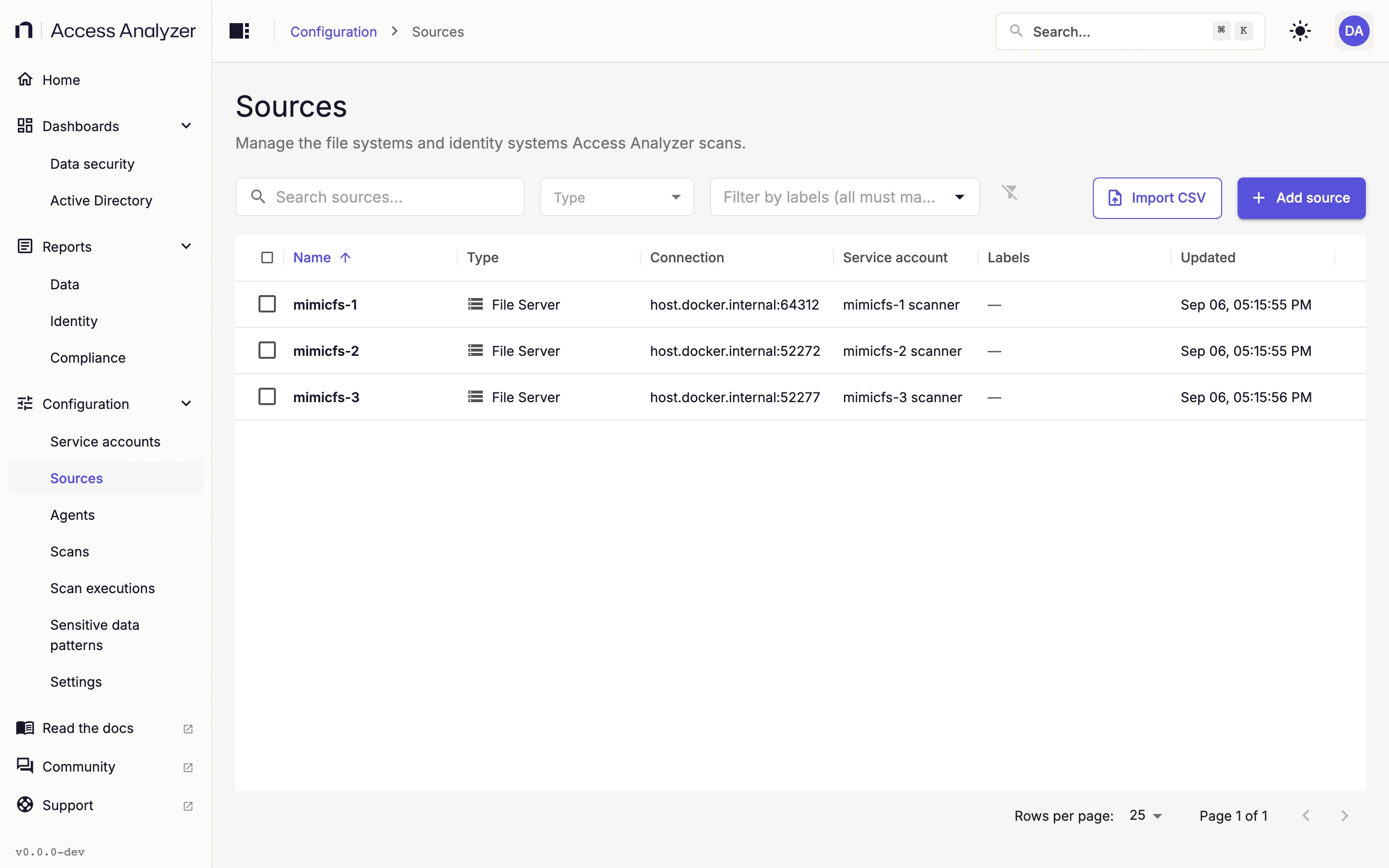
Manage sources at Configuration > Sources. Users with the Viewer role see a read-only list without the add, import, edit, or delete controls; see Users and roles.
Source Types
Four source types are available. The first column shows the name you select in the Source type list when you add a source.
| Source type | System | What its scans collect | Scan types | Service account type |
|---|---|---|---|---|
| File Server | SMB file servers | Shares, folders, and files with their attributes; owners and permissions of shares and folders, plus file owners and permissions when the scan's file-level permission option is on; file contents matched against sensitive data patterns | Access scan, Sensitive data scan | Username/password |
| Active Directory | One Active Directory domain | Users, groups, and direct group memberships, with the organizational unit path of each user and group | Identity sync | Username/password |
| Entra ID | One Microsoft Entra ID tenant | Users, groups, directory roles, group memberships and owners, and role assignments | Identity sync | Client ID/secret |
| SharePoint Online | One SharePoint Online tenant | Site collections, subsites, lists, libraries, folders, documents, OneDrive personal sites (when the scan's Collect OneDrive option is on, the default), sharing settings, sharing links, permissions, and SharePoint groups; document contents matched against sensitive data patterns | Access scan, Sensitive data scan | Client ID/certificate |
Each type has its own page with prerequisites, the fields to fill in, the sync or scan options, and a reference list of every attribute it collects: SMB file servers, Active Directory, Entra ID, and Microsoft 365.
Identity sources do more than feed the identity reports. File Server scans record who has access as security identifiers (SIDs); an Active Directory source for the same domain turns those SIDs into account and group names in the reports.
Add a Source
-
Go to Configuration > Sources.
-
Click Add source.
-
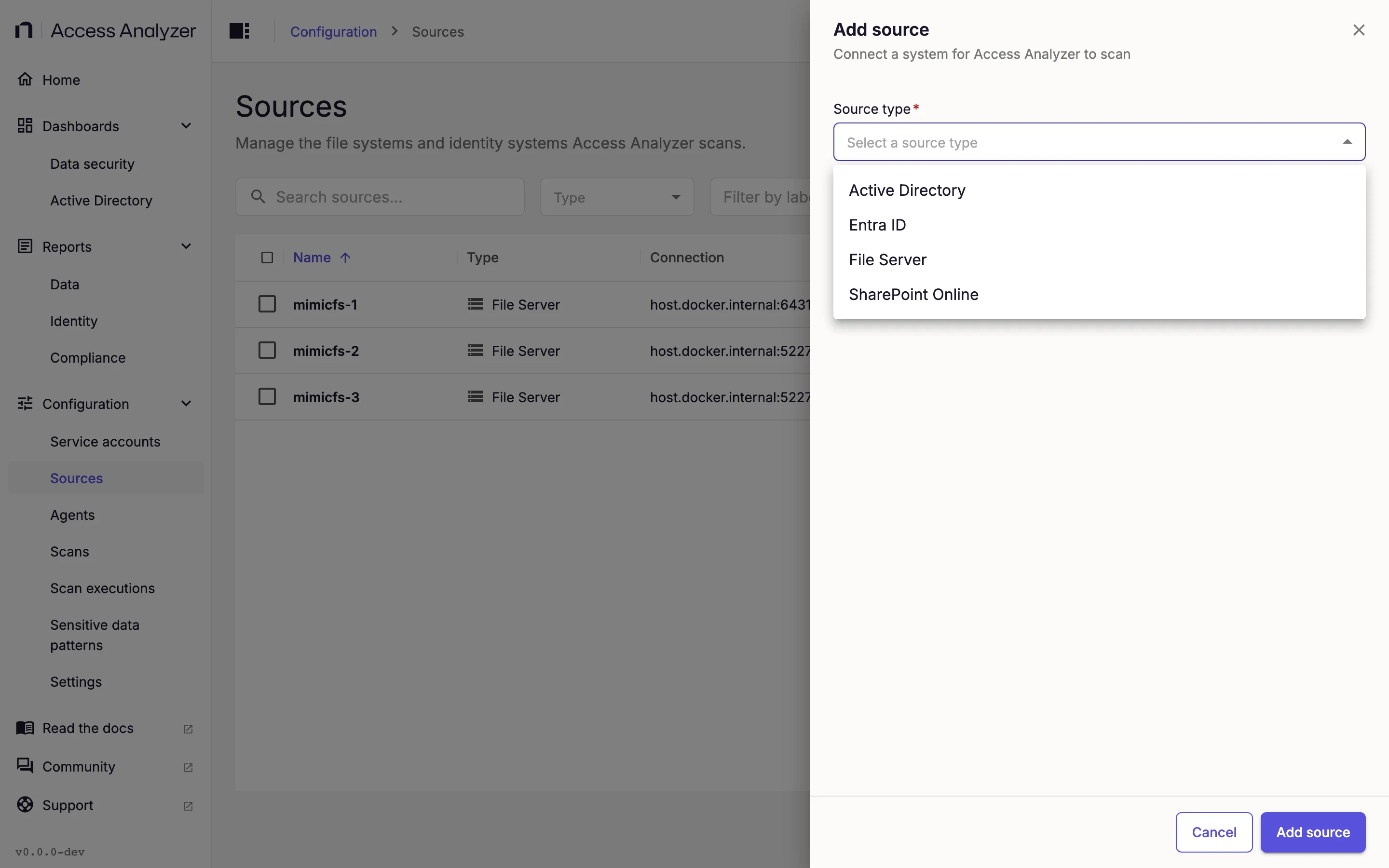
In Source type, select the type. The list is alphabetical: Active Directory, Entra ID, File Server, SharePoint Online.
-
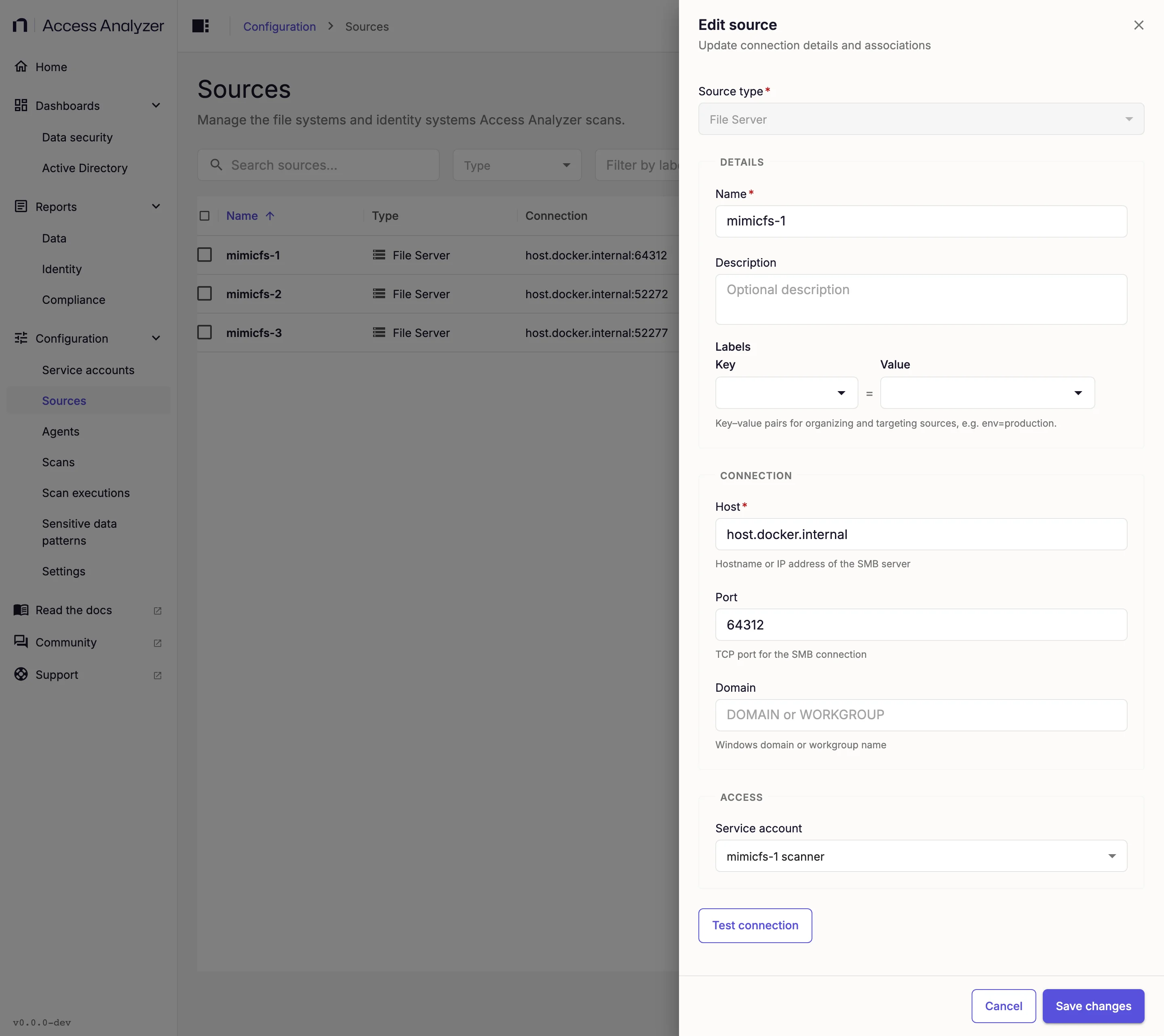
In Details, enter a Name and, if you want, a Description and Labels.
-
In Connection, fill in the fields for the type. Each type's page, linked under Source types, lists them.
-
In Access, select a Service account.
-
Click Test connection.
-
When Connection successful appears, click Add source.
The Name is required, can be up to 128 characters, and must be unique across all sources regardless of case. The form warns with A source with this name already exists before you save. Description is optional. Labels are optional key=value pairs; see Labels.
Service account lists every service account by name, with None first. The list includes accounts of every type, so pick one of the type that the source needs (see Source types). You can save a source without a service account, but Test connection stays disabled until you select one.
Test connection becomes available when you've filled every required connection field and selected a service account. A successful test shows the message Connection successful. A failed test shows Connection failed in the form with the error text from the connection attempt. Changing any connection field or the service account clears the result, so test again after edits.
To add many sources at once, use Import sources from a CSV file.
Edit a Source
-
Click Edit source in the row. The form opens with the same sections as when adding.
-
Change the fields you need. Source type is locked: to move a system to a different type, add a new source.
-
Click Test connection to check the values in the form.
-
Click Save changes.
Changing the field that identifies the system, such as Host, Domain (Active Directory), Tenant ID, or SharePoint domain, shows the warning Existing scan data won't follow this change. Data already collected stays with the old target, and future scans store data under the new one. If you only want a different display name, change Name instead.
Delete a Source
- Click Delete source in the row.
- Click Delete Source to confirm. You can't undo a deletion.
Access Analyzer refuses to delete a source in two cases:
- A scan execution is running or pending on the source. The dialog says a scan is running; stop it from Scan executions or wait for it to finish, then try again.
- The source has scan history. A source that scans have run against, or that a scan references, stays in place.
Work With Several Sources at Once
Select rows with the checkboxes to open the bulk action bar. It shows the number of selected rows, a Clear selection link, and three actions. The selection survives paging but clears when you change the search, filters, or sort order.
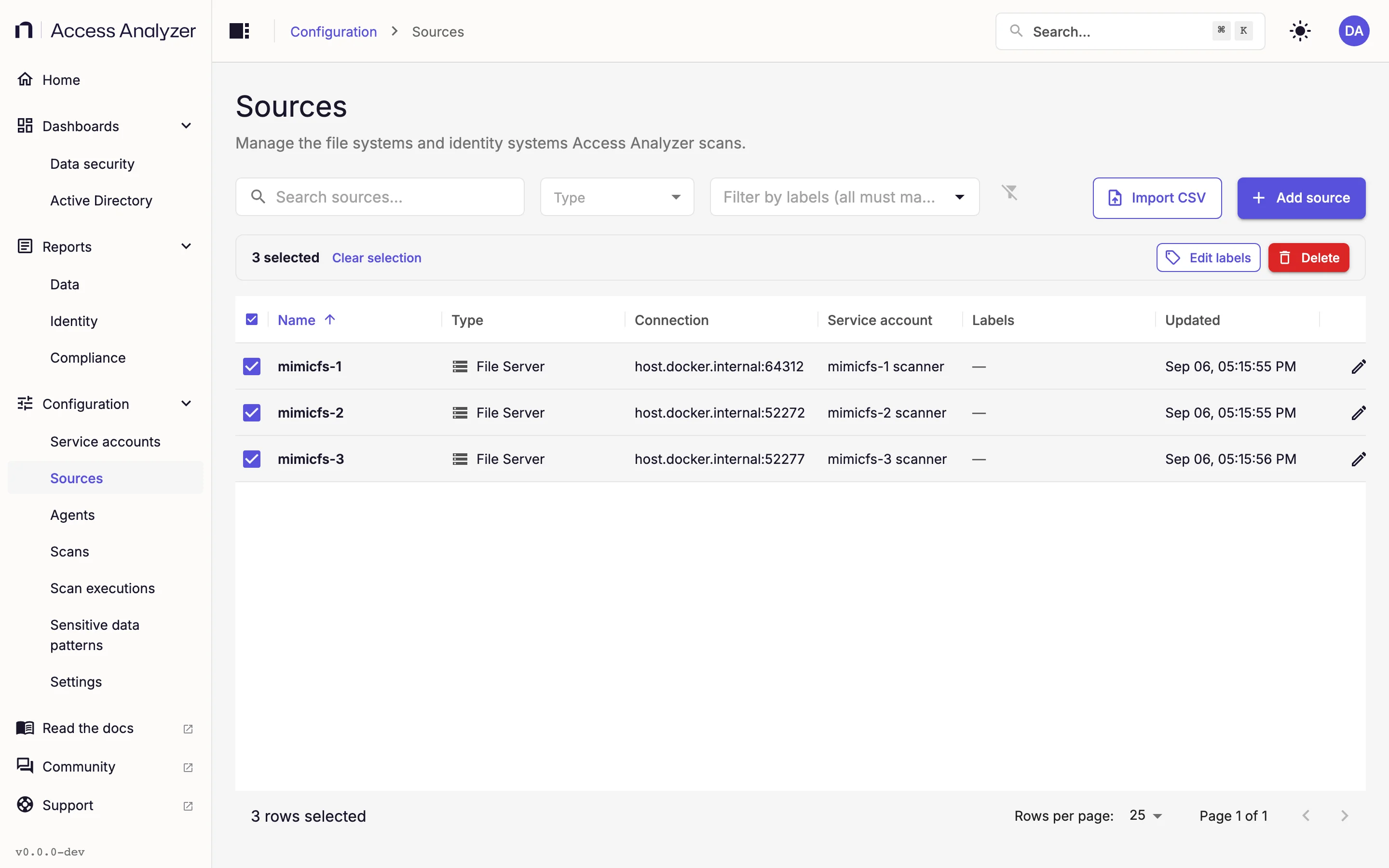
- Attach service account assigns one service account to the selected sources in one step. See Attach a service account to several sources.
- Update labels adds labels to, or removes labels from, every selected source in one step. See Labels.
- Delete removes the selected sources. The dialog lists each source. After you confirm, a Deletion results view shows Deleted for each removed source, or the reason it stayed: Scan in progress, Has scan history, or Source not found. Sources that stayed remain selected so you can retry, for example after a running scan finishes.
Attach a Service Account to Several Sources
- On the Sources page, select the sources with the row checkboxes.
- In the bulk action bar, click Attach service account. The dialog title shows how many sources you selected.
- In Service account, select the account. The account replaces whatever service account each source uses.
- Check the list of selected sources. A source whose type needs a different kind of service account shows Incompatible, and the dialog leaves it unchanged.
- Click Attach to N sources, where N is the number of compatible sources.
A service account fits a source when it holds the credentials the source's type uses; see Source types. The button stays disabled until at least one selected source can use the account. Attach service account is unavailable, with the tooltip No service account fits the selected sources, when none of your service accounts fits any selected source.
When every attempt succeeds, a notification confirms how many sources got the account and how many it skipped because they need a different account type. Otherwise, the dialog switches to Service account results and lists each source as Attached, or with the reason it wasn't, such as Incompatible account type.
The Sources Page
The list shows one row per source.
| Column | Contents |
|---|---|
| Name | The name you gave the source. Sortable; the default sort. |
| Type | The source type. Sortable. |
| Connection | The system the source points at: the host and port for a file server, such as fs01.example.com:445; the domain controller followed by the domain in parentheses for Active Directory, such as dc01.example.com (example.com); the tenant ID for Entra ID; or the SharePoint domain for SharePoint Online. |
| Service account | The service account the source signs in with, or a dash when the source has none. |
| Labels | The source's labels as key=value chips. |
| Updated | When the source last changed. Sortable. |
At the end of each row, the Edit source and Delete source buttons open the edit form and the delete confirmation.
The toolbar filters the list:
- Search sources… matches the source name and the connection target. Searching for
example.comfinds every source whose host or SharePoint domain contains that text. - Type narrows the list to the source types you select; a source of any selected type appears. The default is All types.
- Service account narrows the list to the sources that use any of the service accounts you select. Select No service account to find sources that have none. The default is All service accounts.
- Filter by labels… shows only sources that carry every label you pick. Selecting
env=productionandteam=financeshows the sources that have both. - Clear filters resets the search and every filter.
The list shows 25 rows per page by default; you can switch to 10, 50, or 100.
When no source exists yet, the page shows No sources yet with a prompt to add one or import several from a CSV file. When filters hide everything, it shows No sources match your filters.