Import Sources From a CSV File
Import CSV on the Sources page creates sources in bulk from a CSV file. One file can mix every source type: each row names its type and fills in only the columns that type needs. The file refers to service accounts by name, so it never contains a password, secret, or key.
The import validates every row before it creates anything, imports the rows that pass, and hands you a report of the rows it skipped so you can fix them and import the report.
The import also accepts a host list exported from Access Analyzer 11 or 12 and works out each host's source type for you; see Import an Access Analyzer 11 or 12 host list.
Before You Start
- Create the service accounts the sources need. The import skips any row that names a service account that doesn't exist.
- Check the connection requirements for each type on its page: SMB file servers (the File Server source type), Active Directory, Entra ID, and Microsoft 365 (the SharePoint Online source type). The import doesn't test connections; it only creates the sources.
- Keep the file to 5 MB and 5,000 data rows at most. Split larger inventories into several files.
Users with the Viewer role don't see the Import CSV button.
Import a File
-
Go to Configuration > Sources.
-
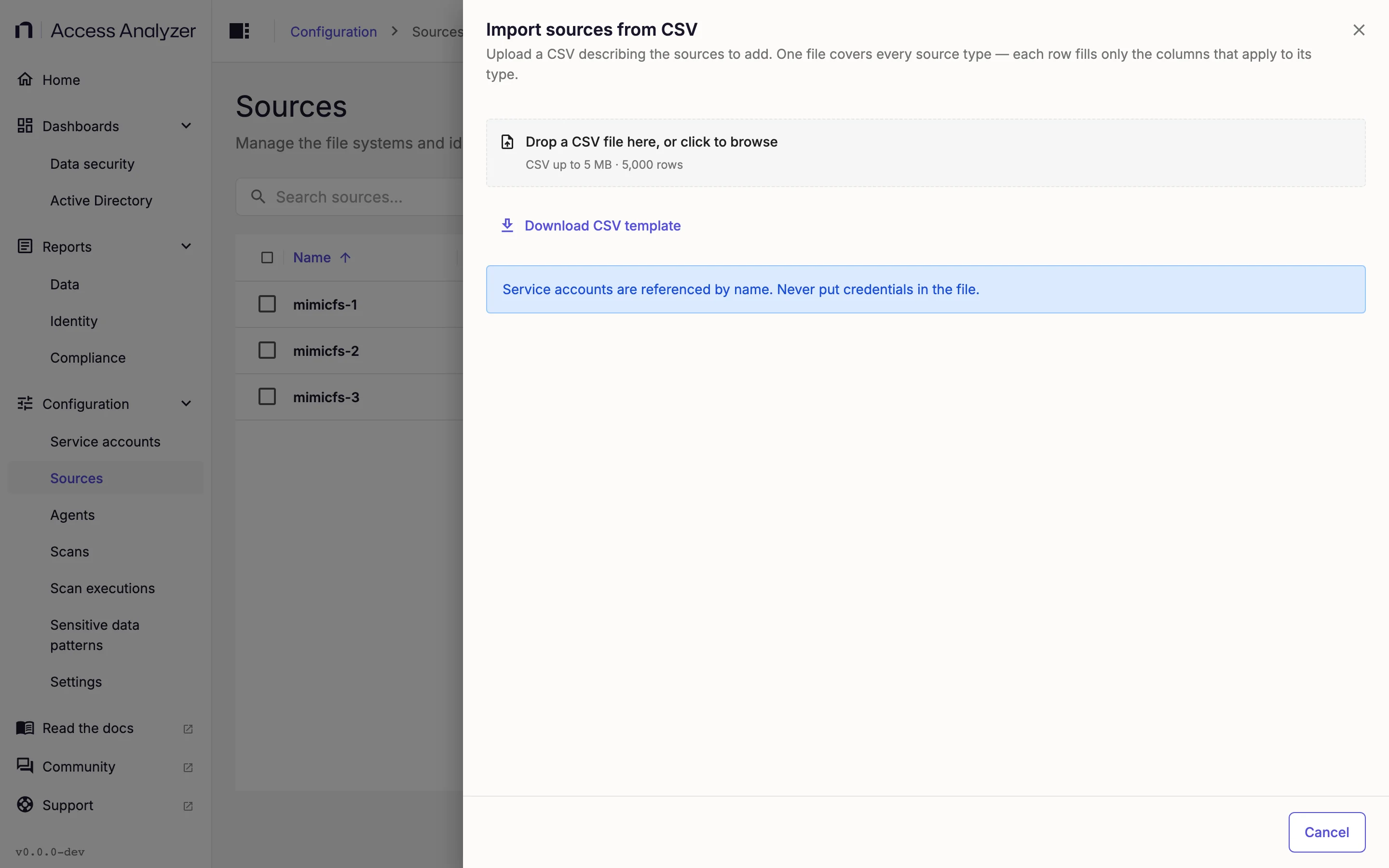
Click Import CSV.
-
Click Download CSV template if you want a starting point. The template has the header row and one example row per source type.
-
Drop your file on the upload area, or click the area to browse for it. The upload accepts only
.csvfiles. -
Review the preview. Each row shows a Status of Valid or Error. Error rows appear first, with the reason in the Problem column. The summary above the table shows how many rows the import creates and how many it skips.
-
Click Import N valid rows, where N is the number of rows that passed. To start over instead, click Choose a different file.
-
Keep the dialog open while the progress bar runs.
-
Check the result. It shows how many sources the import created. If any rows failed, it also shows how many it skipped and a Download skipped rows report link.
-
Click Done.
If you try to close the dialog before the import finishes, a warning says If you close now, this import will be discarded. Click Stay to continue or Discard import to abandon it.
File Format
The file is a standard CSV with a header row. The import matches header names after trimming and lowercasing them, so Name, name, and NAME all work and column order doesn't matter. It ignores columns it doesn't recognize, trims every cell, and skips empty lines. Only name and type are required columns; leave out any other column when no row needs it. The import reads a file without a type column whose header has name, hoststatus, fqdn, and isdomaincontroller as an Access Analyzer 11 or 12 host list instead; see Import an Access Analyzer 11 or 12 host list.
Columns
| Column | Required | Used by | Notes |
|---|---|---|---|
name | Yes | All types | Must be unique among existing sources and within the file, ignoring case. |
type | Yes | All types | The source type; see Values for type. |
description | No | All types | Free text. |
service_account | No | All types | The name of an existing service account, matched ignoring case. Leave empty to assign one later. |
labels | No | All types | key=value pairs separated by ;, for example env=production;team=finance. Same rules as labels set on a source: one value per key, at most 50 labels, no =, ;, or , inside a key or value. |
host | For File Server, Active Directory, and SharePoint Online | File Server, Active Directory, SharePoint Online | Hostname or IP address of the SMB server or domain controller. For SharePoint Online, the SharePoint Online domain, such as contoso.sharepoint.com. |
port | For Active Directory | File Server, Active Directory | Port number, 1 to 65535. Optional for File Server, where an empty cell means 445. Required for Active Directory: 389 for LDAP, or 636 for LDAPS. |
domain | For Active Directory | File Server, Active Directory | Windows domain or workgroup name for File Server; DNS name of the domain for Active Directory. |
enforce_strict_ssl_validation | No | Active Directory | true or false, ignoring case. Empty means false. Sets Enforce strict SSL validation; see Active Directory. |
tenant_id | For Entra ID | Entra ID | The directory (tenant) ID. |
azure_cloud | No | Entra ID, SharePoint Online | AzurePublic, AzureUsGovernmentGcc, AzureUsGovernmentGccHigh, AzureUsGovernmentDoD, or AzureChina. The default is AzurePublic. |
sharepoint_domain | No | SharePoint Online | The column earlier templates used for the SharePoint Online domain. The import still reads it for a SharePoint Online row whose host cell is empty, so older files keep working. |
The header row in the downloaded template is the authoritative list of connection columns for your installation. Each connection column is the snake_case form of the field's key, so the template's columns are host, port, domain, enforce_strict_ssl_validation, tenant_id, and azure_cloud.
Values for type
Each type accepts its record name, its underscore alias, or the display name shown in Access Analyzer. Matching ignores case. The record name is the safest choice because the template uses it.
| Source type | Record name | Alias | Display name |
|---|---|---|---|
| File Server | file-server | file_server | File Server |
| Active Directory | active-directory | active_directory | Active Directory |
| Entra ID | entra-id | entra_id | Entra ID |
| SharePoint Online | sharepoint | sharepoint_online | SharePoint Online |
The record names that earlier releases used, cifs, active-directory-legacy, entra-id-ccf, and sharepoint-online-ccf, still work and create a source of the matching type, so files written for those releases import unchanged.
Examples
Each example uses only the columns its type needs. You can include the full header from the template instead and leave the unused cells empty.
- File Server
- Active Directory
- Entra ID
- SharePoint Online
- Mixed
name,type,description,service_account,labels,host,port,domain
Finance file server,file-server,HQ finance shares,fs-scan,env=production;team=finance,fs01.corp.example.com,445,CORP
HR file server,file-server,,fs-scan,env=production;team=hr,fs02.corp.example.com,,CORP
Lab NAS,file-server,Engineering lab,lab-scan,env=dev;team=engineering,10.20.30.40,,WORKGROUP
name,type,description,service_account,labels,host,port,domain,enforce_strict_ssl_validation
Corp domain,active-directory,Production forest root,ad-reader,env=production,dc01.corp.example.com,389,corp.example.com,false
Lab domain,active-directory,,ad-reader-lab,env=dev,dc01.lab.example.com,636,lab.example.com,true
name,type,description,service_account,labels,tenant_id,azure_cloud
Contoso Entra ID,entra-id,,entra-app,env=production,00000000-0000-0000-0000-000000000000,AzurePublic
name,type,description,service_account,labels,host,azure_cloud
Contoso SharePoint,sharepoint,Includes OneDrive,spo-app,env=production;data=confidential,contoso.sharepoint.com,AzurePublic
name,type,description,service_account,labels,host,port,domain,enforce_strict_ssl_validation,tenant_id,azure_cloud
Finance file server,file-server,HQ finance shares,fs-scan,env=production;team=finance,fs01.corp.example.com,445,CORP,,,
Corp domain,active-directory,,ad-reader,env=production,dc01.corp.example.com,389,corp.example.com,false,,
Contoso Entra ID,entra-id,,entra-app,env=production,,,,,00000000-0000-0000-0000-000000000000,AzurePublic
Contoso SharePoint,sharepoint,,spo-app,env=production,contoso.sharepoint.com,,,,,AzurePublic
Import an Access Analyzer 11 or 12 Host List
Import CSV also accepts a host list exported from Access Analyzer 11 or 12, so you can bring an existing host inventory across without rewriting it as a template. Both versions use the same layout. The host list has no type column, so the import works out each host's source type from the data, and the preview lets you correct the type, host, and domain of each row before you import.
How the Import Reads a Host List
The import treats a file as a host list when its header has the name, hoststatus, fqdn, and isdomaincontroller columns and no type column. Header matching ignores case. The 5 MB and 5,000-row limits still apply. The import reads the following columns, ignores every other column, and treats a cell that holds N/A as empty:
| Column | What the import uses it for |
|---|---|
name | The host's name. A name that ends in .sharepoint.com, .sharepoint.us, or .sharepoint.cn marks a SharePoint Online tenant, and one that ends in .onmicrosoft.com, .onmicrosoft.us, or .partner.onmschina.cn marks an Entra ID tenant. For other hosts, the name is the fallback for the source name and Host when fqdn and ipaddress are empty. |
fqdn | The source name and Host of File Server and Active Directory sources. |
ipaddress | Host when fqdn is empty. |
dnsdomain | Domain of an Active Directory source. |
windowsdomain | Domain of a File Server source, and of an Active Directory source when dnsdomain is empty. |
isdomaincontroller | true marks a domain controller, which becomes an Active Directory source. |
hoststatus | Decides whether a file server starts selected; see Rows that start selected. |
ostype | Windows or NAS marks a file server. |
osname | A NAS vendor in the operating system name, such as NetApp, OneFS or Isilon, Nasuni, Qumulo, Pure Storage, Synology, or QNAP, marks a file server, even when ostype reports Windows. |
Source Types, Names, and Labels
The import checks each row in this order and uses the first type that fits:
- A SharePoint Online name becomes a SharePoint Online source, with the name as SharePoint domain.
- An Entra ID name becomes an Entra ID source, with the name as Tenant ID.
- A domain controller becomes an Active Directory source.
- A Windows or NAS host becomes a File Server source.
- Any other host, such as a Linux server, gets no type. Choose one in the preview or leave the row out.
The import names File Server and Active Directory sources after the host's fqdn, which keeps hosts with the same short name in different domains apart. It names SharePoint Online and Entra ID sources after the lowercased name.
A tenant name that ends in .sharepoint.cn or .partner.onmschina.cn gets Azure China (21Vianet) as its Azure cloud. A name that ends in .sharepoint.us or .onmicrosoft.us can belong to either the GCC High or the DoD cloud, so the preview asks you to choose. Other tenants get Azure (Commercial).
Every other connection field takes its default: port 445 for a file server, port 389 for a domain controller, and Enforce strict SSL validation off.
The import also labels each source from the export: domain=<domain> from windowsdomain (or dnsdomain), os=<os> from ostype or the NAS vendor, and host=<name> when the export's name differs from the first part of the fqdn. It drops the =, ;, and , characters from the values and leaves out any label whose value is empty. See Labels.
Rows That Start Selected
Each row in the preview has a checkbox that decides whether the import creates it. These rows start selected:
- Every Active Directory, Entra ID, and SharePoint Online row, except extra domain controllers.
- File Server rows whose
hoststatushas a value. An Offline status counts, because a host that blocks ping reports Offline while it still serves shares.
These rows start cleared:
- Rows without a type, and File Server rows without a status.
- Every domain controller but one for each domain, because one Active Directory source covers the whole domain. The import keeps the domain controller whose status is Success, then one with any status, and then the first one in the file.
A cleared row shows the status Excluded. The import doesn't create it and doesn't list it in the skipped rows report.
Import a Host List
- Go to Configuration > Sources.
- Click Import CSV.
- Drop the host-list file on the upload area, or click the area to browse for it. The preview opens with a message that starts Access Analyzer 11 or 12 host list detected.
- Check the Type of each row. To change a row's type, choose another type in the list in that row's Type column.
- To give every row the same type, choose it in Set all rows to. Per-row changes you make afterward still apply.
- Select or clear the checkbox at the start of each row to include or leave out that host. The checkbox in the header selects or clears every row on the page that has a type.
- Correct the Host or Domain of a File Server or Active Directory row if needed. Each change applies when you leave the field. SharePoint Online and Entra ID rows take their tenant from the name and have no editable host.
- For a tenant in a US government cloud, choose GCC High or DoD in the row's Azure cloud list.
- To connect every Active Directory source over LDAPS, turn on Connect to Active Directory over LDAPS (port 636). The switch appears when at least one selected row is an Active Directory source.
- In each Service account for list, such as Service account for Active Directory, choose the account to assign to every row of that type, or leave None to assign one later. The lists appear when at least one service account exists.
- Click Import N valid rows, where N is the number of selected rows that passed.
- Check the result.
- Click Done.
Type in Filter by name, host, domain or label to narrow a long list. The summary above the table counts the selected rows and the excluded rows; when you clear every row, it shows No rows are selected for import.
If you click Choose a different file after changing the preview, a warning asks Discard your changes to this file? Click Stay to keep your changes or Discard changes to start over.
Each selected row passes the same checks as a template row, described in Validation. A US government tenant without a chosen cloud fails with Choose the Azure Government cloud (GCC High or DoD). A selected row without a type fails with Type is required. The skipped rows report lists the selected rows that failed, already translated into the template's columns, so you can fix it and import it as a regular template file.
Example
The following host list excerpt holds the columns the import reads:
Name,HostStatus,FQDN,IPAddress,DNSDomain,WindowsDomain,IsDomainController,OSType,OSName
DC01,Success,dc01.corp.example.com,10.0.0.10,corp.example.com,CORP,True,Windows,Windows Server 2022 Standard
DC02,Offline,dc02.corp.example.com,10.0.0.11,corp.example.com,CORP,True,Windows,Windows Server 2022 Standard
FS01,Offline,fs01.corp.example.com,10.0.0.20,corp.example.com,CORP,False,Windows,Windows Server 2019 Standard
NAS01,Success,nas01.corp.example.com,10.0.0.30,corp.example.com,CORP,False,Windows,NetApp Release 9.12.1
contoso.sharepoint.com,N/A,N/A,N/A,N/A,N/A,False,N/A,N/A
The preview shows these rows. The Labels and Starts columns describe the result and don't appear in the preview:
| Row | Type | Name | Host | Domain | Labels | Starts |
|---|---|---|---|---|---|---|
| 1 | Active Directory | dc01.corp.example.com | dc01.corp.example.com | corp.example.com | domain=CORP;os=Windows | Selected |
| 2 | Active Directory | dc02.corp.example.com | dc02.corp.example.com | corp.example.com | domain=CORP;os=Windows | Cleared, because DC01 covers the domain |
| 3 | File Server | fs01.corp.example.com | fs01.corp.example.com | CORP | domain=CORP;os=Windows | Selected |
| 4 | File Server | nas01.corp.example.com | nas01.corp.example.com | CORP | domain=CORP;os=NetApp | Selected |
| 5 | SharePoint Online | contoso.sharepoint.com | None | None | None | Selected |
Validation
File-Level Errors
These stop the import before the preview:
| Message | Fix |
|---|---|
| The file couldn't be read. Check that it is a valid CSV. | Save the file as plain CSV. Check for unbalanced quotes. |
| Missing required column: name. / Missing required column: type. | Add the column to the header row. |
| The file contains no data rows. | Add at least one row under the header. |
| File exceeds 5,000 rows. | Split the file. |
Row-Level Errors
The import checks each row in the following order and shows only the first problem it finds in the Problem column. Fixing that problem can reveal the next.
| Message | Meaning |
|---|---|
| Name is required. | The name cell is empty. |
| Type is required. | The type cell is empty. |
| Unknown type "X". Use one of: … | The type cell matches no source type. The message lists the record names. |
| Missing required field: host. (or another column) | A required connection column for that type is empty. |
| "X" is not a valid hostname or IP address. | The host cell fails the hostname and IPv4 checks. Other fields show their own format message, such as Port must be between 1 and 65535. |
| enforce_strict_ssl_validation must be true or false. | A boolean column holds something other than true or false. |
| Duplicate name — first used on row N. | Another row in the file uses the same name, ignoring case. |
| A source named "X" already exists. | A source with that name exists in Access Analyzer. |
| Service account "X" not found. | No service account has that name. |
| Invalid labels — use key=value pairs separated by ";". | A pair in labels is malformed or contains a forbidden character. |
| Duplicate label key "X" — a key can have only one value. | The same key appears twice in labels. |
| At most 50 labels per source. | Too many pairs in labels. |
Partial Success and the Skipped Rows Report
An import never fails as a whole because of one bad row. The import leaves out rows marked Error in the preview and creates the valid rows. A row that passes the preview can still fail when the import saves it, for example if someone created a source with the same name in the meantime. The result counts that row as skipped, and the skipped rows report shows it with a Server error: message.
The skipped rows report is a CSV with the same columns as your file plus a final error column holding the message for each row. Fix the cells and import the report as it is; the import ignores the error column like any other column it doesn't recognize. Because the rows that succeeded aren't in it, importing it again creates no duplicates.