Microsoft 365
A SharePoint Online source points Access Analyzer at the SharePoint Online service of one Microsoft 365 tenant. Access scans crawl the tenant's site collections, including OneDrive personal sites, and record sites, lists, libraries, folders, documents, sharing settings, sharing links, permissions, and SharePoint groups. Sensitive data scans open the documents and look for sensitive data patterns.
Authentication uses an app registration with a certificate rather than a client secret, so the setup has one extra step: you upload the service account's public certificate to the app registration in the Microsoft Entra admin center.
For an end-to-end walkthrough, see Scan SharePoint Online.
Prerequisites
App Registration
In the Microsoft Entra admin center, register an application in the tenant that owns the SharePoint Online sites. The scan uses the OAuth 2.0 client credentials flow, so no user signs in. On the app registration:
-
Copy the Application (client) ID and the Directory (tenant) ID from Overview.
-
Under API permissions, add the following application permissions:
API Permission Description Microsoft Graph Sites.Read.AllRead items in all site collections; scans use it to find the tenant's root site and list every site collection Microsoft Graph Directory.Read.AllRead directory data; scans use it to read the guest access setting for Microsoft 365 groups and to check whether a group-connected site belongs to a team in Microsoft Teams SharePoint Sites.FullControl.AllFull control of all site collections; SharePoint Online has no read-only application permission that includes permission entries, so scans need this permission to read the tenant's sharing settings and the permissions on every site collection -
Grant admin consent for the tenant.
-
Leave Certificates & secrets for later: you upload the certificate after creating the service account in Access Analyzer.
Registering the application and granting admin consent requires a user account with the Global Administrator, Application Administrator, or Cloud Application Administrator role.
Service Account
SharePoint Online sources use a Client ID and certificate service account. It carries the Client (application) ID, the Tenant ID, and a certificate. The tenant ID belongs to the service account, not the source; the source records only the SharePoint domain and the cloud. Under Certificate, choose one of two options:
- Generate for me (default). Access Analyzer generates a self-signed RSA-2048 certificate, valid for one year, when you save the account. Click Download certificate (.pem) on the confirmation step.
- Upload my own. Provide a single
.pemfile, up to 1 MB, containing the certificate and its unencrypted private key. Access Analyzer doesn't accept.pfxfiles or password-protected keys.
After you save the account, upload the public certificate to the app registration:
- In the Microsoft Entra admin center, open the app registration.
- Go to Certificates & secrets.
- Upload the public certificate.
Scans can't authenticate until the certificate is on the app registration. Repeat the upload whenever you regenerate or replace the certificate.
Entra ID Sync for Names and Group Members
Access scans record a Microsoft Entra ID user or group that holds a permission by its object ID only. They don't read the account's name or a group's members. That information comes from an Entra ID source for the same tenant: after a SharePoint Online scan, the Refresh CDM report tables step rebuilds the reports and expands Entra ID groups using the memberships the most recent Entra ID sync recorded. CDM stands for common data model, the shared format Access Analyzer stores every source's data in. Without one, the reports can't show names for Entra ID users and groups or expand Entra ID group membership. Add an Entra ID source for the tenant and sync it before your first SharePoint Online scan.
Network
The agent that runs the scan needs outbound HTTPS access to Microsoft's sign-in service, to Microsoft Graph, and to three SharePoint hosts of the tenant: the one you enter in SharePoint domain, its OneDrive counterpart, and its SharePoint admin counterpart, for example contoso.sharepoint.com, contoso-my.sharepoint.com, and contoso-admin.sharepoint.com. The admin host serves the tenant's sharing settings and site collection properties.
The sign-in and Graph hosts depend on the Azure cloud you select:
| Azure cloud | Sign-in | Microsoft Graph | SharePoint domain suffix |
|---|---|---|---|
| Azure (Commercial) and Azure Government (GCC) | login.microsoftonline.com | graph.microsoft.com | sharepoint.com |
| Azure Government (GCC High) | login.microsoftonline.us | graph.microsoft.us | sharepoint.us |
| Azure Government (DoD) | login.microsoftonline.us | dod-graph.microsoft.us | sharepoint-mil.us |
| Azure China (21Vianet) | login.chinacloudapi.cn | microsoftgraph.chinacloudapi.cn | sharepoint.cn |
You choose the agent in the scan's Agent field; see Agents.
Add a SharePoint Online Source
- Go to Configuration > Sources.
- Click Add source.
- In Source type, select SharePoint Online.
- Under Details, enter a Name.
- Add a Description and Labels if you want them; see Labels.
- Under Connection, enter the SharePoint domain.
- If the tenant isn't in the commercial cloud, change Azure cloud.
- Under Access, select the service account you created.
- Click Test connection and wait for Connection successful.
- Click Add source.
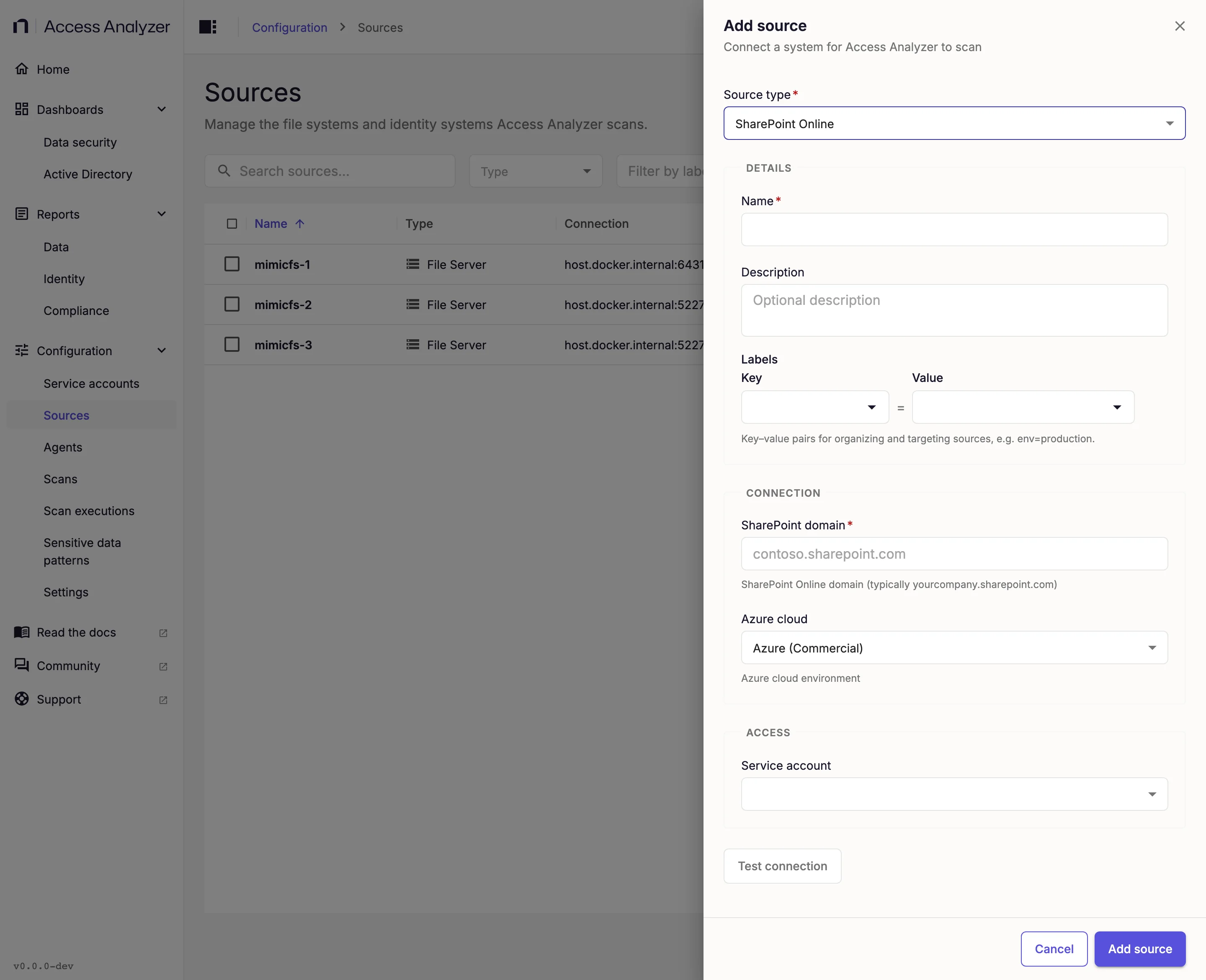
The Connection fields:
| Field | Required | What to enter | Default |
|---|---|---|---|
| SharePoint domain | Yes | The host of the tenant's root SharePoint site, for example contoso.sharepoint.com. Enter the root host, not the OneDrive (-my) or admin (-admin) host. It must belong to the tenant of the service account's app registration. | None |
| Azure cloud | No | The Azure cloud environment that hosts the tenant: Azure (Commercial), Azure Government (GCC), Azure Government (GCC High), Azure Government (DoD), or Azure China (21Vianet). | Azure (Commercial) |
Changing SharePoint domain on an existing source shows the warning Existing scan data won't follow this change: data already collected stays with the old domain. To rename the source, change Name instead.
Test Connection
Test connection signs in to the tenant with the service account's client ID and certificate. The button becomes available after you enter a SharePoint domain and select a service account. The test runs these checks in order and stops at the first one that fails:
| Check | Message when it fails |
|---|---|
| The service account's certificate contains a certificate and an unencrypted private key | There was an error with the certificate. |
| Microsoft Graph returns the tenant's root site | Failed to determine SharePoint admin URL from root site. |
| The app registration holds the permissions listed in App registration | Credentials do not contain the required permissions: followed by each missing permission, for example Microsoft Graph: Sites.Read.All |
| SharePoint domain is the root site host of the tenant the credentials belong to | The source's SharePoint domain <domain> is not the root site host of the tenant the credentials belong to (<root host>); fix the domain or use that tenant's app registration. |
| SharePoint REST returns the root site | SharePoint REST returned HTTP <status> for the root site. |
The permissions check also accepts a broader permission in place of each one: Directory.ReadWrite.All for Directory.Read.All, and Sites.ReadWrite.All, Sites.Manage.All, or Sites.FullControl.All for the Microsoft Graph Sites.Read.All.
Success shows the message Connection successful. Failure shows an alert titled Connection failed with the reason. When signing in fails, the reason starts with Authentication failed: and includes the error from the Microsoft identity platform.
Access Scans
Access scans crawl everything within the scope you set on the scan, on every run; there is no differential mode for this source type. Collected attributes lists every value they store.
Access scans skip some content on every run, whatever the scope:
- Archived site collections, the content type hub, and the root site of the OneDrive host. For the SharePoint admin site collection, the scan records the site collection and its permissions but not its contents.
- The permissions and contents of a site collection locked with No access. The scan records the site collection itself, with its URL, type, lock state, and sharing settings, so reports can show that it exists and is locked.
- The hidden Sharing Links list, lists and libraries with no items, and system lists and libraries such as Site Pages, Site Assets, Style Library, Preservation Hold Library, and anything under
_catalogsor_layouts.
Built-in exclusion patterns for sites, lists, folders, and documents
The scan skips every object whose URL matches one of these patterns. The * wildcard matches any run of characters.
*/_catalogs**/_layouts**/SitePages**/SiteAssets**/User Photos**/Style Library**/IWConvertedForms**/TaxonomyHiddenList**/FormServerTemplates**/PublishedFeed**/Access Requests**/Sharing Links**/Lists/SharePointHomeCacheList**/Lists/userActivityFeedHiddenList**/Lists/notificationSubscriptionHiddenList**/Social/FollowedContent**/PreservationHoldLibrary**/Reference **/Collection **/Social/Private/FollowedSites*
The scan's options control the scope:
| Option | Default | Effect |
|---|---|---|
| Workers | 3, or 24 with service prioritization | Concurrent workers, from 1 to 64. Each worker sends its own SharePoint requests. Keep 3 for an app registration with the regular SharePoint Online request limits. When the app registration has service prioritization in SharePoint enabled, set Workers to 24 yourself, because the form always fills in 3. |
| Include site collections | Scan all URLs | Select Include specific site collections and enter exact site collection URLs, such as https://contoso.sharepoint.com/sites/marketing, to scan only those. The form doesn't accept wildcards here. Matching ignores case and a trailing slash. |
| Exclude site collections | Empty | Site collections to skip. Supports the * wildcard. |
| Exclude URLs | Empty | URL patterns for subsites, lists, libraries, folders, documents, and list items to skip within the scanned site collections. Supports the * wildcard. A pattern matches the whole URL, ignoring case, so a pattern without a wildcard matches only the object at exactly that URL. To skip a library or folder and everything in it, end the pattern with /*, for example https://contoso.sharepoint.com/sites/hr/Shared Documents/*. |
| Collect OneDrive | On | Include OneDrive personal sites when Include site collections is set to Scan all URLs. When you list specific site collections, the scan covers exactly those, including any OneDrive URL you list, and this option has no effect. |
Exclude rules take precedence over include rules: the scan skips a site collection that matches both.
More workers finish sooner but use up the app's SharePoint request budget faster. When SharePoint or Microsoft Graph throttles a request, every worker pauses for the time the service asks for, or for an increasing delay when it doesn't say. Access Analyzer retries a request that fails with a temporary server error after an increasing delay, up to six attempts in total. Beyond 3, or 24 with service prioritization, raise Workers only while scans run without throttling.
Service prioritization in SharePoint is a Microsoft 365 pay-as-you-go service that raises an app's SharePoint resource limits to between 2 and 10 times the regular limits, so SharePoint throttles the app after every other app in the tenant. A SharePoint Administrator or Global Administrator enables it for the app registration's Application (client) ID, in the Microsoft 365 admin center or with SharePoint Online PowerShell, after connecting a billing policy backed by an Azure subscription. Microsoft bills the app's requests above the regular limits. Access Analyzer doesn't detect whether an app is prioritized, so set Workers yourself. See Service prioritization in SharePoint for the prerequisites, pricing, and setup steps.
See Scan types for how these options appear when you create a scan.
Sensitive Data Scans
Sensitive data scans read the contents of the documents an Access scan found and match them against the enabled sensitive data patterns. Their options narrow which documents they read:
| Option | Default | Effect |
|---|---|---|
| Include site collections | Empty (all) | Site collection URLs whose documents to read. Supports the * wildcard. A pattern can name the site collection itself or the documents under it. |
| Exclude site collections | Empty | Site collections whose documents to skip. Supports the * wildcard and matches the same way as Include site collections. |
| Exclude object URLs | Empty | Document URL patterns to skip. Supports the * wildcard; a pattern without a wildcard matches only the document at exactly that URL. |
| Differential scan | Off | Read only documents whose content changed since this scan last classified them. Access Analyzer compares the content hash that SharePoint keeps for each file. |
The scan skips empty documents, and the SharePoint scanning card in Application settings decides which other documents it reads. It skips documents larger than Maximum file size (MB) (10 MB by default). While Use include list is on, the default, it reads only documents whose extension is on Include list; with the switch off, or with an empty include list, it skips documents whose extension is on Exclude list. When the tenant throttles requests, the scan backs off and retries.
The collected data drives the Data security dashboard and the SharePoint Data reports.
Collected Attributes
This section is a reference list of what an Access scan reads from SharePoint Online and stores. The Attribute column shows the name Access Analyzer stores the value under, and Source shows the SharePoint or Microsoft Graph property it comes from. Dates are in Coordinated Universal Time (UTC), and a date is empty when SharePoint reports none or reports a value before 1900 or after 2299.
Each record also carries identifiers, links to its parent object, path segments, and timestamps that Access Analyzer uses to track the object across scans and rebuild its URL; they aren't listed.
Tenant
One record per tenant, read from the SharePoint tenant administration API on the admin host and from Microsoft Graph.
| Attribute | Source | Description |
|---|---|---|
name | Derived from RootSiteUrl | Host of the tenant's root site, for example contoso.sharepoint.com. |
sourceSystemId | Service account Tenant ID, or Graph organization.id | Directory (tenant) ID of the tenant, a globally unique identifier (GUID). When the service account holds a tenant name instead of a GUID, Access Analyzer reads the ID from Microsoft Graph. |
spoSharingCapabilities | SharingCapability | External sharing level for SharePoint across the tenant: Disabled (people in your organization only), ExistingExternalUserSharingOnly (existing guests only), ExternalUserSharingOnly (new and existing guests, who must sign in), or ExternalUserAndGuestSharing (anyone, including links that don't require sign-in). Access Analyzer also stores this value as a tenant-wide setting that the reports read. |
spoOdbSharingCapabilities | ODBSharingCapability | External sharing level for OneDrive across the tenant, with the same values as spoSharingCapabilities. |
everyoneClaimVisible | ShowEveryoneClaim | true when people pickers offer the Everyone claim, which lets people share with every user, including guests. |
allUsersClaimVisible | ShowAllUsersClaim | true when people pickers offer the All Users claim. |
allowGuestsInGroupsAccess | Graph group setting AllowGuestsToAccessGroups | true when guests in Microsoft 365 groups can access group content. Access Analyzer records true when the setting isn't defined or can't be read, which matches the Microsoft 365 default. |
sharingDomainRestrictionMode | SharingDomainRestrictionMode | How the tenant limits sharing by domain: None, AllowList (sharing only with the listed domains), or BlockList (sharing with every domain except the listed ones). |
sharingAllowedDomains | SharingAllowedDomainList | Comma-separated domains that external sharing is limited to. |
sharingBlockedDomains | SharingBlockedDomainList | Comma-separated domains that external sharing is blocked for. |
Site Collections
One record per site collection in scope. Sharing and script settings come from the tenant administration API; the rest comes from the site's own SharePoint REST API.
| Attribute | Source | Description |
|---|---|---|
name | Web.Title | Title of the site collection's root site. When the title is empty, or the site collection is locked with No access, the last segment of the URL. |
description | Web.Description | Description of the root site, when it has one. |
createdDate | Root web Created | When the site collection was created. Empty for a site collection locked with No access. |
modifiedDate | Root web LastItemUserModifiedDate | When a user last changed an item in the site collection's root site. SharePoint doesn't update this value for system changes, such as its own updates to hidden lists, so it reflects the last real change. Empty for a site collection locked with No access. |
sourceSystemId | Graph site.webUrl | Full URL of the site collection, for example https://contoso.sharepoint.com/sites/marketing. |
spoSiteId | Site.Id | ID of the site collection, a GUID. |
spoWebId | Web.Id | ID of the site collection's root site, a GUID. |
spoCollectionType | Derived from Graph isPersonalSite, the URL, and the Microsoft 365 group | Kind of site collection: Personal for a OneDrive personal site, Team for a site connected to a team in Microsoft Teams, Admin for the SharePoint admin site, or Default for every other site, including communication sites and group-connected sites without a team. |
externalSharingPolicy | SharingCapability (site properties) | External sharing level of this site collection, with the same values as the tenant's spoSharingCapabilities. |
accessBlocked | LockState (site properties) | true when the site collection is locked with No access. The scan records such a site collection without its permissions or contents. |
writesBlocked | Site.ReadOnly, or the No access lock | true when the site collection is read-only, including when it's locked with No access. |
spoLockStatus | Derived from Site.ReadOnly and LockState (site properties) | Lock state of the site collection: NoLocked, ReadOnly when it's read-only, AddContentPrevented when it's locked against new content (NoAdditions), or NoAccess when it's locked with No access. |
spoDenyAddAndCustomizePages | DenyAddAndCustomizePages | Custom script setting: Enabled means users can't add custom scripts, Disabled means they can, and Unknown means SharePoint didn't report it. |
sharingDomainRestrictionMode | SharingDomainRestrictionMode (site properties) | How this site collection limits sharing by domain: None, AllowList, or BlockList. |
sharingAllowedDomains | SharingAllowedDomainList (site properties) | Comma-separated domains that sharing from this site collection is limited to. |
sharingBlockedDomains | SharingBlockedDomainList (site properties) | Comma-separated domains that sharing from this site collection is blocked for. |
Sites
One record per subsite below a site collection's root site.
| Attribute | Source | Description |
|---|---|---|
name | Web.Title | Title of the subsite. When the title is empty, the last segment of the URL. |
description | Web.Description | Description of the subsite, when it has one. |
createdDate | Web.Created | When the subsite was created. |
modifiedDate | Web.LastItemUserModifiedDate | When a user last changed an item in the subsite. SharePoint doesn't update this value for system changes. |
sourceSystemId | Web.Url | Full URL of the subsite. |
spoSiteId | Derived from the parent site collection | ID of the site collection the subsite belongs to. |
spoWebId | Web.Id | ID of the subsite, a GUID. |
Lists and Libraries
One record per list or library that holds at least one item. Access Analyzer records a list as a document library when its base template (List.BaseTemplate) is 101, and as a list otherwise.
| Attribute | Source | Description |
|---|---|---|
name | List.Title | Display name of the list or library, for example Documents. |
sourceSystemId | Derived from List.RootFolder.ServerRelativeUrl | Full URL of the list's root folder, for example https://contoso.sharepoint.com/sites/hr/Shared Documents. |
spoListId | List.Id | ID of the list or library, a GUID. |
createdDate | List.Created | When the list or library was created. |
modifiedDate | List.LastItemUserModifiedDate | When a user last changed an item in the list or library. SharePoint doesn't update this value for system changes. |
Folders, Documents, and List Items
One record per item in a scanned list or library. Access Analyzer classifies each item by the name of its content type: a document when the name is Document, Documento, Dokument, Asset Portal Document, or Know-How Collection, a folder when it's Folder, Cartella, or Ordner, and a list item otherwise.
| Attribute | Source | Description |
|---|---|---|
name | FileLeafRef | File or folder name, or the item's last URL segment. |
sourceSystemId | Derived from FileRef | Full URL of the item. |
createdDate | Created | When the file, folder, or list item was created in SharePoint. |
modifiedDate | Modified | When the file, folder, or list item was last changed. |
spoDocumentId | UniqueId | Unique ID of a document, a GUID. Sensitive data scans use it to download the file. Folders and list items don't carry it. |
Permission Sets and Sharing Links
A permission set records that an object has its own permissions. Every site collection gets one; a subsite, list, library, folder, document, or list item gets one only when it doesn't inherit permissions from its parent. Each sharing link on a folder, document, or list item gets a separate set of its own type, which carries the link attributes in the following table.
| Attribute | Source | Description |
|---|---|---|
permissionGrantId | Object Id or UniqueId, or link ShareId | For a role assignment set, the object's own GUID. For a sharing link, the link's share ID. |
linkType | Derived from link Scope | Who the link works for: Anonymous (anyone with the link), Organization (people in your organization), or SpecificPeople (the people it was sent to). |
sharingType | Derived from IsEditLink, IsReviewLink, and BlocksDownload | What the link allows: CanEdit, CanReview, CannotDownload (view only, without downloading), or CanView. |
isActive | IsActive and Expiration | true when SharePoint reports the link as active and its expiry date hasn't passed. |
allowsAnonymousAccess | AllowsAnonymousAccess | true when the link works without signing in. |
requiresPassword | RequiresPassword | true when the link requires a password. |
hasExternalGuestInvites | HasExternalGuestInvitees | true when the link was sent to people outside the organization. |
linkExpirationDate | Expiration | When the link expires, in UTC. Empty when the link doesn't expire. |
createdDate | Created | When the link was created, in UTC. |
modifiedDate | LastModified | When the link was last changed, in UTC. |
createdById | CreatedBy | Principal who created the link. |
modifiedById | LastModifiedBy | Principal who last changed the link. |
Permissions
One record per principal on each permission set. For a role assignment set, a principal's rights are the combination of every permission level assigned to it on the object. Access Analyzer leaves out assignments that grant only Limited Access, and gives the Site Collection Administrators group full control on every object that has its own permissions. A sharing link grants rights to the Anonymous Users group for an anyone link, to the Authenticated Users group for a people-in-your-organization link, or to each person a specific-people link was sent to. An edit link grants the rights of the Contribute permission level, a view or review link those of Read, and a link that blocks downloads a restricted set of view rights.
| Attribute | Source | Description |
|---|---|---|
principalId | RoleAssignments.Member, or link principals and invitees | The principal that holds the rights: a SharePoint group, an Entra ID user or group (by object ID), or a user that Entra ID doesn't manage. |
permissionMask | Derived from RoleDefinition.BasePermissions | Combined SharePoint base permission mask, stored as a signed 64-bit number. Full control is 9223372036854775807. |
permissionTypes | Derived from permissionMask | One entry for each SharePoint base permission the mask grants, such as ViewListItems or ManagePermissions. |
listAllowed | Derived from permissionMask | true when the mask grants ViewListItems. |
readAllowed | Derived from permissionMask | true when the mask grants any of ViewVersions, ViewPages, EnumeratePermissions, CreateAlerts, or ViewUsageData. |
writeAllowed | Derived from permissionMask | true when the mask grants any right that adds or changes content or structure: AddListItems, EditListItems, ManageLists, CancelCheckout, ManageSubwebs, AddAndCustomizePages, CreateGroups, EditMyUserInfo, UpdatePersonalWebParts, AddDelPrivateWebParts, ApplyStyleSheets, or ApplyThemeAndBorder. |
deleteAllowed | Derived from permissionMask | true when the mask grants any of DeleteListItems, DeleteVersions, ManageLists, CancelCheckout, AddAndCustomizePages, or AddDelPrivateWebParts. |
manageAllowed | Derived from permissionMask | true when the mask grants any of ManageLists, ApproveItems, ManagePermissions, ManageWeb, ManageAlerts, or ManageSubwebs. |
adminAllowed | Derived from permissionMask | true when the mask grants ManageLists. |
limitedAccessAllowed | Derived from permissionMask | true when the mask grants any of ViewFormPages, BrowseUserInfo, UseRemoteAPIs, UseClientIntegration, or Open, the rights behind the Limited Access permission level. |
memberRole | Derived from the member's login name | Owner when the principal is the owners of a Microsoft 365 group, otherwise Member. |
Principals
Access scans record SharePoint groups, claim-based groups such as Everyone, and users that Entra ID doesn't manage, such as guests invited by email. Entra ID users and groups appear in permissions and memberships by object ID only; an Entra ID source records their details.
| Attribute | Source | Description |
|---|---|---|
name | Group.Title, or the user's email or LoginName | Group title, or the email address or login name of a user that Entra ID doesn't manage. |
displayName | Group.Title, or the user's email or LoginName | Name shown in the reports. |
emailAddress | User.Email | Email address of a user that Entra ID doesn't manage, when SharePoint has one. |
sourceSystemId | LoginName | SharePoint login name of the group or user. |
spoGroupId | Group.Id | Numeric ID of a SharePoint group within its site collection. Access Analyzer adds three groups to every site collection: -1 Site Collection Administrators, -2 Anonymous Users (holders of anyone links), and -3 Authenticated Users (holders of people-in-your-organization links). |
spoSiteCollectionId | Derived from Site.Id | ID of the site collection the group belongs to. |
spoOwnerTitle | Group.OwnerTitle | Name of the group's owner. |
memberCount | Derived from Group.Users | Number of direct members of a SharePoint group. For Site Collection Administrators, the number of site collection administrators. |
wellKnownGroupType | Derived from LoginName | For a claim that stands for a broad audience, which one: Everyone, Everyone except external users, Authenticated Users, or one of the two All Users claims. |
SharePoint Group Memberships
One record per member of each SharePoint group, and per site collection administrator in the Site Collection Administrators group.
| Attribute | Source | Description |
|---|---|---|
groupId | Group.Id | The SharePoint group. |
memberId | Group.Users, or IsSiteAdmin site users | The member: an Entra ID user or group (by object ID) or a user that Entra ID doesn't manage. |
memberSet | Derived from the member's login name | Owners when the member is the owners of a Microsoft 365 group, otherwise Members. |
Sensitive Data Scan Attributes
Sensitive data scans locate each document by the spoDocumentId and URL the Access scan stored. For each document they read, they also record SharePoint's content hash for the file (vti_streamhash), which a Differential scan compares to tell whether the document changed.