Database Page
The Access Information Center must have access to the SQL Server hosting the database. The system configures it during installation. If you need to modify these settings after installation, do so on the Database Page of the Configuration interface.
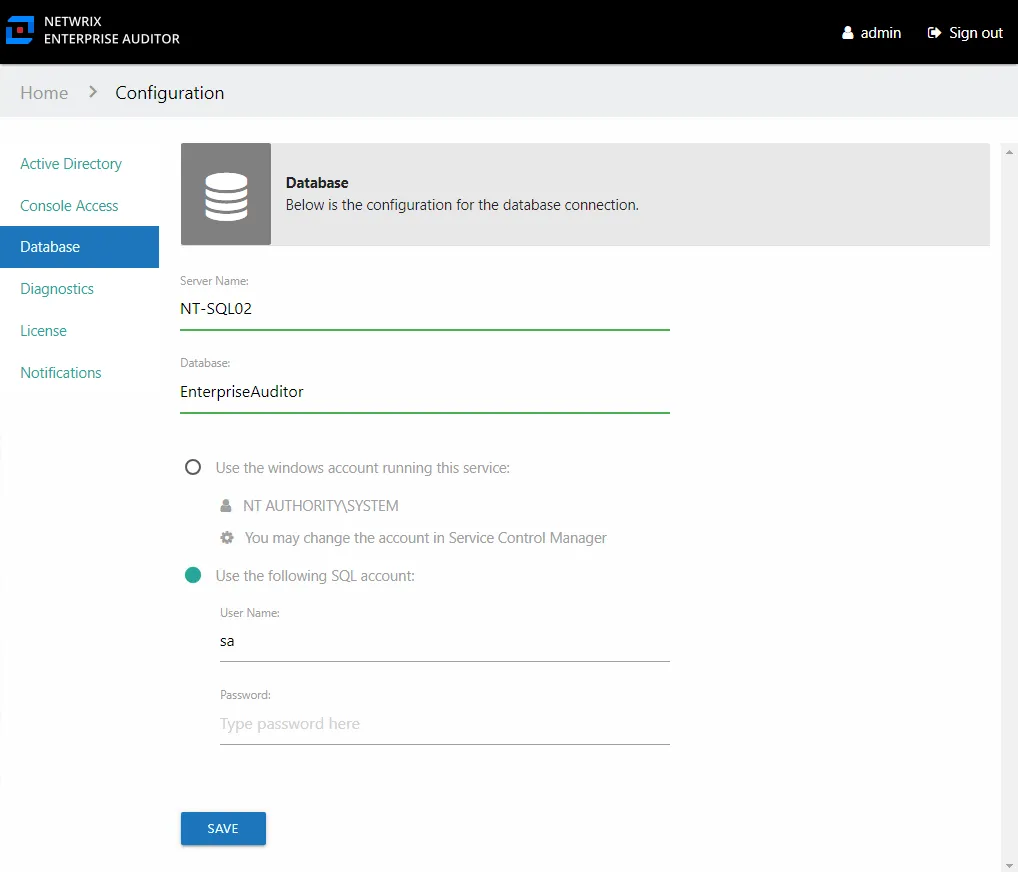
SQL Server database information:
-
Server Name – Host name of the SQL Server serving the database in one of the following formats:
-
No named instance: [SQLHostName]
- Example: NT-SQL02
-
Named instance: [SQLHostName][SQLInstanceName]
- Example: NT-SQL02\Netwrix
-
No named instance with non-standard port: [SQLHostName],[PortNumber]
- Example: NT-SQL02,1392
-
Named instance with non-standard port: [SQLHostName][SQLInstanceName],[PortNumber]
- Example: NT-SQL02\Netwrix,1392
-
-
Database – Name of the SQL database
Database service account information:
-
Use the Windows account running this service — Local System, or computer account (NT AUTHORITY\SYSTEM)
- A group Managed Service Account (gMSA) can be used by configuring it to run the Netwrix Access Information Center service. See the Group Managed Service Account (gMSA) Configuration topic for additional information.
-
Use the following SQL account – Uses SQL Authentication to the database. Provide the properly provisioned SQL credentials for the database
Remember, click Save when any changes are made to this page.
Update the Database Service Account Password
To update the Database service account password, these steps only apply for the SQL Authentication option:
Step 1 – On the Database page, enter the new password in the correct field.
Step 2 – Click Save. Then click OK to confirm. After the system saves the settings, you must re-authenticate to continue using the Access Information Center.
The system has updated the Database service account password.