Commit Modeled Changes
Once all changes are decided, you can commit the modeled changes to Active Directory. Your organization’s IT team can commit the changes manually, or you can enable the Access Information Center to automate the commit process in the targeted Active Directory environment.
The following user roles can commit changes:
- Administrators – This role can configure the Access Information Center to commit changes and can commit modeled changes. See the Commit Active Directory Changes topic for additional information.
- Security Team Members – This role can commit modeled changes, if the Access Information Center has already been configured to do so
All users with access to the Resource Audit interface can model changes. The Commit button in the Group Membership Changes window isn't available to users with the Reader role or owners with no assigned role. A resource owner can use the Change Access button in the Owner portal.
Return to the Group Membership Changes window to view the modeled changes by clicking the Change Group Membership button on the Group Membership pane.
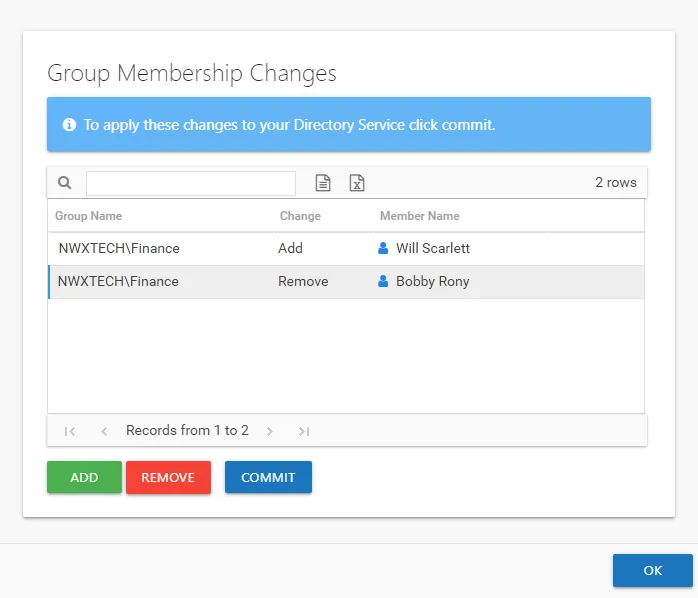
Additional changes can be modeled using the Add and Remove buttons.
Manually Commit Changes
You can export the list of modeled changes as either a CSV or Excel file, which can be sent to your organization’s IT team. Click the CSV Export or Excel Export button to export the list. See the Data Grid Features topic for additional information.
Access Information Center Automatically Commits Changes
If the Access Information Center has been configured to commit changes in Active Directory, then the Commit button is available at the bottom of the window.
Click Commit. The Action Running window opens while it pushes the changes in the table to the targeted domain. When the Action completed successfully message displays, click Close. The Resource Audit interface reports immediately show the changes that the system committed.