Global Filters Tab
The Global Filters options exclude specific Active Directory and Authentication events from monitoring.
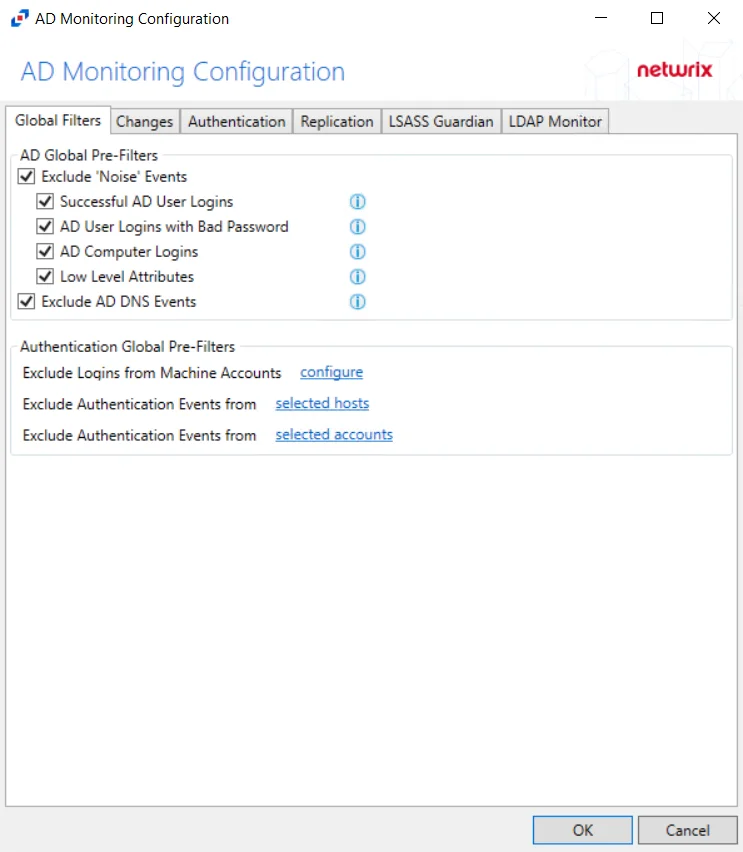
The filter options are grouped by AD Global Pre-Filters, and Authentication Global Pre-Filters. Check the boxes to activate the filters. To disable for diagnostic purposes, uncheck the options and click OK. You must configure all Authentication Global Pre-Filters options before you can enable them.
Enable all of the AD Global Pre-Filters options as well as the Exclude Logins from Machine Accounts option in the Authentication Global Pre-Filters section.
When you activate a filter, the AD Agent filters out the event data according to the configuration
in the filters.json file located in the installation directory.
The configurable options in the Global Filters tab are:
- Exclude ‘Noise’ Events Option
- Exclude AD DNS Events Option
- Exclude Logins from Machine Accounts Option
- Exclude Authentication Events from Selected Hosts Option
- Exclude Authentication Events from Selected Accounts Option
The ‘Help’ icon (?) opens a window that explains the type of “noise” events being filtered.
Exclude ‘Noise’ Events Option
This option is enabled by default to filter out login and internal low level attributes that are considered ‘noise’ events. You can scope this option to include any combination of the following ‘noise’ events:
-
Successful AD User Logins – Excludes events with the following attributes where ‘objectClass’ does not equal computer:
- logonCount
- lastLogon
- badPwdCount
- lastLogonTimestamp
-
AD User Logins with Bad Password – Excludes events with the following set of attributes where ‘objectClass’ doesn't equal computer:
- badPwdCount
- badPasswordTime
-
AD Computer Logins – Excludes events with the following set of attributes where ‘objectClass’ equals computer:
- logonCount
- lastLogon
- badPwdCount
- lastLogonTimestamp
- badPasswordTime
- badPwdCount
-
Low Level Attributes – Excludes the following attributes from event:
- lmPwdHistory
- dBCSPwd
- ntPwdHistory
Exclude AD DNS Events Option
This option is enabled by default to filter out DNS events. Events must meet both of the following conditions for exclusion:
- objectClass = ‘dnsNode’ or ‘dnsZone’
- Contains the ‘dnsRecord’ or ‘dNSTombstoned’ attribute
Exclude Logins from Machine Accounts Option
This option is enabled by default to filter out machine logins. Click the configure link to open the Edit Accounts window.

The Exclude Logins from Machine Accounts collection is only accessible for configuration through the Global Filters tab.
Only perpetrators with accounts ending in “$” are considered for this filter. Use wild cards (*) to perform partial matches to account names.
The AD Agent either includes or excludes all machine accounts in the textbox from event data monitoring. Machine accounts not in the list have the unselected property applied.
Repeat the process until you have entered every machine account to include or exclude from Authentication event data. Then click OK.
Usage Tip
Windows Server 2012 introduced group Managed Service Accounts (gMSA). Because gMSA account names include “$”, the AD Agent filters out authentication traffic from these accounts by default: they ‘look’ like machine accounts, which before Server 2012 were the only account names ending in “$”. Adding a list of filter strings to the “Exclude Logins from Machine Accounts” global filter captures activity by gMSA accounts, which is typically of interest, whereas activity by true ‘machine accounts’ isn't. Supply either an explicit list of gMSA account names or, if you have adopted a naming convention, a set of wild card strings such as “gMSA*” or “svc*”. This captures authentication activity from such accounts while ignoring the noisy ‘machine accounts’.
Exclude Authentication Events from Selected Hosts Option
This option is disabled by default as it requires configuration before it can be enabled. Click the selected hosts link to open the Edit Hosts window.
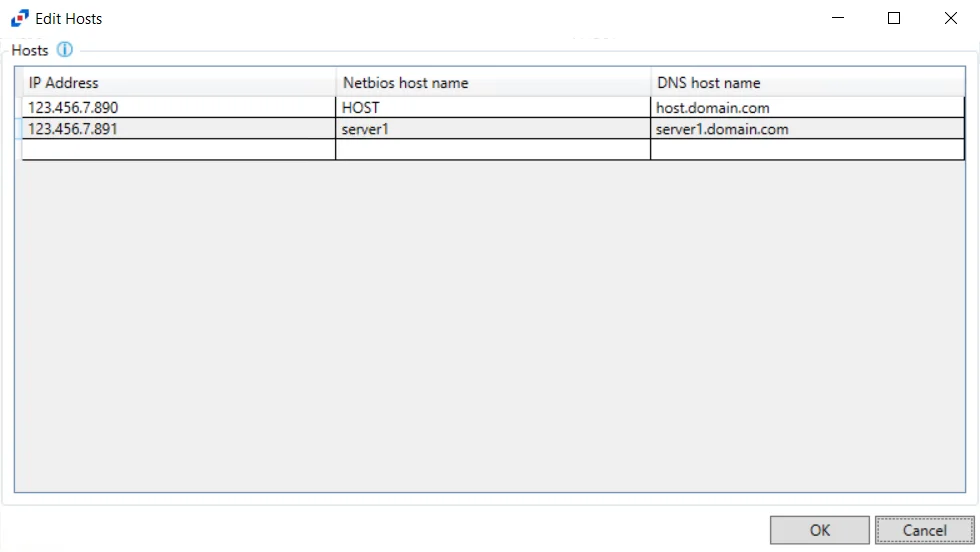
The Exclude Authentication Events from selected hosts collection is only accessible for configuration through the Global Filters tab. You must know all three methods of identification for a host (IP Address, NETBIOS host name, or DNS host name) to effectively exclude authentication from the host. Identify the host to exclude in the textbox of the IP Address column and press Enter or Tab to add another row on the grid. Activity Monitor attempts to discover the NETBIOS host name and the DNS host name associated with the supplied IP Address.
Repeat the process until you have entered every host to exclude from Authentication event data collection. Then click OK.
Exclude Authentication Events from Selected Accounts Option
This option is disabled by default as it requires configuration before it can be enabled. Click the selected accounts link to open the Edit Accounts window.

The Exclude Authentication Events from selected accounts collection is only accessible for configuration through the Global Filtering tab. You can also type account names in the textbox in [domain name\account] format. You can use wild cards (*) as part of either the domain name or account. Activity Monitor treats an asterisk (*) appearing anywhere other than as the first character or the last character as a literal character instead of as a wild card.
For example, *\Service1 would exclude all Service1 accounts whether it is a domain or local account, and Example\Service* would exclude all accounts that start with “Service” for the Example domain.
Repeat the process until you have entered every account to exclude from Authentication event data. Then click OK.