Inactivity Alerts Tab
The Inactivity Alerts tab on a host's Properties window lets you configure alerts to send when monitored hosts receive no events for a specified period of time.
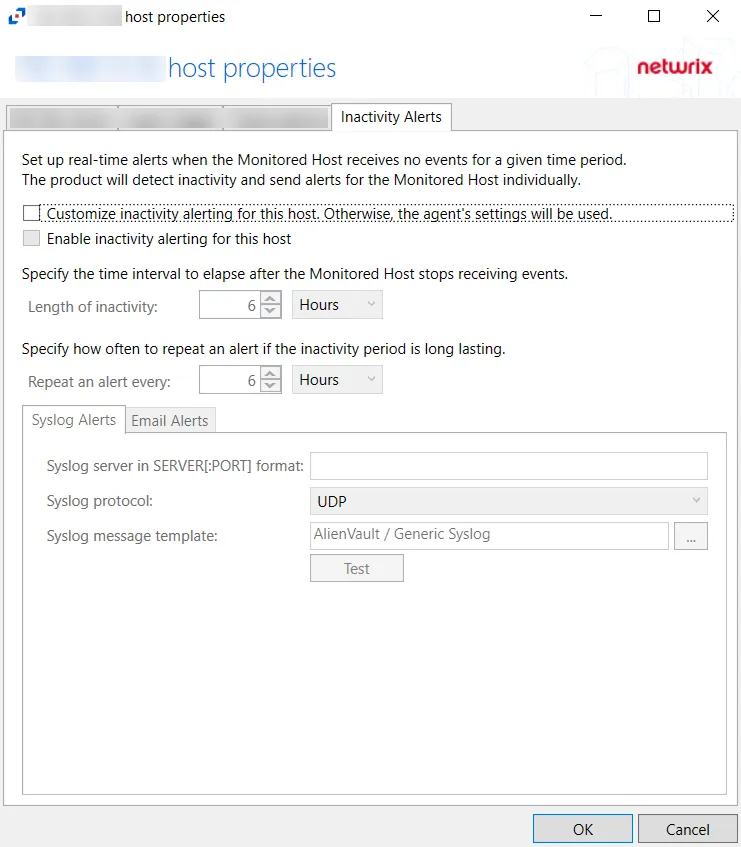
The configurable options are:
- Customize inactivity alerting for this host. Otherwise, the system uses the agent's settings – Check this box to enable customization of alert settings for Monitored Hosts
- Enable inactivity alerting for this host – Check this box to enable inactivity alerts for host.
- Length of inactivity – Specify how long the system waits before sending an inactivity alert. The default is 6 hours.
- Repeat an alert every – Specify how often the system sends an alert during periods of inactivity. The default is 6 hours.
Syslog Alerts Tab
Configure Syslog alerts using the Syslog Alerts Tab.

The configurable options are:
-
Syslog server in SERVER[:PORT] format – Enter the Syslog server name with a SERVER:Port format in the textbox.
-
Syslog protocol – Identify the Syslog protocol to be used for the alerts
- UDP
- TCP
- TLS
-
Syslog message template – Click the ellipsis (…) to open the Syslog Message Template window. The following Syslog templates have been provided:
- AlienVault / Generic Syslog
- CEF – Incorporates the CEF message format
- HP Arcsight
- LEEF – Incorporates the LEEF message format
- LogRhythm
- McAfee
- QRadar – Use this template for IBM QRadar integration. See the Netwrix File Activity Monitor App for QRadar topic for additional information.
- Splunk – Use this template for Splunk integration. See the File Activity Monitor App for Splunk section for additional information.
- StealthDEFEND – Use this template for Netwrix Threat Manager integration. This is the only supported template for Threat Manager.
Email Alerts Tab
Configure Email alerts using the Email Alerts Tab.
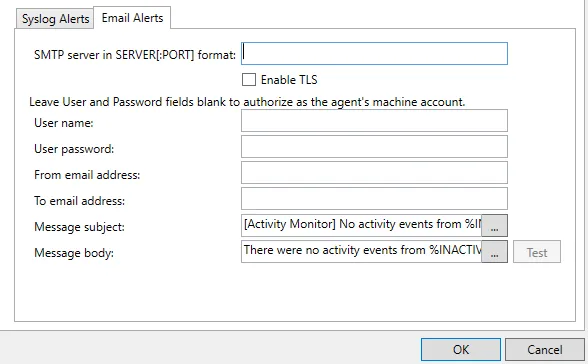
The configurable options are:
-
SMTP server in SERVER[:PORT] format – Enter the SMTP server for the email alerts
- Enable TLS – Check the box to enable TLS encryption
-
User name – (Optional) User name for the email alert
-
User password – (Optional) Password for the username
-
From email address – Email address that the alert is sent from
-
To email address – Email address that the alert is sent to
-
Message subject – Subject line used for the email alert. Click the ellipses (...) to open the Message Template window.
-
Message body – Body of the message used for the email alert. Click the ellipses (...) to open the Message Template window.