Install Dell CEE
Dell CEE should be installed on a Windows or a Linux server. The Dell CEE (Common Event Enabler) software isn't a Netwrix product. Dell customers have a support account with Dell to access the download.
Remember, the latest version is the recommended version of Dell CEE.
The Dell CEE package can be installed on the Windows server where the Activity Monitor agent will be deployed (recommended) or on any other Windows or Linux server.
To install the Dell CEE, complete these steps:
Step 1 – Obtain the latest CEE install package from Dell and any additional license required for this component. It is recommended to use the most current version.
Step 2 – Follow the instructions in the Dell Using the Common Event Enabler on Windows Platforms guide to install and configure the CEE. The installation will add two services to the machine:
- EMC Checker Service (Display Name: EMC CAVA)
- EMC CEE Monitor (Display Name: EMC CEE Monitor)
The latest version of .NET Framework and Dell CEE is recommended to use with the asynchronous bulk delivery (VCAPS) feature.
After Dell CEE installation is complete, you must complete the Unity Initial Setup with Unisphere.
Configure Dell Registry Key Settings
There may be situations when Dell CEE needs to be installed on a different Windows server than the one where the Activity Monitor activity agent is deployed. In those cases, you must manually set the Dell CEE registry key to forward events.
Step 1 – Open the Registry Editor (run regedit).
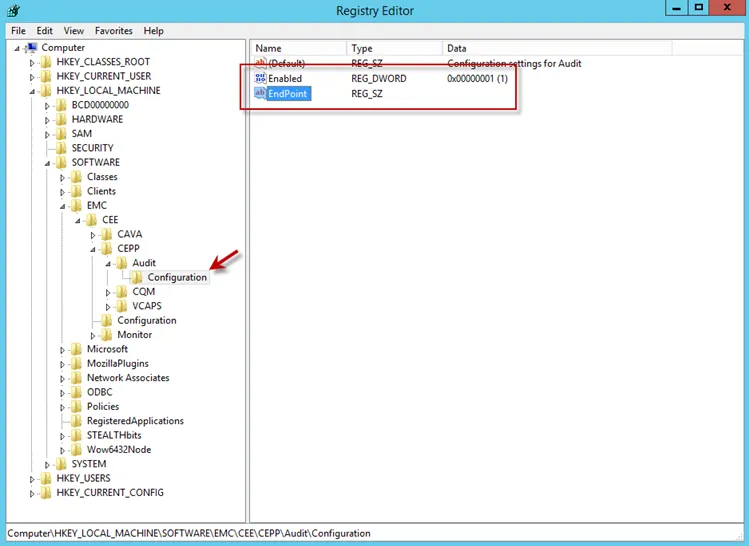
Step 2 – Navigate to following location:
HKEY_LOCAL_MACHINE\SOFTWARE\EMC\CEE\CEPP\AUDIT\Configuration
Step 3 – Right-click Enabled and select Modify. The Edit DWORD Value window opens.
Step 4 – In the Value data field, enter the value of 1. Click OK, and the Edit DWORD Value window closes.
Step 5 – Right-click EndPoint and select Modify. The Edit String window opens.
Step 6 – In the Value data field, enter the StealthAUDIT value with the IP Address for the Windows proxy server hosting the Activity Monitor activity agent. Use the following format:
StealthAUDIT@[IP ADDRESS]
Examples:
StealthAUDIT@192.168.30.15
Step 7 – Click OK. The Edit String window closes. Registry Editor can be closed.
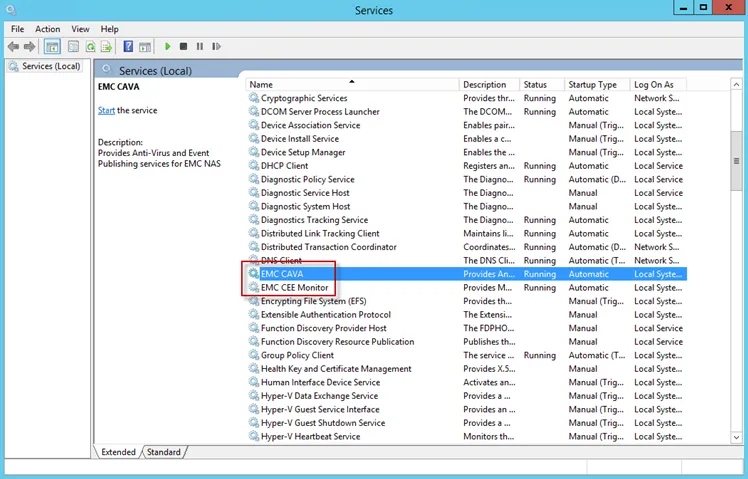
Step 8 – Open Services (run services.msc). Start or Restart the EMC CEE Monitor service.
The Dell CEE registry key is now properly configured to forward event to the Activity Monitor activity agent.