LSASS Guardian Tab
Use the LSASS Guardian tab to modify settings that were populated with the information entered when the host was added to prevent, monitor, or block LSASS code injections.
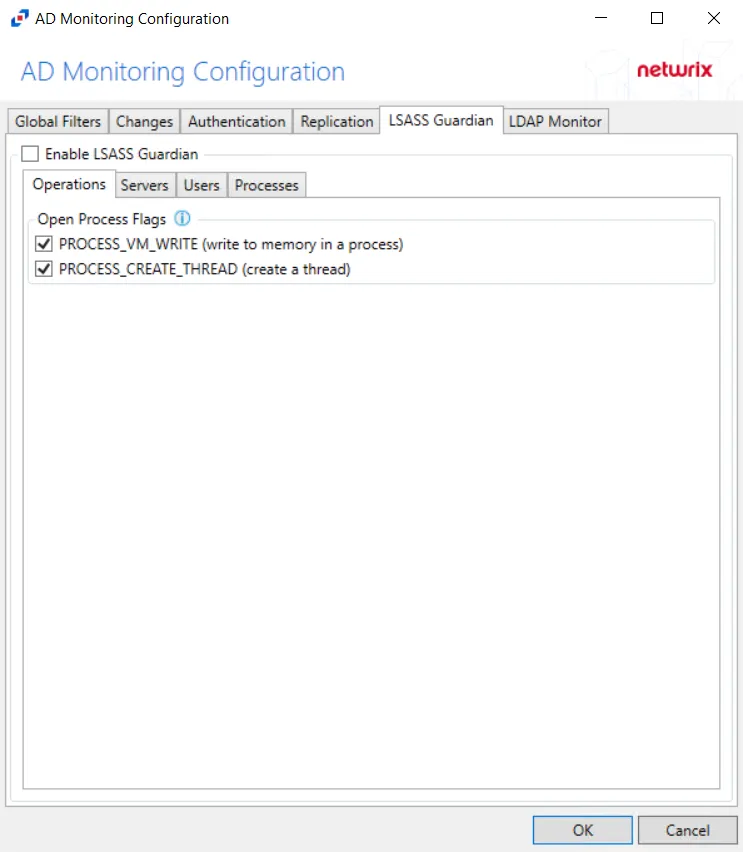
After checking the Enable LSASS Guardian box, you can modify the following event filters on the sub-tabs:
- Operations
- Processes
- Servers
- Users
Each filter tab acts like an "AND" statement for the filter. Any filter tab left blank applies to all values for that filter set.
Add exclusion process filters for legitimate processes that make changes to LSASS, e.g. third-party malware applications.
Operations
The Operations option filters for successful events, failed events, or both.
The Open Process Flags section is where monitoring can be scoped for requested handles that would maliciously impact LSASS processes.
Check the box to select the process flags to be monitored:
- PROCESS_VM_WRITE – Writes to memory in a process
- PROCESS_CREATE_THREAD – Creates a thread
Processes
The Processes option is where legitimate processes, which make changes to LSASS, e.g. third-party malware applications, can be included/excluded from being monitored by the policy.
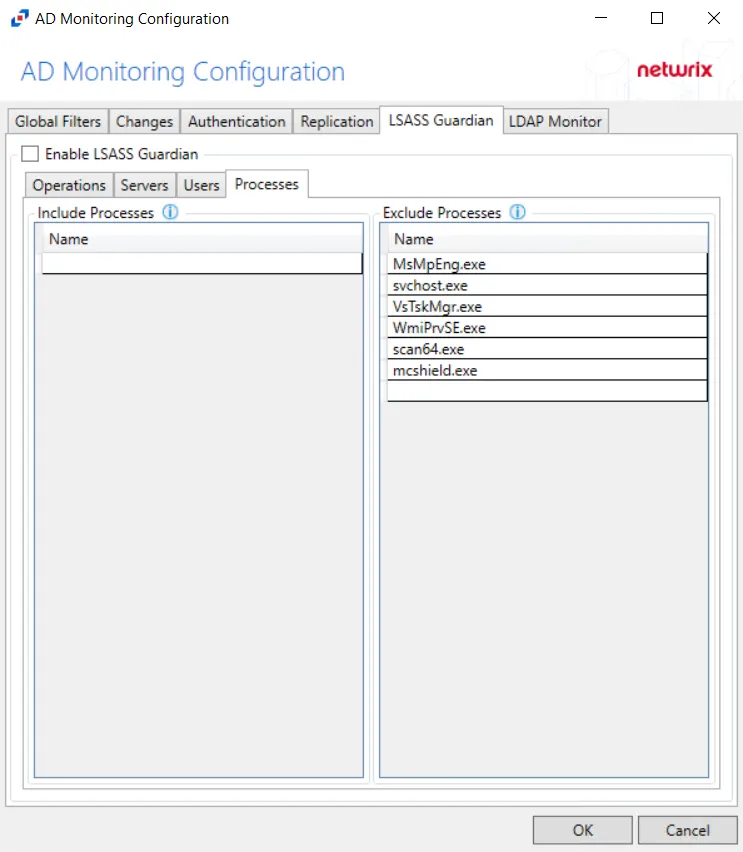
Double-click the text box beneath Name to enter the processes you want to include or exclude. Press the Enter or Tab key to add another text box.
While a processes inclusion is a filter option, it isn't recommended for monitoring LSASS. Adding a process inclusion filter will limit the scope to only monitor that process. Unknown malicious processes wouldn't be monitored in this case.
Servers
The Servers option targets servers to be included or excluded when filtering for LSASS changes.
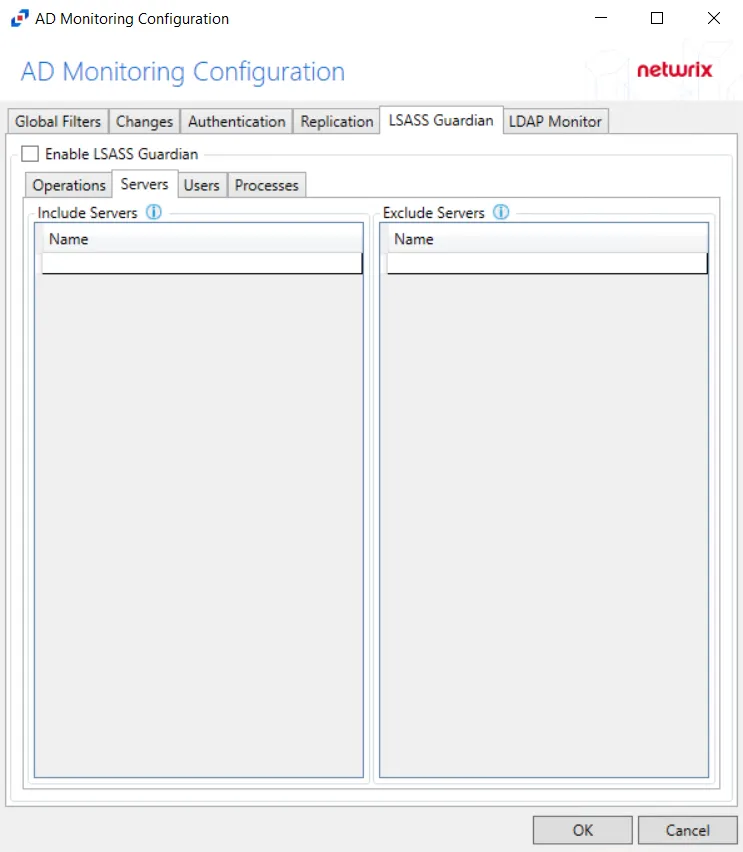
In both sections, servers must be specified in the form 'DOMAIN\SERVER', where DOMAIN is NetBIOS Domain name and SERVER is NetBIOS server name.
Double-click the textbox beneath Name to enter the servers you want to include or exclude. Press the Enter or Tab key to add another textbox.
Users
The Users option is where you can scope the policy to monitor only specific security principals committing changes within Active Directory or exclude specific users committing changes from monitoring.
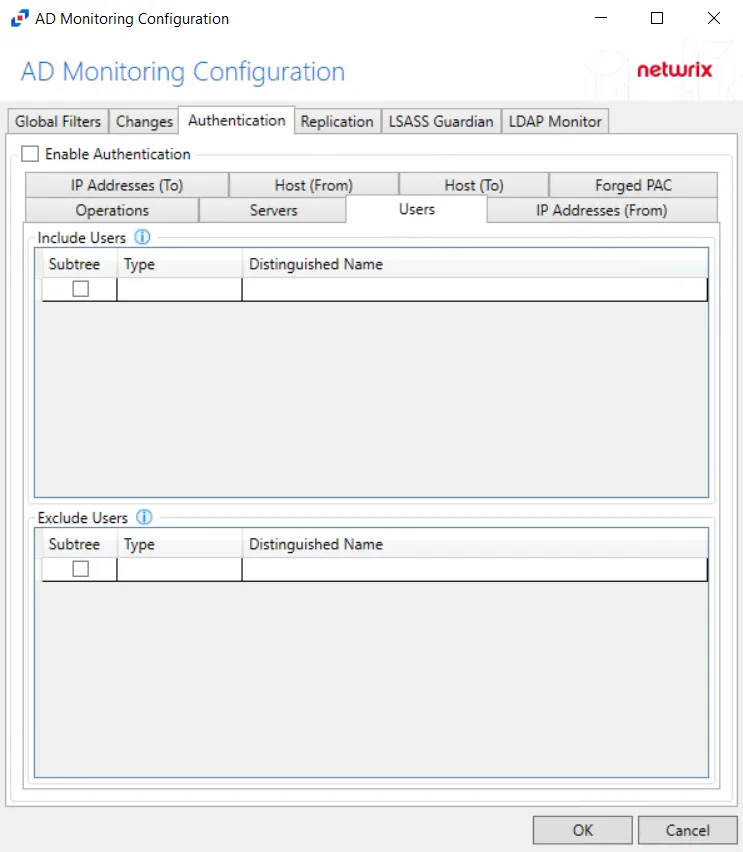
The following details appear beneath both sections:
-
Subtree – If checked, the filter is applied to the parent and all child contexts. If unchecked, the filter is only applied to the listed context.
-
Type – Field must describe the type of the select Active Directory object and can have the following values:
- user – Indicates that selected object is user
- group – Indicates that selected object is group
- context – Indicates that selected object is container
- sidType – Indicates that selected object is well-known SID type
-
Distinguished Name – Field must be specified in the form of 'distinguishedName' attribute syntax, e.g. 'CN=Users,DC=Domain,DC=com'. However, for objects with 'sidType' type, it must be in the form of WellKnownSidType Enum, e.g. 'AnonymousSid' or 'LocalSid'.
Double-click the text box beneath Distinguished Name to enter the group types you want to include or exclude. Double-click the text box beneath Type to enter the AD you want object to include or exclude. Press the Enter or Tab key to add another text box. Check the box under Subtree to include or exclude child contexts.