State–In–Time Reports
The state-in-time reports functionality allows generating reports on the system's state at a specific moment of time in addition to change and activity reports. State-in-time reports are based on the daily configuration snapshots, and reflect a particular aspect of the audited environment.
This functionality is currently available for the following data sources:
- Active Directory
- Microsoft Entra ID
- File Servers
- Exchange Online
- MS Teams
- Windows Server
- SharePoint
- SharePoint Online
- SQL Server
- Group Policy
- VMware
NOTE: The State-in-Time functionality is not available for SQL Server Availability Groups.
To provide data for state-in-time reports, remember to select the Collect data for state-in-time reports option when you configure a monitoring plan for the selected data source. See the Settings for Data Collection topic for additional information.
The state-in-time reports are available under the Reports node. Depending on the data source, navigate to the corresponding subfolder, for example, Predefined__>_Active Directory__>_Active Directory__>__State-in-Time.
In the report filters, select a monitoring plan you want to generate a report for. To review data sources and items included in each plan, navigate to the Monitoring Plans section.
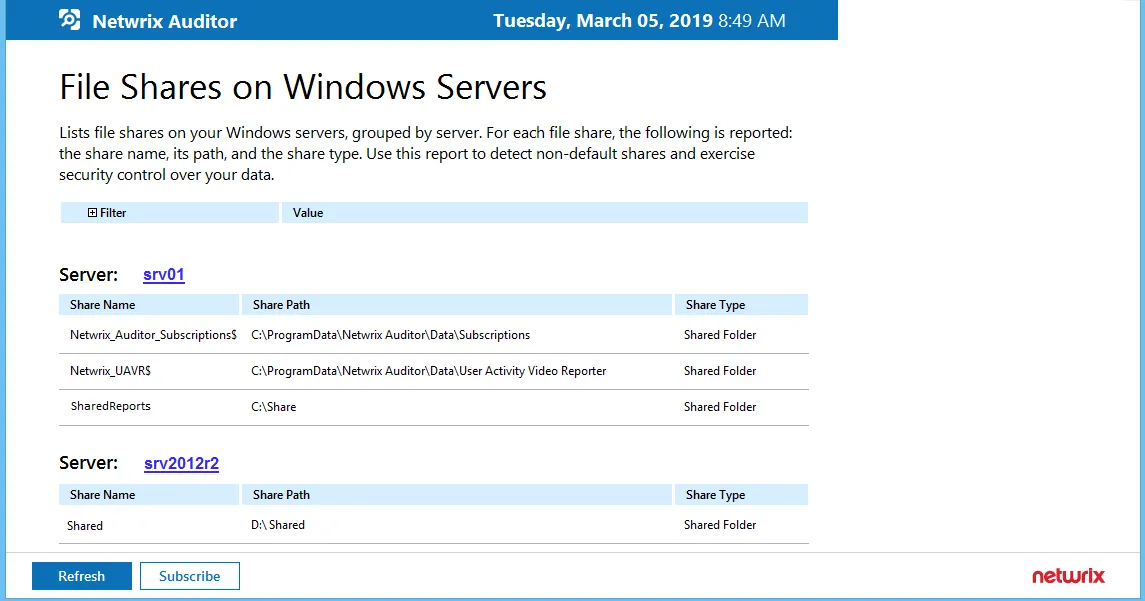
Each report has a set of filters which help organize audit data in the most convenient way. See the View Reports topic for additional information. You can also create a subscription to any report you want to receive on a regular basis. See the Subscriptions topic for additional information.
By default, state-in-time reports reflect the current state of the data source. If you want to generate a report to assess your system at a particular moment in the past, you can select the corresponding snapshot from the Snapshot Date filter.
To be able to generate reports based on different snapshots, ask your Auditor Global administrator to import historical snapshots to the Audit Database, otherwise only the Current Session option is available in the drop-down list.
NOTE: Importing historical snapshots is not available for Office 365.
When auditing file servers, changes to both access and audit permissions are tracked. To exclude information on access permissions, contact your Auditor Global administrator or Configurator of this plan.
Baseline Reports
Most reports in Windows Server—State-in-Time folder allow you to specify baselines. A baseline defines a certain safe level or state. If a server parameter falls below it, it is a considered a threat or at least merits your special attention. With baselines specified right in report filters, you can easily identify servers that are different from your corporate policies or best practices. Risks are marked with red color and are easy to spot in the report.
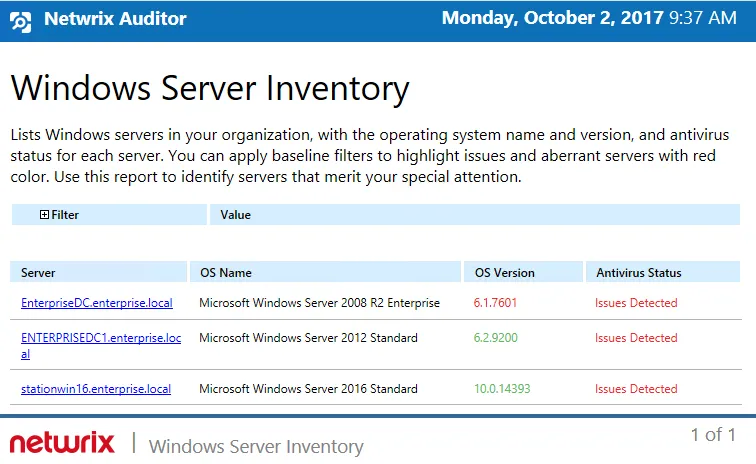
You can specify baseline values specific to your organization in one of the following ways:
-
As a baseline filter value in the report filters. Baselines in the field should be separated by commas.
While inputting text inline is easy, your baseline values will not be preserved for the next report generation. You will have to input them every time you generate a report. This method is recommended you plan to subscribe to this report.