Manage Data Sources
You can fine-tune data collection for each data source. Netwrix Auditor applies the settings that you configure for the data source to all items belonging to that data source. Using data source settings, you can, for example:
- Enable state-in-time data collection (supported for several data sources)
- Depending on the data source, customize the monitoring scope (e.g., enable read access auditing, monitoring of failed attempts)
To add, modify, and remove data sources, enable, or disable monitoring, you must have the Global administrator role in the product or the Configurator role on the plan. See the Role-Based Access and Delegation topic for additional information.
Modify Data Source Settings
To modify data source settings:
Step 1 – Select the monitoring plan you need and click Edit.
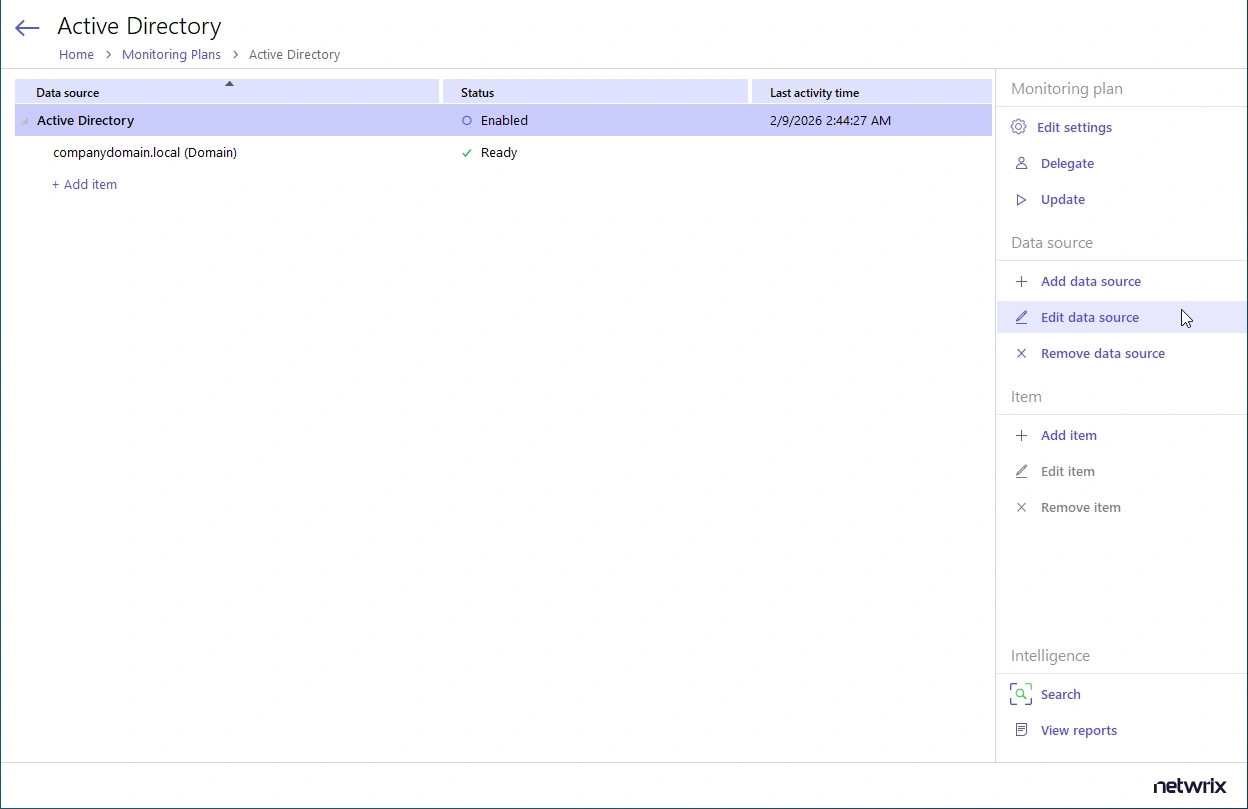
Step 2 – Within the monitoring plan window, highlight the data source (the first one is the row right under the blue table header) and click Edit data source on the right:
Step 3 – Modify data source settings as you need.
Step 4 – When finished, click Save.
Review the following for additional information:
- Active Directory
- Active Directory Federation Services
- Microsoft Entra ID
- Exchange
- Exchange Online
- File Servers
- Group Policy
- Logon Activity
- MS Teams
- Network Devices
- Oracle Database
- SharePoint
- SharePoint Online
- SQL Server
- User Activity
- VMware
- Windows File Share
Also, you can add a data source to the monitoring plan, or remove a data source that is no longer needed.
Add a Data Source to an Existing Plan
To add a data source to an existing plan:
Step 1 – Select the monitoring plan you need and click Edit.
Step 2 – In the right pane, select Add data source.
Step 3 – Specify a data source.
Step 4 – Configure settings specific to your data source.
Step 5 – When finished, click the Add button to save the settings.
Add Items for Monitoring
After you complete the monitoring plan wizard and specify data sources, add items for monitoring. You can add as many items for a data source as you want. In this case, all items will share settings you specified for this data source.
Each data source has a dedicated item type. Netwrix Auditor automatically suggests item types associated with your data source.
| Data Source | Item |
|---|---|
| Active Directory Group Policy Exchange Logon Activity | Domain |
| Active Directory Federation Services | Federation Server |
| Microsoft Entra ID Exchange Online SharePoint Online Microsoft Teams | Microsoft 365 tenant |
| File Servers (including Windows file server, Dell, NetApp, Nutanix File server, Synology, and Qumulo) | AD Container Computer Dell Isilon Dell VNX VNXe IP Range NetApp Windows File Share Nutanix SMB Shares Qumulo Synology By default, Auditor will monitor all shares stored in the specified location, except for hidden shares (both default and user-defined). If you want to monitor user-defined hidden shares, select the related option in the monitored item settings. Remember that Auditor doesn't monitor administrative hidden shares like default system root or Windows directory (ADMIN$), default drive shares (D$, E$), etc. See the topics on the monitored items for details. |
| Network Devices | Syslog Device Cisco Meraki Dashboard |
| Oracle Database | Oracle Database Instance |
| SharePoint | SharePoint Farm |
| SQL Server | SQL Server Instance SQL Server Availability Group |
| VMware | VMware ESX/ESXi/vCenter |
| Windows Server | Computer AD Container IP Range |
| User Activity | Computer AD Container IP Range |
| Netwrix API | Integration API |
To add, modify, and remove items, you must have the Global administrator role in the product or the Configurator role on the plan. See the Role-Based Access and Delegation topic for additional information.
To add a new item to a data source:
Step 6 – Navigate to your plan settings.
Step 7 – Click Add item under the data source.
Step 8 – Provide the object name and configure item settings.
You can fine-tune data collection for each item individually. To do it, select an item within your monitoring plan and click Edit item. For each item, you can:
- Specify a custom account for data collection
- Customize settings specific your item (e.g., specify SharePoint site collections)
Configure Monitoring Scope
In some environments, you don't need to monitor the entire IT infrastructure. You can configure the Netwrix monitoring scope at the Data Source and/or Item levels. The following table provides examples of how to use the omit functionality in Auditor.
In addition to the restrictions for a monitoring plan, you can use the *.txt files to collect more granular audit data.
The new monitoring scope restrictions apply together with previous exclusion settings configured in the *.txt files.
See the Monitoring Plans topic for additional information.
| Use case | Related documentation |
|---|---|
| Active Directory | |
| You want to omit all activity by a specific service account or service accounts with a specific naming pattern. | Active Directory |
| If Netwrix user is responsible just for a limited scope within corporate AD, s/he needs to omit everything else. | Active Directory - The product always omits both activity and state in time data. - In group/Not in group filters don't process groups from omitted OUs. |
| Logon Activity | |
| You want to omit domain logons by a specific service account or service accounts with a specific naming pattern. | Logon Activity |
| File Servers (including Windows file server, Dell, NetApp, Nutanix File server) | |
| You have a server named StationWin16 where you can't install .Net 4.5 in the OU where you keep all member servers. You want to suppress errors from this server by excluding it from the Netwrix auditing scope. | AD Container |
| A Security Officer wants to monitor a file share but s/he doesn't have access to a certain folder on this share. Then, s/he doesn't want the product to monitor this folder at all. | File Servers Dell Isilon Dell VNX VNXe NetApp Windows File Share Nutanix SMB Shares |
| A Security Officer wants to monitor a file share, but it contains a folder with a huge amount of objects, so s/he doesn't want Netwrix Auditor to collect State-in-Time data for this folder. | File Servers Dell Isilon Dell VNX VNXe NetApp Windows File Share Nutanix SMB Shares |
| You want to exclude specific computers within an IP range from the Netwrix auditing scope. | File Servers |
| SQL Server | |
| You want to know if the corp\administrator user is changing SQL data. | SQL Server Instance |
| As an Auditor administrator, you want to exclude the domain\nwxserviceaccount service account activity from SQL server audit so that you get reports without changes made by automatic systems. | SQL Server Instance |
| As an Auditor administrator, you want to exclude all changes performed by MyCustomTool. | SQL Server Instance |
| SharePoint | |
| You want to exclude the domain\nwxserviceaccount account from data collection as it produces standard activity that doesn't require monitoring. | SharePoint Farm |
| As an Auditor Administrator, you want to exclude shared PublicList from read audit. | SharePoint Farm |
| Windows Server | |
| You have a server named StationWin16 where you can't install .Net 4.5 in the OU where you keep all member servers. You want to suppress errors from this server by excluding it from the Netwrix auditing scope. | AD Container |
| You want to exclude specific computers within an IP range from the Netwrix auditing scope. | File Servers |
| VMware | |
| You have a virtual machine named "testvm" that you use for testing, so you want to exclude it from monitoring. | VMware ESX/ESXi/vCenter |