Configure Advanced Audit Policies
You can configure advanced audit policies instead of local policies. Any of them are required if you want to get the "Who" and "When" values for the changes to the following monitored system components:
- Audit policies
- File shares
- Hardware and system drivers
- General computer settings
- Local users and groups
- Services
- Scheduled tasks
- Windows registry
- Removable storage media
Configure Security Options
Setting up both basic and advanced audit policies may lead to incorrect audit reporting. To make Windows ignore basic audit policies and prevent conflicts, enable the Audit: Force audit policy subcategory settings policy.
Step 1 – On the audited server, open the Local Security Policy snap-in and navigate to Start > Windows Administrative Tools > Local Security Policy.
Step 2 – Navigate to Security Settings > Local Policies > Security Options and locate the Audit: Force audit policy subcategory settings policy.
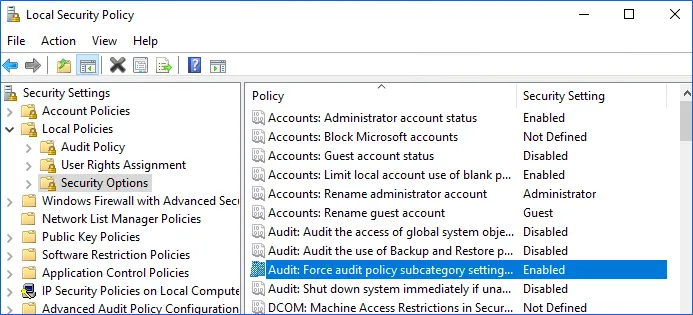
Step 3 – Double-click the policy and enable it.
Configure Advanced Audit Policy in Local Security Policy
Advanced audit policies integrate with Group Policies, so you can apply them via Group Policy Object or Local Security Policies. The following procedure describes how to apply Advanced policies via the Local Security Policy console.
Step 1 – On the audited server, open the Local Security Policy snap-in and navigate to Start > Windows Administrative Tools >Local Security Policy.
Step 2 – In the left pane, navigate to Security Settings > Advanced Audit Policy Configuration > System Audit Policies.
Step 3 – Configure the following audit policies.
| Policy Subnode | Policy Name | Audit Events |
|---|---|---|
| Account Management |
| "Success" |
| Object Access |
| "Success" |
| Policy Change |
| "Success" |