Windows Server
Netwrix Auditor relies on native logs for collecting audit data. Therefore, successful change and access auditing requires a certain configuration of native audit settings in the audited environment and on the Auditor console computer. Configuring your IT infrastructure may also include enabling certain built-in Windows services, etc. Proper audit configuration ensures audit data integrity. Without it, your change reports may contain warnings, errors, or incomplete audit data.
CAUTION: Exclude the folder associated with Netwrix Auditor from antivirus scanning. See the Antivirus Exclusions for Netwrix Auditor knowledge base article for additional information.
You can configure your IT Infrastructure for monitoring in one of the following ways:
-
Automatically through a monitoring plan – Netwrix recommends this method. If you select to automatically configure audit in the target environment, Auditor checks your current audit settings on each data collection and adjusts them if necessary.
-
Manually – You must adjust native audit settings manually to ensure collecting comprehensive and reliable audit data. You can enable Auditor to continually enforce the relevant audit policies or configure them manually:
-
The Remote Registry and the Windows Management Instrumentation (WMI) service must be started. See the Enable Remote Registry and Windows Management Instrumentation Services topic and the Configure Windows Registry Audit Settings topic for additional information.
-
The following advanced audit policy settings must be configured:
- The Audit: Force audit policy subcategory settings (Windows 7 or later) security option must be enabled.
- Audit Security Group Management, Audit User Account Management, Audit Handle Manipulation, Audit Other Object Access Events, Audit Registry, Audit File Share, and Audit Policy Change advanced audit policies must be set to "Success".
- See the Configure Local Audit Policies topic and the Configure Advanced Audit Policies topic for additional information.
-
The following legacy audit policies can be configured instead of advanced: Audit object access, Audit policy change, and Audit account management must be set to "Success".
-
The Enable Persistent Time Stamp local group policy must be enabled. You must configure this policy manually because Auditor doesn't enable it automatically. See the Configure Enable Persistent Time Stamp Policy topic for additional information.
-
The Application, Security, and System event log maximum size must be set to 4 GB. The retention method must be set to “Overwrite events as needed”. See the Adjusting Event Log Size and Retention Settings topic for additional information.
-
For auditing scheduled tasks, the Microsoft-Windows-TaskScheduler/Operational event log must be enabled and its maximum size must be set to 4 GB. The retention method of the log must be set to “Overwrite events as needed”.
-
For auditing DHCP, the Microsoft-Windows-Dhcp-Server/Operational event log must be enabled and its maximum size must be set to 4 GB. The retention method of the log must be set to “Overwrite events as needed”. See the Adjust DHCP Server Operational Log Settings topic for additional information.
-
For auditing DNS, the Microsoft-Windows-DNS-Server/Audit event log must be enabled and its maximum size must be set to 4 GB. The retention method of the log must be set to “Overwrite events as needed”.
-
The following inbound Firewall rules must be enabled:
- Remote Event Log Management (NP-In)
- Remote Event Log Management (RPC)
- Remote Event Log Management (RPC-EPMAP)
- Windows Management Instrumentation (ASync-In)
- Windows Management Instrumentation (DCOM-In)
- Windows Management Instrumentation (WMI-In)
- Network Discovery (NB-Name-In)
- File and Printer Sharing (NB-Name-In)
- Remote Service Management (NP-In)
- Remote Service Management (RPC)
- Remote Service Management (RPC-EPMAP)
- Performance Logs and Alerts (DCOM-In)
- Performance Logs and Alerts (TCP-In)
-
If the audited servers are behind the Firewall, review the list of protocols and ports required for Netwrix Auditor and ensure that these ports are open. See the Windows Server Ports topic for additional information.
-
For auditing removable storage media, two Event Trace Session objects must be created. See the Configure Removable Storage Media for Monitoring topic for additional information.
-
If you want to use Network traffic compression, ensure that the Auditor console computer is accessible by its FQDN name.
-
For auditing IIS:
- The Remote Registry service must be running and its Startup Type must be set to "Automatic".
- The Microsoft-IIS-Configuration/Operational log must be enabled and its maximum size must be set to 4 GB. The retention method of the log must be set to “Overwrite events as needed”.
-
Whatever method you choose to configure Windows Server for auditing (manual or automated), also remember to do the following:
- Configure Data Collecting Account, as described in the Data Collecting Account topic.
- Configure required protocols and ports, as described in the Windows Server Ports topic.
Windows Server Monitoring Scope
You can fine-tune Netwrix Auditor by specifying data that you want to exclude from the Windows Server monitoring scope. See the Windows Server Monitoring Scope topic for additional information.
Monitored Objects
This section lists Windows Server components and settings whose changes Netwrix Auditor can monitor.
When monitoring a Windows Server, Netwrix Auditor needs to audit some registry settings. See Windows Server Registry Keys for additional information. If you want Netwrix Auditor to audit custom registry keys, see Monitoring Custom Registry Keys for additional information.
The following table has three levels: a Component is a system component you enable for auditing in the monitoring plan (see the Windows Server monitoring plan topic, Monitor changes to system components, for a description of each component); each component contains one or more Object types, which are the specific entities Netwrix Auditor tracks; and Attributes are the individual properties of that object type whose changes Netwrix Auditor reports.
Double asterisks (**) indicate the object types and attributes for which Netwrix Auditor reports the Who value as “Not Applicable”.
| Component | Object type | Attributes |
|---|---|---|
| General computer settings | Computer |
|
| Computer Name |
| |
| Environment Variables |
| |
| Event Log |
| |
| General |
| |
| Remote |
| |
| Startup and Recovery |
| |
| System Time |
| |
| Add/Remove programs | Add or Remove Programs |
|
| Services | System Service |
|
| Audit policies | Local Audit Policy |
|
| Per-User Local Audit Policy |
| |
| Hardware | Base Board** |
|
| BIOS** |
| |
| Bus** |
| |
| Cache Memory** |
| |
| CD-ROM Drive** |
| |
| Disk Partition** |
| |
| Display Adapter** |
| |
| DMA** |
| |
| Floppy Drive** |
| |
| Hard Drive** |
| |
| IDE** |
| |
| Infrared** |
| |
| Keyboard** |
| |
| Logical Disk** |
| |
| Monitor** |
| |
| Network Adapter |
| |
| Network Protocol** |
| |
| Parallel Ports** |
| |
| PCMCIA Controller** |
| |
| Physical Memory** |
| |
| Pointing Device** |
| |
| Printing |
| |
| Processor** |
| |
| SCSI** |
| |
| Serial Ports** |
| |
| Sound Device** |
| |
| System Slot** |
| |
| USB Controller** |
| |
| USB Hub** |
| |
| DHCP configuration | Server role |
|
| Server settings |
| |
| DHCP scope |
| |
| DHCP Reservation |
| |
| DHCP Policy |
| |
| Removable media | Removable Storage Media** | Netwrix Auditor doesn't report on floppy/optical disk and memory card storage medias. For removable storages, the When value reports actual time when a change was made and/or a target server was started.
|
| Scheduled tasks | Scheduled Task |
|
| Local users and groups | Local Group |
|
| Local User |
|
Netwrix Auditor reports the Who value for DNS configuration settings only if the DNS server runs on Windows Server 2012 R2. See the following Microsoft article for additional information: Update adds query logging and change auditing to Windows DNS servers.
| Component | Object type | Attributes |
|---|---|---|
| DNS configuration | DNS Server |
|
| DNS Zone |
|
Netwrix Auditor reports the Who value for DNS Resource Records only if the DNS server runs Windows Server 2012 R2. See the following Microsoft article for additional information: Update adds query logging and change auditing to Windows DNS servers.
| Component | Object type | Attributes |
|---|---|---|
| DNS resource records | DNS AAAA |
|
| DNS AFSDB |
| |
| DNS ATM A |
| |
| DNS A |
| |
| DNS CNAME |
| |
| DNS DHCID |
| |
| DNS DNAME |
| |
| DNS DNSKEY |
| |
| DNS DS |
| |
| DNS HINFO |
| |
| DNS ISDN |
| |
| DNS KEY |
| |
| DNS MB** |
| |
| DNS MD |
| |
| DNS MF |
| |
| DNS MG |
| |
| DNS MINFO |
| |
| DNS MR |
| |
| DNS MX |
| |
| DNS NAPTR |
| |
| DNS NS |
| |
| DNS NXT |
| |
| DNS PTR |
| |
| DNS RP |
| |
| DNS RRSIG |
| |
| DNS RT |
| |
| DNS SIG |
| |
| DNS SRV |
| |
| DNS TEXT |
| |
| DNS WINS |
| |
| DNS WKS |
| |
| DNS X25 |
| |
| File shares | Share |
|
Windows Server Registry Keys
If you want to monitor changes to system components on a Windows Server, ensure that you configure Windows Registry audit settings on that Windows server.
This refers to the following keys:
- HKEY_LOCAL_MACHINE\SOFTWARE
- HKEY_LOCAL_MACHINE\SYSTEM
- HKEY_USERS.DEFAULT
For these keys and subkeys, the following advanced permissions must be audited ("Successful" audit type required):
- Set Value
- Create Subkey
- Delete
- Write DAC
- Write Owner
The following table lists all keys (and subkeys) involved in Windows Server auditing.
| Category | Registry Keys |
|---|---|
| Hardware | - HKEY_LOCAL_MACHINE\SYSTEM\CurrentControlSet\Services\Tcpip\Parameters\Interfaces* |
| - HKEY_LOCAL_MACHINE\SYSTEM\CurrentControlSet\Control\Network{4D36E972-E325-11CE-BFC1-08002BE10318}* | |
| - HKEY_LOCAL_MACHINE\SYSTEM\CurrentControlSet\Control\Class{4D36E972-E325-11CE-BFC1-08002BE10318}* | |
| - HKEY_LOCAL_MACHINE\SYSTEM\CurrentControlSet\Services* | |
| General | - HKEY_LOCAL_MACHINE\SYSTEM\CurrentControlSet\Control\CrashControl* |
| - HKEY_LOCAL_MACHINE\SYSTEM\ControlSet001\Control\CrashControl* | |
| - HKEY_LOCAL_MACHINE\SYSTEM\ControlSet002\Control\CrashControl* | |
| - HKEY_LOCAL_MACHINE\Software\WOW6432NODE\Microsoft\Windows NT\CurrentVersion* | |
| - HKEY_LOCAL_MACHINE\Software\Microsoft\Windows NT\CurrentVersion* | |
| Software | - HKEY_LOCAL_MACHINE\SOFTWARE\WOW6432NODE\MICROSOFT\WINDOWS\CURRENTVERSION\UNINSTALL* |
| - HKEY_LOCAL_MACHINE\SOFTWARE\MICROSOFT\WINDOWS\CURRENTVERSION\UNINSTALL* | |
| Services | - HKEY_LOCAL_MACHINE\SYSTEM\CurrentControlSet\Services* |
| - HKEY_LOCAL_MACHINE\SYSTEM\ControlSet001\Services* | |
| - HKEY_LOCAL_MACHINE\SYSTEM\ControlSet002\Services* | |
| RemovableMedia | - SYSTEM\CurrentControlSet\Enum* |
Consider that audit data for the registry keys themselves will not appear in Netwrix Auditor reports, alerts, or search results, as the product uses it only as one of the sources for Activity Record formation.
- You can configure these settings automatically using Netwrix Auditor, as described in the Settings for Data Collection topic. The product also applies the corresponding audit settings automatically after you select a checkbox under Monitor changes to system components on the General tab in the Windows Server data source properties.
Netwrix Auditor automatically adjusts audit settings only for the keys/subkeys involved in the monitoring of selected components (granular adjustment). For example, if you selected Services, the program adjusts the audit settings for the following subkeys:
-
HKEY_LOCAL_MACHINE\SYSTEM\CurrentControlSet\Services(|\.*)
-
HKEY_LOCAL_MACHINE\SYSTEM\ControlSet001\Services(|\.*)
-
HKEY_LOCAL_MACHINE\SYSTEM\ControlSet002\Services(|\.*)
-
To configure the audit settings manually, refer to the Configure Windows Registry Audit Settings topic for additional information.
Monitoring Custom Registry Keys
Step 1 – On the computer where Auditor Server resides, navigate to %Netwrix Auditor installation folder%\Windows Server Auditing.
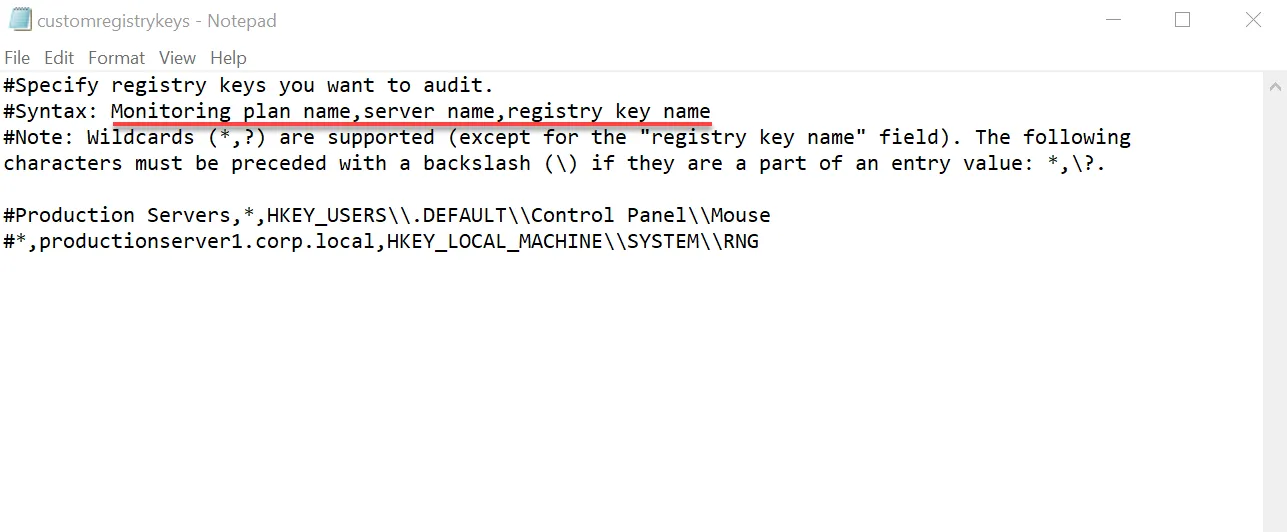
Step 2 – Edit the following parameters of the customregistrykeys.txt file:
monitoring plan name,server name,registry key name
For example:
#*,productionserver1.corp.local,HKEY_LOCAL_MACHINE\\SYSTEM\\RNG
Step 3 – Consider the following:
- Each entry must be a separate line.
- The product supports wildcards (* and ?), except for the
registry key namefield. Put a backslash () in front of (*), (?), (,), and () if they are a part of an entry value. - The product treats lines that start with the # sign as comments and ignores them.
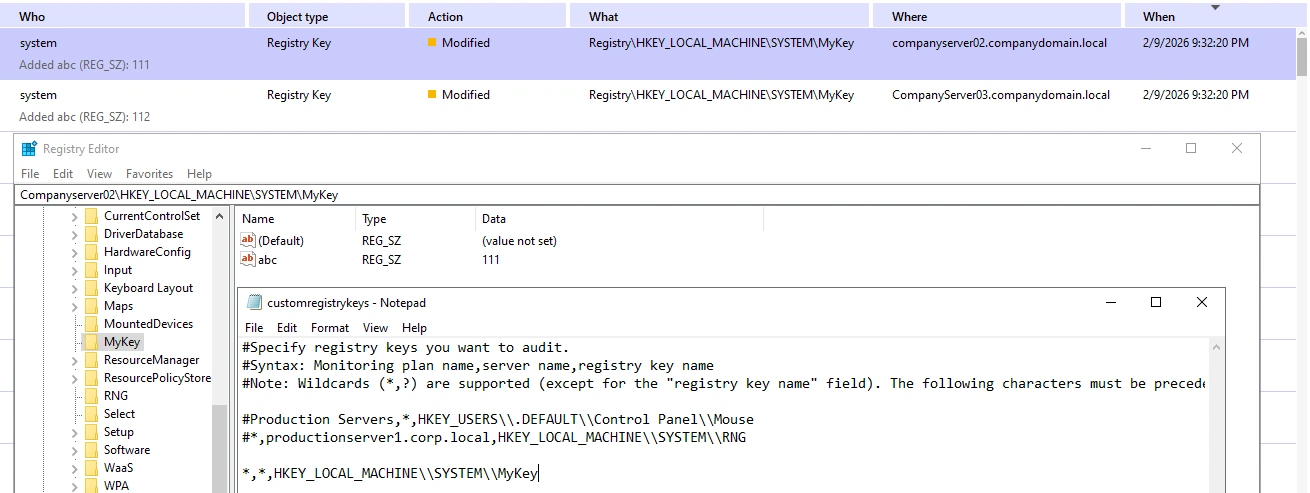
NOTE: In some cases, Who will be the system and When will be collection time, because there is no necessary event in the Security log with this path.
VM Template Cloning
Netwrix Auditor supports VM cloning, but you must complete an additional setup process before deployment.
Every monitored VM instance gets a unique ID assigned for monitoring and data collection purposes. To ensure proper operation, you must exclude the VM template from the monitoring scope beforehand. Omitting the VM template allows Netwrix Auditor to assign unique IDs correctly and collect data as intended.
Step 1 – In main Netwrix Auditor menu, select Monitoring plans.
Step 2 – Select your Windows Server monitoring plan and click Edit.
Step 3 – Choose the AD Container containing the template VM and click Edit data source in the right pane.
Step 4 – In the left pane, select Containers and Computers.
Step 5 – Check the Exclude these objects checkbox and add the template VM by clicking Add Computer.
The VM template server is now in the exclusions list and ready to use.