Email Templates
You can customize the HTML templates used to format notification email. These templates are designed to make the message viewable within an email client. Netwrix recommends editing text and layout as needed, but not embedding new images or logos. The following table shows the notification email templates and describes the purpose of each.
| Template Name | Message Type Description |
|---|---|
| EntitlementReviewReminder | Reminds owners of pending reviews; manually sent by a Review Administrator from the Entitlement Reviews interface |
| OwnershipChangeNotification | Sent to owners when assigned ownership is changed for a resource which already has pending reviews |
| OwnershipConfirm | Sent to owners to confirm or decline ownership of a given resource; manually sent by an Ownership Administrator from the Resource Owners interface |
| ReminderDigest | Weekly reminder configured by Administrators on the Notifications page of the Configuration interface to owners with pending reviews |
While customizing the template content, take note of the inline Substitution Tokens. These exist to provide the message with dynamic content, i.e. inserting values and strings from data in line with the static portion of the message body. These Substitution Tokens begin and end with the “@” symbol, e.g. @UserName@.
Substitution Tokens are only valid for certain Notification message templates. The following table lists the Substitution Tokens, the value or string they represent, and the message templates in which they may be used.
| Substitution Token | Description | Applicable Templates |
|---|---|---|
| @LoginUrl@ | URL that allows a user to access the default (login) page | OwnershipChangeNotification ReminderDigest |
| @ResourceDescription@ | Description of resource - To use the resource's description in emails instead of the path, replace @ResourcePath@ with @ResourceDescription@ | OwnershipConfirm ReminderDigest |
| @ResourcePath@ | Path of the current resource - To use the resources’ description in emails instead of the path, replace @ResourcePath@ with @ResourceDescription@ | OwnershipConfirm ReminderDigest |
| @ResourceType@ | Type of resource | OwnershipConfirm ReminderDigest |
| @ResourceUrl@ | URL specifically created to respond to a request | EntitlementReviewReminder OwnershipConfirm |
| @ResponseCount@ | Numerically formatted count of pending reviews | ReminderDigest |
| @ReviewCount@ | Numerically formatted count of pending reviews | ReminderDigest |
Customize Email Templates
The Access Reviews installation directory contains the email templates in a ZIP file:
...\Netwrix\Access Reviews
To customize the email templates:
NOTE: To modify these Notifications email templates, you need basic HTML knowledge.
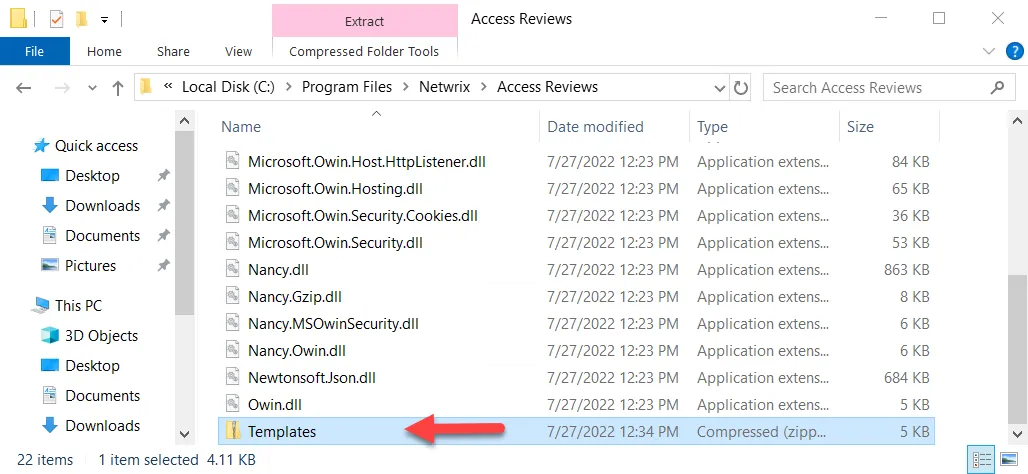
Step 1 – Navigate to the Access Reviews installation directory.
Step 2 – Unzip the Templates.zip file and save the contents to a folder within this directory
named Templates.
CAUTION: The customized email templates must be in the Templates folder within the
installation directory to be preserved during future application upgrades.
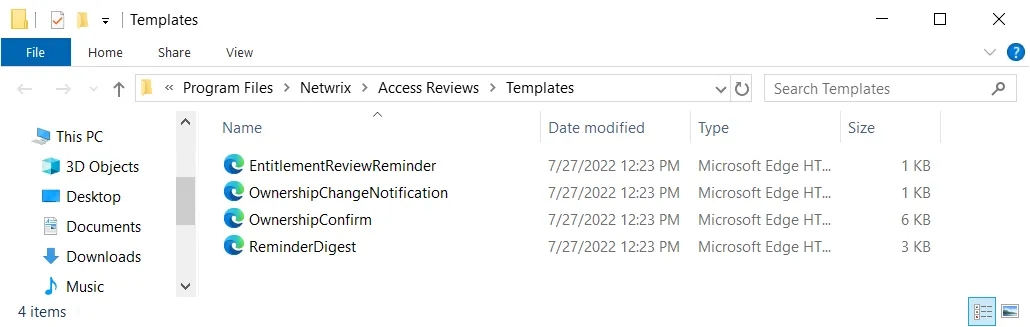
Step 3 – Locate the HTML message template you want.
Step 4 – Open the file with a text editor, e.g. Notepad, and customize the email body.
NOTE: Using a tool other than a text editor to edit HTML files, such as a WYSIWYG web page editor which may drastically alter the underlying HTML code, isn't supported.
Step 5 – Edit email subject lines by changing the text between the opening <title>
tag and the closing </title> tag.
Step 6 – After making changes, save the file and view it in a web browser to see what the changes look like. The Substitution Tokens display without supplied values.
Step 7 – After making your changes, save the file, close the text editor, and relaunch the application.
The notification emails use your modified HTML email templates.