Secure Console Access
Enable Secure Sockets Layer (SSL) for secure, remote connections to the application web server. To enable SSL, you need to create a certificate and then bind it to the secure port.
NOTE: Organizations typically have one or more system administrators responsible for Public Key Infrastructure (PKI) and certificates. To continue with this configuration, you first need to consult with the PKI administrator to determine which certificate method conforms to your organization's security policies.
To enable SSL:
Step 1 – Create an SSL Binding.
Step 2 – Modify the AccessInformationCenter.Service.exe.Config File.
The Access Reviews application is now configured to use SSL for secure, remote connections.
Create an SSL Binding
You run a PowerShell command to create an SSL binding. The binding command has several environment variables:
- The
$certHashvalue is theThumbprintvalue. - The
$ipvalue specifies the IP addresses to bind. In the example script, the value 0.0.0.0 is set for all IP addresses. - The
$portvalue must be accurate for your environment. The HTTP default port is 81. The HTTPS default is 481. However, it can be customized during installation. - The
$guidvalue identifies the owning application for the binding. You can obtain it from any valid GUID.
If you need to find the $certHash value of a certificate that you already created, run the
following PowerShell dir command on the certificate's drive. This outputs the Thumbprint (Hash)
value and the certificate name:
dir cert:\localmachine\my
Replace the environment variables in the following example script. Then run the PowerShell command to create an SSL binding:
$guid = "1be32670-7644-4dce-9a5d-01643022074e"
$certHash = "03CFD5D51A0DAA2F3DCDA9407486B220449D0E92"
$ip = "0.0.0.0"
$port = "481"
"http add sslcert ipport=$($ip):$port certhash=$certHash appid={$guid}" | netsh
The next step is to modify the AccessInformationCenter.Service.exe.Config file.
Modify the AccessInformationCenter.Service.exe.Config File
To modify the AccessInformationCenter.Service.exe.Config file for HTTPS:
Step 1 – Open the AccessInformationCenter.Service.exe.Config file in a text editor, e.g.
Notepad. You can find it in the installation directory:
...\Netwrix\Access Reviews
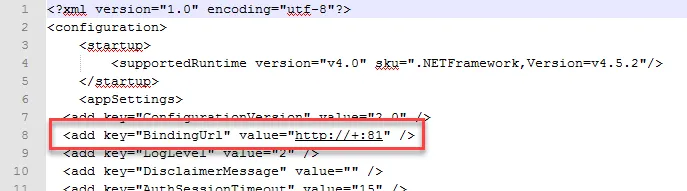
Step 2 – Change the BindingUrl key value to "https://+:481" (ensure the port number matches
the port number used in the PowerShell command that created the SSL binding).
Step 3 – Save and close the file.
Step 4 – Restart the Netwrix Auditor Access Reviews service in Services Manager
(services.msc).
The URL for the Access Reviews Console is now accessible at
https://[Fully Qualified Domain Name for the Machine]:481 (if port 481 was used when creating the
binding). For example, https://NEWYORKSRV10.NWXTech.com:481.