Ownership Confirmation
You assign owners to resources so the application can include those resources in reviews, or attestations. For this to work, the assigned owner must claim that ownership responsibility. Resources without a confirmed owner might not get included in reviews.
NOTE: This does require the Notification settings to be configured for the Access Reviews application. See the Notifications Page topic for additional information.
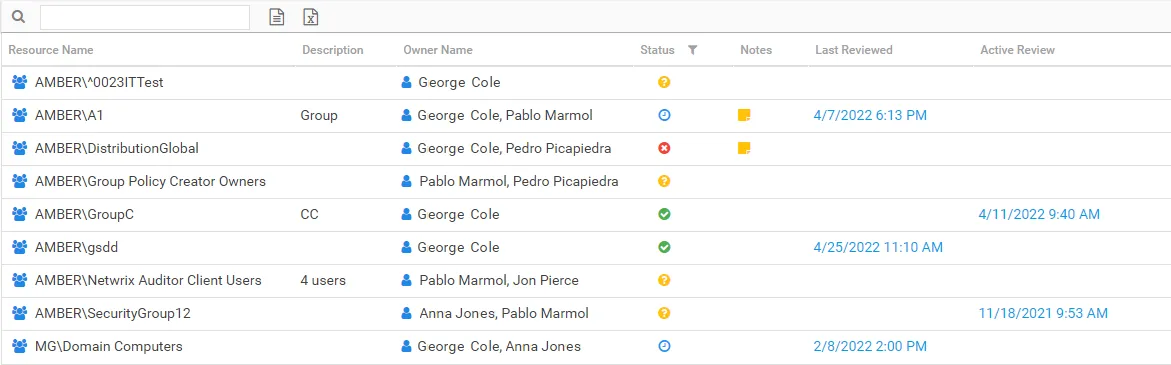
The table in the Resource Owners interface includes a Status column. The following icons appear in this column to indicate the owner confirmation status:
| Icon | Meaning | Description |
|---|---|---|
 | No Status | Indicates ownership confirmation has not been requested, and there is no ownership status at this time |
 | Waiting | Indicates a request for confirmation has been sent, and you are waiting for a response from the assigned owner. Hover over the icon to view the date timestamp of the request. |
 | Confirmed | Indicates the assigned owner confirmed ownership of the resource. Hover over the icon to view the date timestamp of the confirmation. |
 | Declined | Indicates the assigned owner declined ownership of the resource. The application asks these individuals to suggest an alternative owner. Check the Notes for the resource to view this information. Hover over the icon to view the date timestamp of the decline. Remember, you need to update a resource with declined ownership to assign a new owner. See the Update Resource Wizard topic for additional information. |
If a resource has multiple assigned owners, you can choose which owners receive the confirmation request. If you send the request to multiple owners, the column remains a waiting symbol until the assigned Primary owner replies.
See the Confirm Ownership Wizard topic for additional information.