Review User Profiles and Process Anomalies
Use the user profile to investigate user behavior and take a closer look at anomalies.
To view a user profile:
- On the Behavior Anomalies assessment dashboard, locate a user and click View Profile next to the user's name.
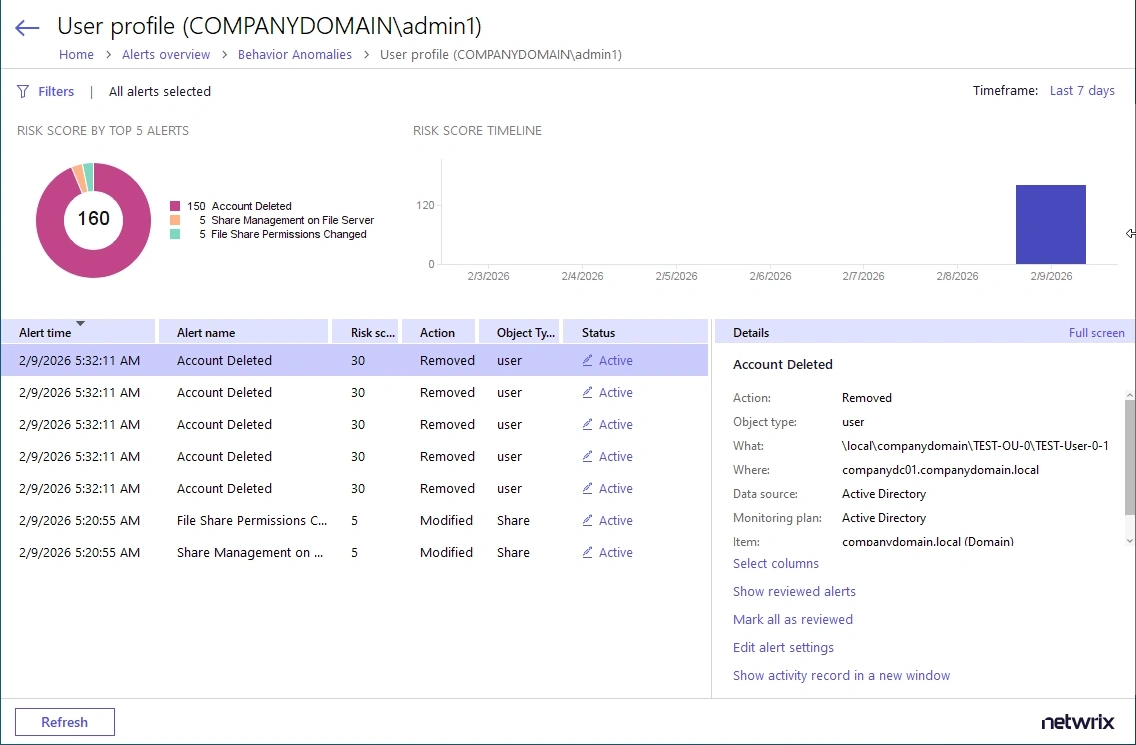
The user profile page contains the following sections:
-
User data with the name and the total risk score. Click Show user activity below the total risk score to launch the Interactive Search in a new window. Use it to see all user actions, including those that weren't treated as anomalies.
-
The Risk score timeline that demonstrates anomalous activity surges. Modify the timeframe to narrow down the results.
-
The Risk score by top five alerts chart that outlines the most frequent anomalies provoked by the user. To see the chart, click the pie chart icon in the upper left corner of the page.
-
The anomalies list displays details for each anomaly: the alert that triggered, the date and time, the risk score, and anomaly status.
Double-click an entry to view additional details: who did what, when, and where the action took place, etc. Navigate to Linked actions and click Show user activity or Show this activity record to open Interactive Search and see all user actions or a specific action, respectively.
Netwrix Auditor shows only the top 2,000 anomalies. Modify the timeframe or hide reviewed anomalies, and then click Refresh to display additional anomalies.
Process Anomalies and Reduce Risk Score
By default, an anomaly's status is Active, which indicates that the incident still needs examination or further investigation. As you inspect anomalies and respond to threats, update statuses and add comments.
To change an anomaly status:
-
Specify an anomaly from the list and click the Active link in the Status column.
-
In the Change Status dialog, set the status to "reviewed" and provide a justification.
You can add comments without changing a status. This might be helpful if the anomaly remains active for a long time and you need even more time to examine it closely.
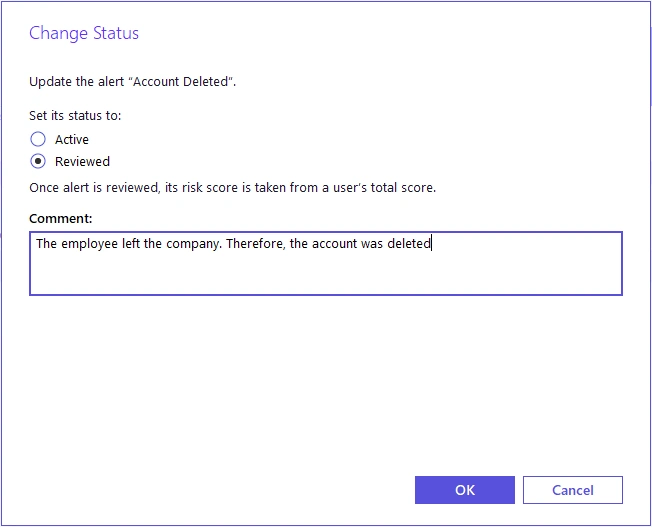
After you review the anomaly, it disappears from the timeline and chart, and Auditor deducts its associated risk score from the user's total score. The reviewed anomalies supplement the status with the reviewer name and date (e.g., Reviewed by CORP\Administrator (10/02/2017 10:12:03 AM)).
You can always revert changes and assign the Active status back.
To process all anomalies:
- In the Actions section, select Mark all as reviewed.
In this case, Auditor sets all anomalies that are in view to "reviewed". Perform this operation only with a proper justification. Because Netwrix Auditor shows only the top 2,000 anomalies, click Refresh to check whether there are more anomalies to review.
The Mark all as reviewed action doesn't affect anomalies that filters exclude from view.
Customize Anomalies List
By default, all anomalies are in view. The Filters section helps you show or hide anomalies.
Click Customize view and clear the checkboxes next to alert names, if you don't want to see anomalies associated with them.
When you hide an alert from view, its associated anomalies no longer appear on the timeline, chart, or in the list, but the user's total score remains unchanged.
Hidden anomalies can't be reviewed in bulk with the Mark all as reviewed action.
Use Hide reviewed anomalies to modify the anomalies list so you can focus on active anomalies only. To see reviewed anomalies, click Show reviewed anomalies.