MS Teams
NOTE: Before configuring your monitoring plan, read and complete the instructions in the following topics:
-
Protocols and Ports Required – To ensure successful data collection and activity monitoring configure necessary protocols and ports for inbound and outbound connections
-
Data Collecting Account – Configure data collecting accounts as required to audit your IT systems
-
MS Teams – Configure the data source as needed for monitoring
How to Add Office365 Item
This instruction shows how to collect audit data from the Microsoft 365 tenant.
If you plan to use modern authentication, see the Configuring Microsoft Entra ID App for Auditing Microsoft Entra ID topic for additional information on how to prepare Microsoft Entra ID app with required permissions. Ensure you have the following at hand:
- Tenant name
- For modern authentication: Application (client) ID
- Application secret
- For basic authentication: User name and password
Types of data that can be collected by Netwrix Auditor from the Microsoft 365 tenant depend on the authentication option you choose.
To configure the Office 365 tenant as a monitored item:
Step 1 – On the General page of the item properties, specify Tenant name:
- If you are going to use Basic authentication, you can proceed to the next step – Auditor will fill in Tenant name automatically after it.
Basic authentication is no longer possible for Exchange Online. For already existing tenants, you can still use basic authentication for SharePoint Online and Microsoft Entra ID monitoring.
- If you are going to use Modern authentication, paste the obtained name. See the Using Modern Authentication with Microsoft Entra ID topic for additional information.
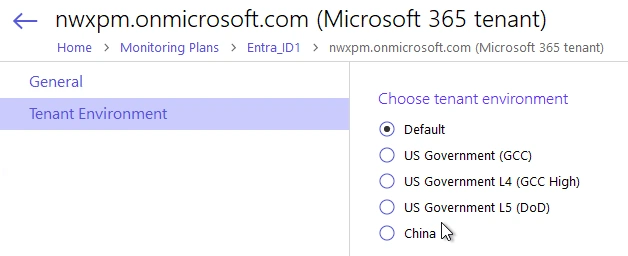
If you are using a government tenant, click the Tenant Environment tab and select the desired tenant environment.
Step 2 – Select authentication method that will be used when accessing Office 365 services:
-
Basic authentication:
- Selected, Auditor will access Office 365 organization on behalf of the user you specify.
- Enter User name and password; use any of the following formats: user@domain.com or user@domain.onmicrosoft.com.
- Auditor will then fill in the Tenant name field automatically.
- Ensure this user account has sufficient access rights. See Using Basic Authentication with Microsoft Entra ID topic for additional information.
-
Modern authentication:
-
Selected, Auditor will access Office 365 organization using the Microsoft Entra ID (formerly Azure AD) app you prepared. Enter:
-
Application ID;
- Application secret.
-
-
See the Using Modern Authentication with Microsoft Entra ID for additional information.
-
Step 3 – Click the Add button.
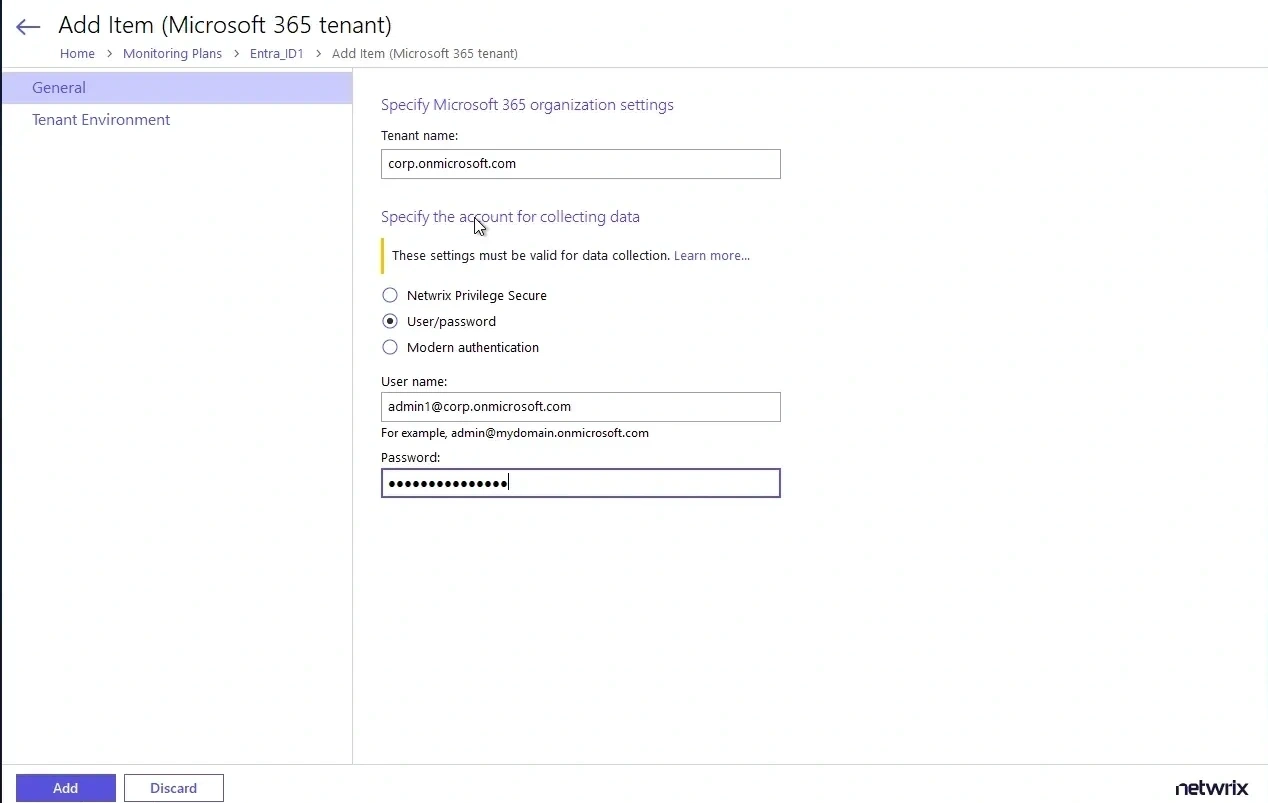
You can use a single account to collect audit data for different Office 365 services (Microsoft Entra ID, Exchange Online, SharePoint Online); however, Netwrix recommends that you specify individual credentials for each of them.
Step 4 – Complete the following fields:
| Option | Description |
|---|---|
| Monitor this data source and collect activity data | Enable monitoring of the selected data source and configure Auditor to collect and store audit data. |
| Collect data for state-in-time reports | Configure Netwrix Auditor to store daily snapshots of your system configuration needed to generate state-in-time reports. See the State–In–Time Reports topic for additional information. |
After that, you can use the Microsoft Entra ID management portal to revoke this privileged role and assign one of the non-privileged roles instead (for example, Security Reader).