Customizing Favorite Reports
The Favorite reports tile displays a shortened list of your favorite reports. To view, edit, or update the full list, click View all.
The Home > Reports page opens. This page includes several folders: Favorites, Predefined, Compliance, and Custom. The Favorites folder contains your favorite reports.
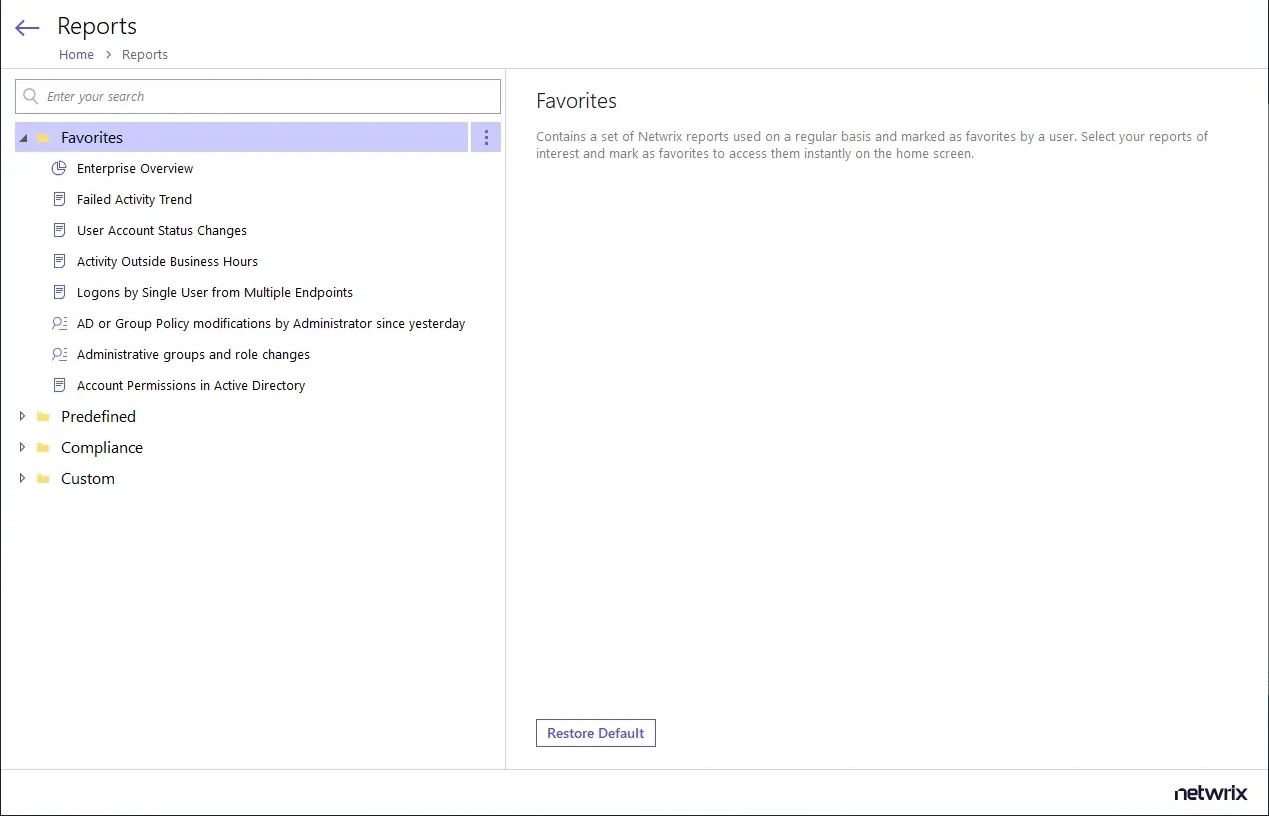
To add or remove a favorite report:
Step 1 – Locate the report you want in one of the other folders.
Step 2 – Click the name of the report to view its description.
Step 3 – To change whether the report is a favorite, click the star icon in the upper right-hand corner of the report description.
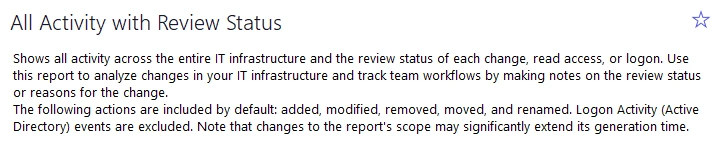
Report Summary with Star icon unchecked
Other Actions for Favorite Reports
The following table describes the options on the Reports page for favorite reports:
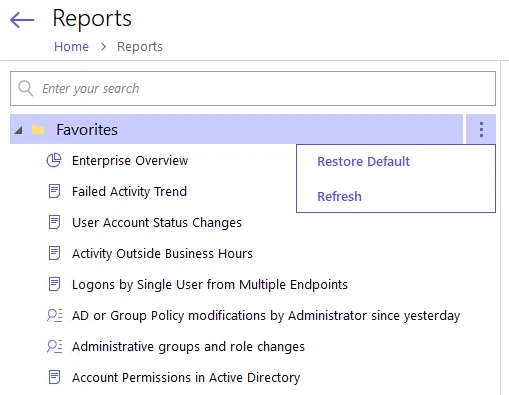 | 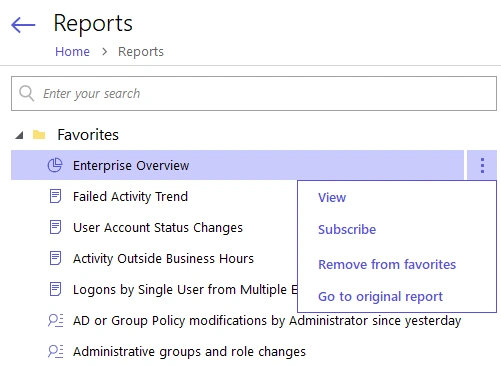 |
| Favorites Sub-Folder Options | Favorites > [Report] Options |
| Option Name | Description |
| --- | --- |
| Restore Default | Repopulates the Favorites subfolder with all reports marked as Favorite. When using Role-Based Access in Netwrix Auditor, if several users mark the same report as Favorite and one user removes it from the Favorites list, the report drops off the Favorites list. The Restore Default option re-adds the report to the Favorites list for every user who hasn't removed the Favorite mark. |
| Refresh | Runs the reports in the Favorites folder to display the most recent information. |
| View | Opens the Preview Report page. There, you can modify report options (such as the timeframe) if desired, and then click View Report to see the resulting report. See the View Reports topic for additional information. |
| Subscribe | Opens the Add Subscription to Report page. See the Create Subscriptions topic for additional information. |
| Add to Favorites | This option is greyed out when viewing the Favorites list, because all the reports shown are already in Favorites. |
| Remove from Favorites | Removes a report from the Favorites list. This option provides the same function as removing a report as a favorite using the Star icon. |
| Go to Original | Expands the subfolder that originally contains the report. For example, clicking Go to Original for the Enterprise Overview report expands the Predefined > Organization Level Reports subfolder. |