Enterprise Overview Dashboard
Enterprise Overview dashboards provide a high-level overview of activity trends by date, user, server, object type, or audited system in your IT infrastructure, and let you drill through to detailed reports for further analysis. The Enterprise diagram aggregates data on all Managed Objects and all audited systems, while system-specific diagrams provide quick access to important statistics within one audited system.
The current version of Netwrix Auditor contains the following diagrams:
- Enterprise (aggregates data on all audited systems)
- Active Directory
- Exchange
- File Servers
- SharePoint
- SQL Server
- VMware
- Windows Server
If you are sure that some audit data is missing (e.g., you don't see information on your file servers in reports and search results), verify that the Audit Database settings are configured and that data is written to databases that reside on the default SQL Server instance.
By default, Auditor allows generating reports and running interactive searches on data collected in the last 180 days. If you want to investigate incidents that occurred more than 180 days ago, ask your Auditor Global administrator to import that data from the Long-Term Archive.
Each diagram lets you explore the underlying data: click a segment, and Auditor opens a report with matching filtering and grouping that shows the next level of detail.
To review a diagram:
-
On the Auditor home screen, click the Reports tile and open the Enterprise Overview section. Click a tile to open a corresponding diagram.
-
Navigate to Reports and select one of the following locations:
Title Location Enterprise Organization Level Reports Active Directory Overview Active Directory ® Active Directory Changes Exchange Overview Exchange File Servers Overview File Servers ® File Servers Activity SharePoint Overview SharePoint SQL Server Overview SQL Server VMware Overview VMware Windows Server Overview Windows Server ® Windows Server Changes
The following example applies to Enterprise.
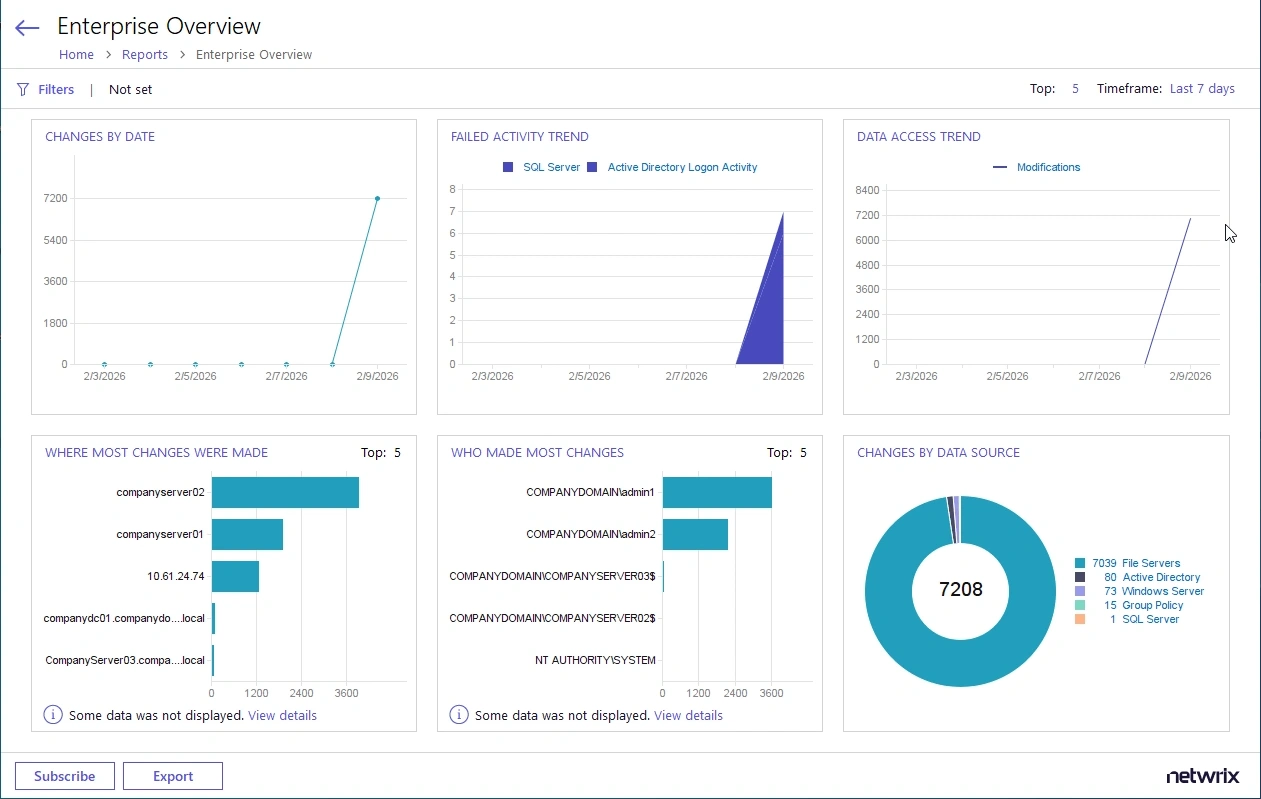
Each report has a set of filters which help organize audit data in the most convenient way. See the View Reports topic for additional information. You can also create a subscription to any report you want to receive on a regular basis. See the Subscriptions topic for additional information.