Object Permissions in SQL Server
This report shows a detailed list of the effective permissions that accounts have on the selected object. Use this report to review who has access to your SQL Server objects.
Supported object types and attributes are listed in the SQL Server section.
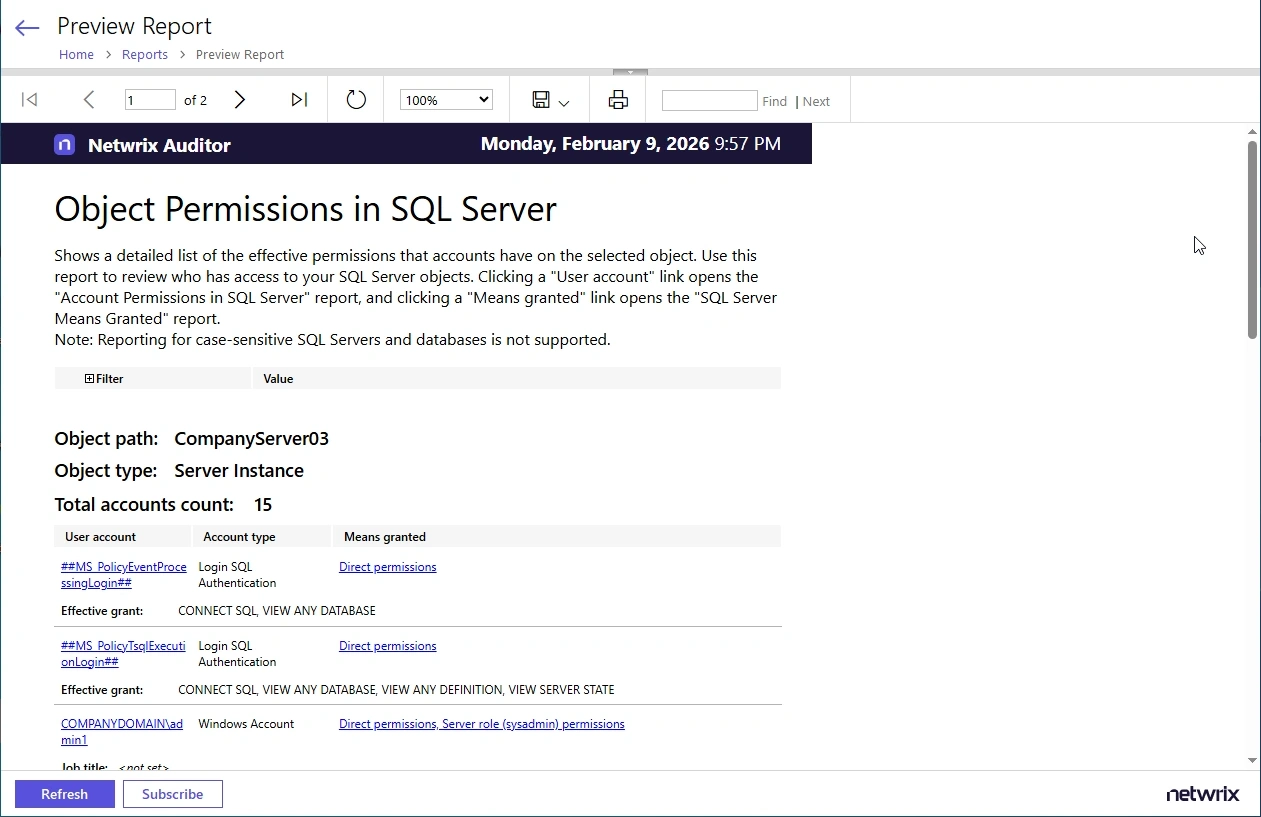
Reported data
The report has a summary section with general information on the selected SQL Server object, and the details section presented in the table format.
The summary section shows:
- Object path — monitored object path as Netwrix Auditor formats it in the activity records (see 'What' field in the reports, search results and activity summaries). For example, if reporting on the database hosted on selected SQL Server, the path will be as follows: Databases\database_name.
- Object type — monitored object type; for the full list of supported object types, refer to SQL Server topic.
- Total account count — total number of accounts that have access to this object.
The detailed information under summary includes:
- User account —name or SID of the account that has permissions on the selected object.
- Account type —possible values:
- Windows Account
- Login SQL Authentication
- DB SQL User with password
- Means granted —how this account received access permissions, e.g., Direct permissions or Server role permissions.
- Job title — the value set in the corresponding attribute for Active Directory users. If no
value is set, the report displays
<not set>. - Effective grant —the effective set of permissions granted to this account on the selected object.
You don't need to apply covering rules, since the report applies them automatically when calculating Effective grant permissions.
Filters
This report has the following filters:
- Monitoring plan — name of the monitoring plan set to collect data from the SQL Server you need.
- Time zone — time zone where Netwrix Auditor server is located, for example, UTC-08:00. This value is filled in automatically.
- Snapshot date —select the date of state-in-time snapshot you want to report on. By default, the report includes data obtained during the latest data collection session (Current Session). To report on other snapshots, ensure they are available through import. For details, see Manage historical snapshots option description in the SQL Server topic.
- Item—name of the SQL Server instance monitored with selected monitoring plan.
- Object path —path to the monitored object, as Netwrix Auditor formats it in the activity records (see 'What' field in the reports, search results and activity summaries). Wildcard (*) is supported. For example, to report on the database hosted on selected SQL Server, specify the path as follows: Databases\database_name.
- Permissions —access permissions you want to report on for the selected object.
- Means granted —how this account received access permissions. You can select Directly, Inherited, or both (default setting).
- User account—name or SID of the account that has permissions on the selected object. Default is % (all accounts).
- Account type —possible values: Windows Account, Login SQL Authentication, DB SQL User with password.
- Job title (Active Directory) —reported for Active Directory users as set in their corresponding attribute. Default is % (any title).
Considerations and limitations
-
The report doesn't support case-sensitive SQL Servers and databases.
-
The report will not show the RESTORE capability for the database owner.
-
When calculating effective rights and permissions, the report will not consider the following:
- Ownership chaining
- Cross DB ownership chaining
- Trustworthy database
- SQL Server agent fixed database roles
-
The report may not show some permissions correctly due to known issues. See Release Notes for details.
Related reports
- Clicking a User account link opens the Account Permissions in SQL Server report.
- Clicking a Means granted link opens theSQL Server Means Granted report.
Usage example
Database administrators need to discover who has access permissions to FinReports database stored on the SQLSrv01\SQLServer2016 instance. This instance is included in the monitoring plan named SQL Servers Monitoring.
To examine the relevant data, they need to generate Object Permissions in SQL Server report with the filters set as follows:
- Monitoring plan: SQL Servers Monitoring
- Snapshot date: Current Session
- Item: SQLSrv01\SQLServer2016
- Object path: Databases\FinReports
All other filter values can be left default.