Use Filters in Advanced Mode
Netwrix Auditor provides an advanced set of filters and match type operators to customize your searches even more precisely.
Switch to Advanced mode to review your current search in detail and modify it if necessary. Click Add to add a new filter to your search.
Review the following for additional information:
- Apply Additional Filters
- Search Conditions
Apply Additional Filters
Expand the Filter list to find additional filters or filter values. Use Filters in Simple Mode describes the most commonly used filters. Review the following for additional information:
| Filter | Description | Example |
|---|---|---|
| Action | Limits your search to the selected actions only. Specify an action from the Value list or type it yourself. The Action filter in the Advanced mode contains actions besides those available in basic mode (added, modified, removed, and read). Reported actions vary depending on the data source and object type. | You are investigating suspicious user activity. You have already identified the intruder and now you want to see whether anyone deleted or moved files, or sent emails. Since you are interested in specific actions only, set the Action filter to Removed, Moved, and Sent. |
| Object type | Limits your search to objects of a specific type only. Specify an object type from the Value list or type it yourself. This filter modifies the What filter. The value list contains the most frequent object types. | You noticed that someone changed some domain policies and you want to investigate this issue. Your What filter is set to Policy, and so you keep receiving search results such as HiSecPolicy, \FS\Share\NewPolicy.docx, http://corp/sites/col1/Lists/Policy. These entries correspond to different object types and data sources. Since you are looking for GPOs only, select GroupPolicy from the Value list. |
| Data source | Limits your search to the selected data source only. Specify a data source from the Value list or type it yourself. | You are investigating suspicious user activity. A user specified in the Who filter made a lot of changes across your IT infrastructure, so the search results became difficult to review. Since you are only interested in the way this user's activity could affect your Active Directory domain and Exchange organization, set the Data source filter to Active Directory and Exchange to limit the search results. |
| Monitoring plan | Limits your search to the selected plan only. Specify the name from the Value list or type it yourself. | You are investigating suspicious user activity. A user specified in the Who filter made a lot of changes across your IT infrastructure, so the search results became difficult to review. Since you are only interested in the way this user's activity could affect file shares audited within a single plan, set the Monitoring plan filter to "My servers" to limit the search results. |
| Item | Limits your search to the selected item only. This filter can be helpful if you have several items of the same type in your monitoring plan (e.g., two Active Directory domains). Specify the name from the Value list or type it yourself. | Your monitoring plan is configured to track domains and includes your secured corporate domain and a domain for temporary employees. You are investigating who logged in your secured corporate domain outside business hours. You can set the Item filter to this domain name to limit the search results and exclude logons to computers from a less important domain. |
| Working hours | Limits your search results to entries that occurred within the specified hours. You can use this filter together with When if you need, for example, to search for activity in the non-business hours during the last week. | You are investigating an incident and want to know who accessed sensitive data outside business hours. You can set this filter as Not equal to and specify the time interval from 8:00 AM to 6:00 PM. Filtered data includes only operations that occurred outside this interval, that is, during non-business hours. |
| Data categories | Limits your search results to entries that contain sensitive data complying with a classification rule. You can use this filter together with Equal to PCIDSS to, for example, search for sensitive files that contain data regulated by the PCIDSS. | You are searching all documents containing cardholder data that can potentially be mapped with the PCIDSS compliance standard. You can set this filter as equal to and specify the value as PCIDSS. Filtered data contains only files that match these criteria. This filter shows activity records collected from the following data sources: Windows File Servers, SharePoint, SharePoint Online. |
| Details | Limits your search results to entries that contain the specified information in the Details column. The Details column normally contains data specific to your target, e.g., assigned permissions, before and after values, and start and end dates. This filter can be helpful when you are looking for a unique entry. | You discovered that someone updated a registry key to "242464". Now you want to investigate who made the change and what the value was before. You can set the Details filter to 242464 to find this change faster. |
| Everywhere | Limits your search results to entries that contain the specified value in any column. | You are investigating a security incident. You have already identified the intruder (e.g., BadActor) and now you want to see all actions the intruder's account performed or that involved it. Since the intruder can be the actor (Who), the object (What), or can even show up in details, set the Everywhere filter to the intruder's name. |
Search Conditions
When you apply filters at search, you can specify operators to use as conditions for data you want to retrieve and compare with a certain filter value. A condition can be, for example, Contains, Starts with, and so on.
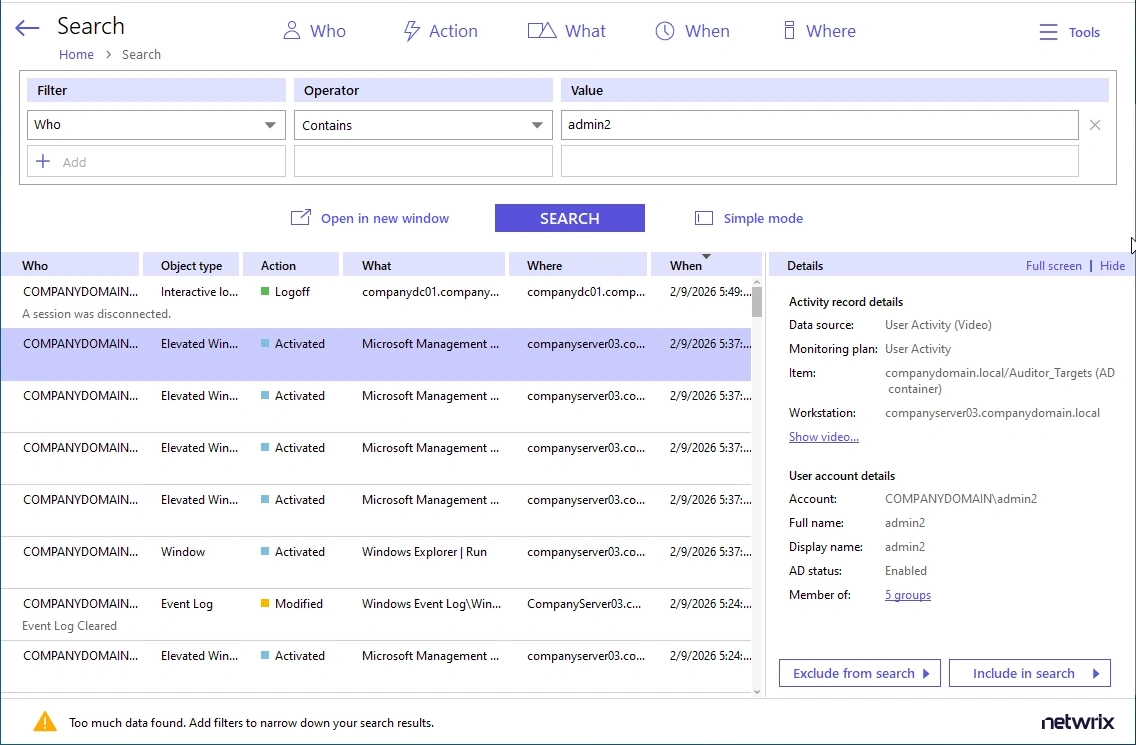
Use the following operators to specify search conditions:
| Operator | Description | Example |
|---|---|---|
| Equals | This operator shows all entries with the exact value specified. Ensure you provide a full object name or path. To apply this operator when adding filters in the Simple mode, provide a value in quotation marks (e.g., "Domain1\John"). | Use this operator if you want to get precise results, e.g., \FS\Share\NewPolicy.docx. |
| Not equal to | This operator shows all entries except those with the exact value specified. In the Search field in the Simple mode, this operator appears as not, e.g., Who not for the Who filter. | If you set the Who filter to not equal to Domain1\John, you will exclude the exact user specified and find all changes performed by other users, e.g., Domain1\Johnson, Domain2\John. |
| Starts with | This operator shows all entries that start with the specified value. | If you set the Who filter to starts with Domain1\John, you will find all changes performed by Domain1\John, Domain1\Johnson, and Domain1\Johnny. |
| Ends with | This operator shows all entries that end with the exact specified value. | If you set the Who filter to ends with John, you will find all changes performed by Domain1\John, Domain2\Dr.John, Domain3\John. |
| Contains | This operator shows all entries that contain a value specified in the filter. | If you set the Who filter to contains John, you will get the following results: Domain1\John, Domain1\Johnson, Domain2\Johnny, John@domain.com. |
| Doesn't contain | This operator shows all entries except those that contain the specified value. In the Search field in the Simple mode, this operator appears as not, e.g., Who not for the Who filter. | If you set the Who filter to doesn't contain John, you will exclude the following users: Domain1\John, Domain2\Johnson, and Johnny@domain.com. |
| In group | This operator relates to the Who filter. It instructs Netwrix Auditor to show only data for the accounts included in the specified group. | If you set the In group condition for Who filter to Domain\Administrators, Netwrix Auditor displays only the data for the accounts included in that group. |
| Not in group | This operator relates to the Who filter. It instructs Netwrix Auditor to show only data for the accounts not included in the specified group. | If you set the Not in group condition for Who filter to Domain\Administrators, Netwrix Auditor displays only the data for the accounts not included in that group. |
To modify conditions for the selected filters, ensure you have switched to the Advanced search mode.
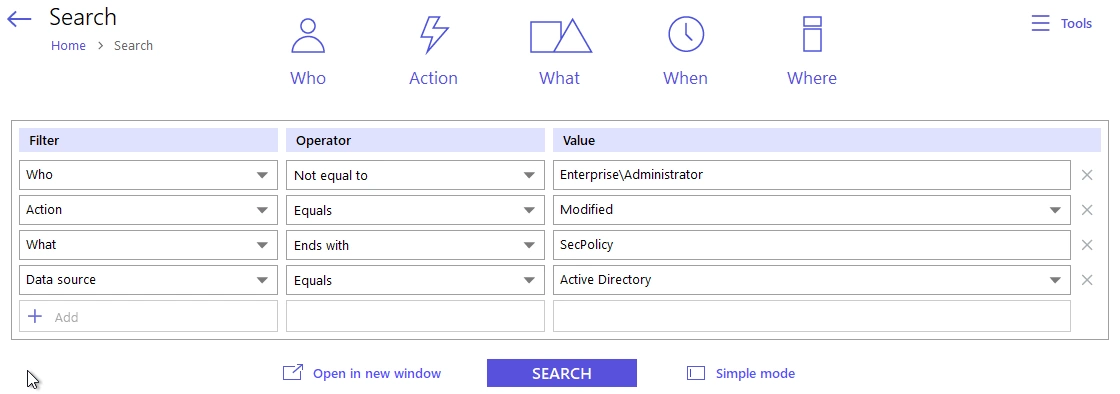
The following image shows the same search filters as they appear in the Search field in Simple mode.
