Licenses
Use the Licenses tab to review the status of your current licenses, update them, and add new licenses. To learn about Netwrix Auditor licenses, see the Netwrix Auditor Licensing FAQs Knowledge Base article.
To update or add a license:
Step 1 – Click Upload License File.
Step 2 – In the dialog that opens, point to a license file received from your sales representatives and click the Open button
Notes for Managed Service Providers
As a Managed Service Provider (MSP), you receive a special MSP license that lets you deploy Netwrix Auditor on several servers with the same license key. In this case the license count is based on total number of users across all managed client environments.
Netwrix calculates MSP billing based on the arithmetic average of the number of licenses used in that month, using the following formula:
(LicensesUsedOnDay1 + LicensesUsedOnDay2 … LicensesUsedOnDay29 + LicensesUsedOnDay30) / 30
To ensure that Netwrix calculates licenses correctly (per heartbeat), perform the following steps.
Step 1 – Create organizational units within audited domains and add there service accounts you want to exclude from license count.
Step 2 – On the computer where Auditor Server resides, navigate to Netwrix Auditor installation folder\Netwrix Auditor\Administrative Console and locate MSP.xml.
Step 3 – In MSP.xml, provide the following:
-
CustomInstanceIdentificator – Identifies a server where Netwrix Auditor Server is installed. It can be any custom name, for example a server name, code name or any other name you use to distinguish one server from another (e.g., ABCServer).
NOTE: Netwrix recommends you to assign a unique identifier for each client. Netwrix stores this information in the Netwrix Partner Portal, which helps you identify each instance when you invoice customers for Netwrix services.
Netwrix gathers the following information about MSP licenses: identifier, license key and license count.
-
ServiceAccount Path – It is a path to OU that contains service accounts. You can add several OUs to MSP.xml, one per line.
For example:
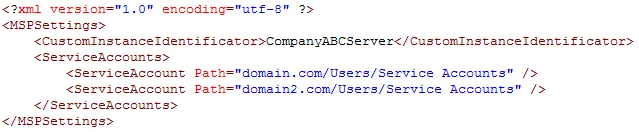
NOTE: MSP.xml file must be formatted in accordance with XML standard. If company name (used as identifier) or service account path includes & (ampersand), " (double quotes) or ' (single quotes), < (less than), > (greater than) symbols, they must be replaced with corresponding HTML entities.
RECOMMENDED: Netwrix recommends avoiding special characters since some web browsers (e.g., Internet Explorer 8) have troubles processing them.
| Symbol | XML entity |
|---|---|
| & e.g., Ally & Sons | & e.g., Ally & Sons |
| " e.g., Domain1\Users"Stars" | " e.g., Domain1\Users"Stars" |
| ' e.g., Domain1\Users\O'Hara | ' e.g., Domain1\Users\O'Hara |
< e.g., Company<1 | < e.g., Company<1 |
> e.g., ID>500 | > e.g., ID>500 |
Step 4 – Navigate to Netwrix Auditor installation folder\Netwrix Auditor\Administrative Console and start Netwrix.CallHome.MSPTool.exe. The tool transfers information on service accounts to Netwrix Auditor. Netwrix Auditor uses this information to exclude service accounts from license count so that it calculates only heartbeat users.
NOTE: You must run Netwrix.CallHome.MSPTool.exe every time you update MSP.xml.
The updated license appears in the MSP portal.