File-Based Repository for Long-Term Archive
Long-Term Archive is a file-based repository for keeping activity records collected by Auditor.
Location
You can locate Long-Term Archive on the same computer as Auditor Server, or on a separate machine — in this
case, ensure that Auditor Server can access the remote machine. By default, Auditor stores the Long-Term Archive
(repository) and working folder on the system drive. Default path to the
Long-Term Archive is %ProgramData%\NetwrixAuditor\Data.
To reduce the impact on the system drive in large and extra-large environments, Netwrix recommends moving Long-Term Archive to another disk. Estimate the required capacity using the recommendations in the next section.
Then prepare the new folder for the repository, target Netwrix Auditor at that folder, and, if necessary, move repository data from the old location to the new one.
To modify the Long-Term Archive location and other settings:
Step 1 – In Auditor client, click Settings > Long-Term Archive; alternatively, if you are viewing the Long-Term Archive widget of the Health Status dashboard, click Open settings.
Step 2 – Click Modify.
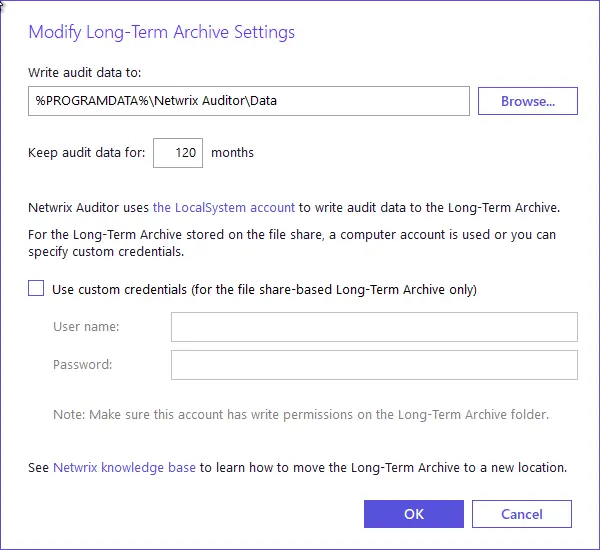
Step 3 – Enter new path or browse for the required folder.
Step 4 – Provide retention settings and access credentials.
Step 5 – To move data from the old repository to the new location, take the steps described in the following Netwrix knowledge base article: How to Move Long-Term Archive to a New Location.
Auditor client will start writing data to the new location right after you complete data moving procedure.
Retention
Default retention period for repository data is 120 months. You can specify the value you need in the Long-Term Archive settings. When the retention period ends, Auditor deletes the data automatically.
If you set the retention period to 0, Auditor applies the following logic:
- Audit data for SQL Server, file servers, Windows Server: Auditor preserves only data from the last 2 data collection sessions.
- User activity data: Auditor preserves only data from the last 7 data collection sessions.
- Other data sources: Auditor preserves only data from the last 4 data collection sessions.
Capacity
To examine the repository capacity and daily growth, use the Long-Term Archive Capacity of the Health Status dashboard.
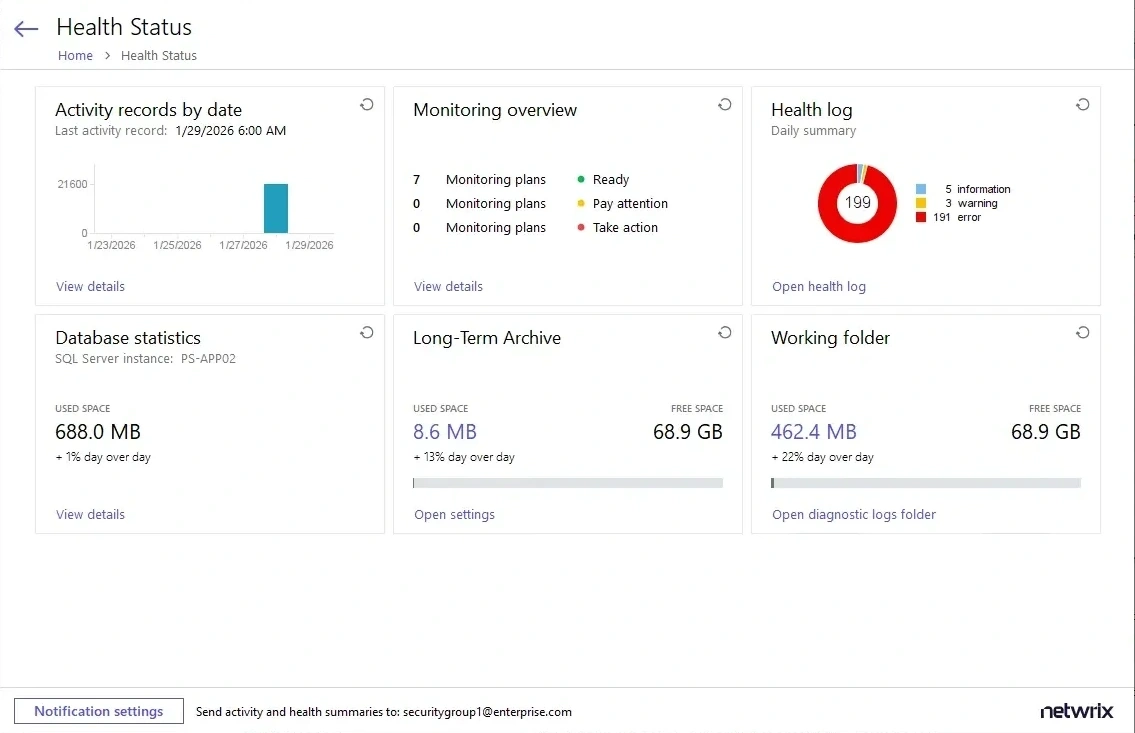
To estimate the amount of activity records collected and stored to the repository day by day, use the Activity Records Statistics widget. Click View details to see how many activity records each data source produced, and how many records Auditor collected and saved to the Long-Term Archive and the database.
Netwrix Auditor will inform you if you are running out of space on a system disk where the repository is stored by default — you will see this information in the Health Status dashboard, in the health summary email, and also in the events in the Netwrix Auditor health log.
When free disk space drops below 3 GB, Auditor stops the services responsible for audit data collection.
Configure Long-Term Archive Account
Auditor uses an account to write data to the Long-Term Archive and upload report subscriptions to shared folders. By default, Auditor uses the LocalSystem account for archives stored locally and the computer account for archives stored on a file share.
If you want to store the Long-term Archive on a file share, you can specify custom account in Settings>Long-Term Archive in Auditor.
Starting with version 9.96, you can use Group Managed Service Account (gMSA) as the account for accessing Long-term Archive.
Grant the custom account the following rights and permissions:
-
Advanced permissions on the folder where the Long-term Archive is stored:
- List folder / read data
- Read attributes
- Read extended attributes
- Create files / write data
- Create folders / append data
- Write attributes
- Write extended attributes
- Delete subfolders and files
- Read permissions
-
On the file shares where report subscriptions are saved:
- Change share permission
- Create files / write data folder permission
Auditor uploads subscriptions created in the Auditor client to file servers under the Long-Term Archive service account as well. See the Subscriptions topic for additional information.
Assign Permissions on the Long-Term Archive Folder
The following procedure applies to Windows Server 2012 R2 and later and may vary slightly depending on your OS.
To assign permissions on the Long-Term Archive folder:
Step 1 – Navigate to a folder where the Long-Term Archive will be stored, right-click it and select Properties.
Step 2 – In the <Folder_name> Properties dialog, select the Security tab and click
Advanced.
Step 3 – In the Advanced Security dialog, select the Permissions tab and click Add.
Step 4 – In the Permission Entry for <Folder_Name> dialog, apply the following settings:
- Specify an account as principal.
- Set Type to "Allow".
- Set the Applies to field to "This folder, subfolders, and files".
- Switch to the Advanced permissions section.
- Check the following permissions:
- List folder / read data
- Read attributes
- Read extended attributes
- Create files / write data
- Create folders / append data
- Write attributes
- Write extended attributes
- Delete subfolders and files
- Read permissions
Assign Change and Create Files/Write Data Permissions to Upload Subscriptions to File Shares
The following procedure applies to Windows Server 2012 R2 and later and may vary slightly depending on your OS.
To assign the Change and Create Files/Write Data permissions to upload subscriptions to file shares:
Step 1 – Navigate to a folder where report subscriptions will be stored, right-click it and select Properties.
Step 2 – In the <Share_Name> Properties dialog, select the Sharing tab and click
Advanced Sharing.
Step 3 – In the Advanced Sharing dialog, click Permissions.
Step 4 – In the Permissions for <Share_Name> dialog, select a principal or add a new, then
check the Allow flag next to Change.
Step 5 – Apply settings and return to the <Share_Name> Properties dialog.
Step 6 – In the <Share_Name> Properties dialog, select the Security tab and click
Advanced.
Step 7 – In the Advanced Security Settings for <Share_Name> dialog, navigate to the
Permissions tab, select a principal and click Edit, or click Add to add a new one.
Step 8 – Apply the following settings to your Permission Entry.
- Specify a Netwrix Auditor user as principal.
- Set Type to "Allow".
- Set the Applies to field to "This folder, subfolders, and files".
- Check Create files / write data in the Advanced permissions section.
Grant users who access report subscriptions read access to these shares. Netwrix recommends you to create a dedicated folder and grant access to the entire Netwrix Auditor Client Users group or any other group assigned the Global reviewer role in Auditor.
System Health
Long-Term Archive is a file-based storage where Auditor saves the collected activity records. By
default, Auditor stores it on the system drive at %PROGRAMDATA%\Netwrix Auditor\Data and keeps
data for 120 months. You may want to modify these settings, for example, move the storage from the
system drive to another location. The Long-Term Archive widget helps you monitor the Long-Term
Archive capacity. The widget displays the current size and daily increase of the Long-Term Archive,
and the remaining free space on the target drive.
To open the Long-Term Archive settings, click the corresponding link. Then you can adjust the settings as necessary. See the Long-Term Archive topic for additional information.